
Hello friends, as you know that Bluetooth not working problem is a common problem in Windows. Sometimes you also face this problem or the Bluetooth icon is not visible on your Windows PC. So in this article, we have brought some solutions for you with the help of which your problem will be solved.
Welcome once again to my channel Tech Gitter. Please subscribe to my channel. Read the full article so that you don’t miss any solution and get the solution to your problem.
Fix Bluetooth with Troubleshoot Settings
If Bluetooth is not showing on your Windows PC, then here is the first solution for you.
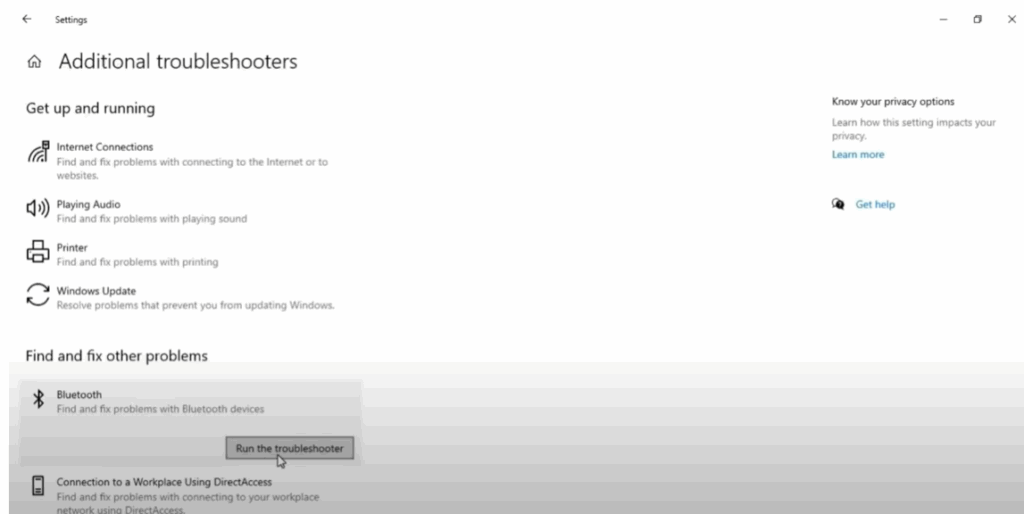
- First of all, go to the menu bar of Windows PC and open troubleshooting settings.
- You will see a screen like this. Click on Additional Troubleshooter.
- Click on Bluetooth option, then click Run the troubleshooter box.
- This will detect any problem related to your Bluetooth.
You will see Bluetooth option showing on the screen. If your problem is still not resolved, move on to the second option.
Add Legacy Hardware to Fix Bluetooth
- Go to your computer’s search bar and search for Device Manager.
- When you open Device Manager, you will see a list of drivers on the screen. But you may see that there is no Bluetooth option.
- Select the name of your PC, then click on Actions at the top and then click Scan for hardware changes.
- This will fix the problem and you will see the Bluetooth option.
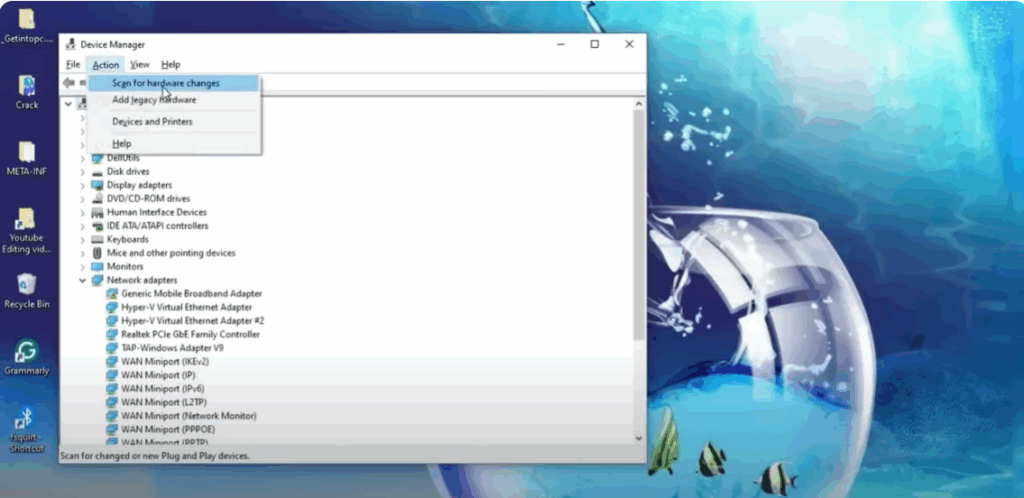
If it doesn’t, click the Action tab again and click Add legacy hardware.
- Click on Next. Here you will see Bluetooth option. Select it.
- If you do not find Bluetooth, select Network Adapter, click Next.
- On the screen, click on Intel, and look for Bluetooth option on the right.
- If not visible, go to Microsoft and click Generic Mobile Broadband Adapter.
- Click Next to install the Bluetooth driver on your computer.
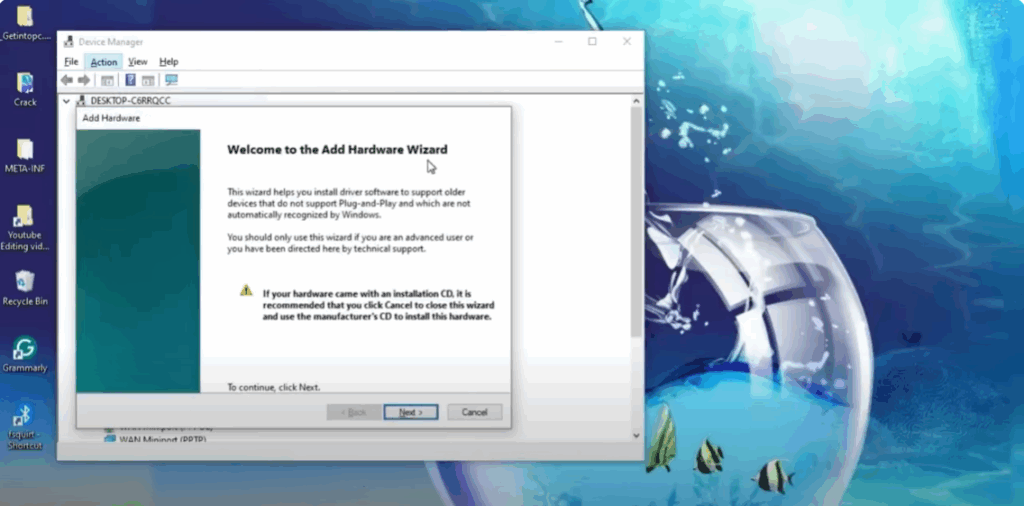
You will need to restart your PC once you install the Bluetooth driver. Now you will see the Bluetooth option.
Fix Bluetooth from Control Panel – Hardware & Sound
- Open your Windows Control Panel by going to the Search Bar.
- Click View by Larger Icons.
- Open Troubleshooting options.
- Click Hardware and Sound option.
- Now click on Bluetooth and then click Next.
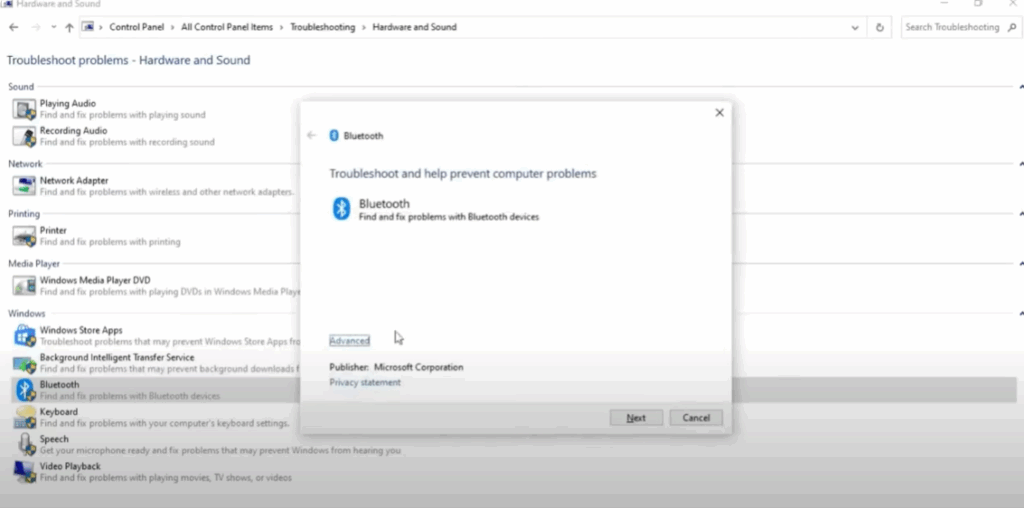
It will find and solve your problem. Wait for a while. You will see detect screen. If your PC doesn’t have Bluetooth, then follow the next step.
Download Intel Bluetooth Driver from Official Website
- Open any web browser to download Intel Bluetooth driver.
- Search for Intel Bluetooth driver for Windows 10 on the search bar.
- Open the first website. Both drivers are available for Windows 10 and 11.
- Choose 64-bit or 32-bit download option as per your system.
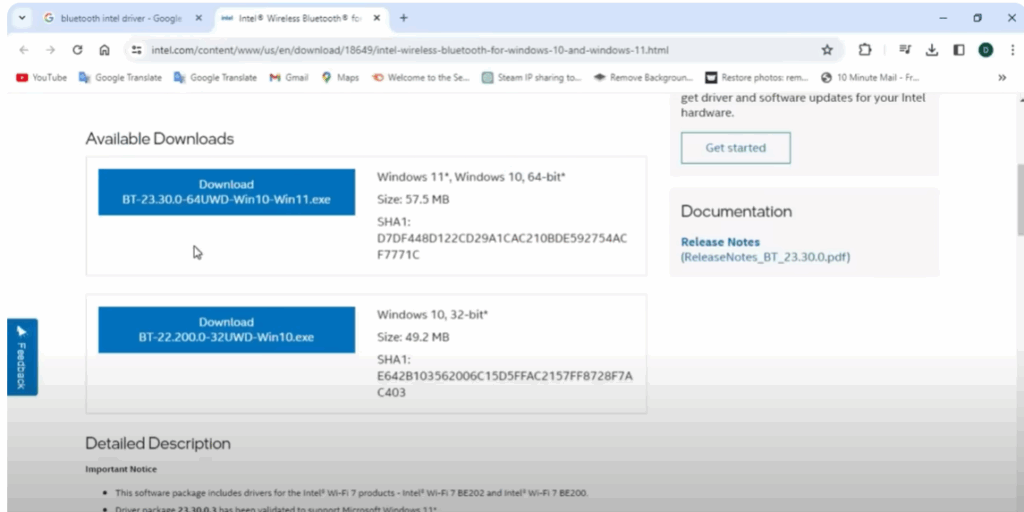
My system is 64-bit, so we’ll choose the 64-bit driver.
- Click Download.
- Click Accept the terms of the license agreement.
- Your driver installation will begin.
- Go to Download Files, double-click on Intel Driver.
- Click Next, Accept Terms, then click Complete.
- Click Install, then click Finish.
Now you have to restart your system. After restarting, go to the search bar and search for Bluetooth. If you see the option, your problem is solved.
Find Bluetooth from File Explorer
- Open your Windows File Explorer.
- Go to Local Disk C, click on Windows.
- Search and open System32 folder.
- Use the search option to find fsquirt.
- You’ll get an option with the Bluetooth logo.
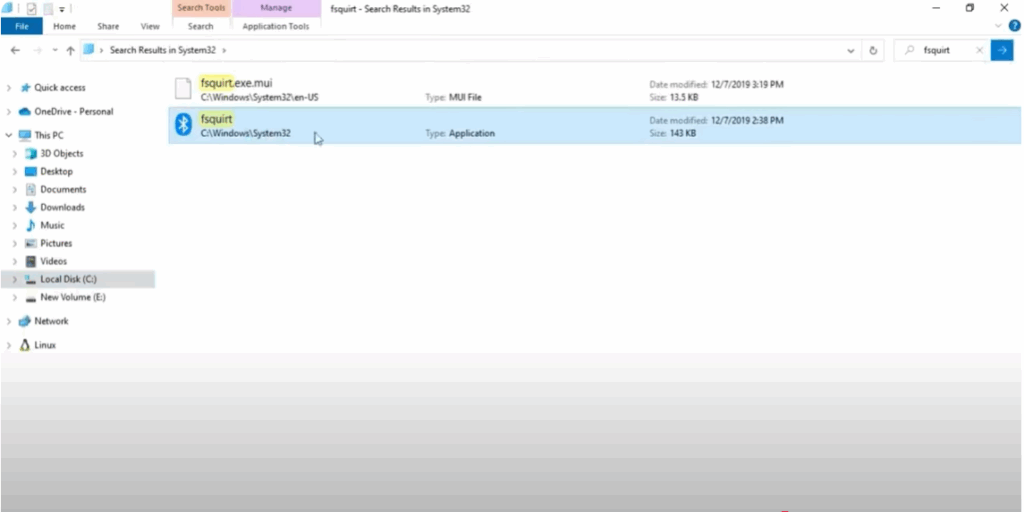
Right-click on it and Send to Desktop. This will create a shortcut you can use to send and receive files. But remember, this won’t work if the Bluetooth hardware or drivers are not working.
Enable Bluetooth Services
- Go to the Search Bar and search for Services.
- Click on any service and press B on the keyboard.
- You will see Bluetooth-related options:
- Bluetooth User Support Service
- Bluetooth Support Service
- Bluetooth Audio Gateway Service
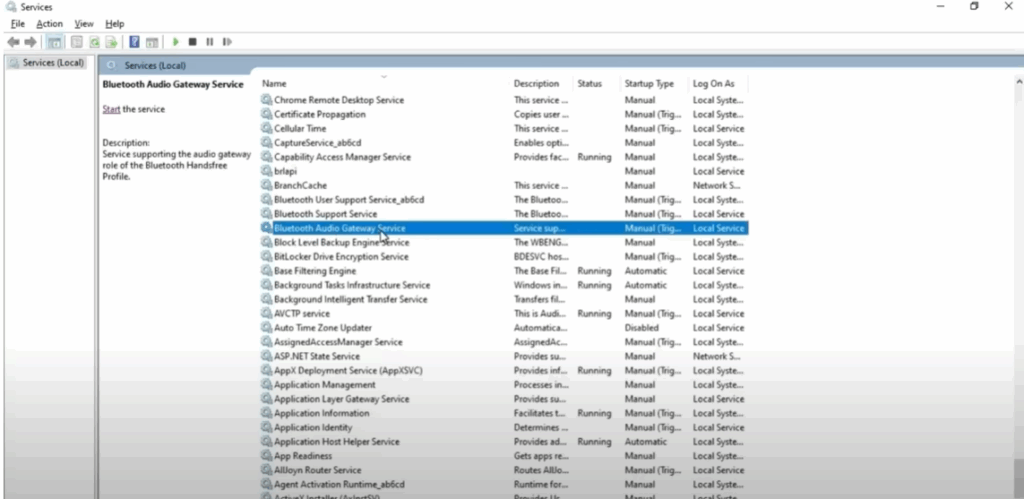
Do the following for each:
- Double-click on the service.
- Choose Automatic.
- If the service status is Stopped, then Start it.
- Click Apply and then OK.
Repeat this for all Bluetooth-related services. After this, restart your system so that Bluetooth service can start.
Conclusion
Hope after trying all these solutions, your problem will be solved. Stay tuned to the channel to see more such articles and don’t forget to like and share. Thank you for reading. Have a good day.






