Getting stuck on the loading screen in Valorant is one of the most annoying issues players face. Instead of jumping straight into matches, the game hangs endlessly, leaving you frustrated and unable to play. This problem often happens due to server glitches, outdated game files, or conflicts with your PC settings—but the good news is, it can usually be fixed quickly. In this beginner-friendly blog, we’ll walk you through easy solutions to fix Valorant when it’s stuck on the loading screen, so you can get back to smooth, uninterrupted gameplay.
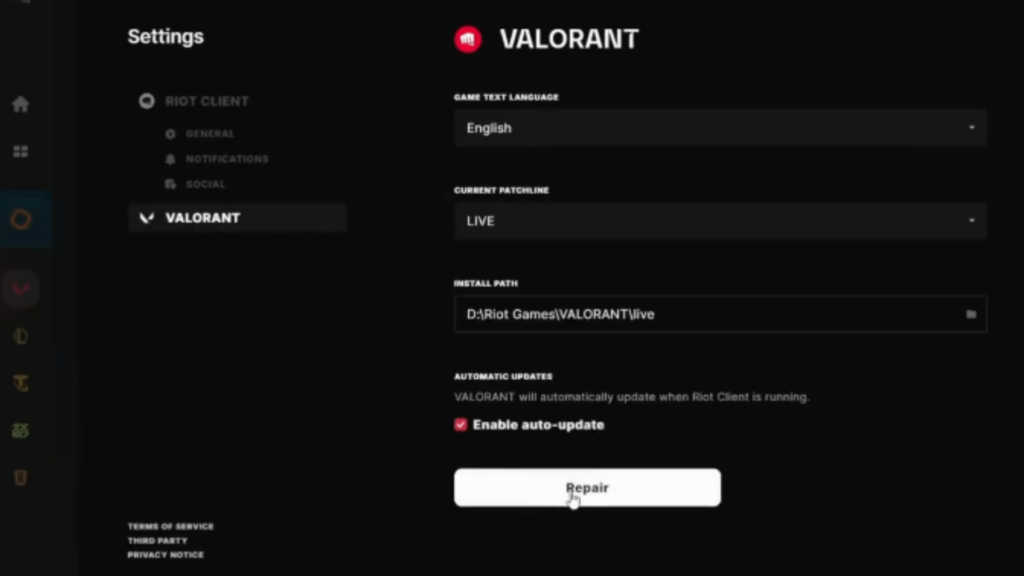
Step 1: Repair Valorant Using Riot Client
First, close Valorant completely.
Now, open the Riot Client. Click on your profile picture at the top right and go to Settings. Select Valorant, then click on Repair.
Wait for the repair process to complete. Once done, restart your PC and check if the issue is fixed.
Step 2: Exit Riot Vanguard
If the problem still continues, close the Riot Client again.
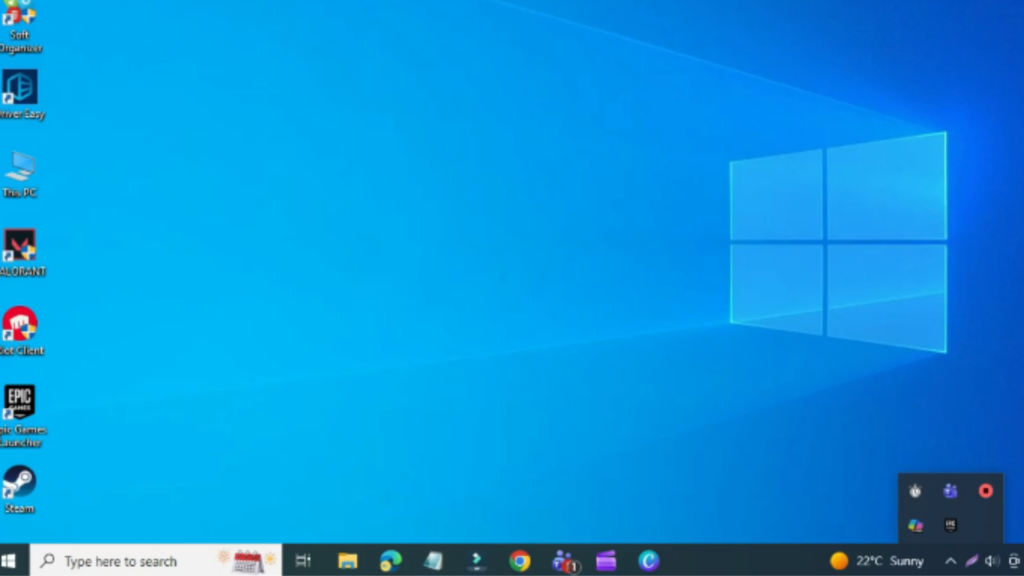
Go to the bottom right system tray, click the arrow, find the Riot Vanguard icon, right click on it, and select Exit Vanguard. Click Yes to confirm.
Step 3: Change Compatibility Settings for Valorant
Next, open the Start menu, search for Valorant, right click on it, and select Open file location.
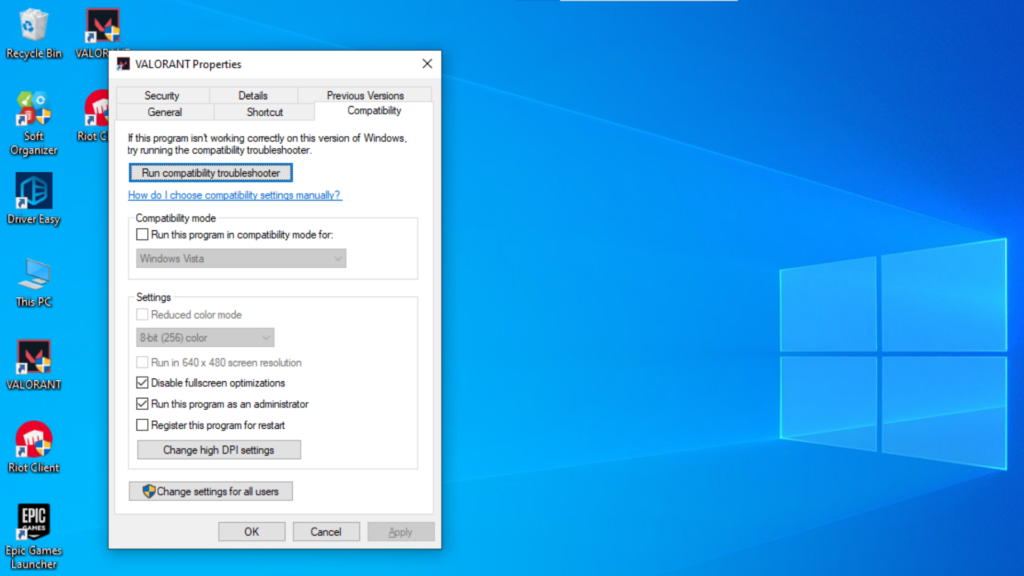
Right click on the Valorant shortcut, choose Properties, and go to the Compatibility tab. Enable Disable full screen optimizations and Run this program as administrator. Then click Apply and OK.
If needed, you can also try enabling these options one at a time to see which one works.
Step 4: Fix Riot Vanguard (VGC) Service
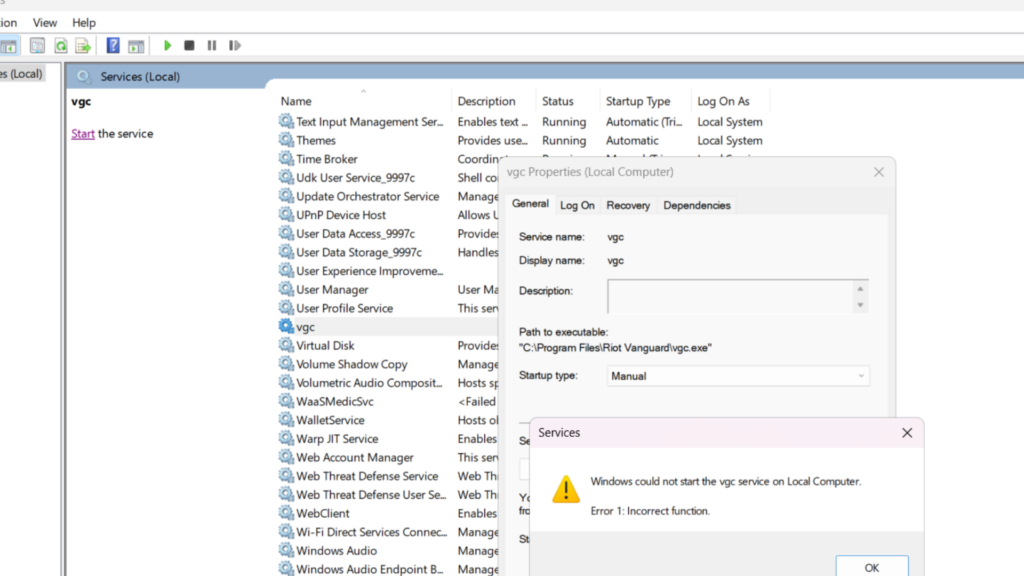
Now press Windows + R, type services.msc, and hit Enter.
Look for VGC, right click on it, and select Properties. Change the Startup type to Automatic, then click Start if the service is stopped. Click Apply and OK.
Step 5: Reset Riot Game Settings
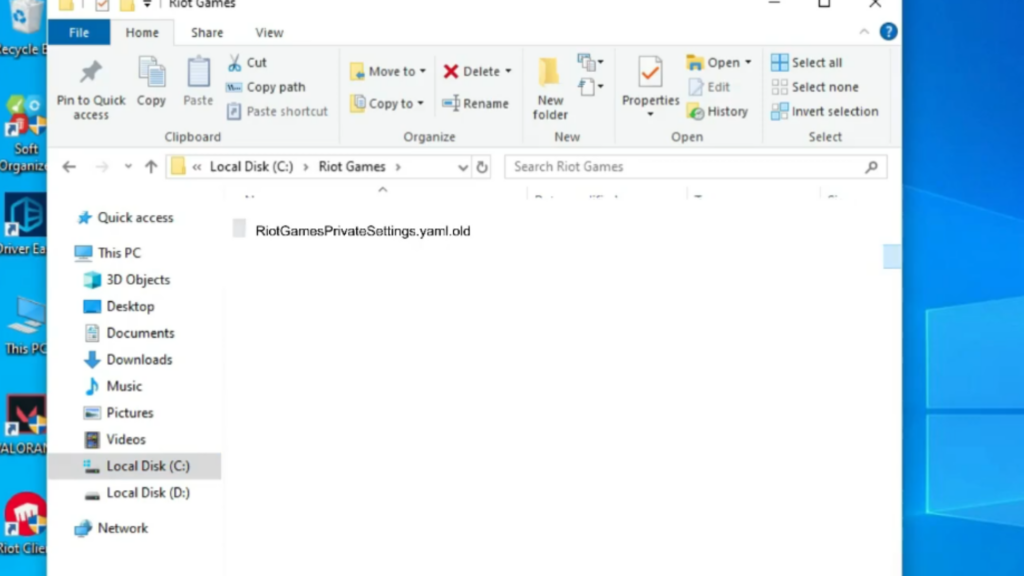
Press Windows + R again and type %localappdata%, then press Enter.
Open the Riot Games folder. Go to Valorant, find Riot Games Private Settings, right click on it, and rename it by adding old at the end. Confirm the change.
After that, restart your PC and test the game.
Step 6: Update Graphics Driver
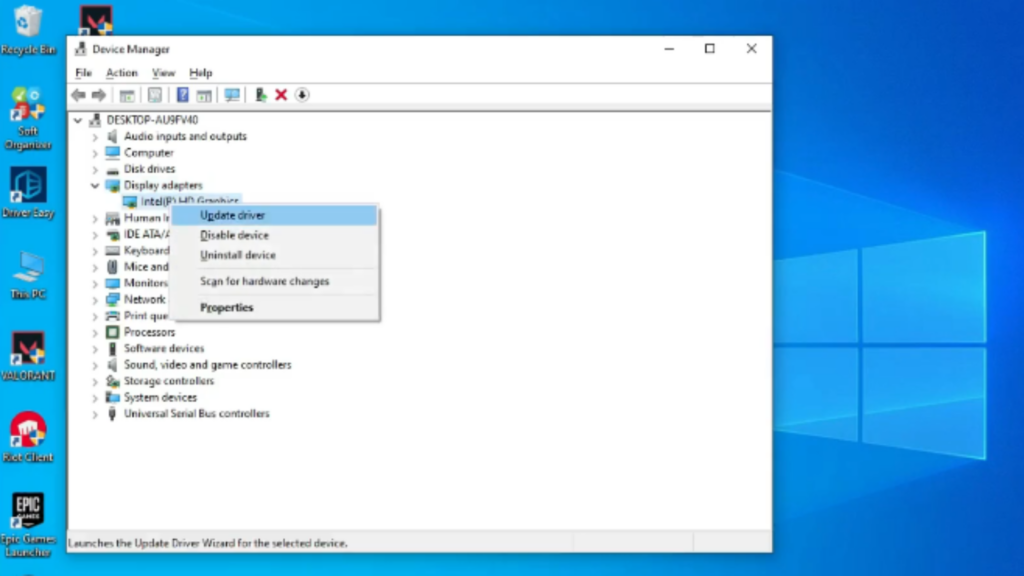
If the issue still isn’t fixed, open Device Manager, expand Display adapters, right click on your graphics card, and select Update driver.
Choose Search automatically for drivers and install any available updates.
Step 7: Set Valorant to High Performance GPU
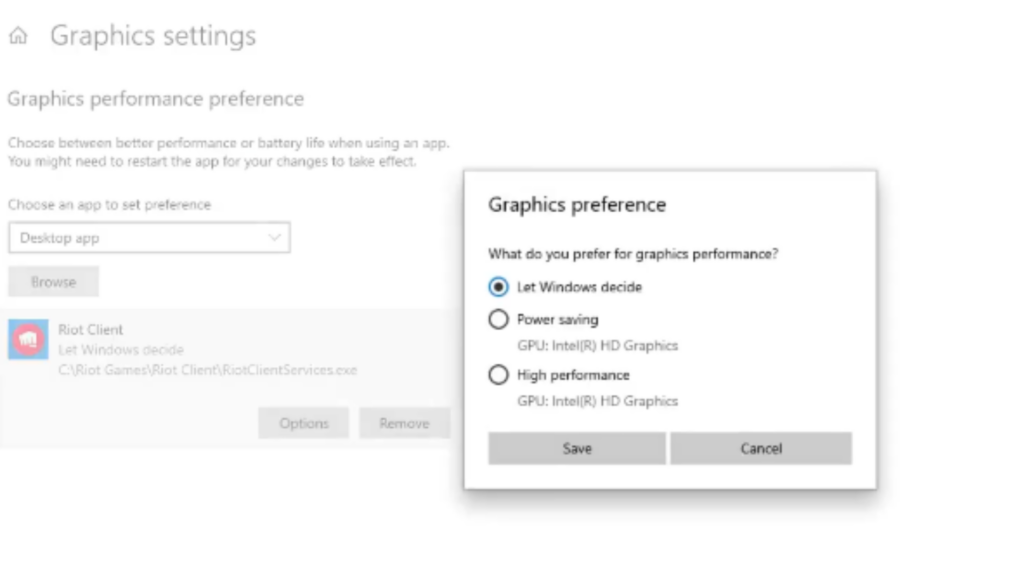
Next, open Graphics settings from the Start menu. Search for Valorant. If it’s not listed, add it manually.
Click on Valorant, select Options, and set the GPU preference to High performance. Save the changes and restart your PC.
Step 8: Reinstall Valorant (Final Solution)
If none of these fixes work, the final solution is to uninstall Valorant completely and then reinstall it.