
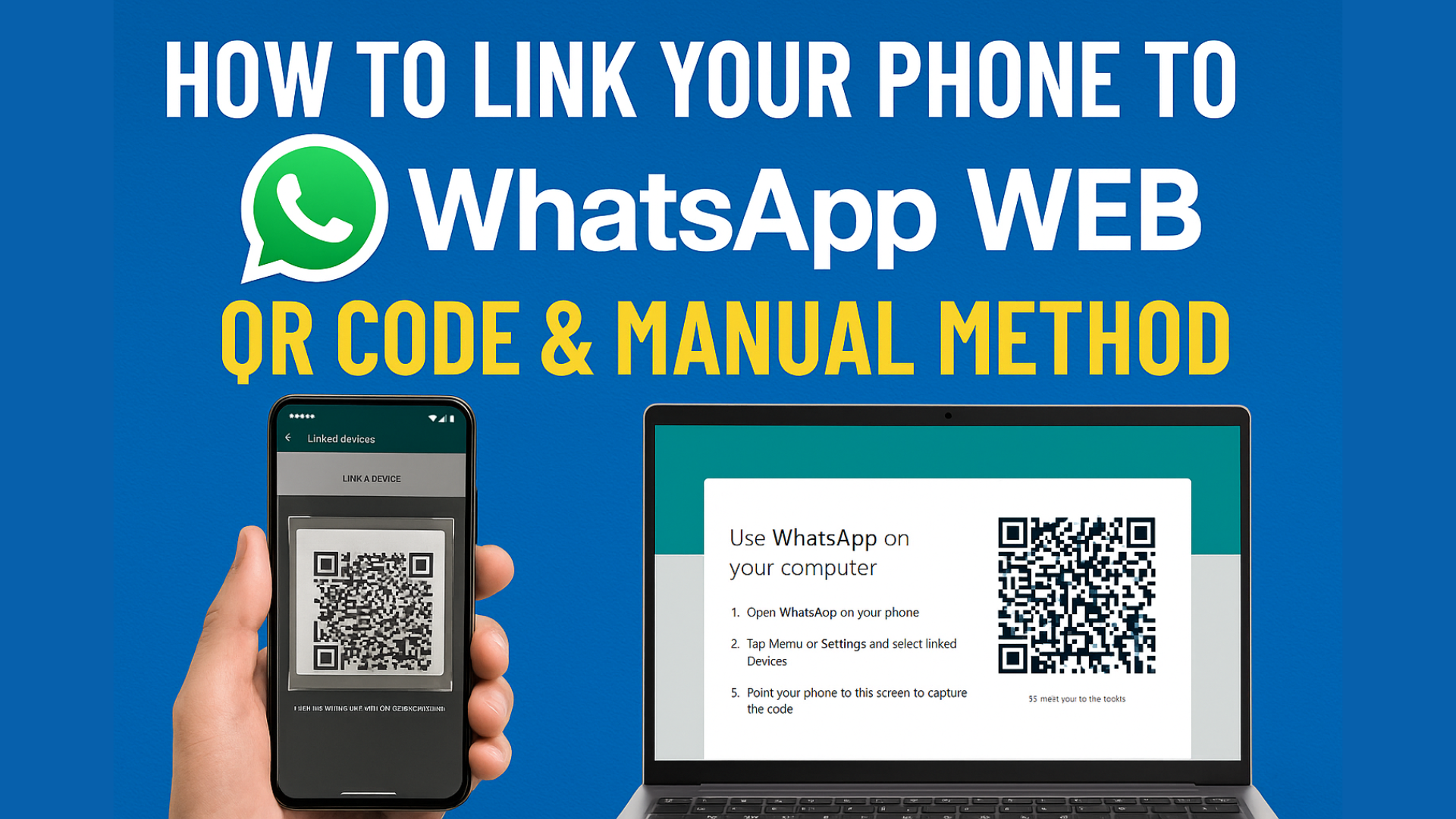
Welcome to Tech Gitter Official! In this guide, you’ll learn how to link your phone to WhatsApp Web using two simple methods — one with a QR code and the other without scanning a QR code. We’ll also walk you through how to enable voice and video calls on WhatsApp using your PC. Let’s dive in!
✅ Method 1: Link WhatsApp Web Using a QR Code
This is the fastest and most popular way to use WhatsApp Web on your laptop or PC.
Step-by-Step Guide:
Step 1: Open WhatsApp Web on Your PC
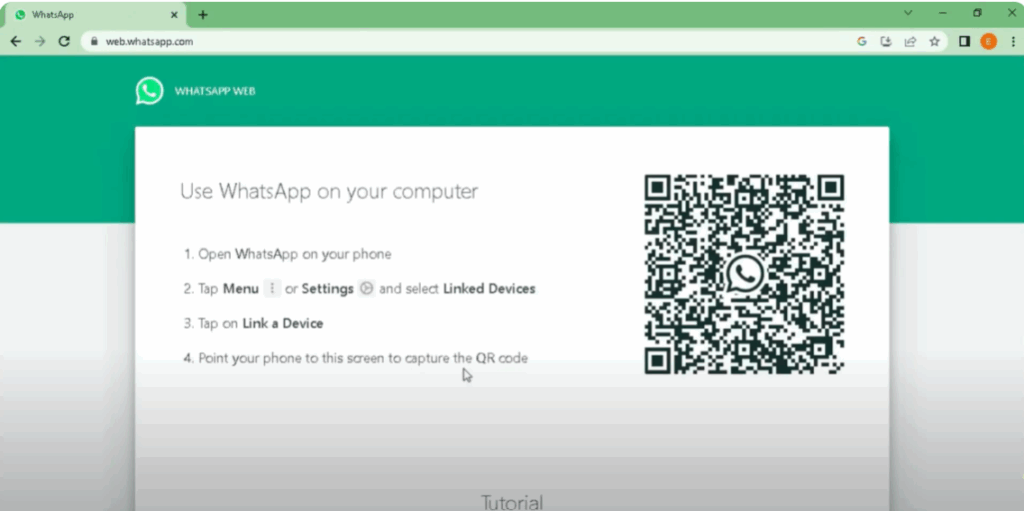
- Open any browser like Chrome, Firefox, or Edge.
- Go to: https://web.whatsapp.com
- You’ll see a QR code displayed on your screen.
Step 2: Open WhatsApp on Your Phone
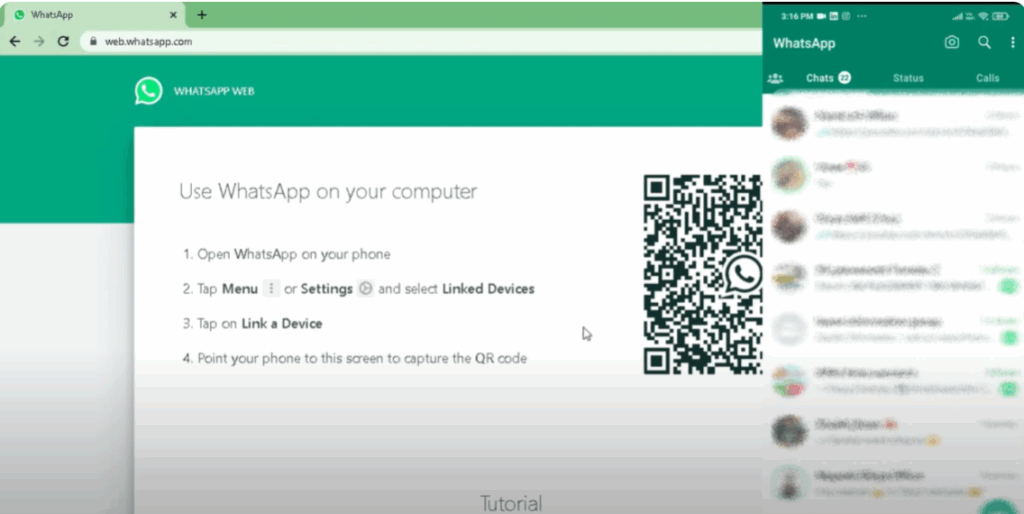
- Unlock your Android or iPhone.
- Open the WhatsApp app.
Step 3: Go to Linked Devices
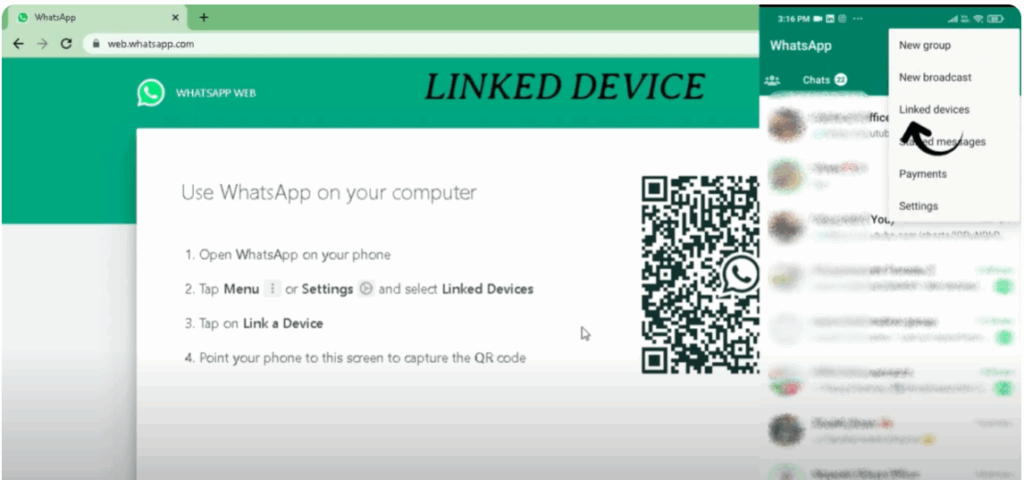
- For Android: Tap the three dots at the top right.
- For iPhone: Go to Settings.
- Select Linked Devices.
Step 4: Tap ‘Link a Device’
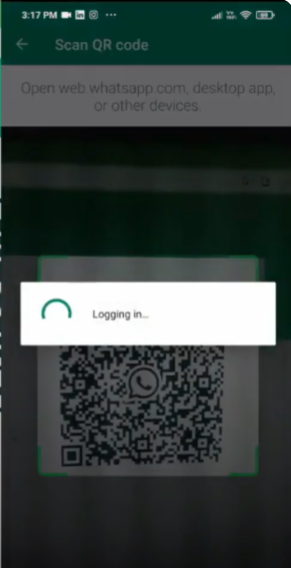
- Tap the Link a Device button.
- Your phone’s camera will now activate.
Step 5: Scan the QR Code
- Point your phone’s camera at the QR code on your computer screen.
- Once scanned, your WhatsApp chats will open instantly on the browser.
🎉 Done!
You are now connected to WhatsApp Web. You can send and receive messages, view media, and manage groups — all from your computer!
✅ Method 2: Link Without QR Code (Phone Number Method)
Don’t want to use a QR code? Here’s a hassle-free way using just your phone number.
Steps:
1. Open WhatsApp Web
- Go to https://web.whatsapp.com on your browser.
2. Choose ‘Link with Phone Number’
- On the QR screen, click on the “Link with phone number” option.
3. Enter Your Mobile Number
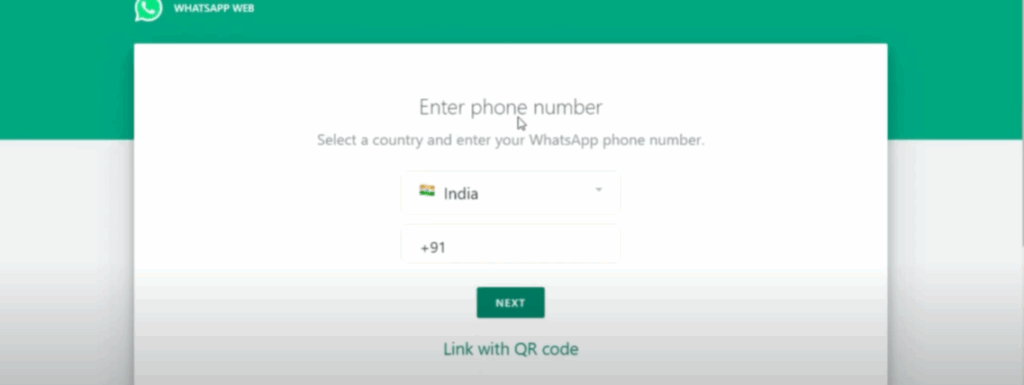
- Select your country code.
- Enter your full WhatsApp-registered mobile number.
- Click Next.
4. Receive a WhatsApp Message
- You’ll get a message on your phone from WhatsApp with a secure link.
5. Open the Message and Click the Link
- Tap the link in the WhatsApp message.
- You’ll be asked to enter a code that is shown on your PC screen.
6. Enter the Code on Your Phone
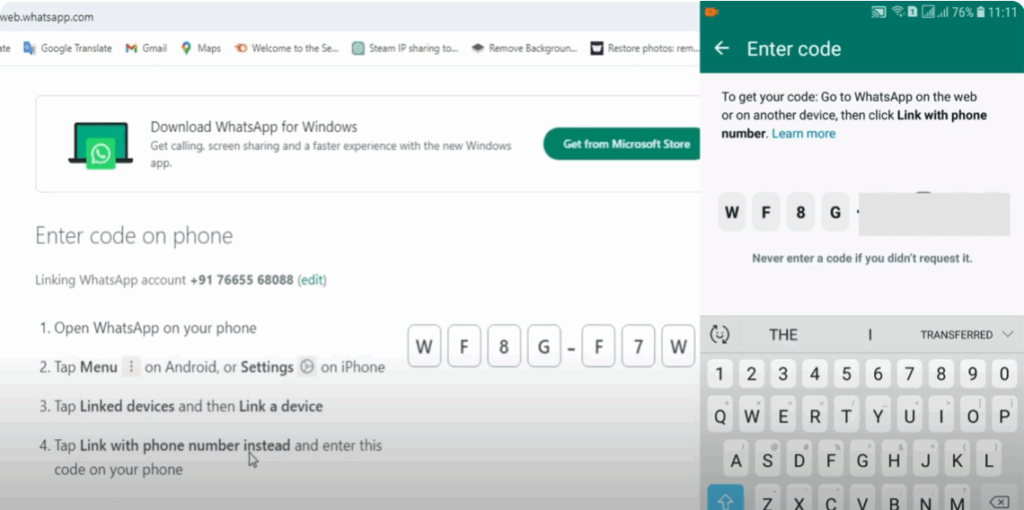
- Enter the verification code.
- Tap Confirm.
🎉 Success!
Your WhatsApp account will now open on your PC — without scanning any QR code.
🔊 How to Enable Voice and Video Calls on WhatsApp Web
By default, WhatsApp Web in a browser doesn’t support calling features. But there’s a solution — using the WhatsApp Desktop App!
Follow These Steps:
Step 1: Download WhatsApp Desktop App
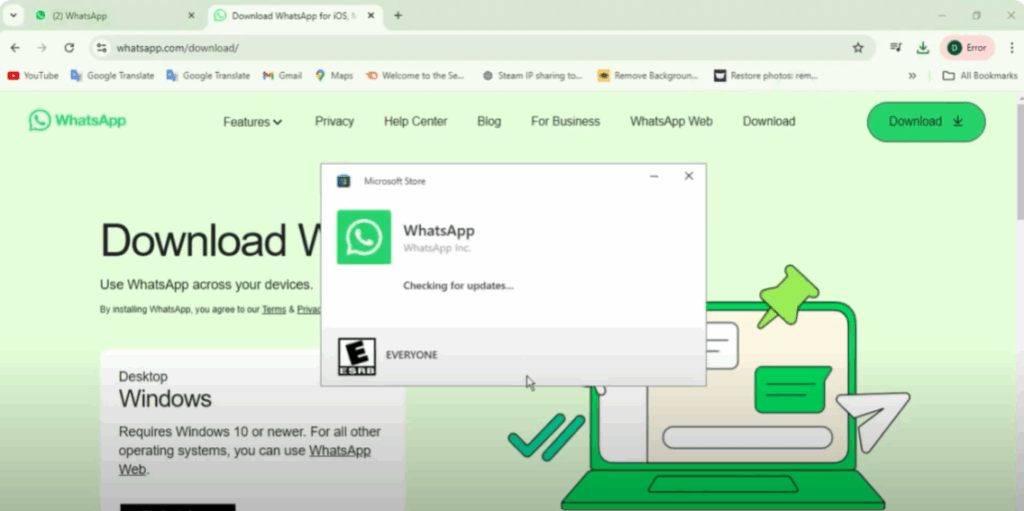
- Visit: https://www.whatsapp.com/download
- Click on Download for Windows/Mac.
- Once downloaded, install the app by following the on-screen instructions.
Step 2: Link Your Phone Again
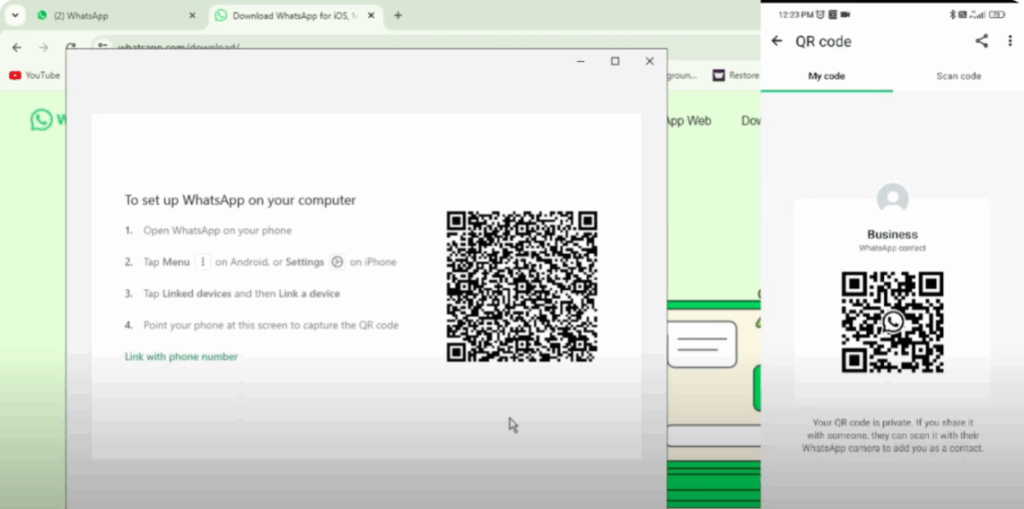
- Open the WhatsApp desktop app.
- A new QR code will appear.
- On your phone, go to:
- WhatsApp > Linked Devices > Link a Device
- Scan the QR code using your phone.
Step 3: Start Voice or Video Calls
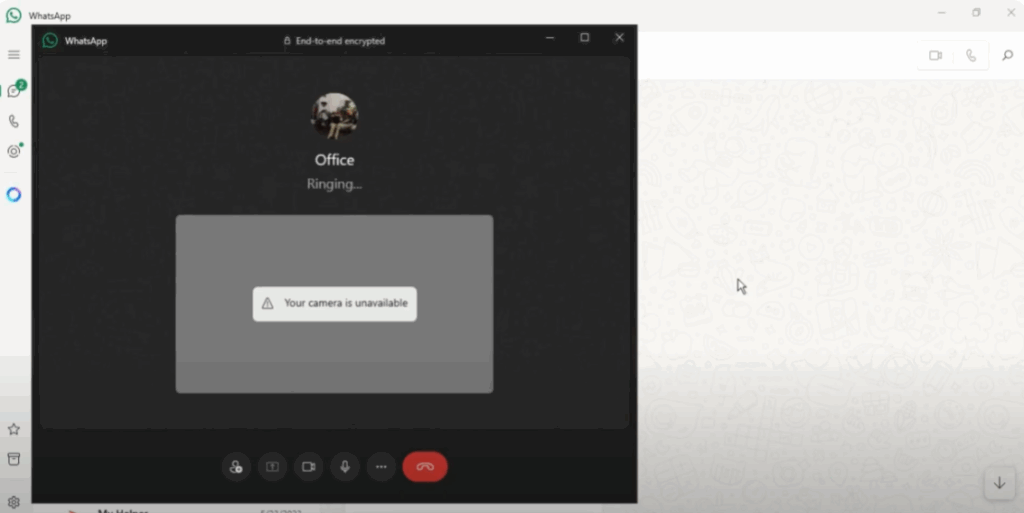
- Open any chat on the desktop app.
- In the top right corner, you’ll now see:
- 📞 Voice Call icon
- 🎥 Video Call icon
- Click on your preferred option.
During the Call, You Can:
- Mute/Unmute your mic
- Enable/Disable your webcam
- End the call instantly
This feature is great for remote work, online meetings, or staying in touch with loved ones right from your computer.
Conclusion
Now you know two easy methods to link your phone to WhatsApp Web — with or without a QR code — and how to enable voice/video calls using the desktop app. Whether you’re working, studying, or just chatting, this guide makes it easy to stay connected.
👍 Like What You Learned?
If this tutorial helped you:
- Like this article
- Share it with your friends
- Subscribe to Tech Gitter Official for more useful tech guides!
Thanks for reading — see you in the next tutorial!






