

Welcome back to Tech Gitter Official!
Are you stuck on a black screen in Windows 11—with or without that annoying blinking cursor? Don’t worry, we’ve got quick and easy fixes that can bring your PC back to life in minutes.
This common issue usually occurs due to:
- Display driver crashes
- Startup glitches
- Broken Explorer processes
In this article, you’ll learn three fast solutions that can resolve the black screen problem and get your desktop running again.
✅ Fix 1: If You Can See the Mouse Cursor
If your screen is black but the mouse cursor is visible, try this method:
- Press Ctrl + Shift + Esc to open Task Manager.
- Click File > Run new task.
- Type
explorer.exeand hit Enter. - Your desktop should now reappear!
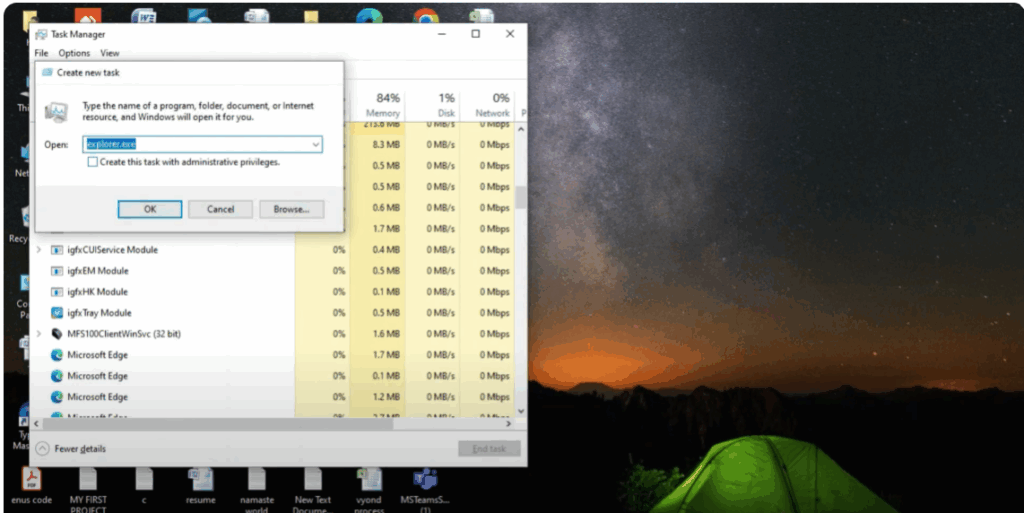
This command restarts the Windows Explorer process, which is responsible for the taskbar, desktop, and file manager.
🔧 Fix 2: If You Can’t See the Cursor or Nothing Responds
No cursor? Screen completely frozen? Try a force-restart sequence:
- Press and hold the Power button to force a shutdown.
- Repeat this process three times (force shutdown → power on → force shutdown).
- On the third startup, Windows Recovery Environment will load automatically.
- Navigate to:
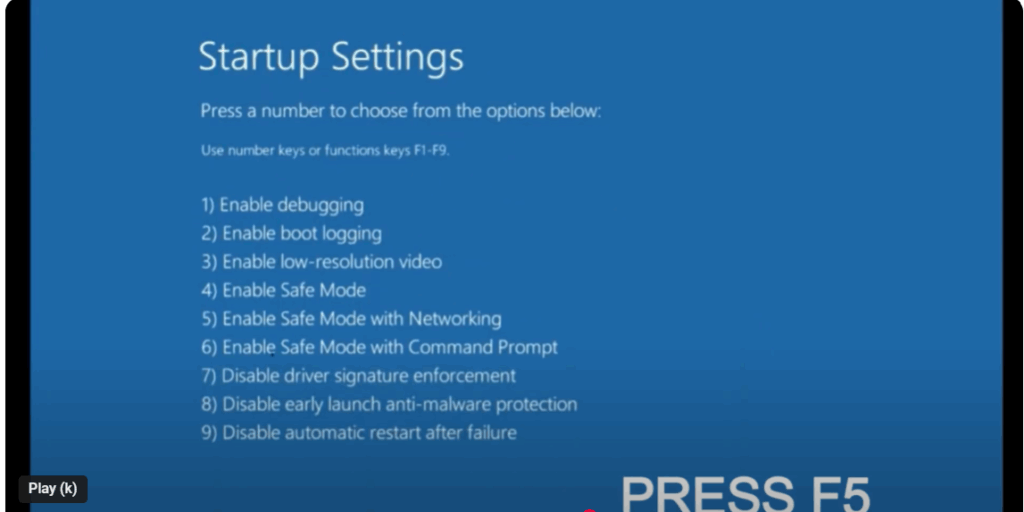
Advanced Options > Startup Settings > Press F5 to boot into Safe Mode with Networking.
Now uninstall the faulty display driver:
- Press Win + X and select Device Manager.
- Expand Display Adapters.
- Right-click your GPU and choose Uninstall device.
- Restart your PC.
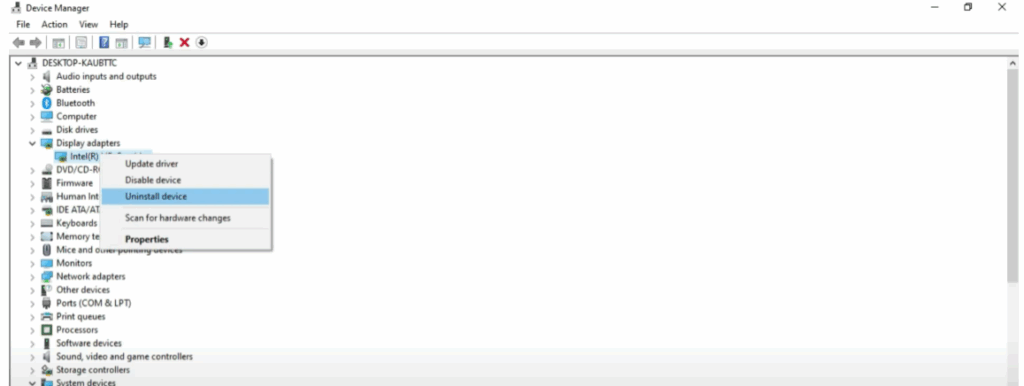
Windows will automatically reinstall a fresh display driver, fixing most black screen issues.
🔄 90% of users report this method works like magic!
🛠️ Fix 3: Use System Restore (Last Resort)
If nothing else works, try using System Restore to roll back your PC to a working state.
- In Safe Mode, open the Start Menu.
- Search for and select System Restore.
- Choose a restore point before the black screen issue began.
- Let Windows repair itself and reboot.
🎉 Wrapping Up
Got your screen back? Great!
✅ Be sure to:
- Like this article if it helped you
- Comment which fix worked for you
- Subscribe to Tech Getter Official for more life-saving PC tips!
Thanks for reading—good luck and happy computing!






