
If you’re frustrated with Yahoo hijacking your Chrome search engine, you’re not alone. This issue happens when your browser’s settings are altered—often by malicious extensions or unwanted software—causing Yahoo to replace Google as your default search engine. In this guide, we’ll walk you step-by-step through fixing the problem, restoring your preferred search engine, and preventing it from happening again.
Step 1: Remove Suspicious Extensions from Chrome
- Open Google Chrome.
- Click the three dots menu (top-right corner) and select Settings.
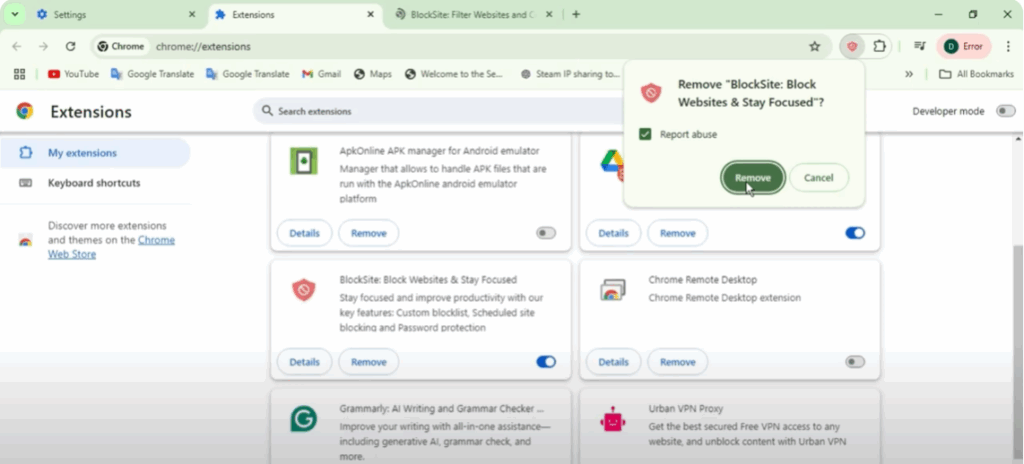
- In the left sidebar, click Extensions.
- Review all installed extensions carefully.
- If you see anything suspicious or unfamiliar—such as “Yahoo Search” or extensions you didn’t install—disable them by toggling the switch.
- To completely remove the extension, click Remove.
- If it’s a malicious extension you didn’t install, report it as Abuse to help prevent future attacks.
Step 2: Use Chrome’s Cleanup Tool
- In Settings, scroll down and click Advanced.
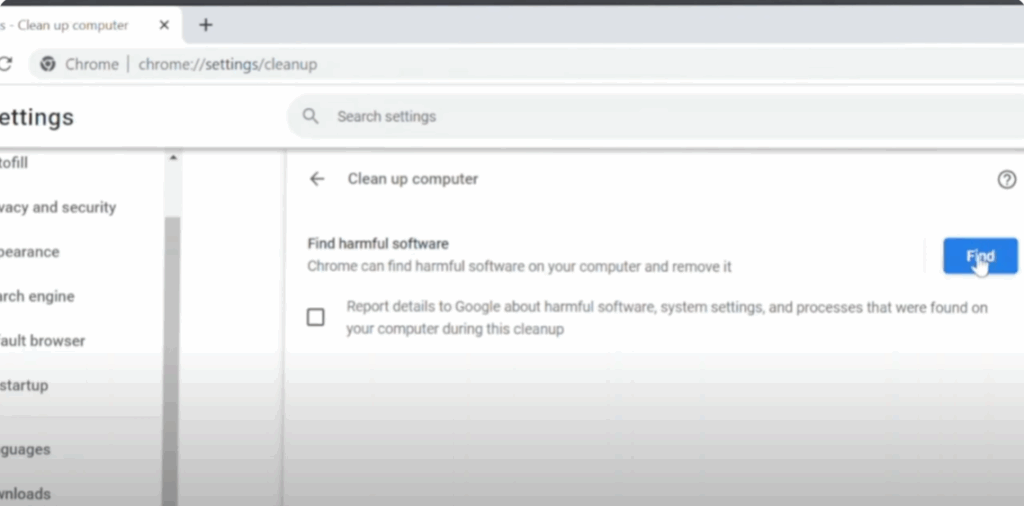
- Under Reset and clean up, click Clean up computer.
- Click Find to let Chrome scan for harmful software.
- (Optional) You can tick the box to share details with Google, though this isn’t mandatory.
- Wait for the scan to finish—this may take 10 minutes or more.
- Follow on-screen instructions if harmful software is detected.
Step 3: Reset Chrome to Default Settings
If no harmful software is found, the issue might be with altered settings.
- Go back to Reset and clean up in Chrome settings.
- Select Restore settings to their original defaults.
- Confirm by clicking Reset settings.
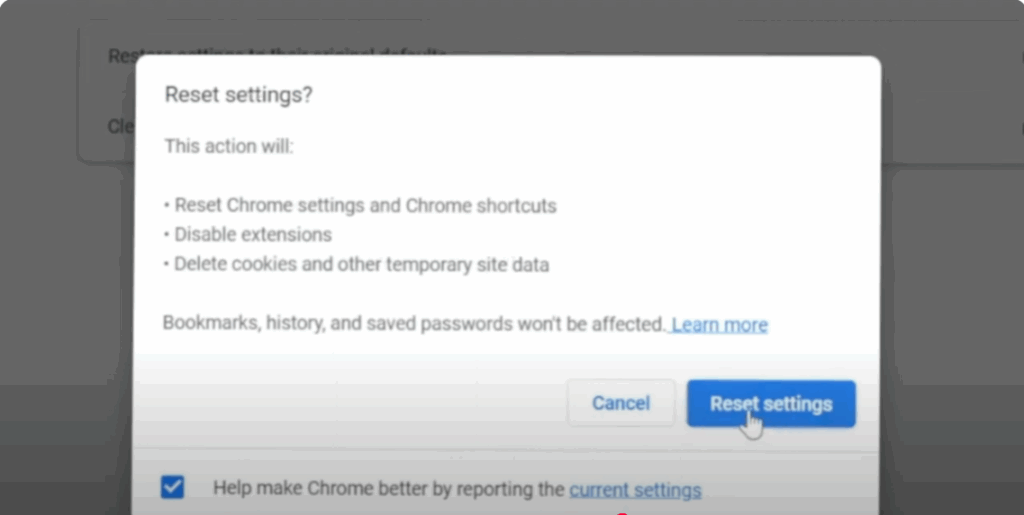
This will disable all extensions and clear temporary data, but it won’t delete bookmarks, history, or saved passwords.
Step 4: Scan Your Computer for Viruses
- Open the Windows Start menu and type
security. - Click Windows Security from the results.
- Go to Virus & threat protection.
- Click Scan options and select Full scan.
- Click Scan now.
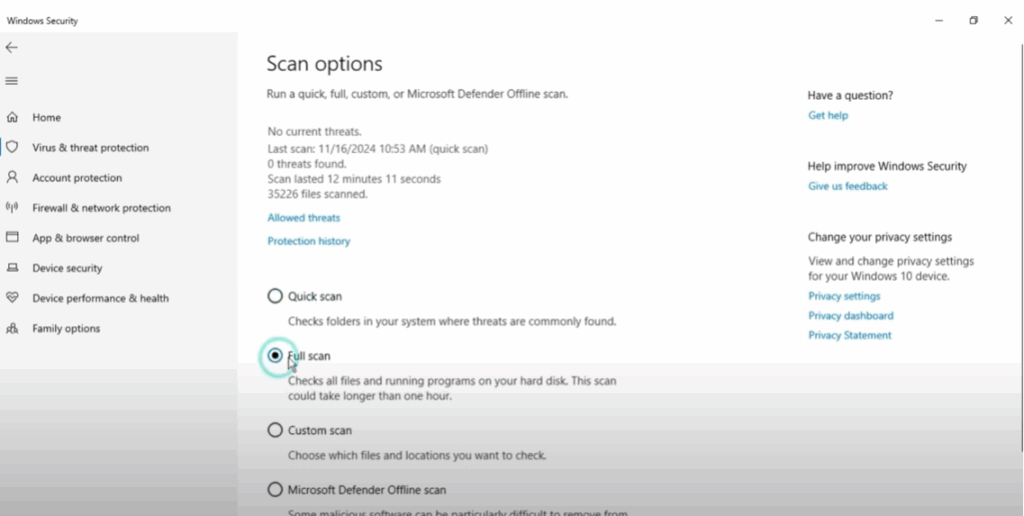
A full scan will check every file on your PC for malware or viruses, which may be the root cause of the browser hijack. If threats are detected, follow Windows Security’s recommended actions.
Final Thoughts
By removing suspicious extensions, cleaning up Chrome, resetting settings, and running a full virus scan, you can eliminate Yahoo Search hijacking and restore your browser to normal. Keeping your extensions minimal and avoiding downloads from unknown sources will help prevent this from happening again.
If you found this guide helpful, share it with others and consider subscribing to our tech tutorials for more tips. Stay safe, and happy browsing!






