
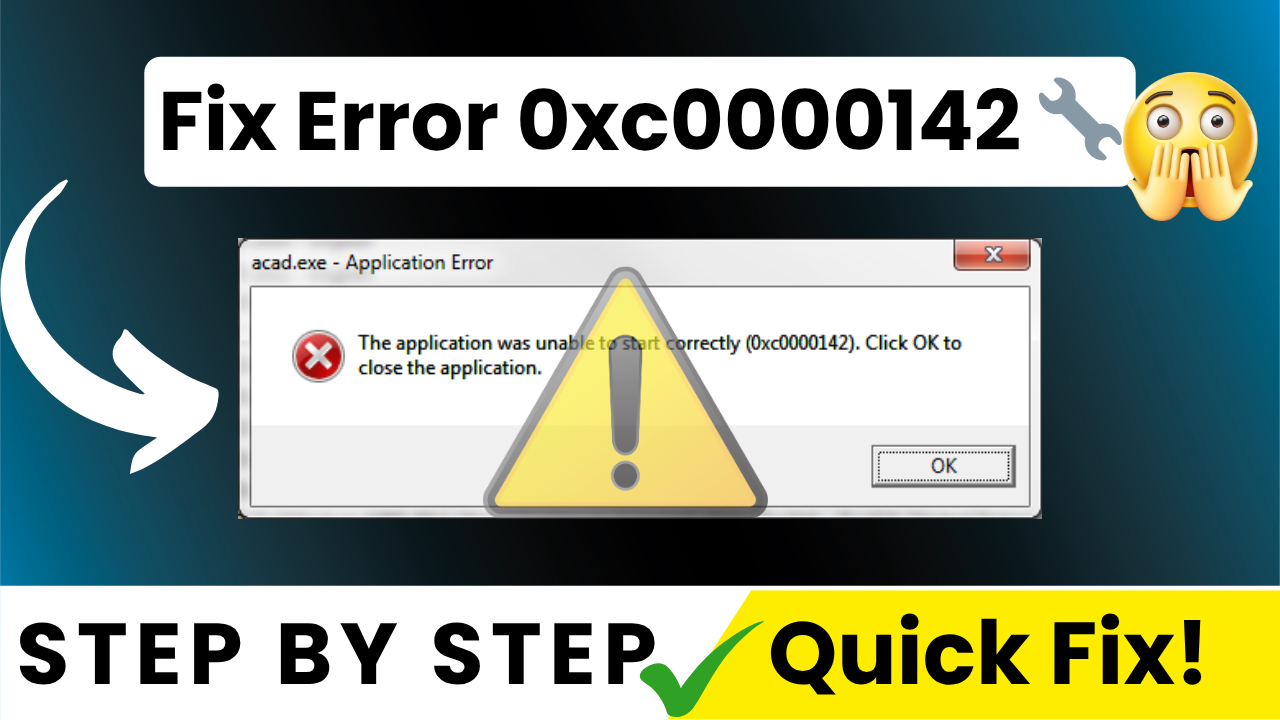
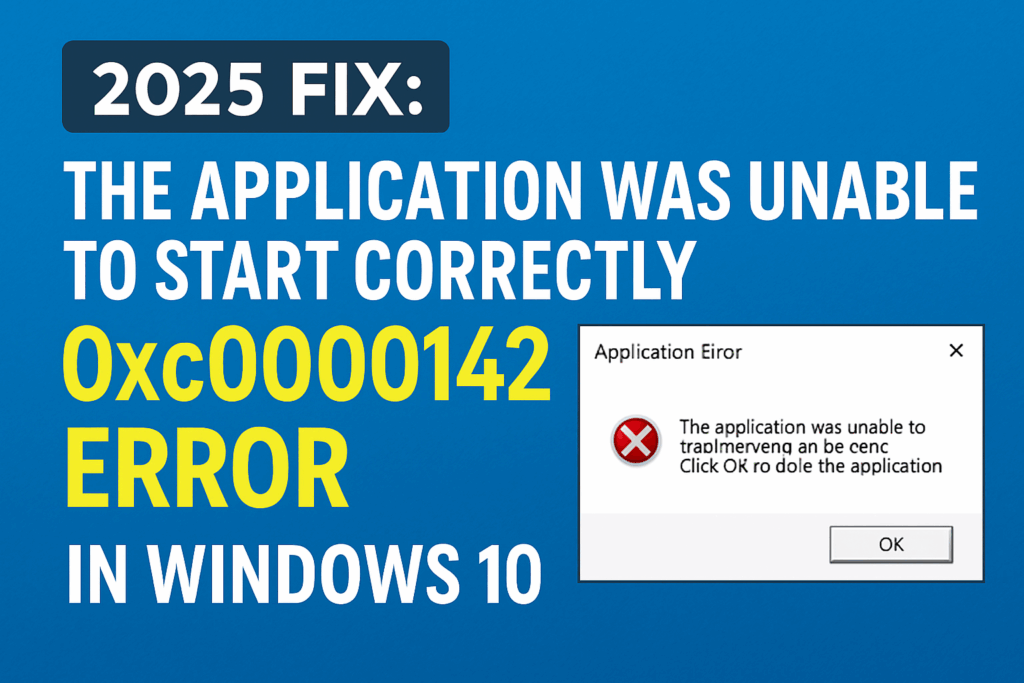
If you’ve run into the dreaded Windows 10 error “The application was unable to start correctly (0xc0000142)”, don’t panic — it’s a common issue with multiple easy fixes. This error often occurs when a program can’t access necessary system files, due to permission issues, compatibility problems, or corrupted DLL registrations.
Below, we’ll walk you through four proven methods to resolve it step-by-step.
Method 1: Run the Application as Administrator
Sometimes the application simply needs elevated permissions to launch.
Steps:
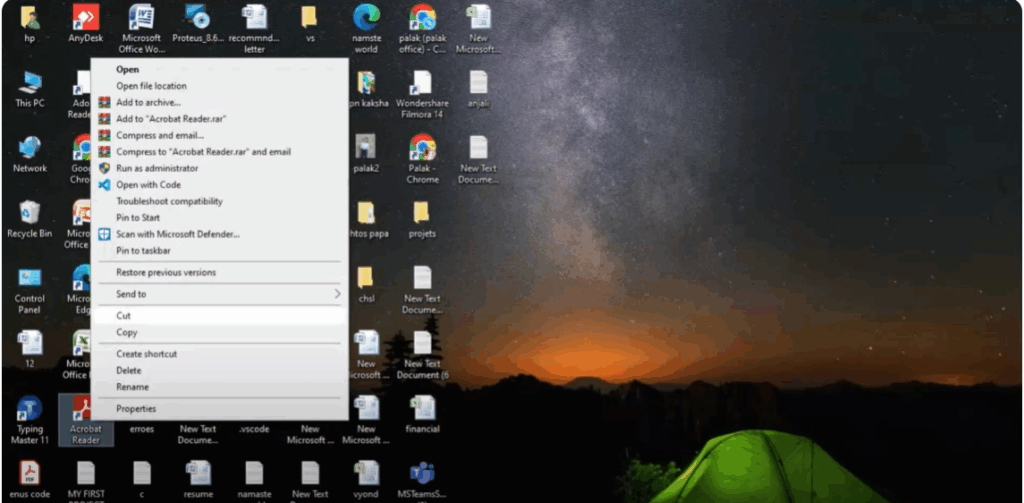
- Right-click on the application’s shortcut or executable file.
- Select Run as administrator.
- Confirm any prompts and see if the program launches without the error.
If that doesn’t solve it, move to Method 2.
Method 2: Adjust Compatibility Settings
Running the application in a compatibility mode can help if it was designed for an older version of Windows.
Steps:
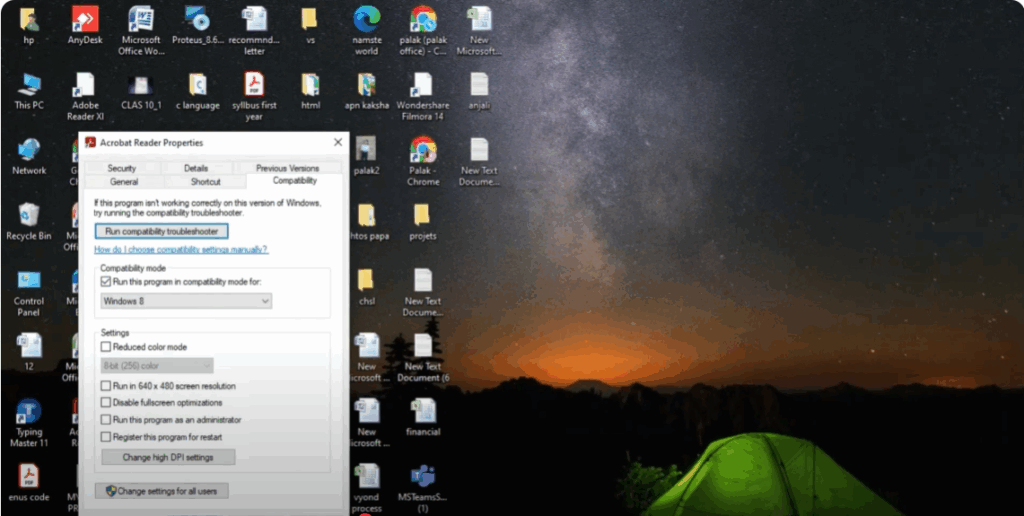
- Right-click the application and choose Properties.
- Go to the Compatibility tab.
- Check Run this program in compatibility mode for: and select Windows 8.
- Click Apply, then OK.
- Try launching the application again.
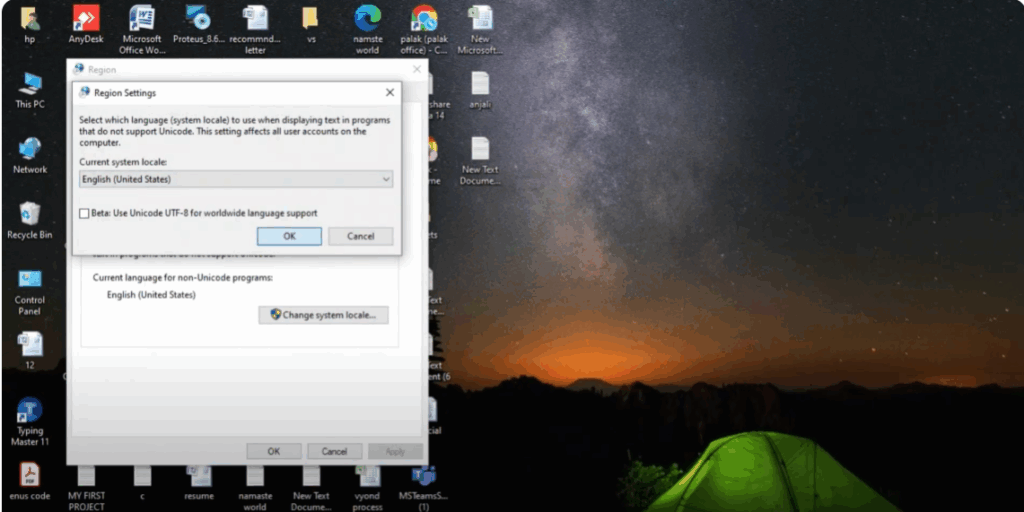
Method 3: Change Your System Locale
This error can sometimes be caused by a non-English system locale setting. Switching it to English (United States) often resolves the problem.
Steps:
- Press Windows + R, type: nginxCopyEdit
control international.cpland press Enter. - Go to the Administrative tab.
- Click Change system locale.
- Select English (United States).
- Click OK and restart your PC.
Method 4: Re-register DLL Files
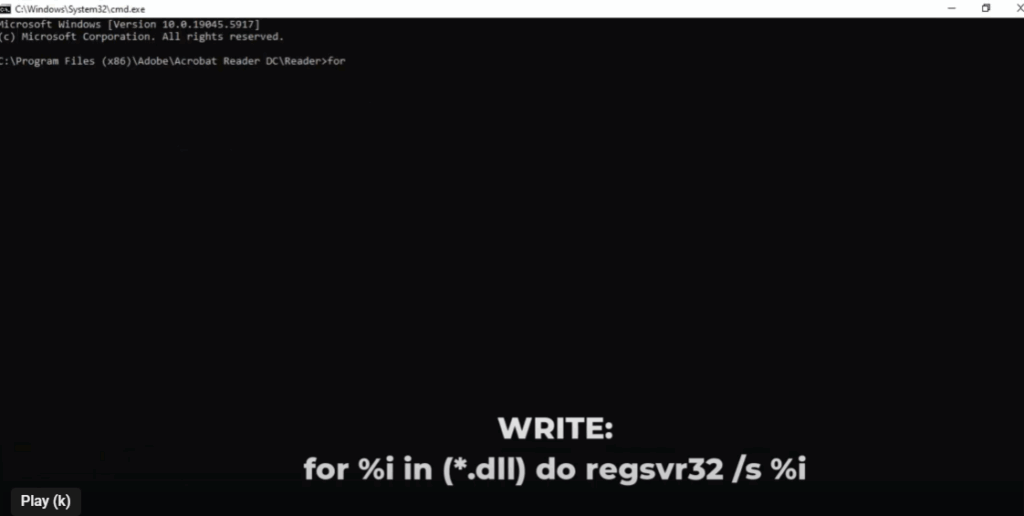
Corrupted or unregistered DLL files can prevent applications from launching. Re-registering them may fix the issue.
Steps:
- Right-click the application and choose Open file location.
- In the file explorer address bar, type cmd and press Enter to open Command Prompt in that location.
- Type the following command and press Enter: perlCopyEdit
for %i in (*.dll) do regsvr32 /s %i - Restart your PC and try opening the application again.
✅ Conclusion
One of these methods should resolve the 0xc0000142 error in Windows 10. Start with running the app as administrator, then work your way through the other solutions if needed.
💬 If a specific method worked for you, share it in the comments to help others.
📌 Don’t forget to like, subscribe, and turn on notifications for more Windows troubleshooting tips.






