
Setting up an ID.me account and linking it to the IRS website is a quick and straightforward process. This guide will walk you through each step so you can securely access your IRS account in just a few minutes.
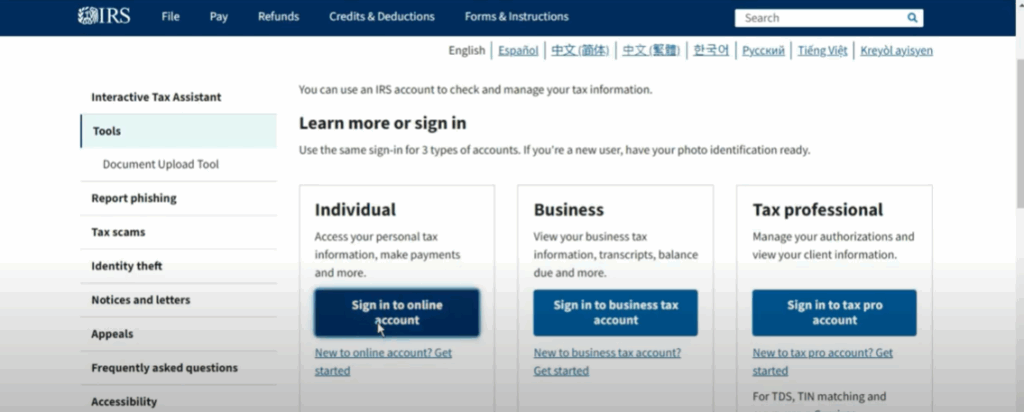
Step 1: Access the IRS Website
Start by visiting the official IRS website. Click on the “Sign into Your Account” option. Here, you’ll see sign-in options for individuals, businesses, and tax professionals. In this example, we’ll proceed with the individuals option.
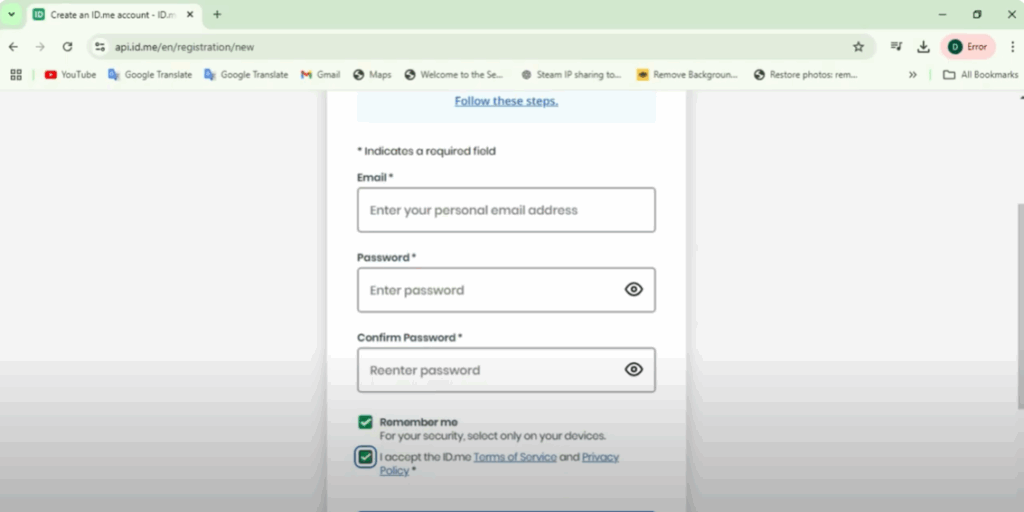
Step 2: Create Your ID.me Account
On the sign-in page, select “Create a New Account.”
- Enter your email address and create a password.
- ID.me will send a confirmation email to your inbox.
- Click the link in the email to verify your email address.
Step 3: Secure Your Account
- Choose Text Message or Phone Call to receive a confirmation code.
- Enter your phone number and click Continue.
- Enter the six-digit code sent to your device, then click Continue.
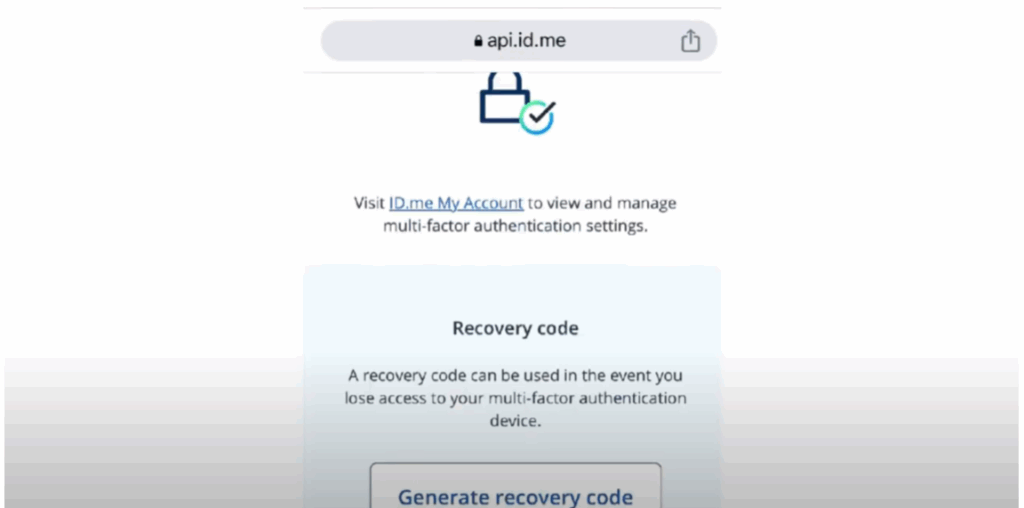
- Generate a Recovery Code by clicking Generate Recovery Code.
- Save this code in a safe place for future access.
Step 4: Verify Your Identity
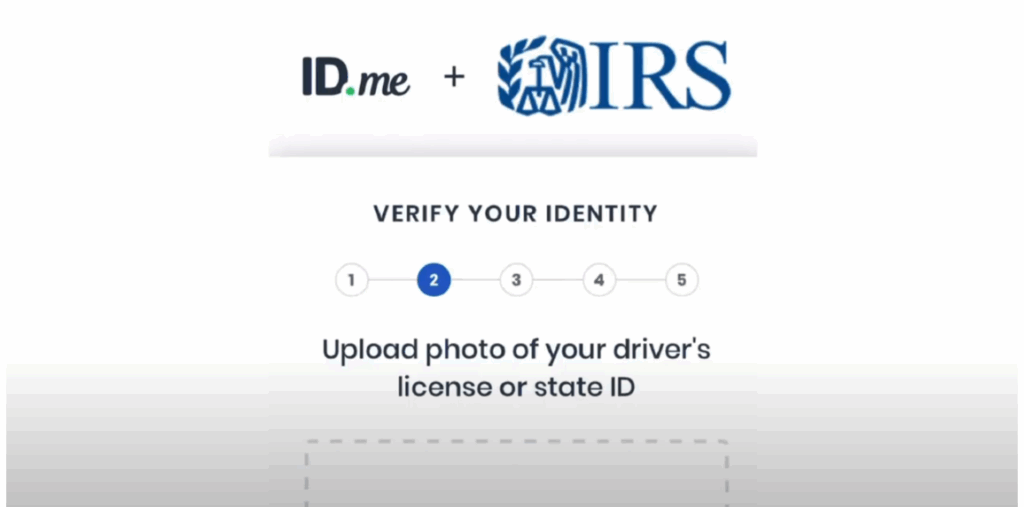
For faster verification, select Self-Service. Keep your ID ready (e.g., driver’s license).
- Give your consent for the collection of biometric data (your photo).
- Take clear, high-quality photos of the front and back of your ID.
- Ensure the images are well-lit, sharp, and all details are visible.
- Crop the images if necessary, making sure edges are within the frame.
Step 5: Facial Verification
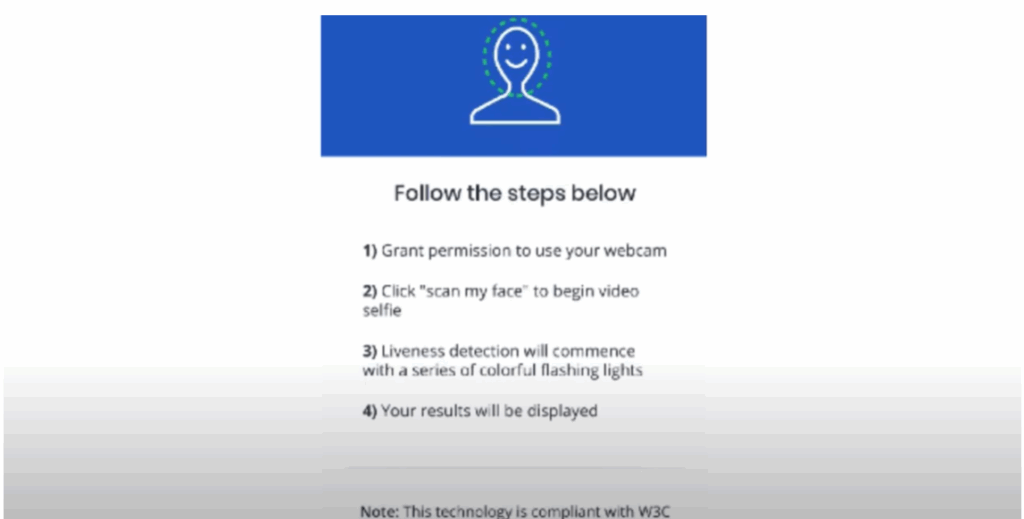
- ID.me will prompt you to take a selfie.
- The system will compare your selfie with the ID photos you provided.
Step 6: Confirm Your Information
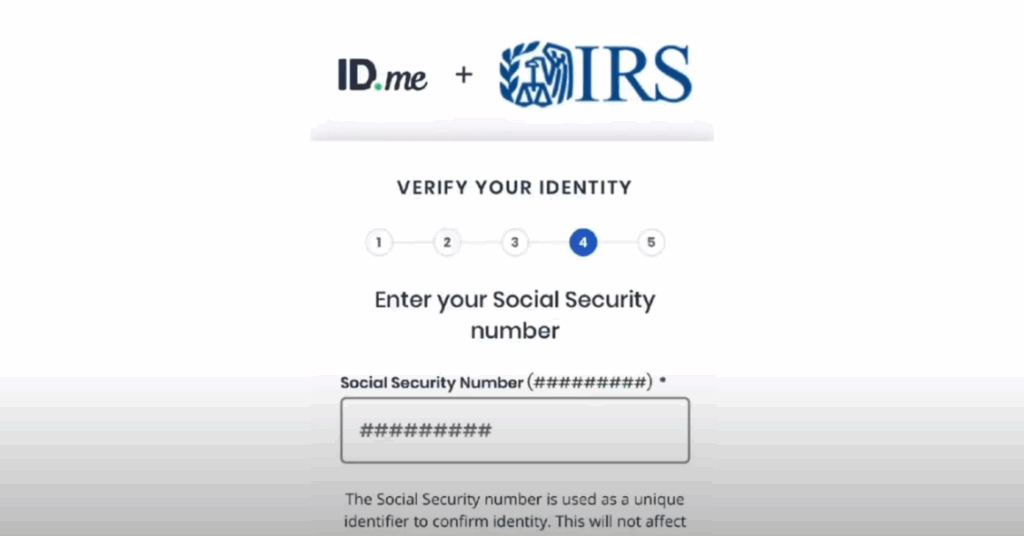
- Verify your phone number and Social Security number.
- Check that all displayed information is correct.
Step 7: Return to the IRS Site
Once verification is complete, you’ll be redirected back to the IRS website.
- Select your reason for transcript request.
- Leave the Customer File Number blank unless instructed otherwise by a third party.
- Click OK to finish.
By following these steps, you’ll have your ID.me account linked to the IRS in just minutes, allowing you to securely manage your tax information online.






