
If your Windows 10 PC refuses to start—getting stuck in a restart loop, showing a black screen, or entering an error loop—there’s no need to panic. You can fix common startup issues using built-in Windows tools without needing a CD, DVD, or ISO file.
In this guide, we’ll go step-by-step through two effective methods to restore your system.

Getting Started: Accessing Automatic Repair
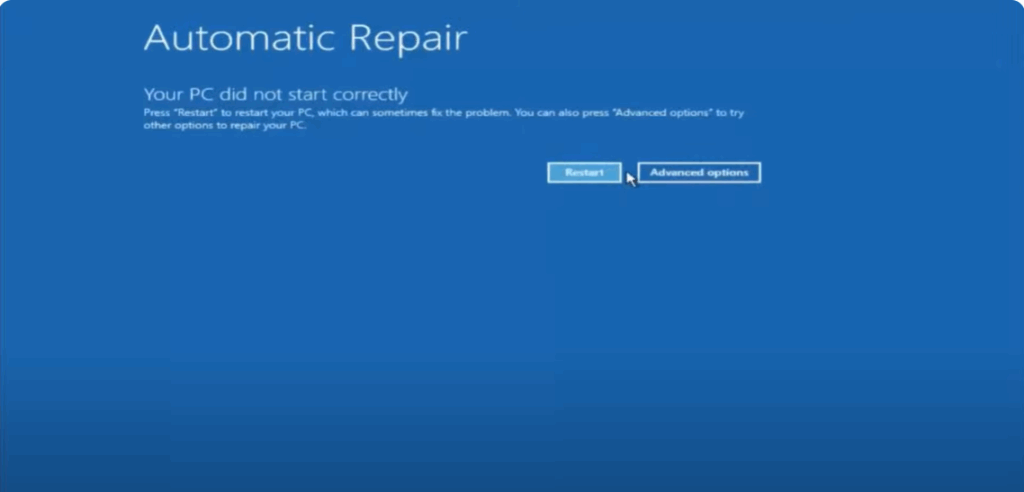
If your PC can’t boot into Windows 10, perform three consecutive forced shutdowns by holding down the power button. On the third attempt, Windows should launch the Automatic Repair tool.
When you see the “Your PC did not start correctly” screen, you’ll have two options:
- Restart – Sometimes works, but not always effective for persistent issues.
- Advanced Options – This is what we’ll choose for deeper troubleshooting.
Method 1: System Restore
- Click Troubleshoot → Advanced Options → System Restore.
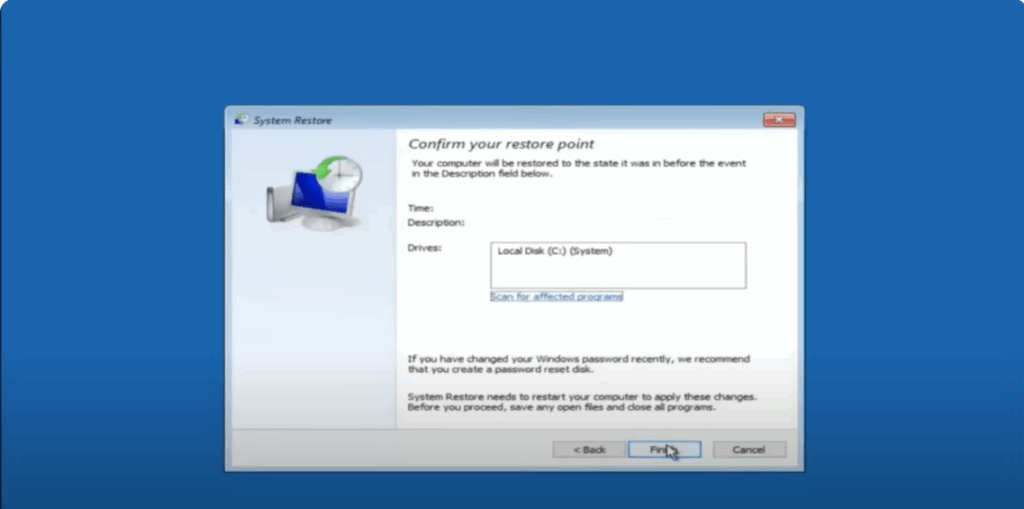
- Select a restore point from before the problem started.
- Click Next, then Finish to confirm.
- Allow Windows to restore your system without interruption.
Note:
- Your personal files remain safe.
- Recently installed apps or drivers may be removed if they caused the issue.
If your PC boots successfully after this, you’re done. If not, move on to the next method.
Method 2: Command Prompt Registry Backup & Restore
- From Advanced Options, click Command Prompt.
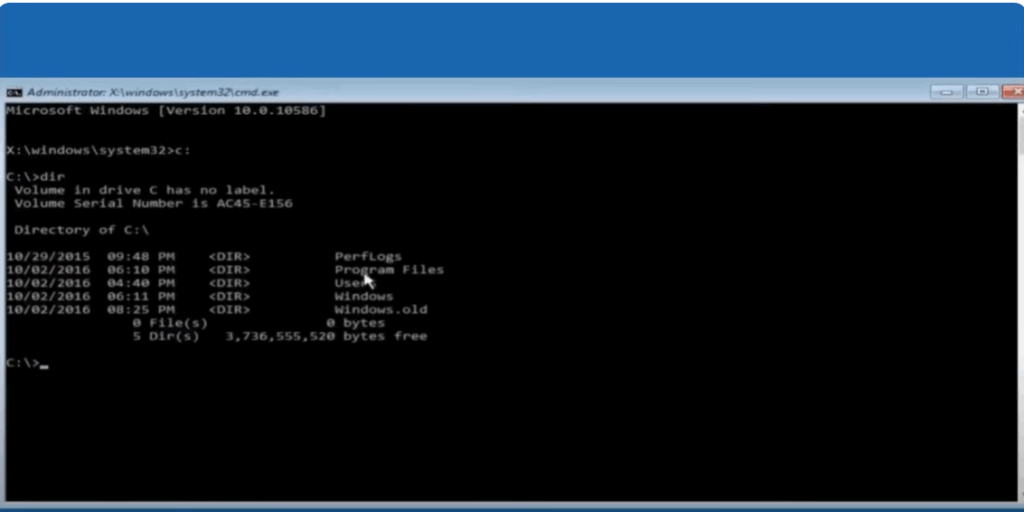
- In the Command Prompt window, type: bashCopyEdit
C: dir- Look for folders like Program Files, Users, and Windows.
- If not found, try
D:and check again.
- Navigate to the System32 Config folder: arduinoCopyEdit
cd \Windows\System32\config - Create a backup folder: nginxCopyEdit
md backup - Copy current registry files into the backup folder: goCopyEdit
copy *.* backup - Navigate to the RegBack folder: bashCopyEdit
cd RegBack dir - Restore the backed-up registry files: goCopyEdit
copy *.* ..- If prompted to overwrite files, type
Aand press Enter.
- If prompted to overwrite files, type
- Close Command Prompt and restart your PC.
Final Steps & Recommendations
If your PC starts normally, consider entering Safe Mode and uninstalling any recently added drivers or software to avoid future startup issues.
By following these steps, you can often fix Windows 10 startup errors without extra tools.
If this guide helped you, don’t forget to share it and help others facing similar problems.






