
Microsoft Office 2024 is the latest edition of Microsoft’s powerful productivity suite, offering classic apps like Word, Excel, PowerPoint, and OneNote. In this guide, we’ll walk you through the process of downloading, installing, and activating Microsoft Office 2024 step by step.
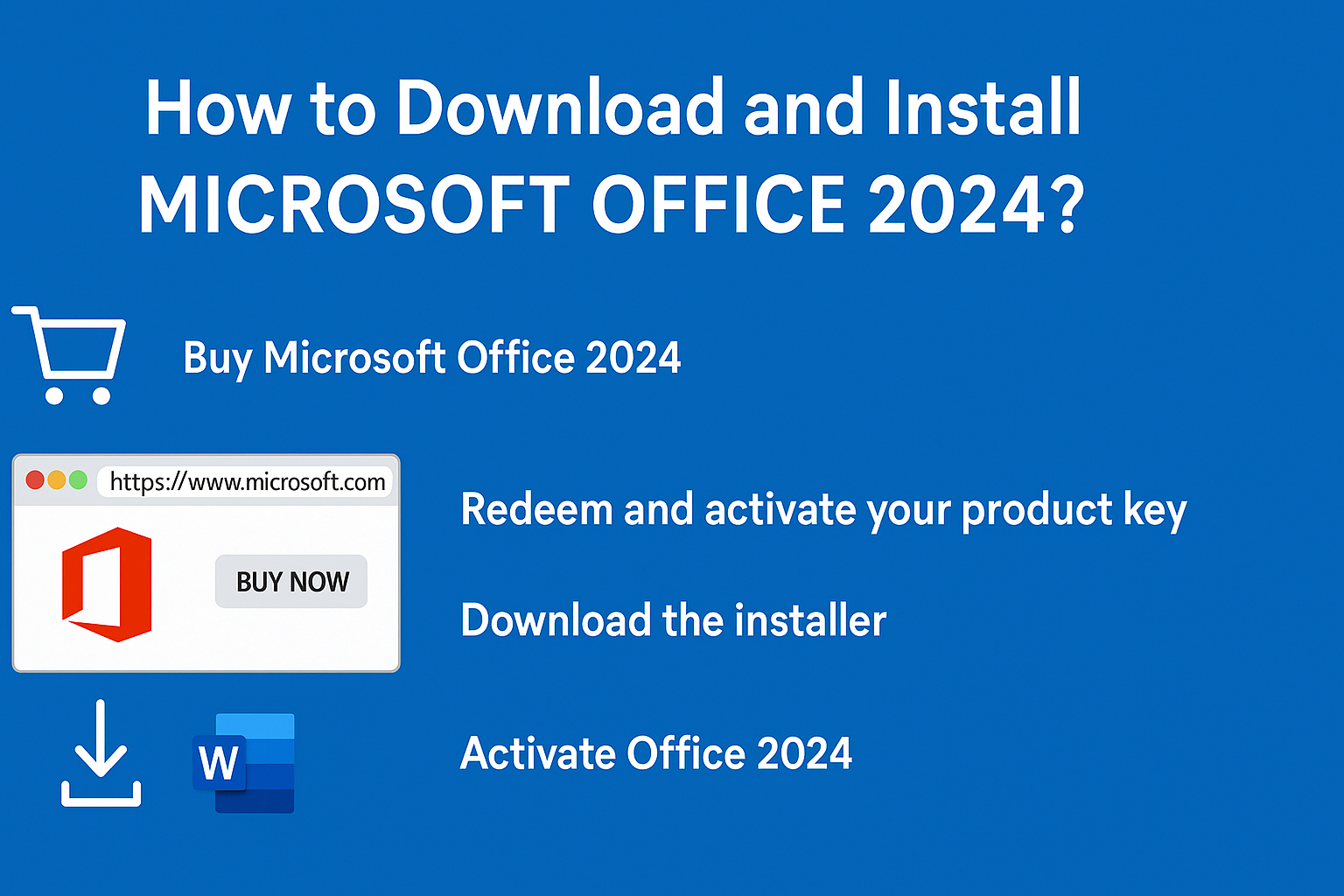
Step 1: Purchase Microsoft Office 2024
To get started, you’ll need a valid Office 2024 license.
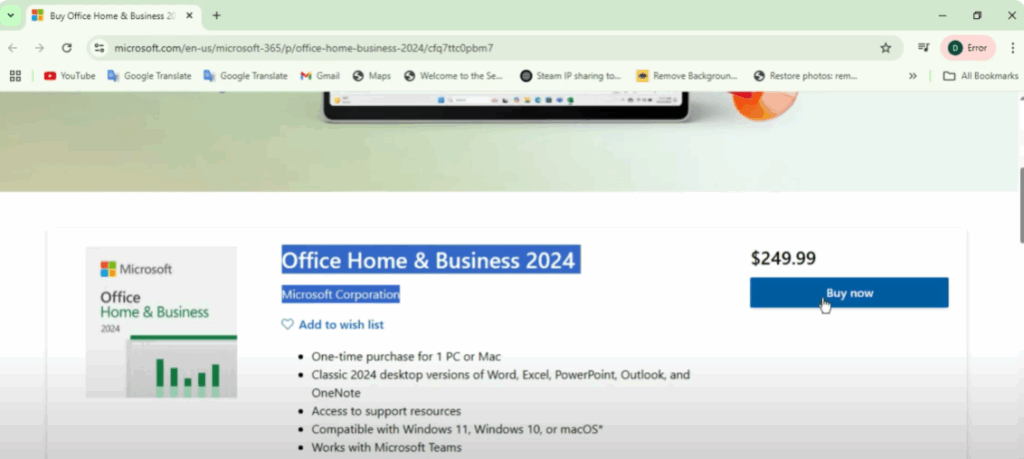
- Visit the official Microsoft website (link provided in the description if you are following this from a video).
- Scroll down and click the “Buy Now” option for Office Home 2024.
- This is a one-time purchase for one PC or Mac, and it works with Windows 10, Windows 11, and macOS.
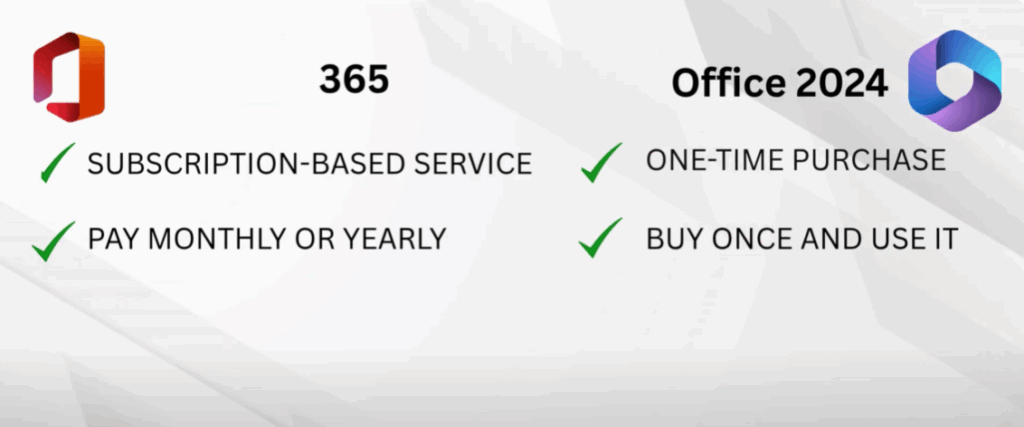
Key Difference Between Microsoft 365 and Office 2024:
- Microsoft 365: Subscription-based (monthly or yearly payment).
- Office 2024: One-time purchase (buy once and use for life on one device).
- Note: Office 2024 does not include free future upgrades. If Microsoft releases a newer version, such as Office 2028, you will need to purchase it separately.
Step 2: Redeem and Activate Your Product Key
Once you’ve purchased Office 2024:
- If you received a product key via email:
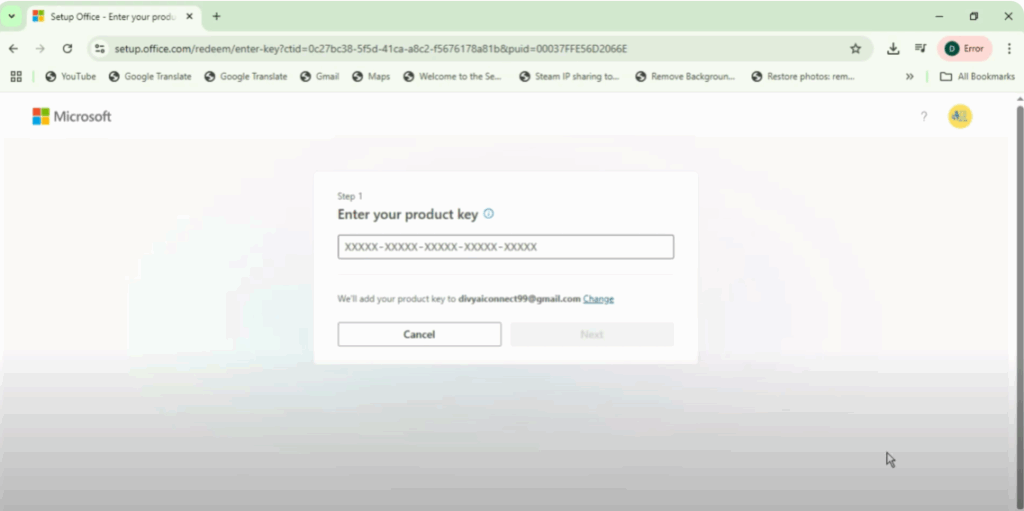
- Go to setup.office.com.
- Click Get Started and sign in with your Microsoft account.
- Enter your product key to link it permanently to your account.
- If you didn’t receive a key:
- Visit your Microsoft account’s Services & Subscriptions section.
- You’ll find Office 2024 listed there with an Install button.
Step 3: Download the Installer
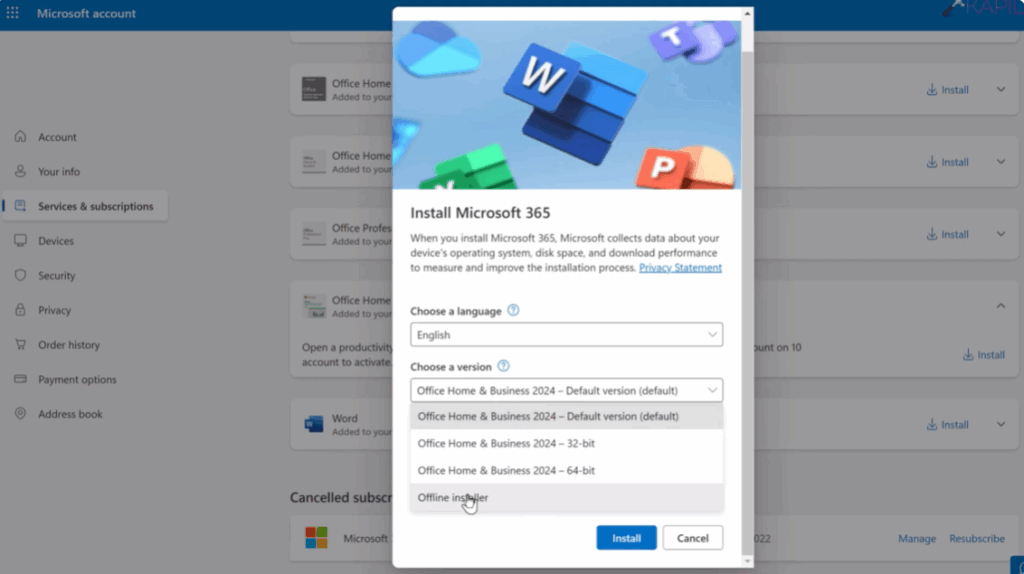
- Click Install and choose your preferred language and version (32-bit or 64-bit).
- For convenience, select the offline installer so all apps install at once without requiring repeated downloads.
- Click Install to begin downloading the setup file. Download time will vary depending on your internet speed.
Step 4: Complete Installation
- Run the downloaded installer.
- Stay connected to the internet during installation and avoid restarting your PC.
Step 5: Activate Office 2024
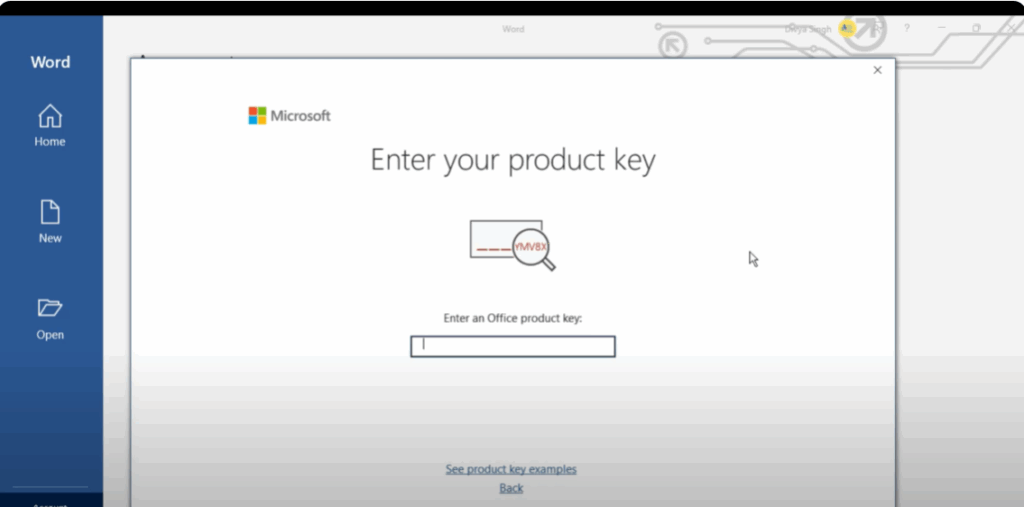
- Once installed, open any Office application (e.g., Microsoft Word).
- Sign in with the same Microsoft account you used earlier, and your license will activate automatically.
- You’ll see the Office 2024 branding on the splash screen of each app, confirming a successful installation.
Final Thoughts
That’s it! You’ve successfully downloaded, installed, and activated Microsoft Office 2024 on your device. You can now enjoy its powerful tools for all your productivity needs.
If you found this guide helpful, consider sharing it with others and subscribing for more tech tips and tutorials.






