
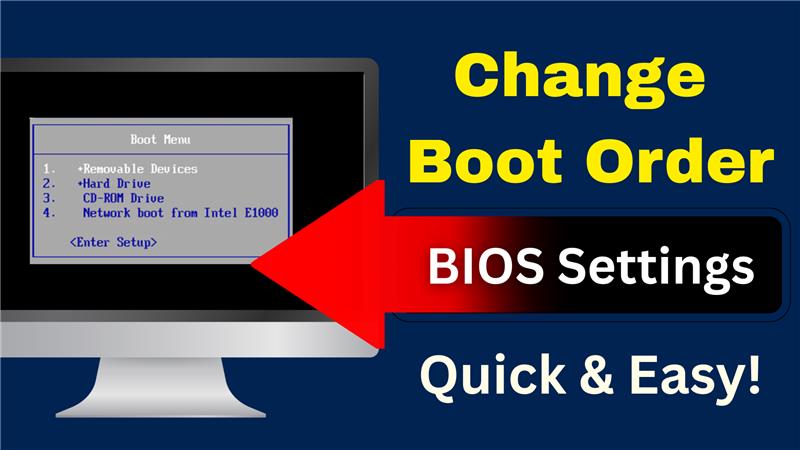
Changing the boot order in your computer’s BIOS settings allows you to boot from devices like a CD, DVD, or USB drive instead of the default hard drive. This can be useful for installing a new operating system, running diagnostics, or recovering data. Below is a step-by-step guide to help you change the boot order.
Step 1: Restart Your Computer
Begin by restarting your computer. While it is restarting, you’ll need to press a specific key on your keyboard to enter the BIOS setup. Common keys include F2, F10, DEL, or ESC, depending on your computer’s manufacturer. Watch the bottom of the startup screen—it often displays a message such as “Press [Key] to enter setup.”
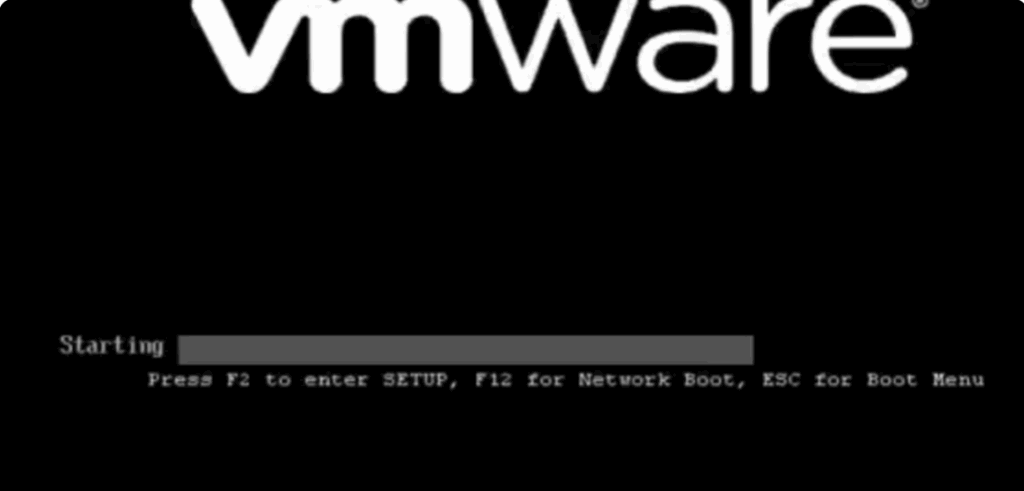
If you’re unsure, you can check your motherboard or laptop manufacturer’s website for the exact key.
Step 2: Enter BIOS Setup
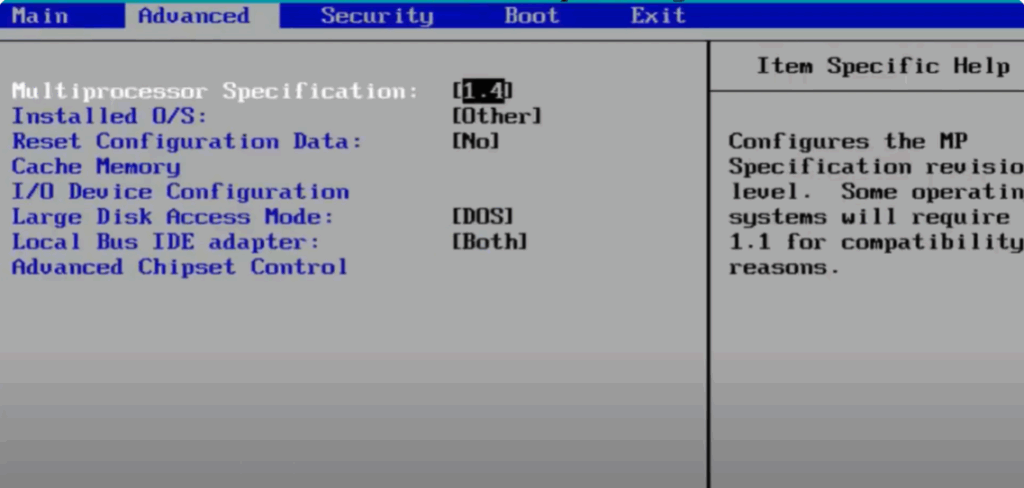
Once inside the BIOS, use the arrow keys on your keyboard to navigate. Locate and select the Boot tab. This section allows you to manage the order of devices your system checks when starting up.
Step 3: Change the Boot Order
In the boot list, you’ll see entries such as Hard Drive, USB Drive, and CD/DVD Drive.
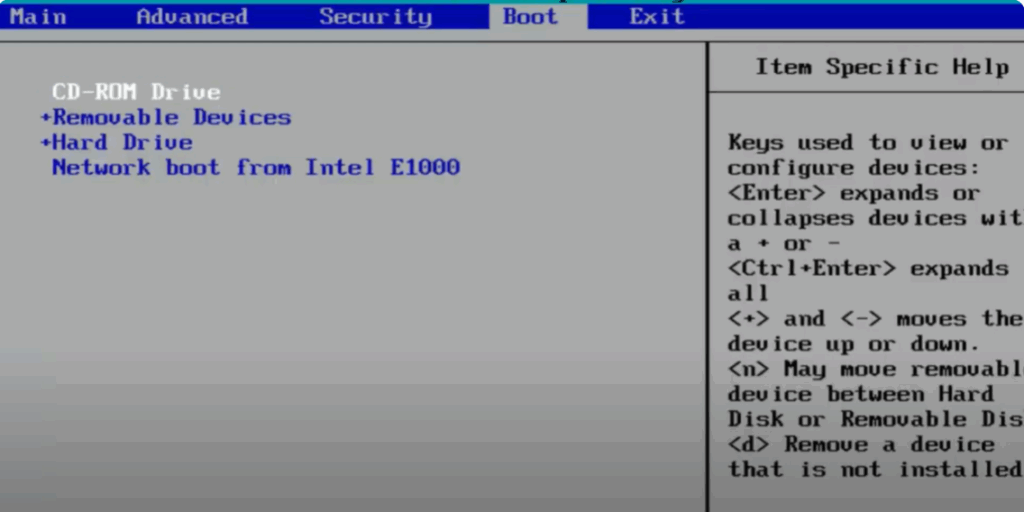
- To move a device up or down the list, use the + or – keys on your keyboard.
- For example, if you want your computer to boot from a CD first, highlight the CD-ROM Drive and press the + key until it is at the top of the list.
Step 4: Save and Exit
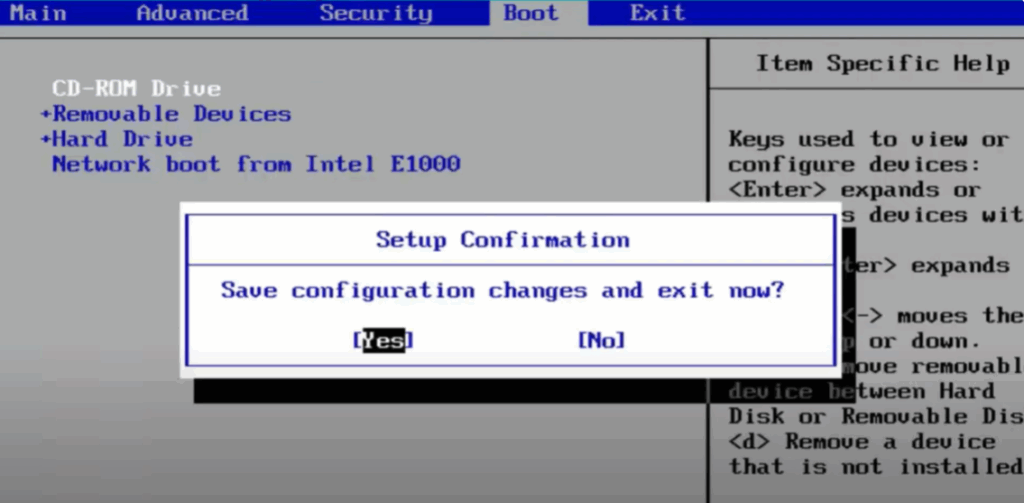
Once the boot order is arranged as desired, press F10 to save the changes and exit the BIOS. Confirm by selecting Yes when prompted.
Step 5: Resetting to Default (Optional)
If you ever want to reset the BIOS settings back to default, you can do so by pressing the specified key (often F9 or X) in BIOS, then confirming with Enter. This will restore the original boot order.
Important Notes
- If no bootable CD, DVD, or USB is inserted, your system will automatically boot from the next device in the list.
- Always double-check that your changes are correct before exiting BIOS.
By following these steps, you can easily change the boot order on your computer and control which device it boots from first.






