
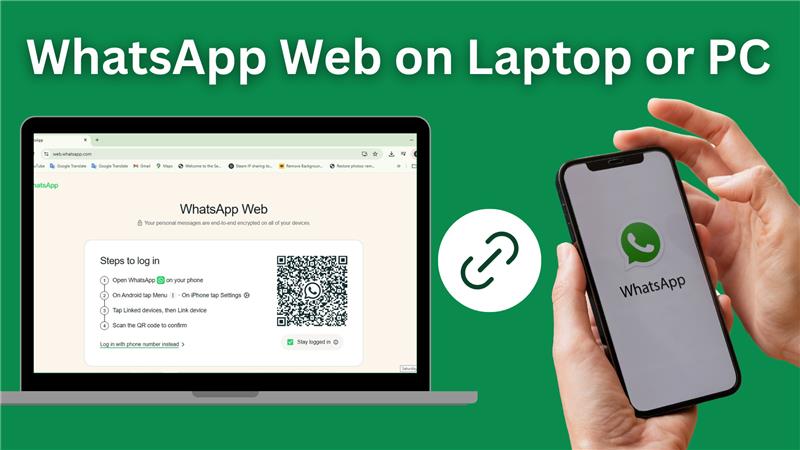
Hello everyone, welcome back to Tech Gitter Official. In this guide, I’ll show you exactly how to connect WhatsApp Web on your laptop or PC in just a few simple steps. Whether you’re using Windows, Mac, or Linux, this method works perfectly.
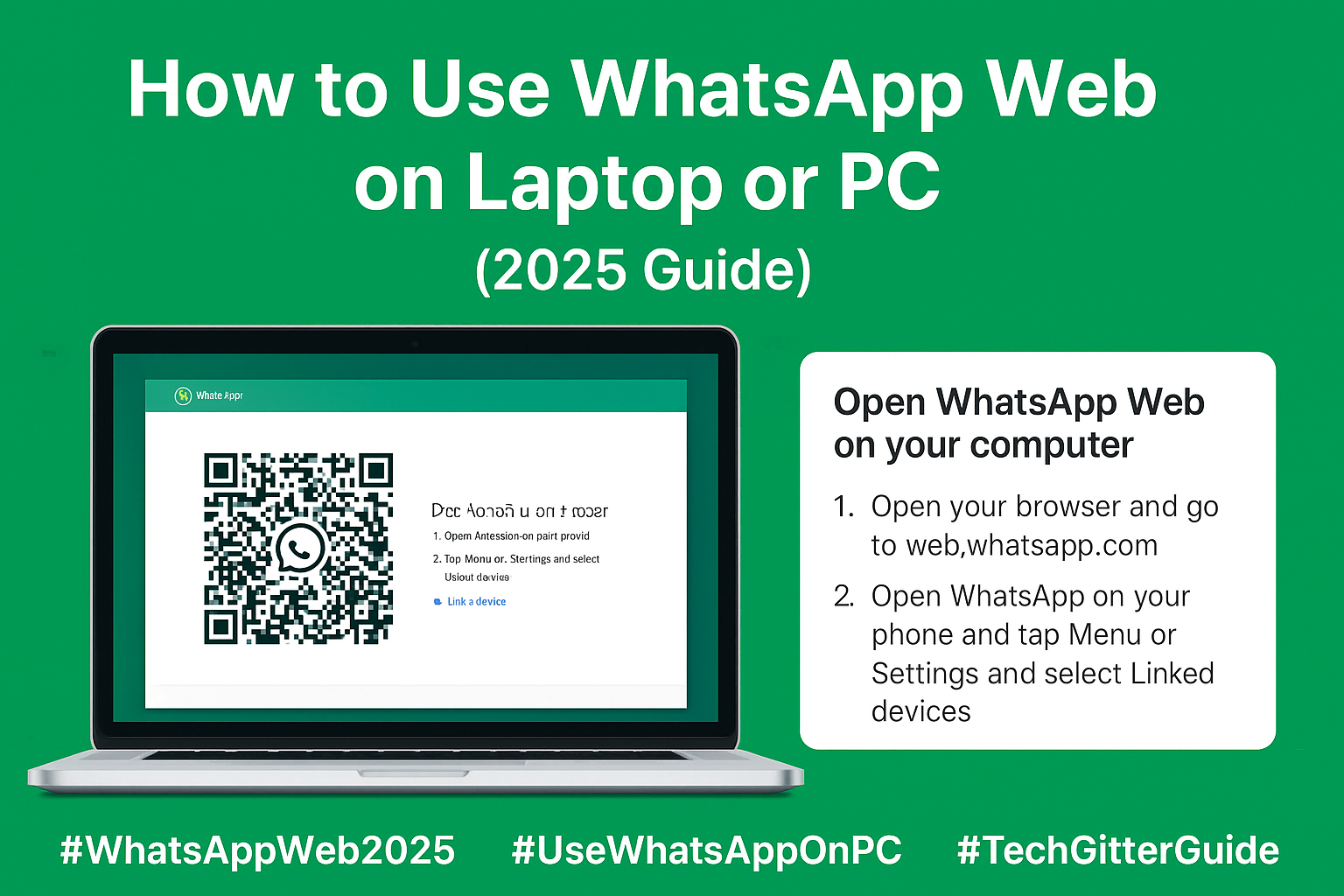
WhatsApp Web is a free feature that lets you use WhatsApp directly from your web browser. It mirrors your phone’s WhatsApp onto your computer, so you can send and receive messages, images, and even voice notes from your desktop or laptop.
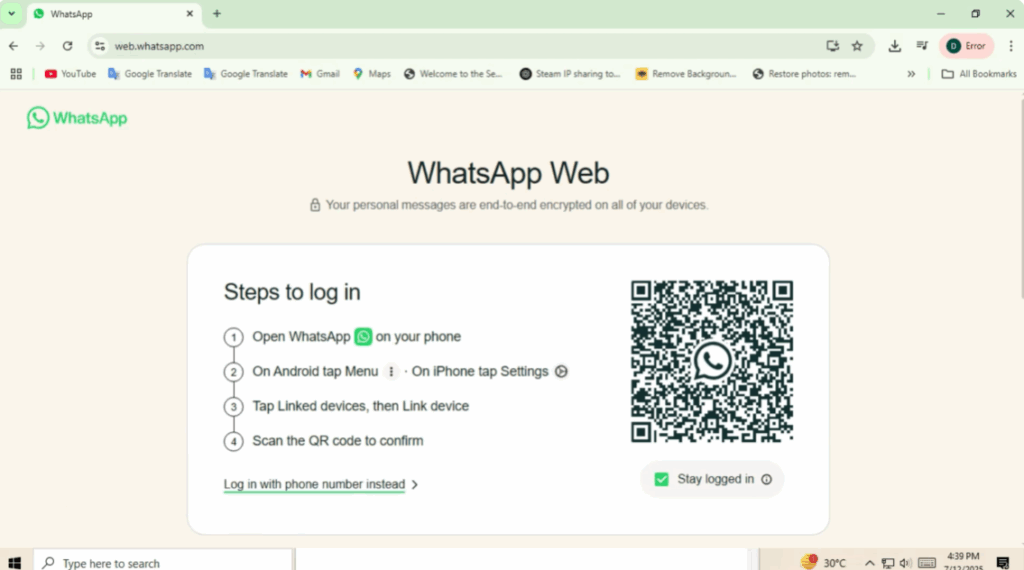
Step 1: Open WhatsApp Web on Your Computer
On your laptop or PC, open your browser and type wb.sap.com. You’ll see a QR code appear on the screen.
Step 2: Open WhatsApp on Your Phone
- On Android, tap the menu icon (three dots in the top right corner).
- On iPhone, go to Settings at the bottom.
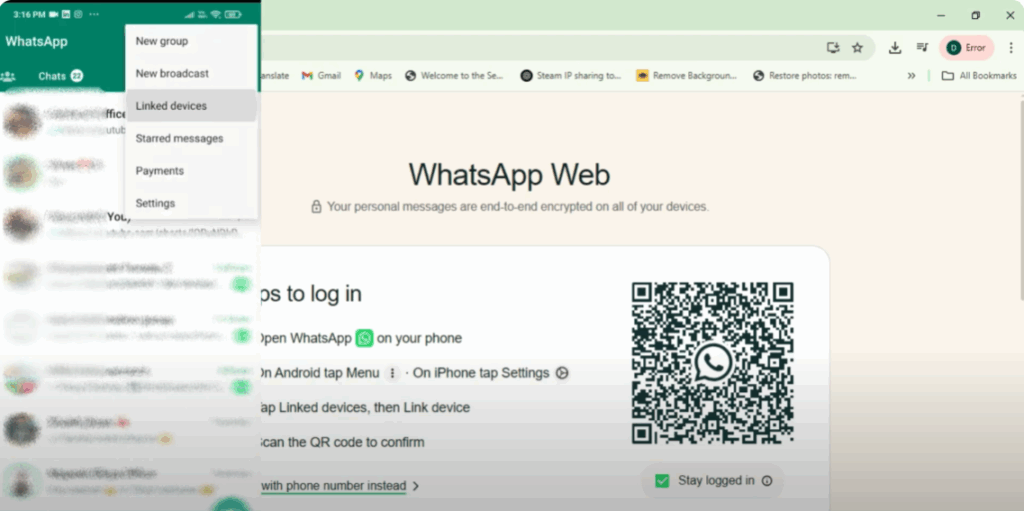
Then, tap on Linked Devices. Here, you’ll see a list of devices currently connected. Tap Link a Device.
Step 3: Scan the QR Code
Your phone’s camera will open. Point it at the QR code on your laptop screen. Within a few seconds, your WhatsApp chats will appear on your computer.
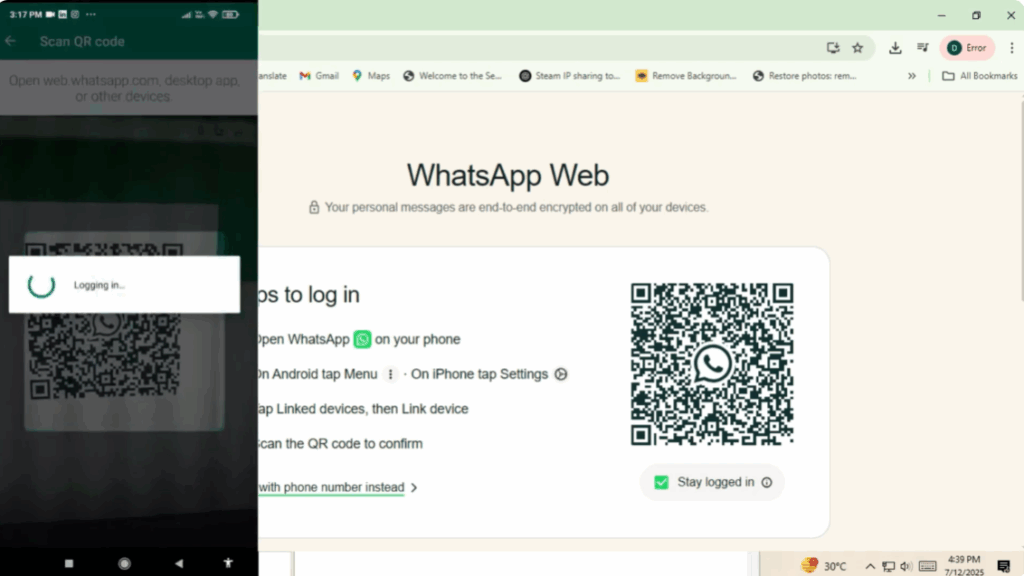
And that’s it — you’re now connected! 🎉
What You Can Do on WhatsApp Web
Once connected, you can:
- Read and reply to messages
- Send images
- Share files
- Reply to chats directly from your laptop or PC
How to Log Out
To log out:
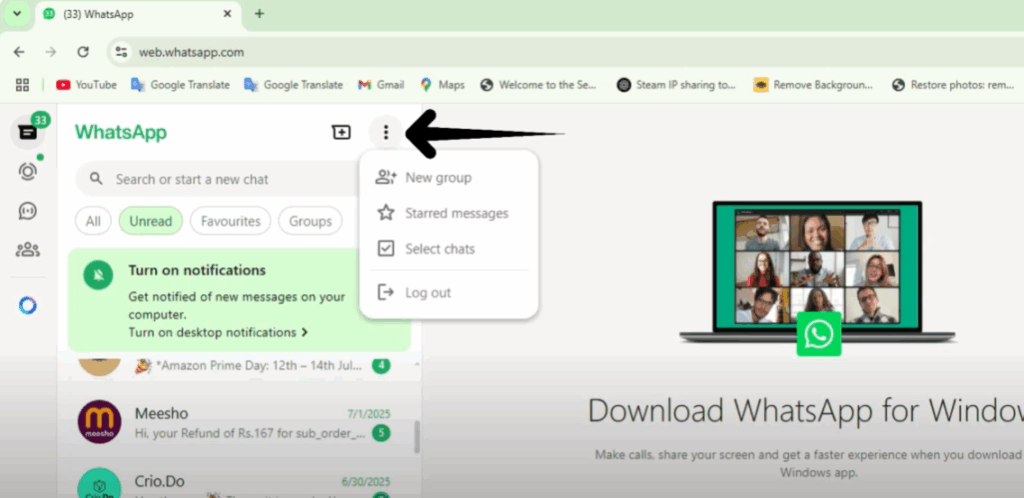
- On your computer, click the three dots on the top left of WhatsApp Web and select Log out.
- Or, from your phone under Linked Devices, remove the device.
Extra Option: WhatsApp Desktop App
If you prefer a dedicated app instead of using your browser, you can download the WhatsApp Desktop App for Windows or macOS from:
👉 WhatsApp.com/download
Thanks for reading! 🙌 If this tutorial helped you, please give it a thumbs up 👍 and subscribe for more tech tutorials. See you in the next one!






