
Hello friends, welcome to my channel Tech Gitter. In today’s guide, I will tell you how to sign into your United Healthcare (MyUHC) account quickly and easily.
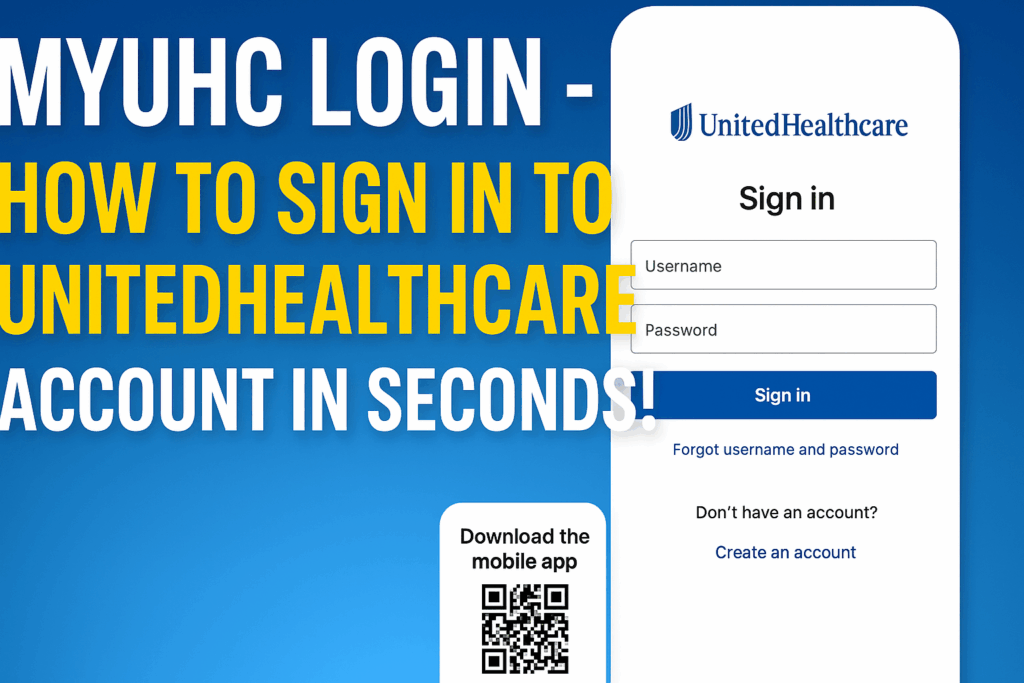
Step 1: Open the Official Website
- First of all, open your Chrome browser and go to the link: myuhc.com.
- This will take you to the official MyUHC website, which will look like this.
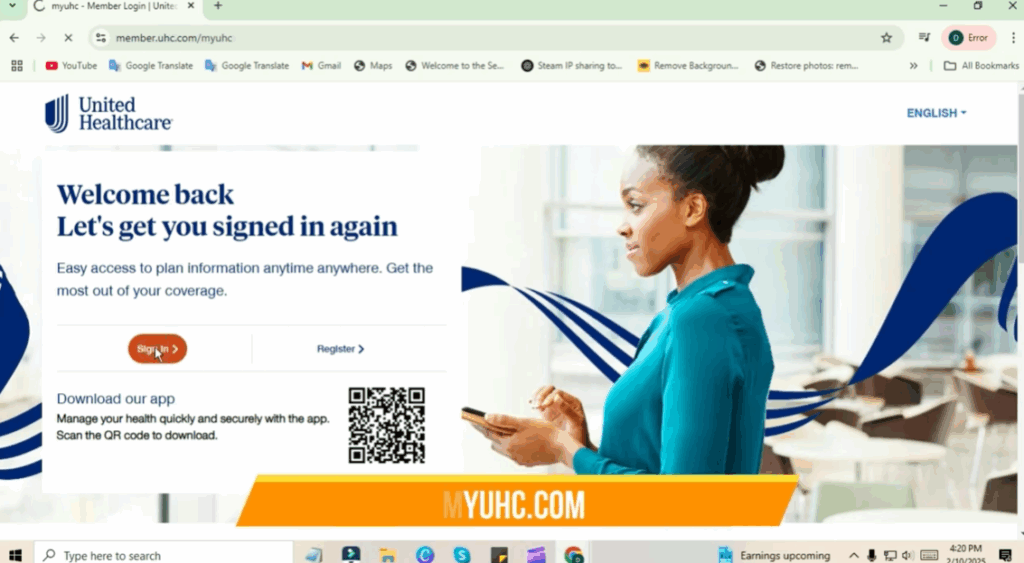
Step 2: Click on the Sign-In Button
- Here, you can see the Sign In button. Click on it.
- Once you do that, it will take you to your login page.
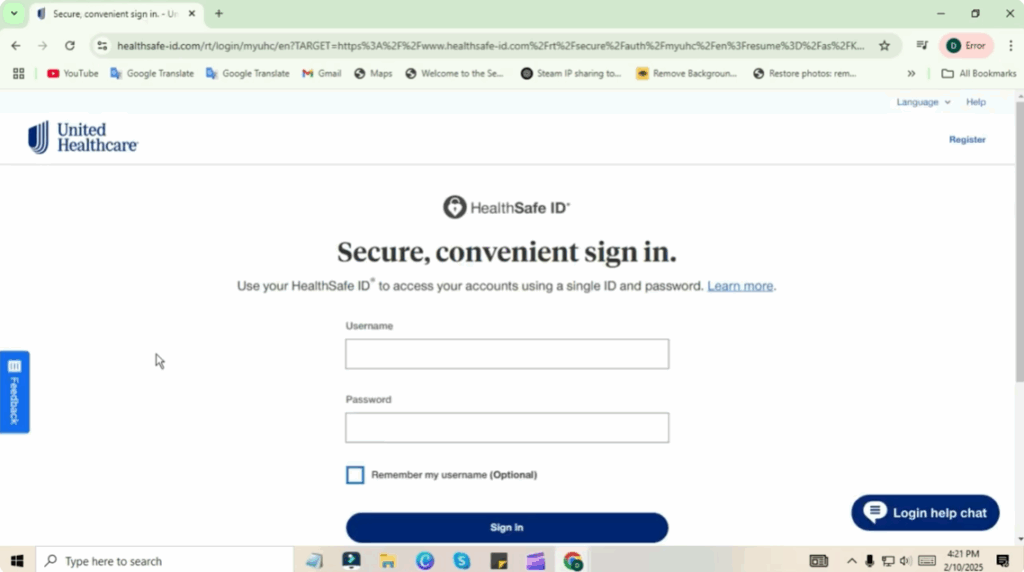
Step 3: Enter Username and Password
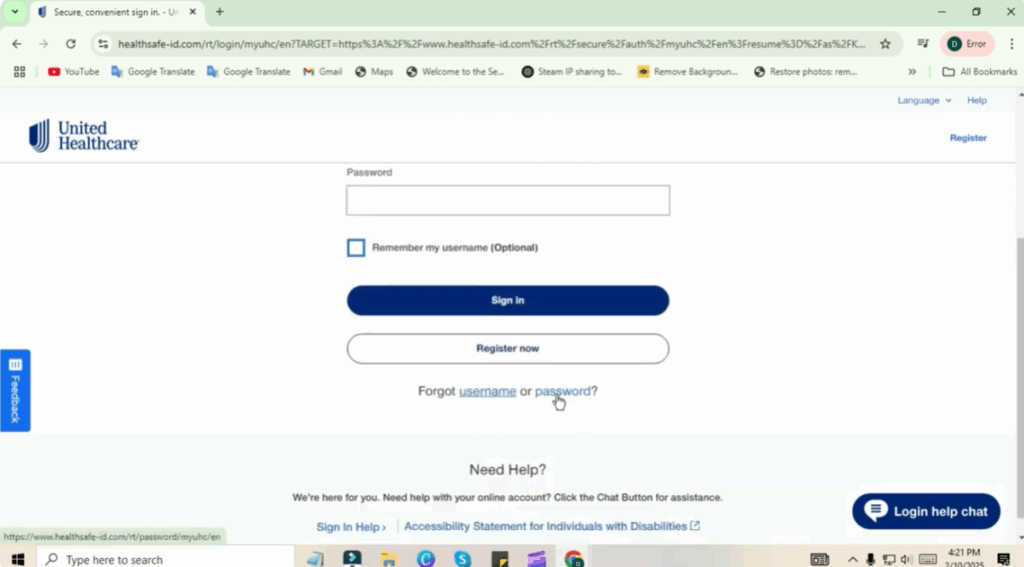
- On the login page, enter your Username and Password.
- Click on the Sign In button, and you will automatically be logged into your account.
Step 4: Recover Forgotten Username or Password
- If you forgot your Username or Password, scroll down the page and click on Forgot Username or Password to recover it.
Step 5: Use the Mobile App for Easy Access
For quick access to your plan information anytime, anywhere, download the MyUHC mobile app.
- Scan the QR code provided on the site using your phone.
- Download and install the app.
- Open the app, enter your credentials, and log in.
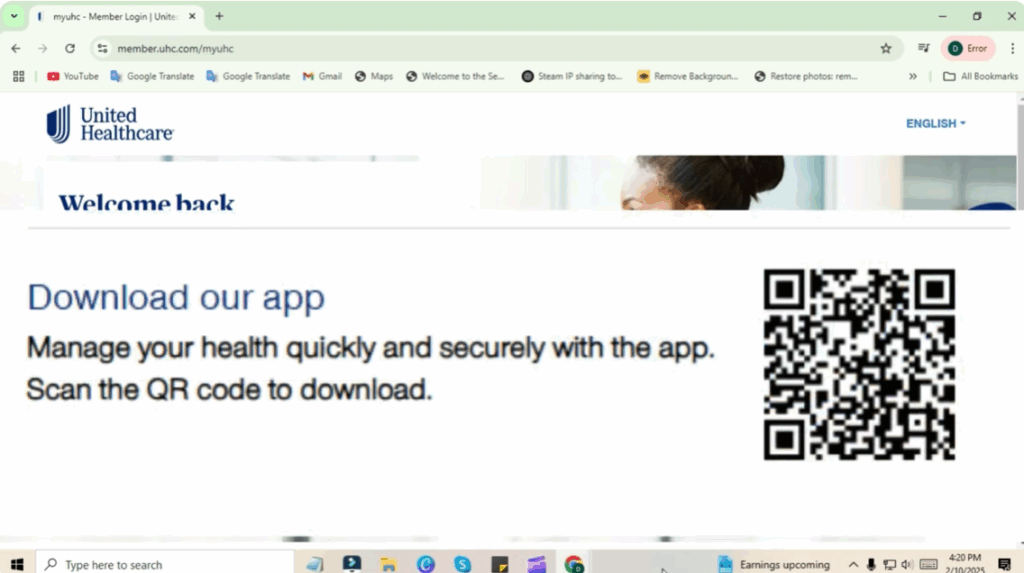
You can now manage your health quickly and securely with the app.
Final Words
If you found this guide helpful, please like and share it with others.
And if you are new to the channel, don’t forget to subscribe for more helpful content.
See you in the next guide. Thanks for reading, and have a great day!






