
Hello friends, welcome back to Tech Gitter Official. In today’s article, I’m going to show you how to fix the issue of Bluetooth not being detected in Device Manager on Windows 11 or Windows 10.
Many users face this common problem, but don’t worry — I’ve got you covered. Here, I will guide you step by step through multiple proven solutions to help you bring back the missing Bluetooth functionality. Make sure to follow each step carefully.
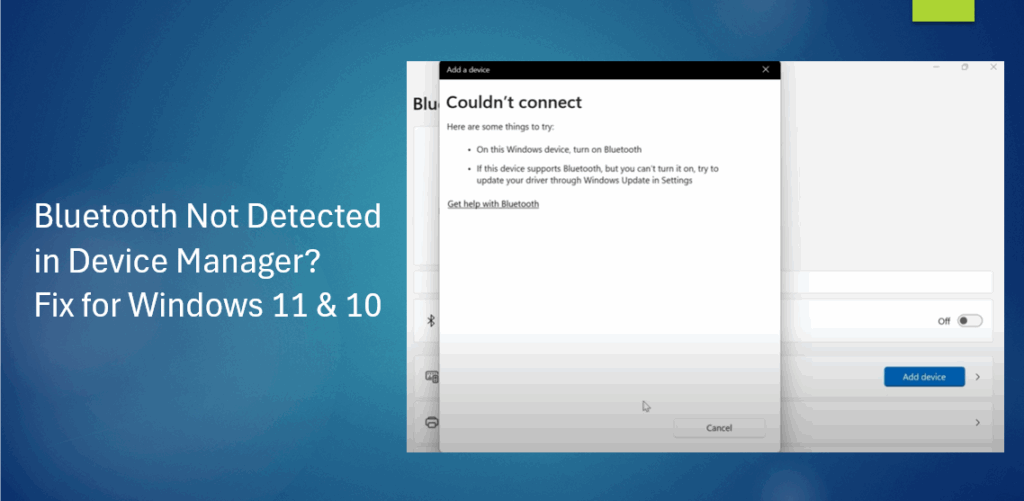
Method 1: Enable Bluetooth Support Service
- Press Windows + R on your keyboard to open the Run dialog box.
- Type services.msc and hit Enter.
- In the Windows Services window, scroll down and look for Bluetooth Support Service.
- Right-click on it and select Properties.
- Under Startup type, change it from Manual to Automatic.
- Click Apply and then OK to save the changes.
- To run the Bluetooth User Support Service, right-click on it and select Start.
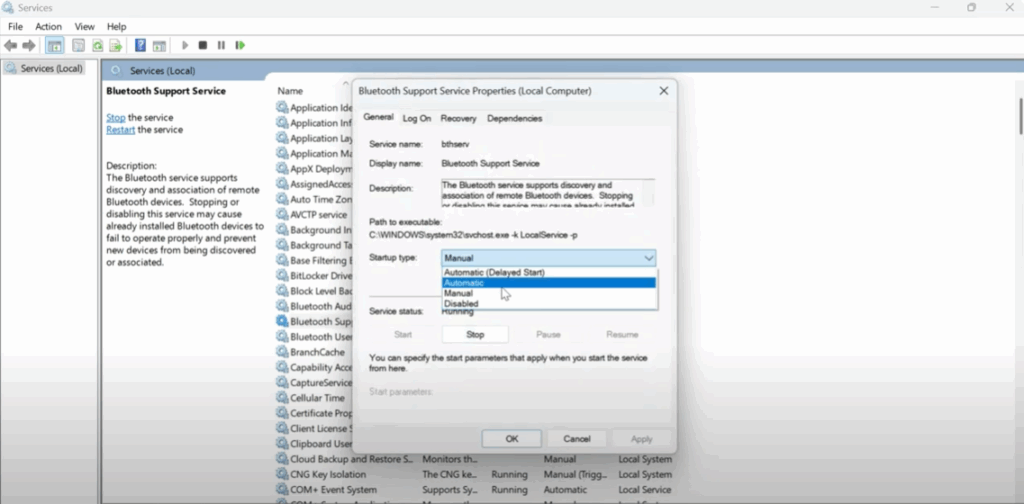
This service helps your system manage Bluetooth connections properly. Once you’ve adjusted these settings, close the Services window and check if Bluetooth is now showing up.
Method 2: Check Bluetooth in Device Manager
- Click on the Start Menu → go to Settings → then navigate to Bluetooth & Devices from the left panel.
- If Bluetooth is still not showing, move on to this method:
- Go to This PC (on your desktop or in File Explorer).
- Right-click on it. If you’re on Windows 11, select Show More Options, then click Manage.
- This will open Computer Management. From the left sidebar, select Device Manager.
- Look for the Bluetooth section and expand it.
- Right-click on the Bluetooth adapter (it may be called something like Intel Wireless Bluetooth or Realtek Bluetooth Adapter).
- Select Scan for hardware changes.
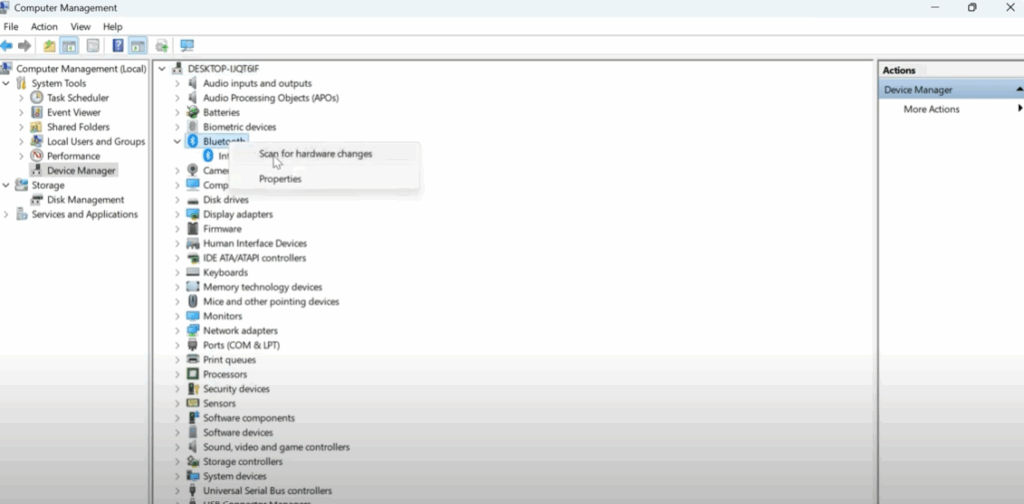
This will help your computer re-detect the Bluetooth driver and reinstall it if needed.
Method 3: Verify Bluetooth is Turned On
- After scanning, go back to your desktop.
- Open Bluetooth Settings.
- Make sure Bluetooth is turned ON.
- Now, try connecting your device — whether it’s a headset, a Bluetooth mouse, or your smartphone.
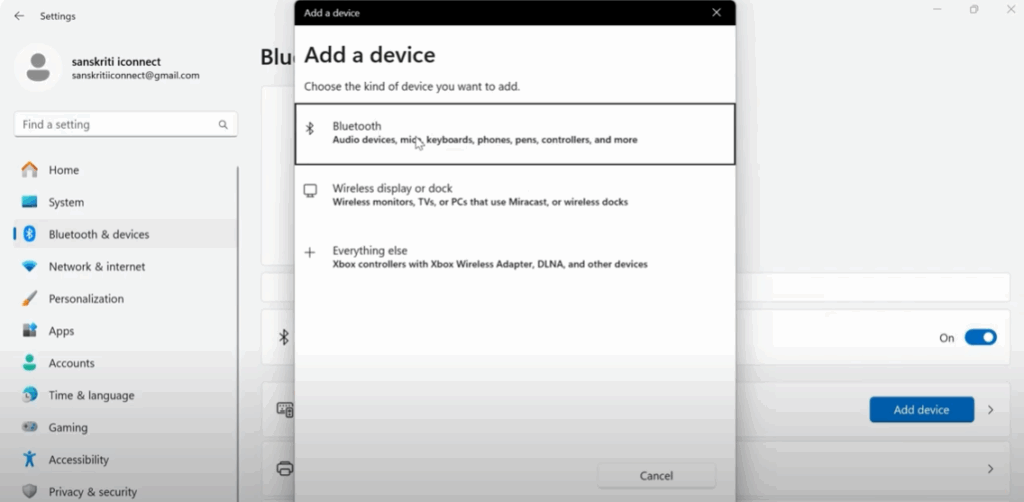
If the device pairs successfully, then your issue is resolved.
Final Words
If you found this guide helpful, don’t forget to like, share, and subscribe for more quick tutorials. Thanks for reading!






