
Hello friends, welcome back to my channel Tech Gitter. Please don’t forget to subscribe to my channel. Today, in this article, we will discuss how to set up YouTube Kids channel.
YouTube Kids is the best option for your children. On YouTube Kids, children can watch educational content, cartoons, music, and videos. This makes it easier and more fun for them to explore on their own, while also allowing parents and guardians to guide their journey as they discover new and exciting interests along the way.
It is specially designed for children under 13 years of age.
Step 1: Download and Install YouTube Kids
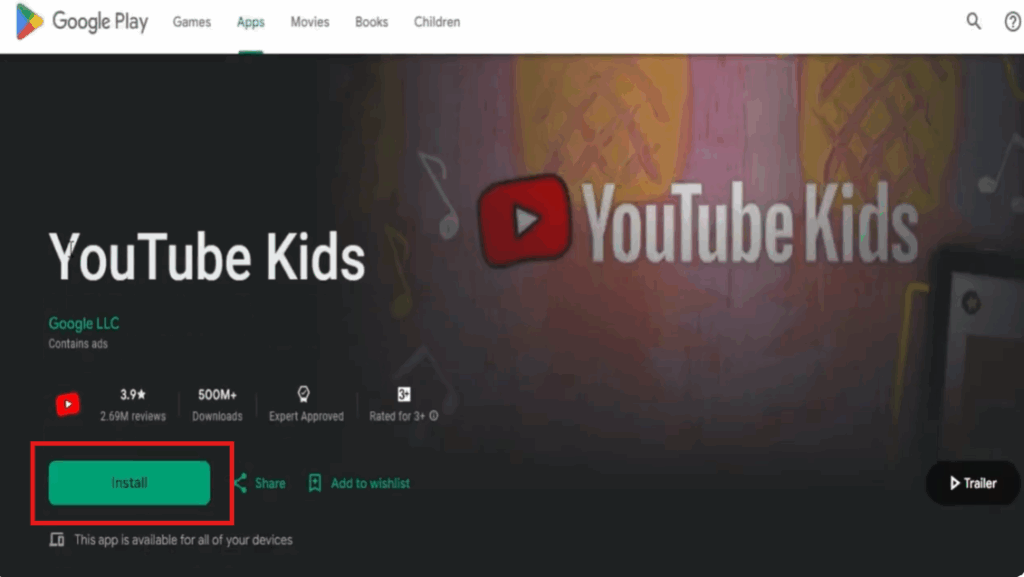
- You need to download the YouTube Kids app.
- Go to your Google Play Store or App Store and search for YouTube Kids.
- You will see different options to download the app.
- You can also install it on your Android TV.
- It is available for both Android and iPhone devices.
- Click on the Install button to install the app.
Step 2: Open the App and Choose Setup Option
- Open the YouTube Kids app.
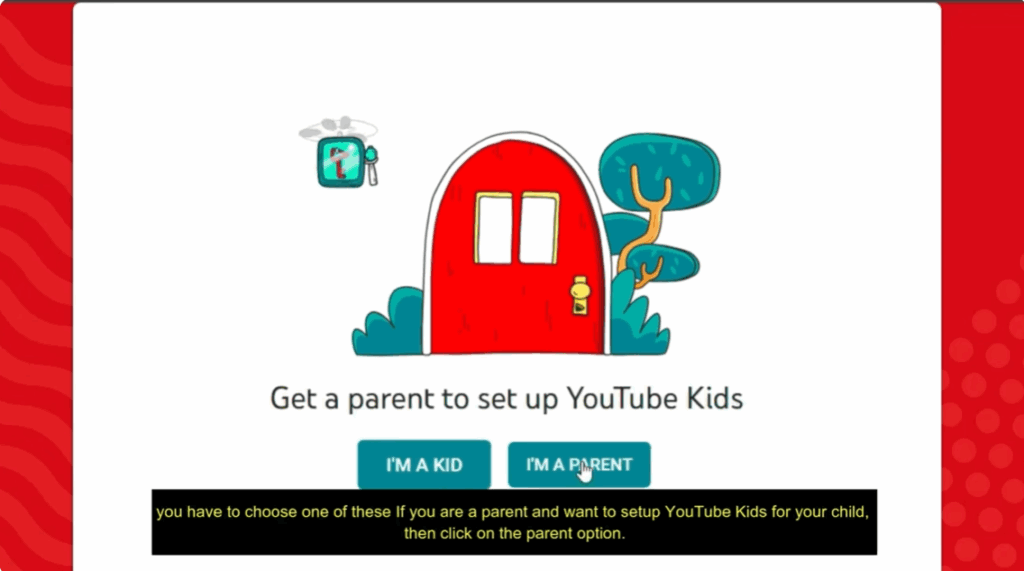
- You will see two options:
- I am a child
- I am a parent
- If you are a parent and want to set up YouTube Kids for your child, click on the Parent option.
- Click on Next.
Step 3: Verification and Sign In
- On the next page, you will be asked to enter your year of birth.
- Don’t worry, it will not be stored; it is only asked for verification.
- Click Show Text.
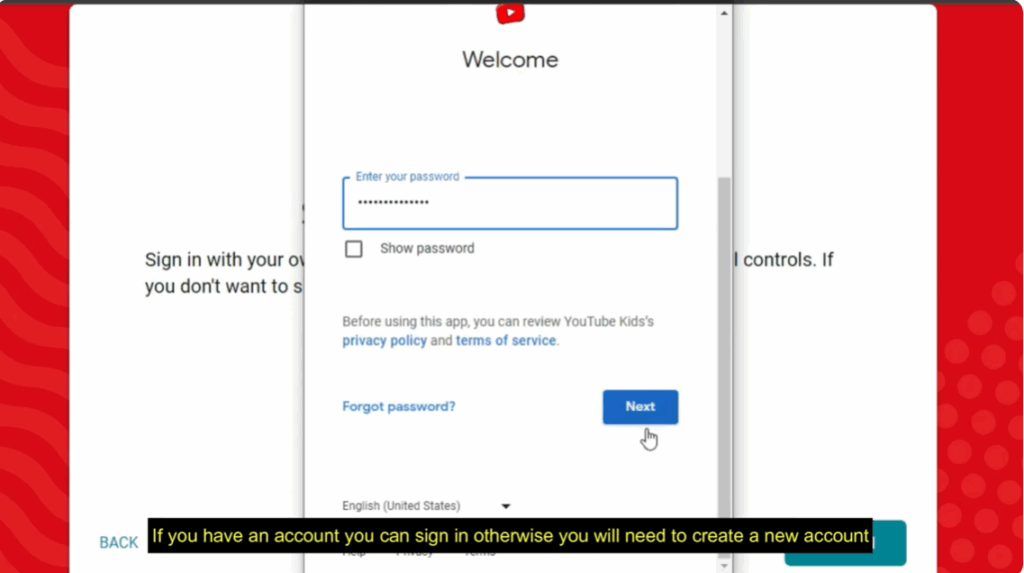
- You will be asked to sign in.
- If you already have an account, you can log in directly.
- Otherwise, you need to create a new account using your email ID and password.
Step 4: Create YouTube Kids Profile
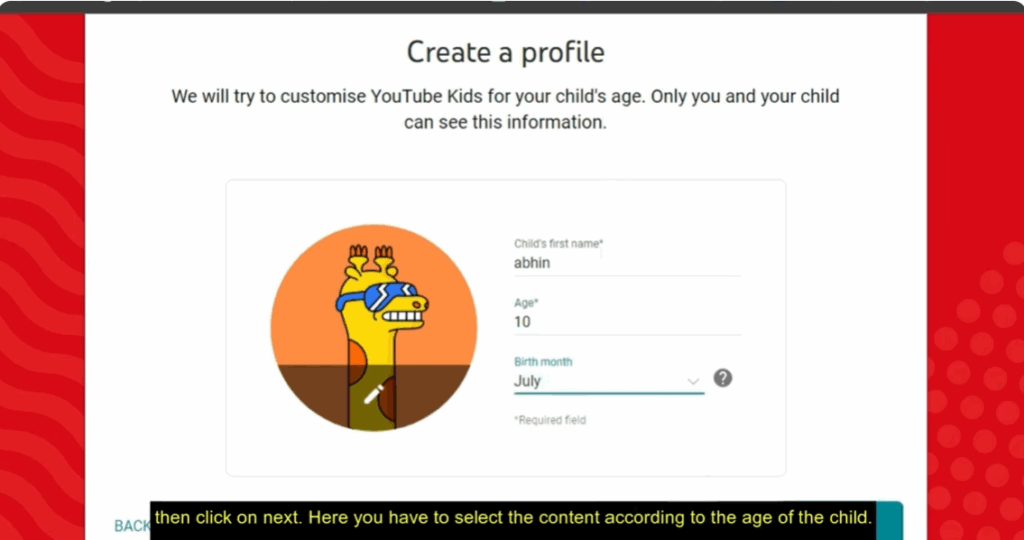
- After signing in, you will need to create a profile for your child.
- Enter the following details:
- Child’s name
- Age
- Date of Birth
- Click on Next.
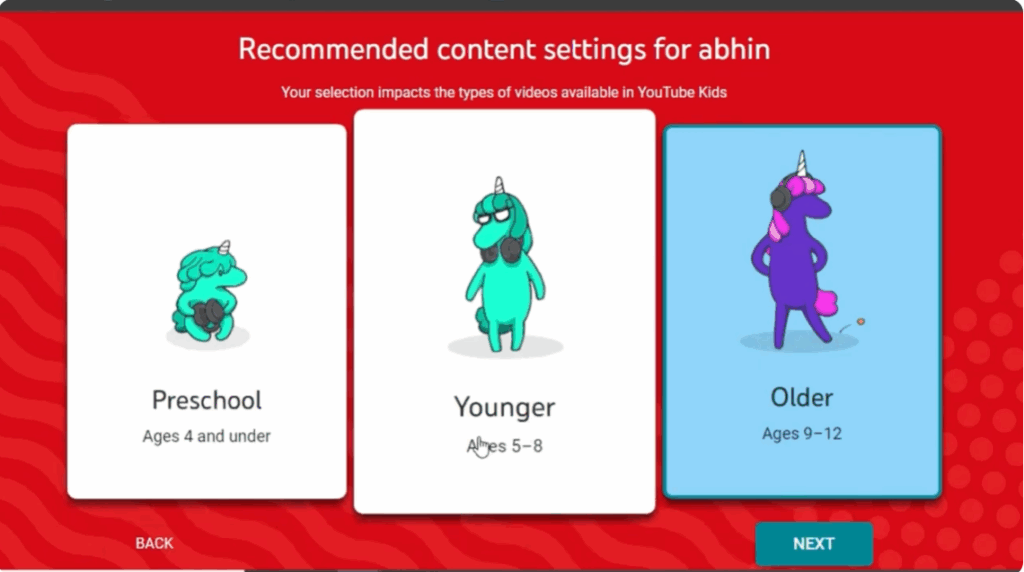
- Select the content according to your child’s age.
- Choose whether you want to keep the search option enabled or not.
- Wait for a few seconds — your child’s profile will be created.
- If you want, you can also create multiple profiles for more than one child.
Step 5: Parental Settings
- On the next page, you will be suggested to make Parental Settings.
- YouTube Kids is now fully set up and ready to use.
- Your child will be able to enjoy shows, sounds, games, and videos.
- They can also search for videos of their choice using the search bar.
Step 6: Parental Control Lock
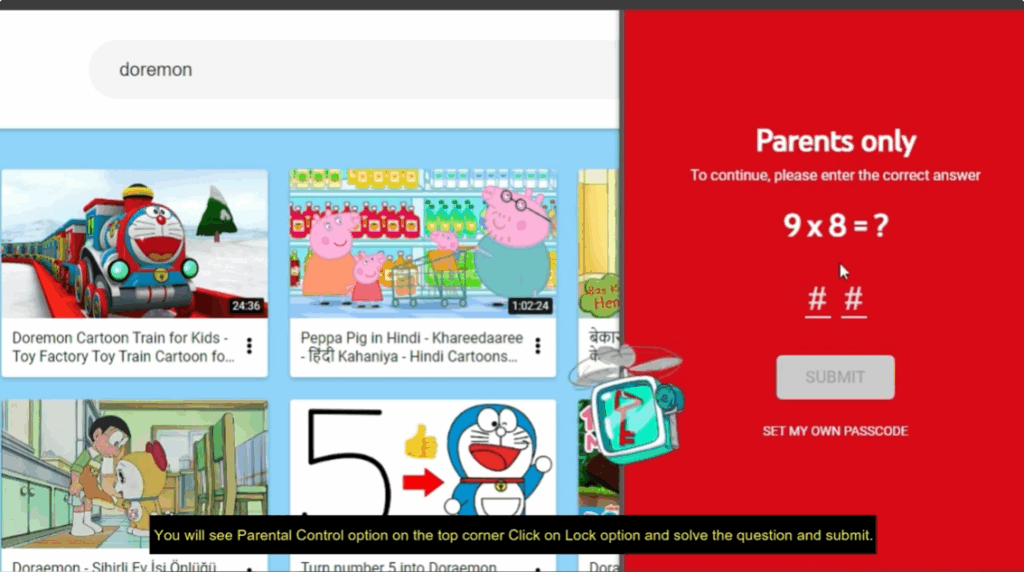
- You will see the Parental Control option in the top corner.
- Click on the Lock option, solve the question, and submit.
- You will then need to set a passcode for parental control.
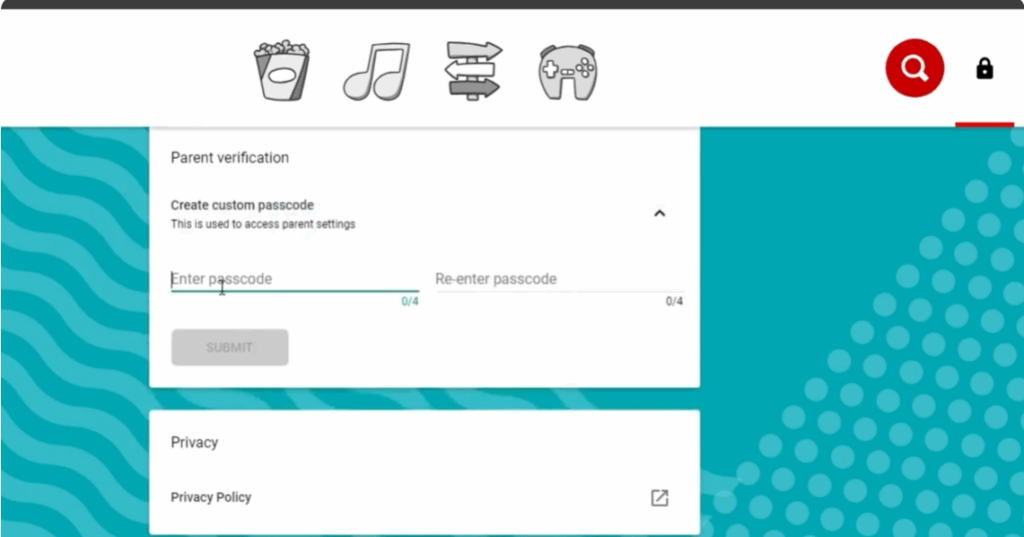
- This ensures your child cannot change YouTube settings without your permission.
Final Words
We hope that after following this complete guide, you will be able to set up YouTube Kids successfully.
If you found this guide helpful, please like and share the article. We will keep bringing you more such tutorials.
Thanks for reading, and have a nice day!






