
Hello friends, welcome back to my channel Tech Gitter Official. Is your Windows 10 PC running slow, lagging, or taking forever to boot? Don’t worry! In today’s article, I’ll show you five easy settings you can change right now to make your Windows 10 faster in 2025. No software needed.
Let’s get started!
Step 1: Disable Startup Programs
Startup apps slow down boot time and use memory in the background.
- Right-click on the Taskbar and go to Task Manager.
- Open the Startup tab.
- Disable unnecessary apps such as Spotify, Skype, etc.
- Keep only important apps like Antivirus enabled.
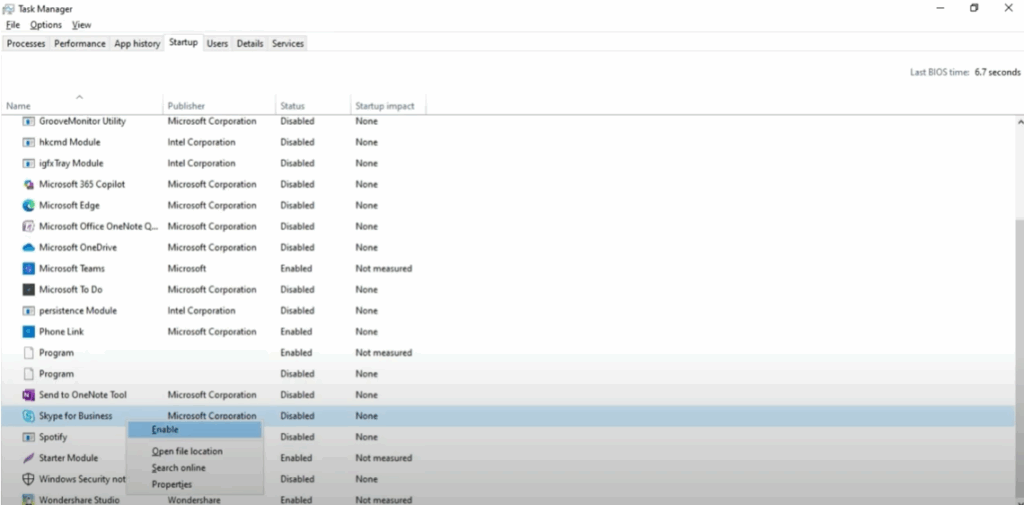
👉 The fewer apps you allow at startup, the faster your PC will boot.
Step 2: Adjust Visual Effects for Performance
Windows animations look nice, but they slow down performance.
- Press Windows + R.
- Type sysdm.cpl and press Enter.
- Go to the Advanced tab.
- Under Performance, click Settings.
- Select Adjust for best performance (also known as Optimize).
- Click Apply and then OK.
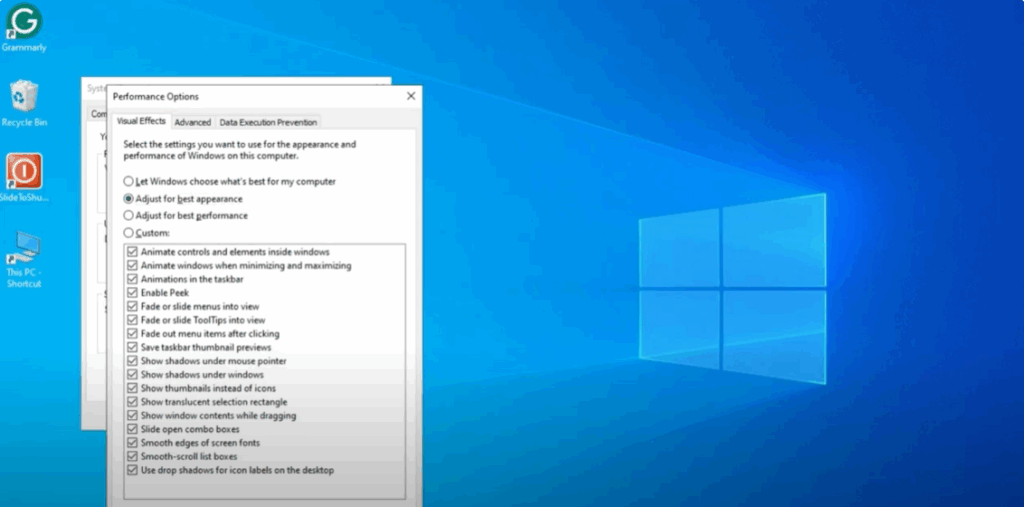
👉 This reduces visual appeal but significantly boosts speed, especially on low-end PCs.
Step 3: Set Up a High-Performance Power Plan
Sometimes Windows runs in Balanced or Power Saver mode, which reduces performance.
- Open Control Panel.
- Click on Power Options.
- Choose High Performance or Best Performance (if available).
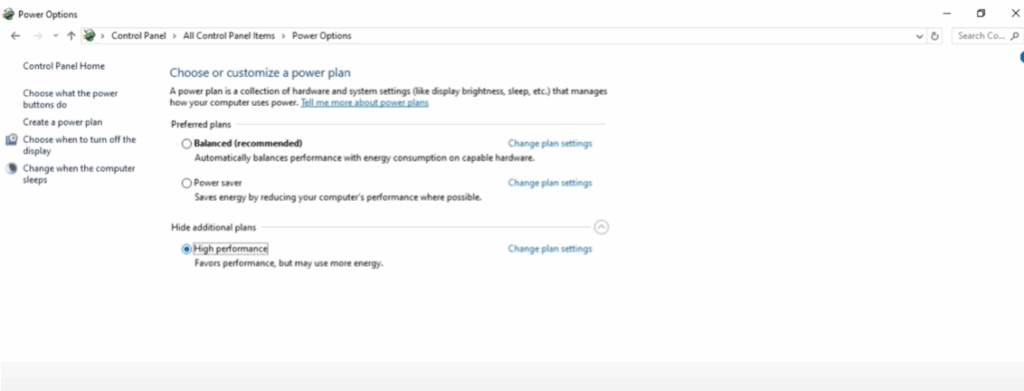
👉 This ensures your CPU runs at maximum capacity when needed.
Step 4: Close Background Apps
Background apps silently consume RAM and CPU.
- Open Settings.
- Go to Privacy.
- Click on Background Apps.
- Close unnecessary apps.
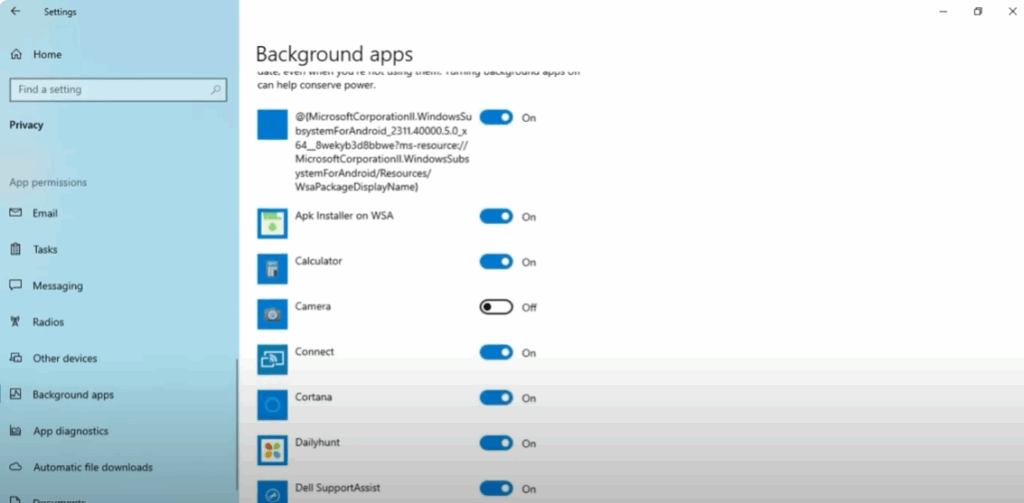
👉 You don’t need every app running in the background. This saves memory and battery.
Step 5: Free Up RAM Using Built-in Tools
A quick cleanup frees up RAM and disk space.
- Open System Settings → click System → then Storage.
- Select Temporary Files and delete junk files.
- Use Disk Cleanup:
- Press Windows + S and type Disk Cleanup.
- Select Drive C.
- Clear unnecessary junk files.
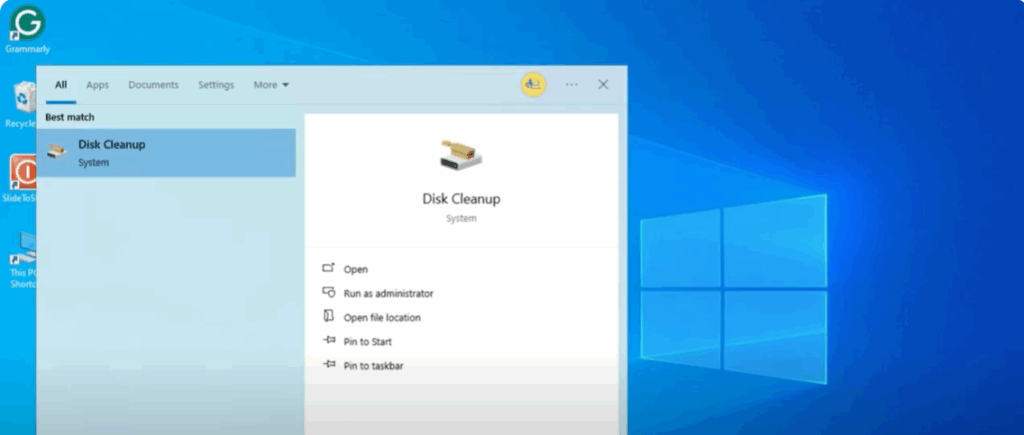
👉 This gives your system more space to work efficiently.
Final Words
That’s it! These were the top five settings to make your Windows 10 run faster in 2025. Try these changes and let me know in the comments how much speed improvement you got.
Don’t forget to like, subscribe, and ring the bell for more tech tutorials from Tech Gitter Official.
Thanks for reading!






