
Hello friends, welcome back to my channel Tech Gitter Official. If your USB ports suddenly stopped working on your Windows 10 or 11 PC, don’t worry. In this step-by-step guide, I’ll show you how to fix it quickly in 2025. Let’s get started.
Step 1: Use Device Manager
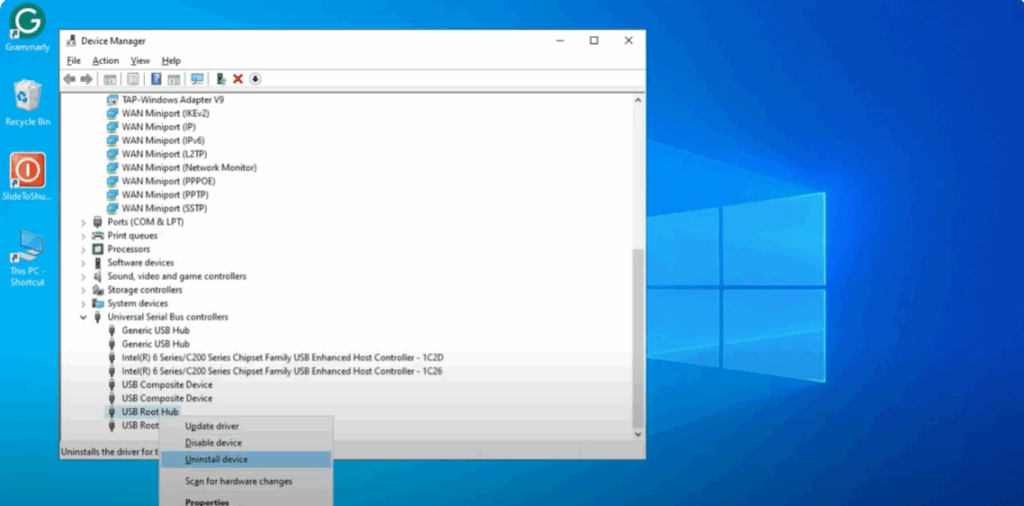
- Press Windows + X and click on Device Manager.
- Scroll down and expand Universal Serial Bus controllers.
- Right-click and choose Uninstall device for each USB Root Hub.
- Restart your PC – Windows will reinstall them automatically.
If this doesn’t work, move on to the next step.
Step 2: Update USB Drivers
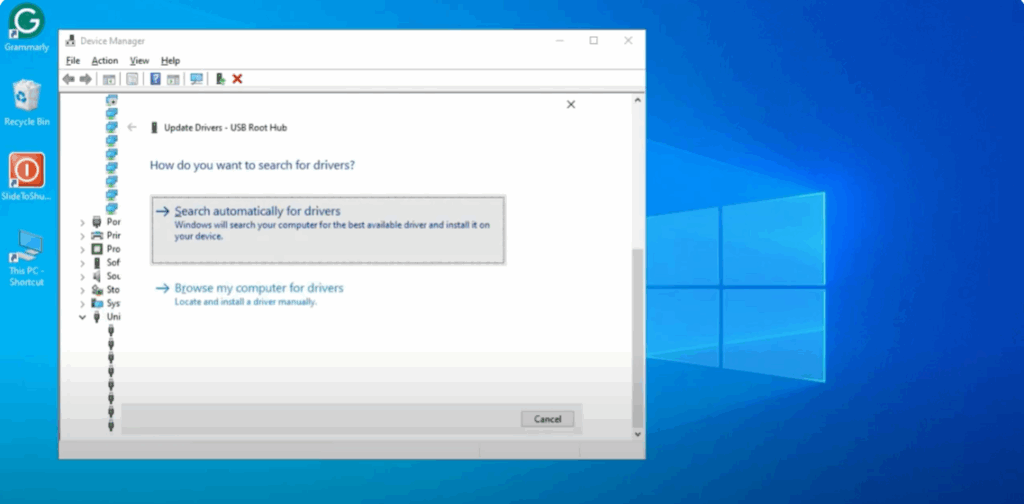
- Go to Device Manager.
- Right-click on USB Root Hub → Update driver → Search automatically.
- You can also update your motherboard/chipset drivers from your PC manufacturer’s website.
If this doesn’t resolve the issue, continue to the next step.
Step 3: Check Power Settings
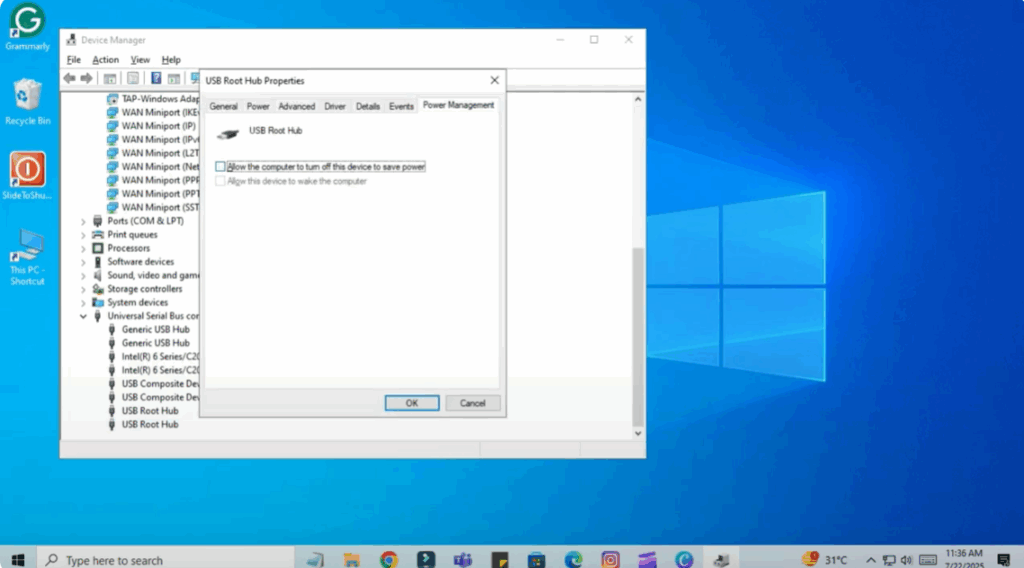
- In Device Manager, right-click on USB Root Hub and select Properties.
- Go to the Power Management tab.
- Uncheck the box that says “Allow the computer to turn off this device to save power”.
- Click OK.
If it still doesn’t work properly, go to the next step.
Step 4: Run Hardware Troubleshooter
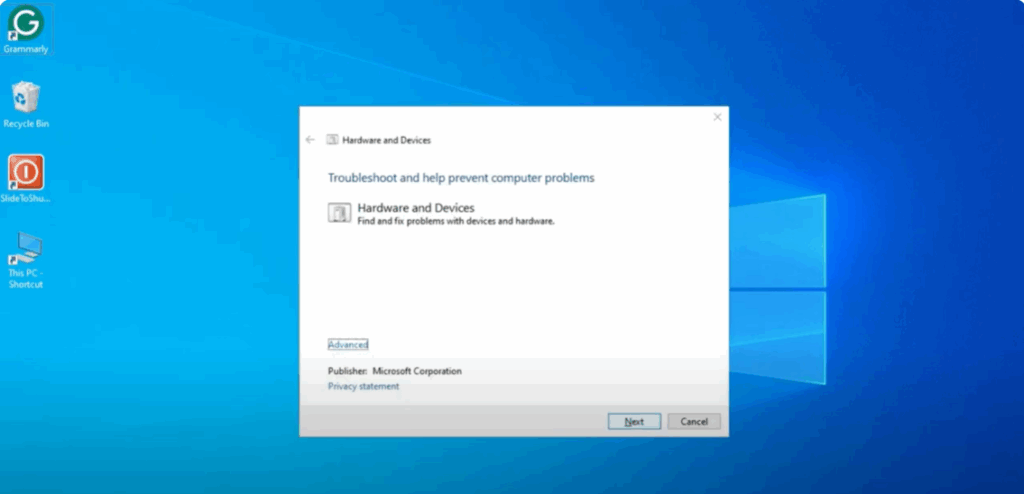
- Press Windows + R.
- Type
msdt.exe -id DeviceDiagnosticand press Enter. - Click Next to start diagnosing the problem.
- Follow the on-screen steps to fix the issue.
Step 5: Check Physical Connection
- Try unplugging and replugging your USB device.
- Use a different USB port or different cable.
- Restart your PC.
💡 Tip: If it works in one port but not another, the port might be physically damaged.
Bonus Fix: Disable Fast Startup
- Open Control Panel and select Large icons.
- Go to Power Options → Choose what the power buttons do.
- Click Change settings that are currently unavailable.
- Uncheck Turn on fast startup and click Save changes.
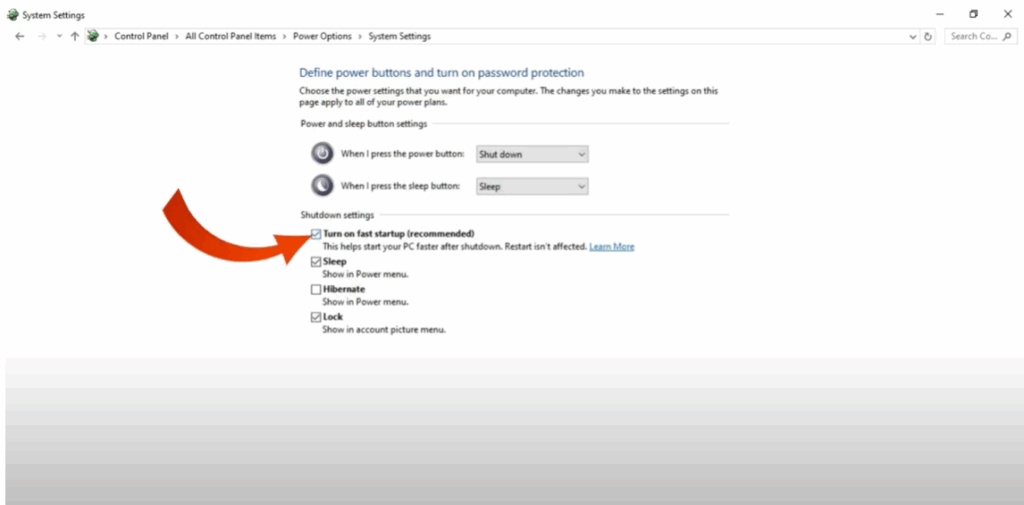
Fast startup can sometimes cause USB initialization issues.
Final Words
That’s it! One of these steps should fix your USB port issues on Windows 10 or 11.
👉 If it worked for you, hit that like button and subscribe for more quick tech fixes.
💬 Got questions? Drop them in the comments — I’m here to help.






