
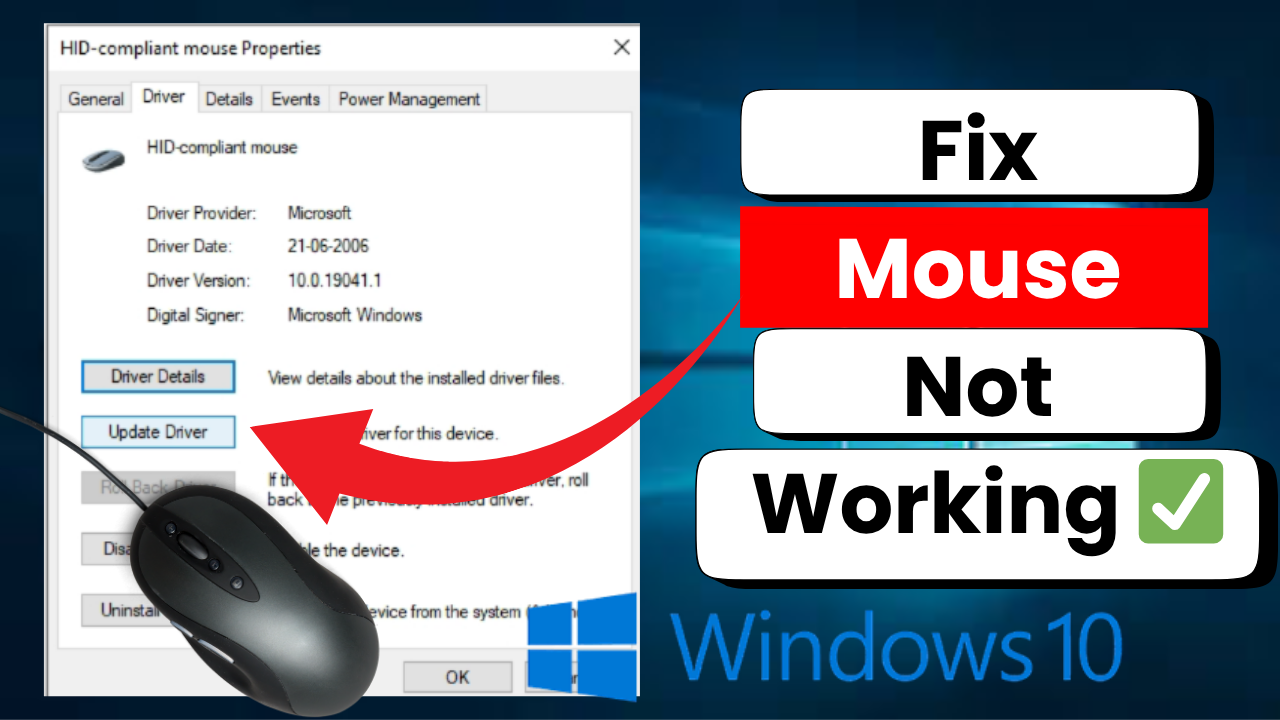
Welcome back to my channel Tech Gitter Official. In today’s guide, we will learn how to fix a mouse not working issue in Windows 10. Follow these steps carefully to get your mouse working again.
Step 1: Open Device Manager Using Keyboard
- Press Windows + X keys together to open the power menu.
- Use the down arrow key to navigate through the list.
- When you reach Device Manager, press Enter.

Step 2: Navigate to Mouse Settings
- Inside Device Manager, press the Tab key to highlight the cursor.
- Use the down arrow key to move through the list.
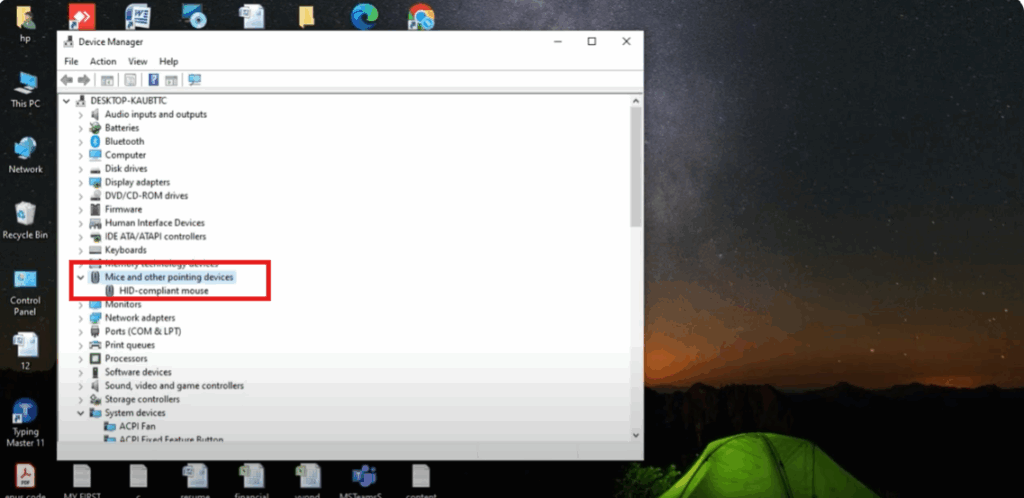
- Find Mice and Other Pointing Devices and press the right arrow key to expand it.
- Use the down arrow key again to highlight HID-compliant mouse.
- Press Enter to open it.
Step 3: Update the Mouse Driver
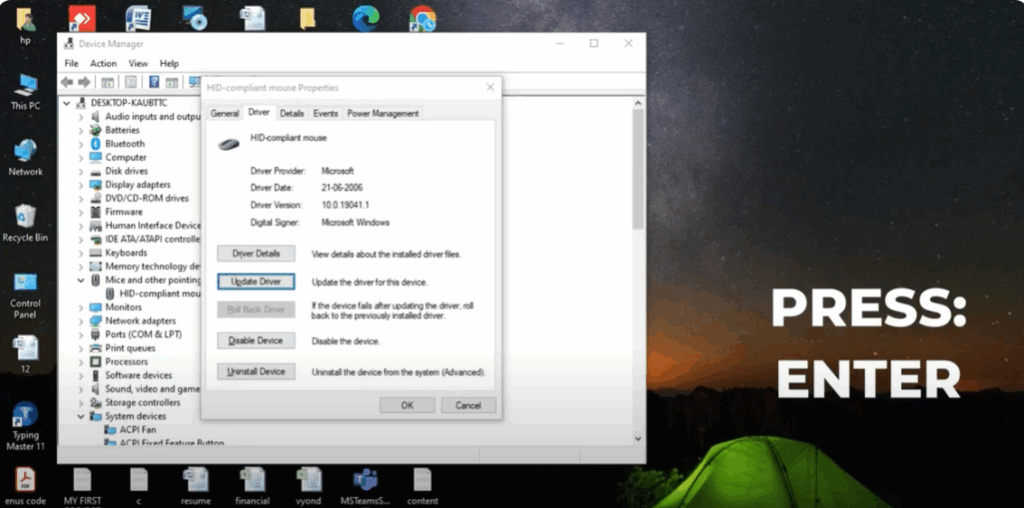
- Press the Tab key until the General tab is highlighted.
- Press the right arrow key and then Enter.
- Keep pressing the Tab key until it highlights the options.
- Navigate to Update Driver and press Enter.
- Using the up and down arrow keys, highlight Search Automatically for Drivers and press Enter.
- Wait for the process to complete.
- After completion, press the Tab key and then Enter to close the update window.
Step 4: Uninstall and Reinstall the Mouse Driver
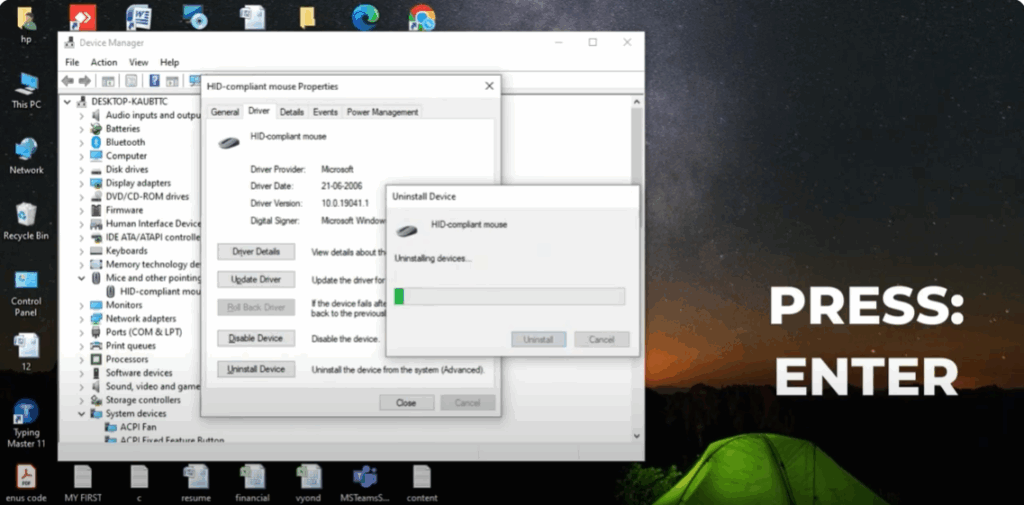
- Press the Tab key again to move to the Uninstall Device option.
- Press Enter, and then press Enter again to confirm.
- The mouse driver will now be uninstalled.
- To reinstall it manually, press Alt + right arrow key to navigate to the Action menu.
- Press Enter, then use the down arrow key to select Scan for Hardware Changes, and press Enter.
- Windows will automatically reinstall the mouse driver.
Step 5: Confirm Your Mouse is Working
Once the driver reinstalls, your mouse should start working properly.
Thanks for reading! If this helped you, like this article, share it, and subscribe to Tech Gitter Official for more quick tech tips.






