
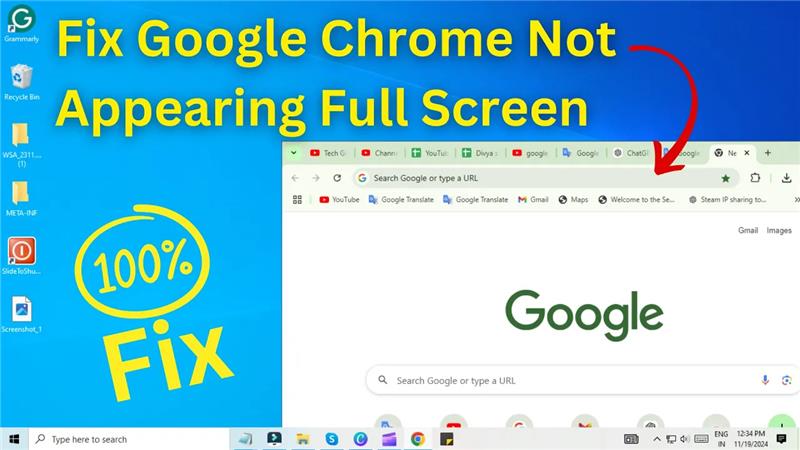
Hello friends, welcome back to Tech Gitter. In today’s guide, we’ll address a common issue many users face — Google Chrome not opening in full screen mode on your PC. If you’ve been struggling with this problem, don’t worry; we’ve got a quick and simple fix for you.
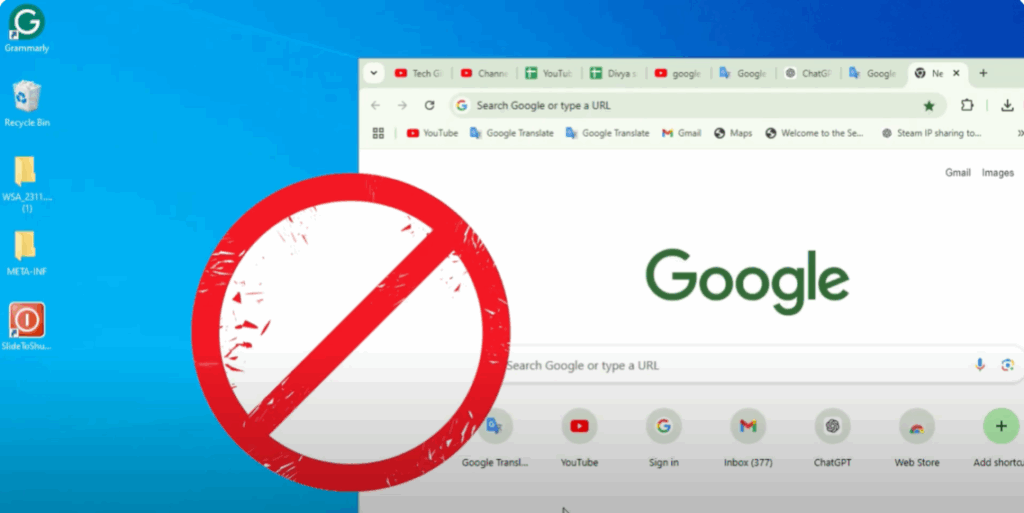
Step-by-Step Guide to Fix the Issue:
- Locate the Chrome Icon
Place your cursor over the Google Chrome icon on your desktop or taskbar. - Use the Shift Key
Hold down the Shift key on your keyboard. - Right-Click on the Icon
While holding the Shift key, right-click on the Chrome icon. - Select Maximize
From the context menu that appears, click on Maximize.
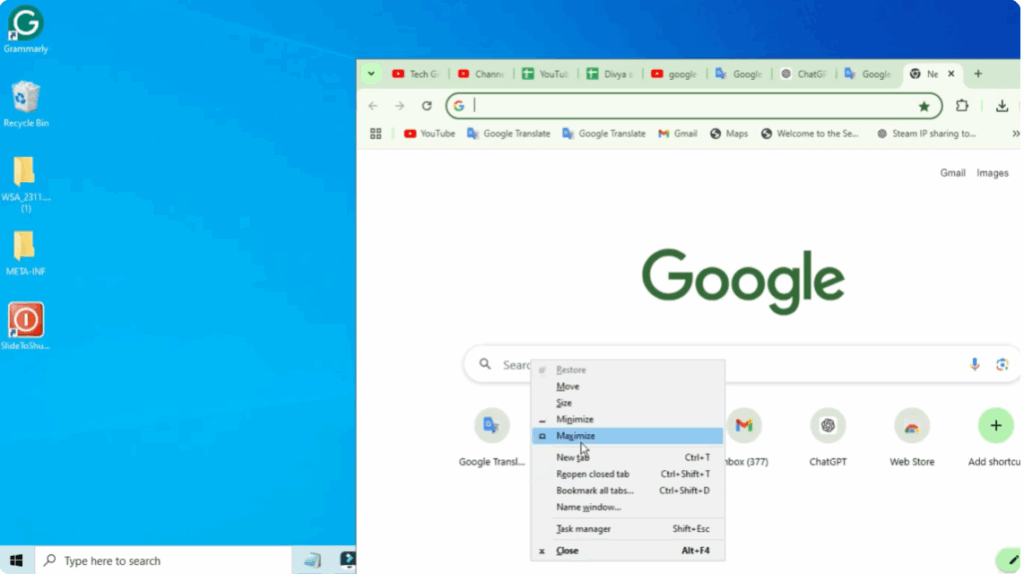
That’s it! Your Google Chrome should now open in full screen mode as you want it.
If you found this guide helpful, don’t forget to hit the like button and subscribe to Tech Gitter for more tech tips and tricks.
Thanks for reading, and we’ll see you in the next one!






