
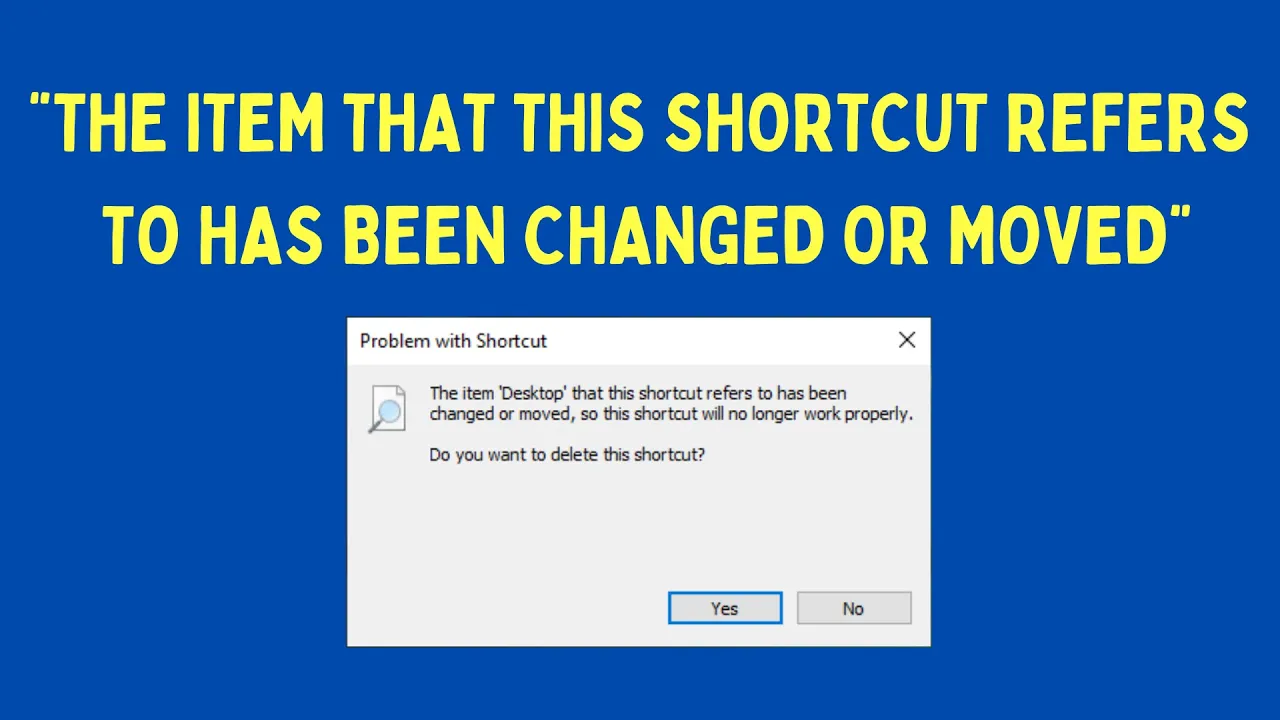
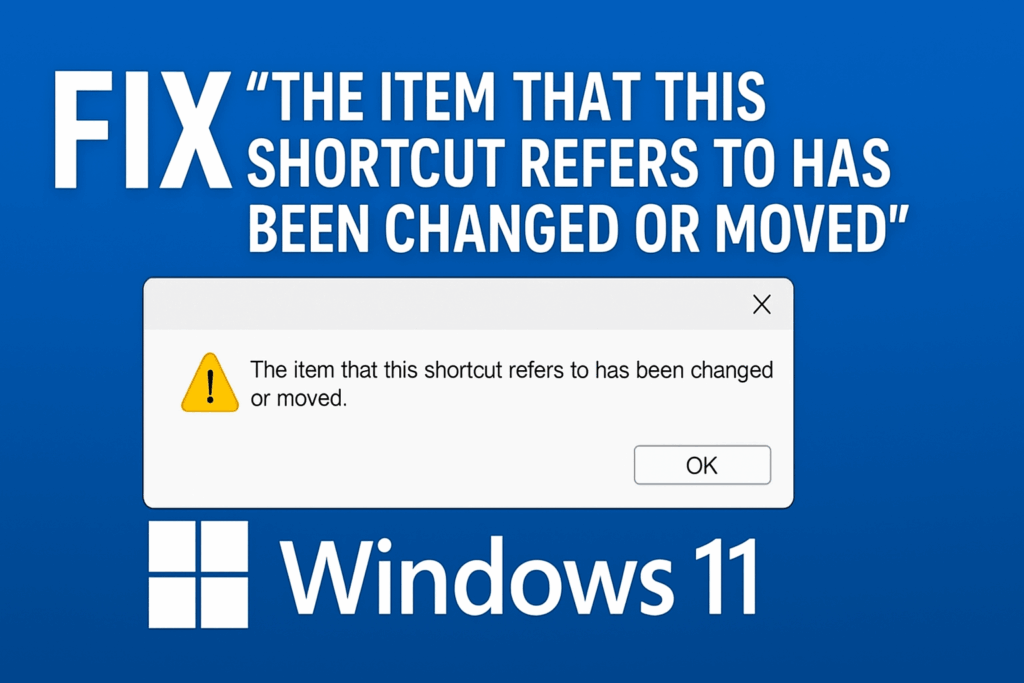
This error message typically appears when a shortcut points to a target that’s been moved, renamed, or deleted. Here’s how to resolve it:
1. Confirm the Target Location
- Right-click the shortcut and select Properties.
- In the Shortcut tab, note the Target path.
- Use File Explorer (Win + E) to navigate to that location and verify the file still exists.
- If not found, proceed to recreate the shortcut.
2. Create a New Shortcut
- Search for the app (e.g., “Word”) in the Start menu.
- Right-click it → select Open file location.
- In the File Explorer window, right-click the application → choose Send to > Desktop (create shortcut).
3. Temporarily Disable Windows Defender Firewall (If relevant)
Sometimes the Firewall may block shortcut paths:
- Search for Windows Defender Firewall → open it.
- Click Turn Windows Defender Firewall on or off.
- Temporarily turn it off (not recommended for long term).
- Retry the shortcut—if it works, re-enable the Firewall once complete.
4. Repair the Application
If the target app is corrupted:
- Open Control Panel → go to Programs & Features.
- Locate the program → click Change/Modify → follow prompts to repair.
5. Reinstall the Application
If repair doesn’t resolve the issue:
- Uninstall the program entirely.
- Download and reinstall from the official source.
- Create a new shortcut after installation.
Bonus Tips
- Always delete broken shortcuts for neatness.
- Pin apps to Taskbar or Start menu for smoother access after repair.
These fixes apply to Office apps, media players, games, and other programs across Windows 10 and 11.






