
It’s frustrating when your Windows 11 screensaver fails to activate despite being properly configured. This issue can be caused by settings conflicts, input device irregularities, driver glitches, or system file corruption. The video tutorial offers five targeted fixes—here’s a refined breakdown plus additional expert advice to get your screensaver running smoothly again.
The 5 Fixes to Try
1. Check Screensaver Settings
Even if it seems obvious, sometimes your screensaver isn’t set up correctly.
- Go to Settings → Personalization → Lock screen → Screen saver settings.
- Ensure a screensaver is selected and set a suitable wait time (e.g., 5 minutes).
2. Disconnect External Devices
Connected gadgets like wireless mice or USB hubs may prevent the screensaver from triggering.
- Temporarily unplug such devices and test if the screensaver activates as expected.
3. Clean Input Devices & Stabilize Cursor
Movement—even imperceptible jitter—from unclean optical sensors or irregular surfaces can cancel the screensaver.
- Use a clean, flat mouse pad and wipe the mouse sensor with a soft cloth.
- For laptops, gently clean the trackpad.
4. Adjust Power Settings & Sleep Timer
If sleep or display-off triggers before the screensaver, the screensaver may never appear.
- Navigate to Settings → System → Power & battery → Screen and sleep.
- Ensure the sleep timer is longer than your screensaver activation time—e.g., screensaver at 5 min, sleep at 10 min.
5. Run System Repair Tools (SFC & DISM)
System file corruption can disrupt screensaver functionality.
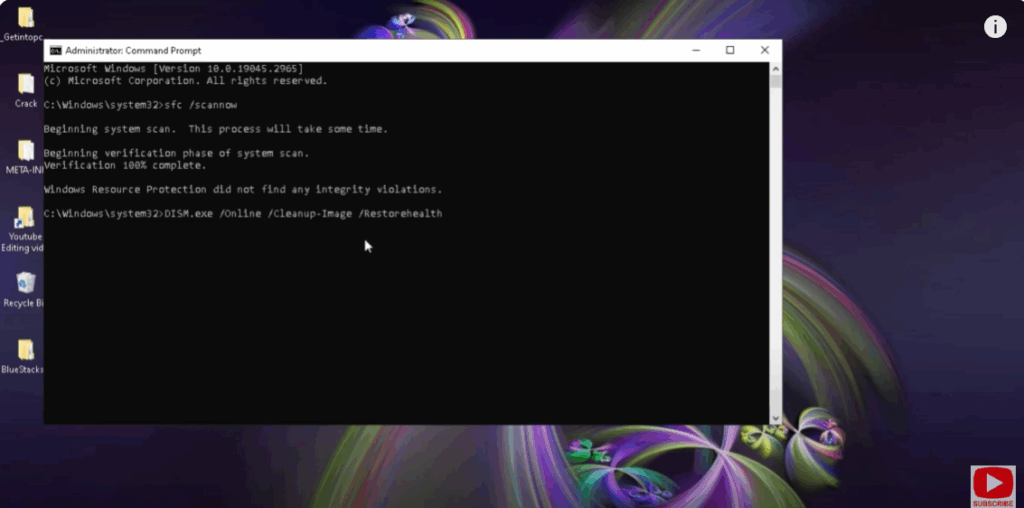
- Open Command Prompt as Administrator and run:
sfc /scannow DISM /Online /Cleanup-Image /RestoreHealth - Restart your PC and test the screensaver again.
Bonus Fix: Prevent Devices from Waking Your PC
On Microsoft Q&A, an expert suggests that when input devices (keyboard/mouse) are allowed to wake the computer, they can also block the screensaver.
To fix this:
- Open Device Manager → expand Human Interface Devices, Keyboards, and Mice.
- For each device, go to Properties → Power Management, and uncheck “Allow this device to wake the computer”.
- Also, consider updating or reinstalling those drivers.
Final Thoughts
If your screensaver still doesn’t work after applying the above steps, updating your Windows 11 version or even performing an in-place repair install may resolve more deeply rooted issues. For most users, however, these five fixes are highly effective and cover the most common scenarios.






