Encountering error 0x8007042c when trying to use Windows Update or enabling the Firewall can be frustrating—this error generally means a service required by Windows Update or Windows Firewall is blocked, disabled, corrupted, or stuck in an incorrect state. Whether firewall settings are grayed out, updates are failing, or Windows complains that services won’t start, this guide will walk you through several step-by-step fixes to restore functionality and get everything working again.
Steps to Fix Error 0x8007042c
Here are several methods to try. After each step, check if the error has been resolved. If not, move on to the next.
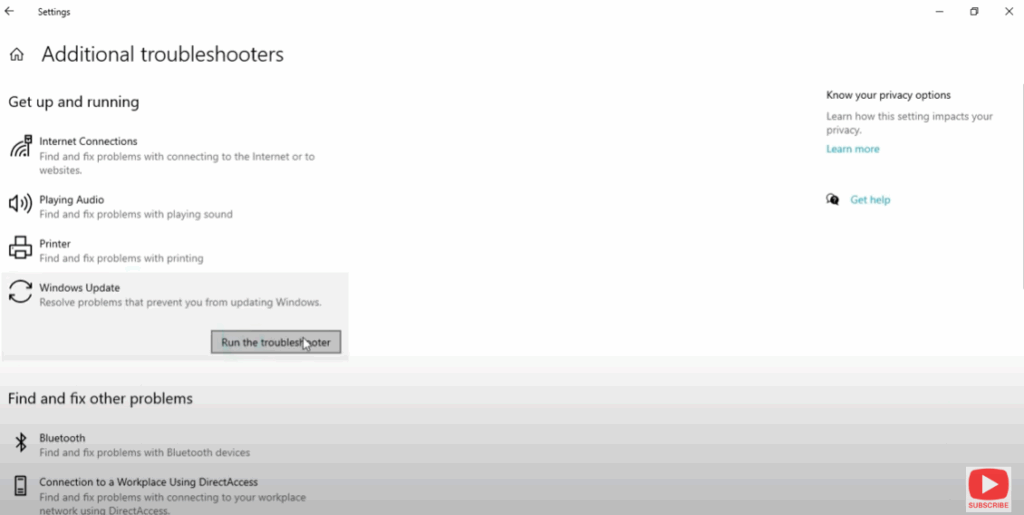
- Run Windows Troubleshooter
- Go to Settings → Update & Security (or Settings → System → Troubleshoot in Windows 11) → Troubleshoot.
- Choose Additional troubleshooters.
- Run the troubleshooter for Windows Update first.
- Also run any relevant troubleshooters for Firewall or Network.
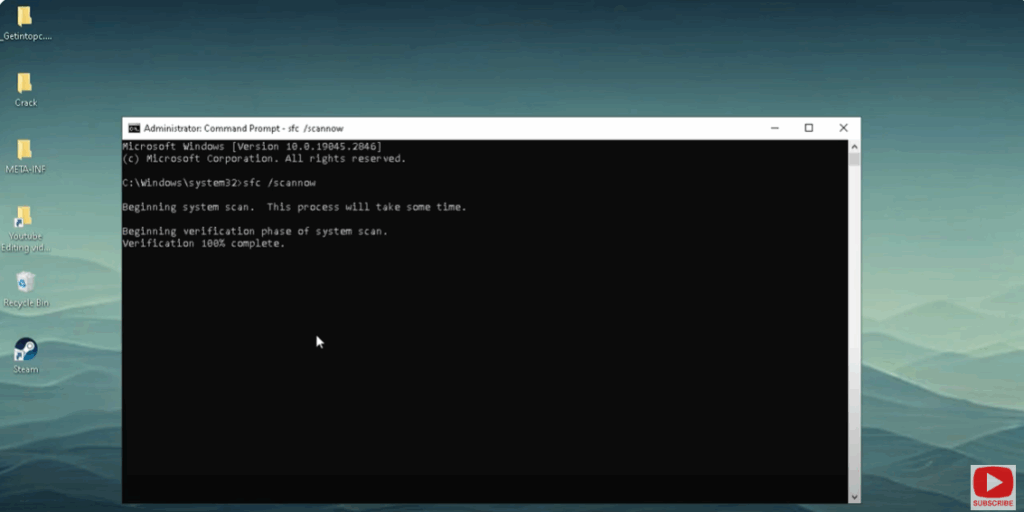
- Repair System Files (SFC & DISM)
- Open Command Prompt as Administrator.
- Run:
sfc /scannow - After that completes, run:
DISM /Online /Cleanup-Image /RestoreHealth - These will scan for corrupted Windows files and repair them.