
You may encounter the error “The system cannot find the drive specified” when attempting to access a drive via File Explorer, Command Prompt, during startup, or while mapping drives in batch files. Essentially, Windows is unable to locate or reference the designated drive letter or path. This could be caused by incorrect drive assignments, issues in boot configuration, permissions, corrupt registry entries, or failing hardware. The good news is there are several proven fixes that often resolve this issue without major data loss.

How to Fix “The System Cannot Find the Drive Specified”
Here are several steps to try. You may not need all of them; often one or two will solve the problem.
- Reboot the PC
- Sometimes a simple restart solves temporary connection or driver issues. It reinitializes hardware, remounts drives, and refreshes system states.
- If the problem started after a crash or improper shutdown, rebooting is a good first step.
- Check Drive Letter and Disk Management
- Open Disk Management (
diskmgmt.msc). - Verify that the drive is listed, has a drive letter, and that it’s healthy (no errors).
- If the drive letter is missing or conflicting, right-click → Change Drive Letter and Paths, then add or assign a letter that is not in conflict.
- Open Disk Management (
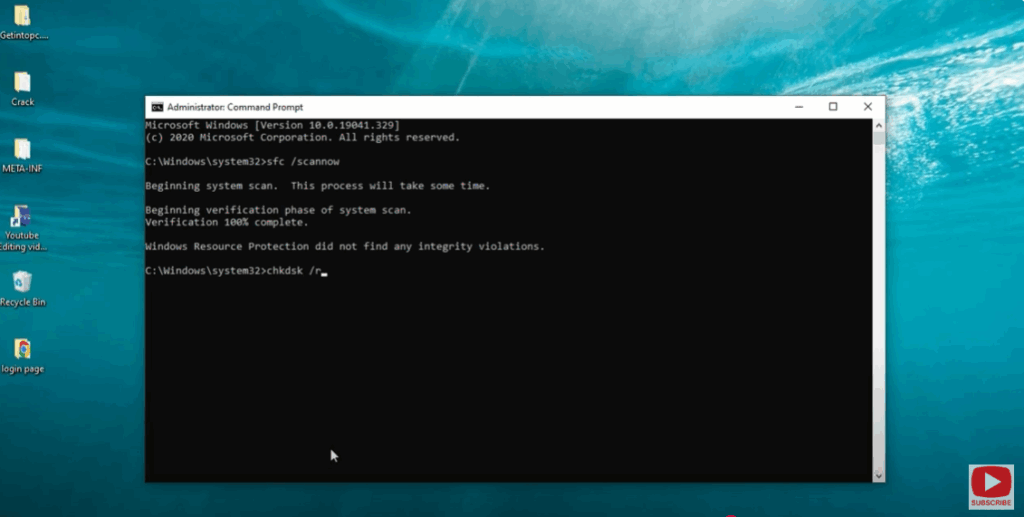
- Run CHKDSK to Repair File System Errors
- Open Command Prompt as an administrator.
- Type the command:
chkdsk /r(replaceX:with your drive letter) - Allow it to run, repair sectors/errors, then restart. Corrupt file systems often stop the drive from being recognized properly.
- Check Boot Configuration / Bootloader (if occurs at boot or startup)
- If this error appears when trying to boot or during repair via recovery mode, you may need to correct the Boot Configuration Data (BCD).
- Boot from Windows installation media → go to Repair your computer → Troubleshoot → Command Prompt.
- Run commands like:
bootrec /fixmbr bootrec /fixboot bootrec /scanos bootrec /rebuildbcd - Then restart and see if the system boots properly and recognizes the drive.
- Check Registry for Drive-Related Permissions or Paths
- If a mapped network drive or script is causing the error, check registry entries or configuration scripts for wrong paths.
- For example, update any hardcoded drive paths in batch files or shortcuts.
- Sometimes registry keys like
EnableLinkedConnections(underHKEY_LOCAL_MACHINE\SOFTWARE\Microsoft\Windows\CurrentVersion\Policies\System) help make mapped drives visible under elevated/non-elevated contexts. (Ensuring consistent environment.)
- Ensure Hardware is Properly Connected & Functional
- Check cables (SATA, power) if it’s an internal drive, or USB connection if external.
- Test the drive on another PC (if possible) to see whether the drive itself has failed.
- Listen for drive noises or check manufacturer diagnostic tools.
- Restore or Reinstall Windows / Use Recovery Options
- If the drive is the system/boot drive and is damaged or BCD corrupted beyond simple repair, you may need to use recovery tools or perform repair install.
- Backup important data first. Then use Windows recovery media or reset / reinstall Windows if necessary.






