A .tar.gz file (sometimes .tgz) is a two-layer compressed file format popular on Unix/Linux systems: first archived with tar (to group files), then compressed with gzip (to shrink size). On Windows 10, when you receive such a file, it might initially look unfamiliar—but you don’t always need special tools. Windows has built-in support via the tar command in recent versions, and there are also free graphical utilities like 7-Zip or PeaZip. Below are several methods to open and extract .tar.gz archives depending on whether you prefer command-line or GUI tools, and according to your Windows version and comfort level.
Methods to Extract / Open a .tar.gz File in Windows 10
Here are step-by-step ways to handle .tar.gz files:
1. Using 7-Zip (GUI Tool)
If you prefer a graphical tool or if your Windows version doesn’t support tar in command line, 7-Zip is a popular, free option.
Steps:
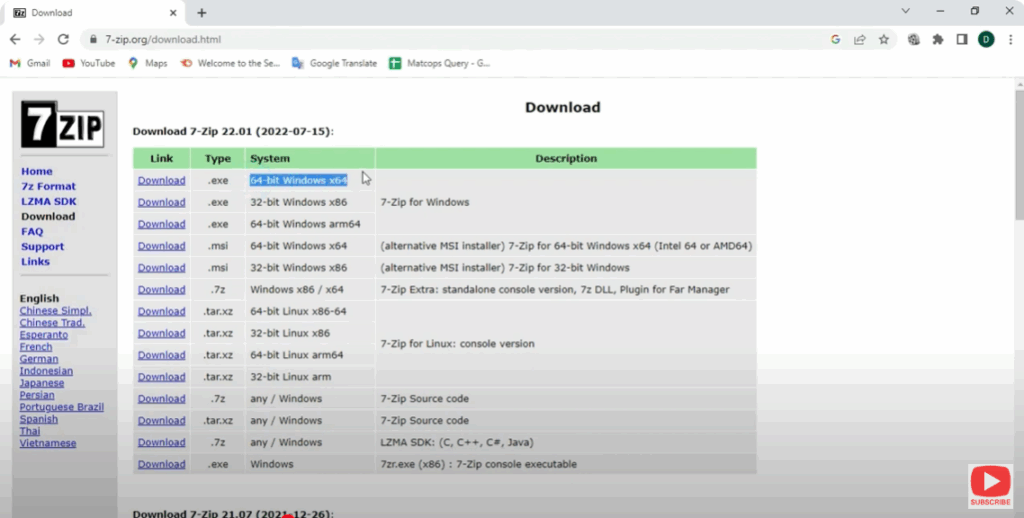
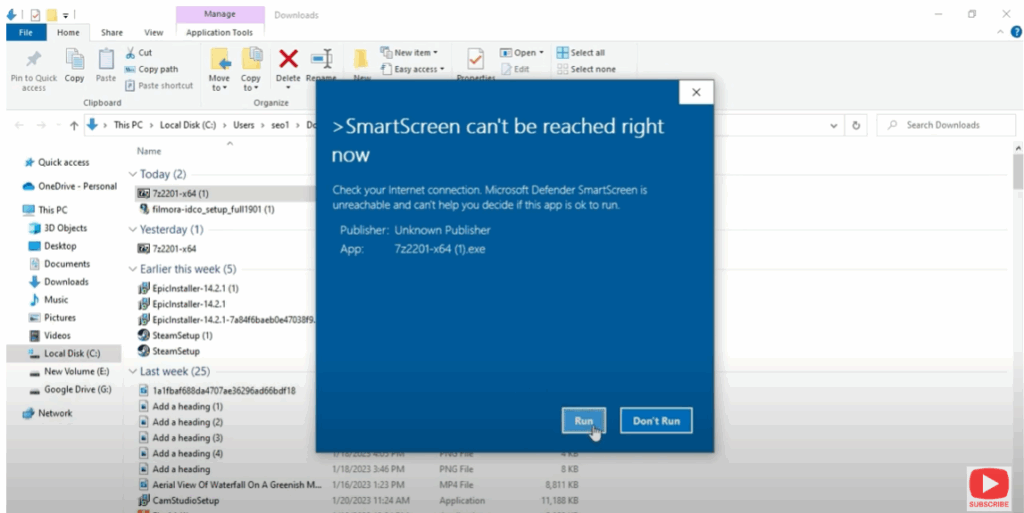
- Download and install 7-Zip from its official site.
- Navigate in File Explorer to the
.tar.gzfile.
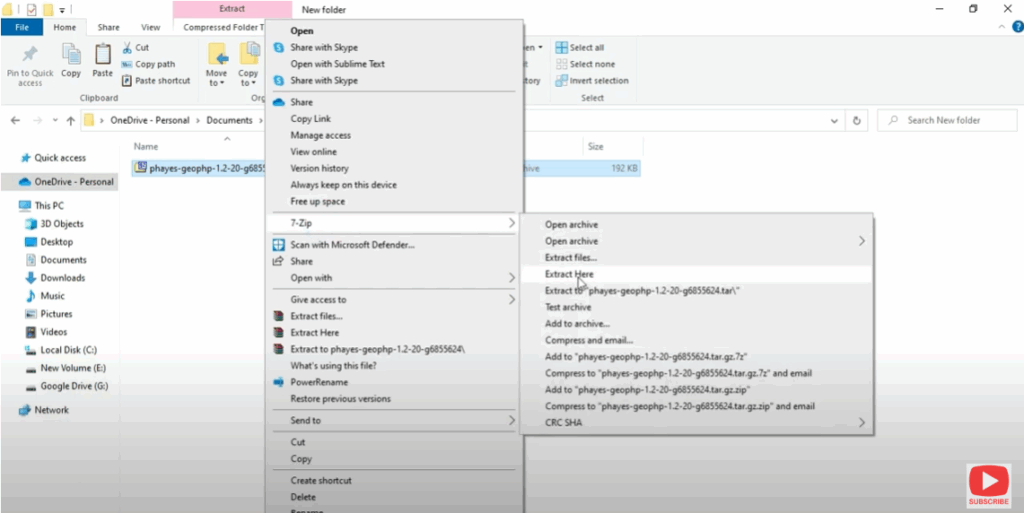
- Right-click the file → 7-Zip → Extract Here (or “Extract to <archive name>”).
- Sometimes the
.tar.gzwill first extract a.tarfile (if it’s double compressed). - Then you may need to extract the
.tarin a second step (by right-clicking the.tar→ 7-Zip → Extract) to get all the files.
- Sometimes the