When Windows or another machine reports that a “resource is online but isn’t responding to connection attempts,” it means that although the target device or server is powered on and connected to the network, something is blocking or preventing proper communication. For example, you might try to access shared folders, printers, or services, but despite the machine appearing in your network map, it simply won’t open or respond. This can stem from firewall rules, network configuration issues like proxy settings, DNS problems, port blocking, or service dependencies that aren’t running. The issue is often fixable by methodically checking those network settings, turning off interfering features, and ensuring the right permissions and ports are open.
How to Fix “Resource Is Online But Isn’t Responding to Connection Attempts”
Here are practical steps that often solve this issue. Try them in order; often the early steps are sufficient.
1. Verify Network Sharing & Discovery Settings
- Open Settings → Network & Internet .
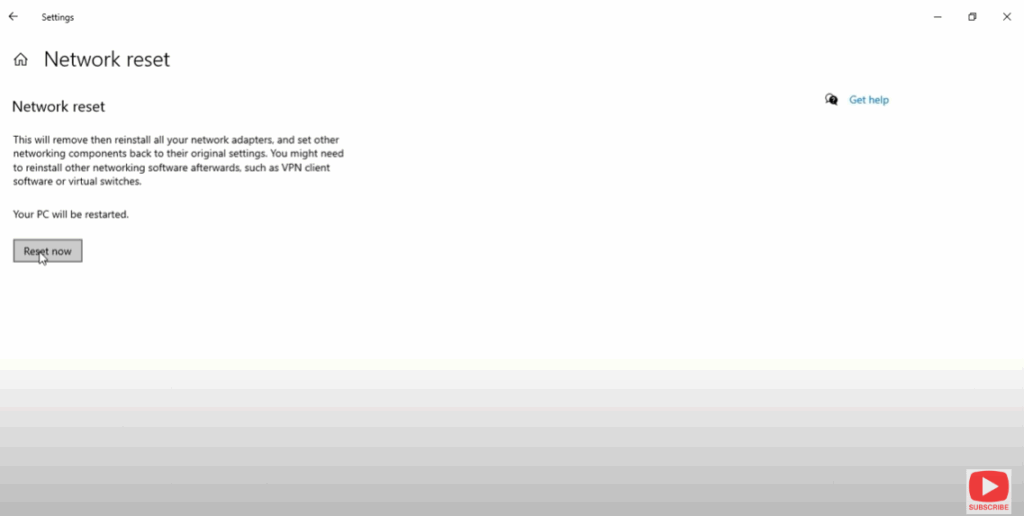
- After scroll down down click on Network reset.
- Click on the button Reset Now.
2. Turn Off Proxy / VPN If Applicable
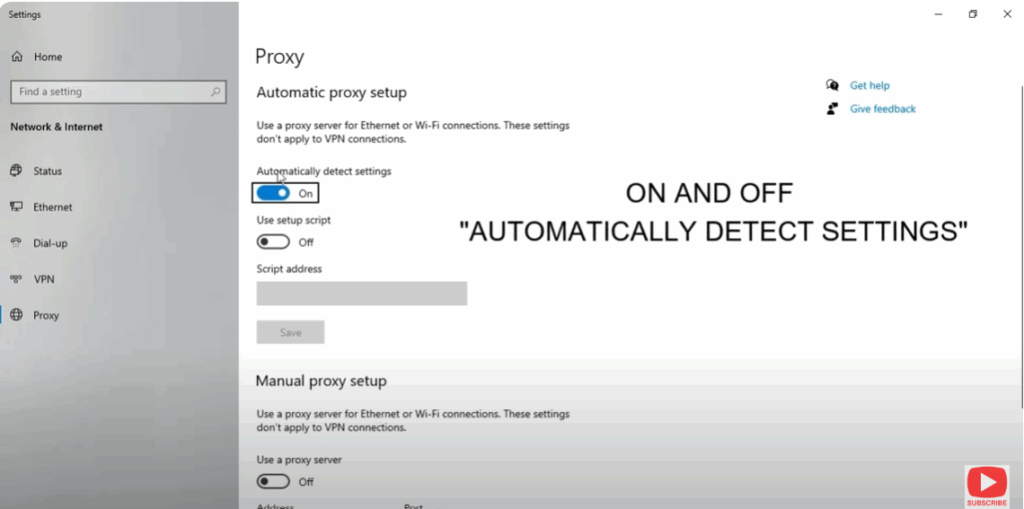
- If your computer is using a proxy (manual or automatic) or a VPN, try disabling it temporarily. Proxies or VPNs can interfere with local network resource resolution or block certain ports.
- Go to Settings → Network & Internet → Proxy and turn off any proxy settings.
- If on VPN, disconnect and test again.
3. Check DNS, Hosts File, and IP Configuration
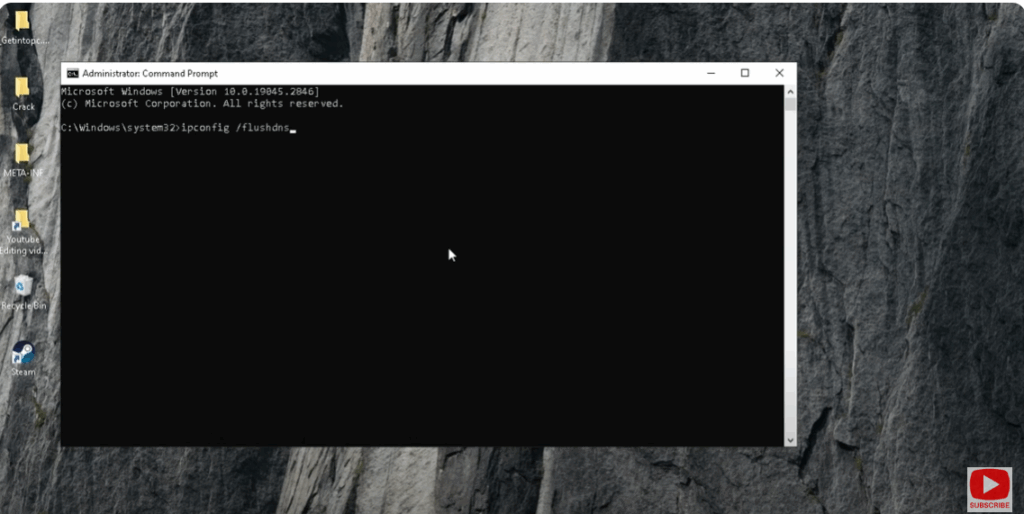
- Flush DNS cache: run in Command Prompt (as Administrator):
ipconfig /flushdns netsh winsock resetThen reboot. - Check
hostsfile (usually atC:\Windows\System32\drivers\etc\hosts) to ensure there are no entries overriding the remote resource or pointing it wrongly. - Verify that IP addresses (local and remote) are on the same subnet (if necessary), especially in home or small office networks. Conflicting or mismatched subnets can look like “online but not reachable.”