Error 0x800700EA is a somewhat vague Windows error code that can show up in several different contexts: Windows Update, copying or moving files, installing .NET Framework 3.5, or even in Microsoft’s Movies & TV app. When it appears, the cause is often related to corrupted system files, issues with update components, or problems with the “feature” or “service” being enabled or accessed. The good news is there are multiple fixes people have successfully used — from running diagnostics tools to resetting components — which often resolve the issue without needing to reset or reinstall Windows.
Solutions: How to Fix Error 0x800700EA
Here are methods you can try. Try them in order, checking whether the error is resolved after each step.
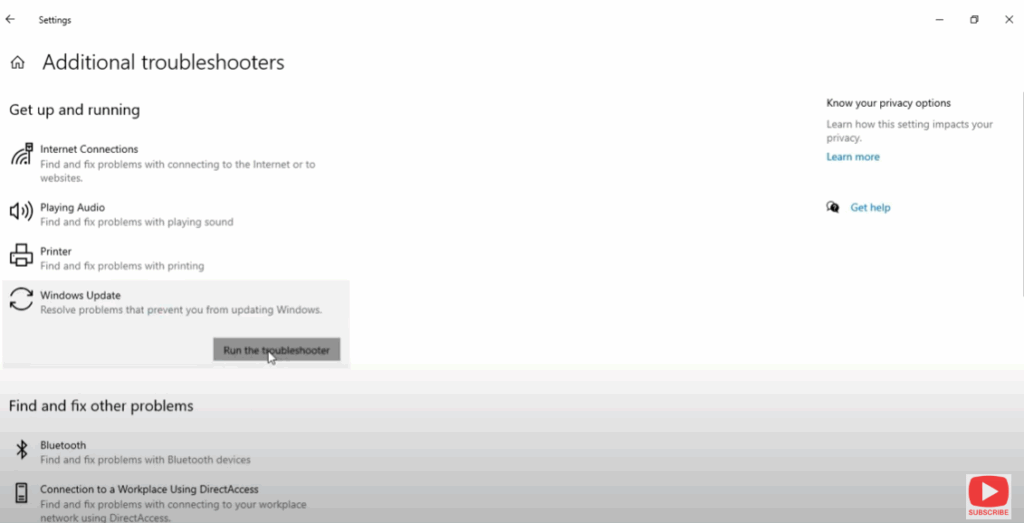
- Run the Windows Update Troubleshooter
- Open Settings → System → Troubleshoot → Other troubleshooters → Find Windows Update, then run the troubleshooter. Follow on-screen instructions. This tool can detect and repair common update-component problems.
- Run SFC and DISM to Repair System Files
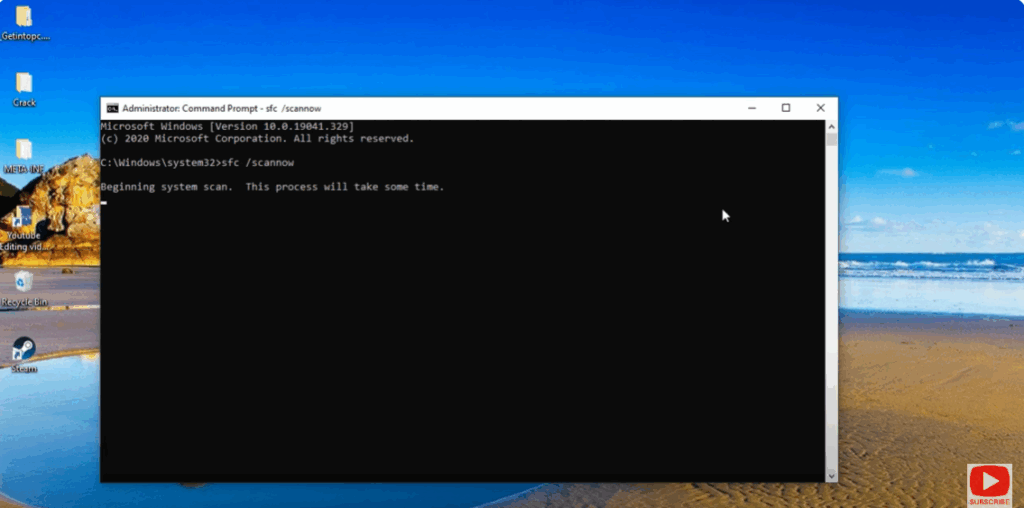
- Open Command Prompt as administrator and run:
sfc /scannow
Wait until it completes. Then run:DISM /Online /Cleanup-Image /RestoreHealth
Reboot and check if error persists. These commands repair corrupted system files and Windows image.
- Open Command Prompt as administrator and run: