
Welcome back to my channel Tech Gitter Official. In today’s video, we will learn how to fix the issue when you can’t access your router’s IP address or web interface.
Step 1: Open Command Prompt
First, open the search bar. Type cmd and click on Command Prompt. Here, type the command:
ipconfig
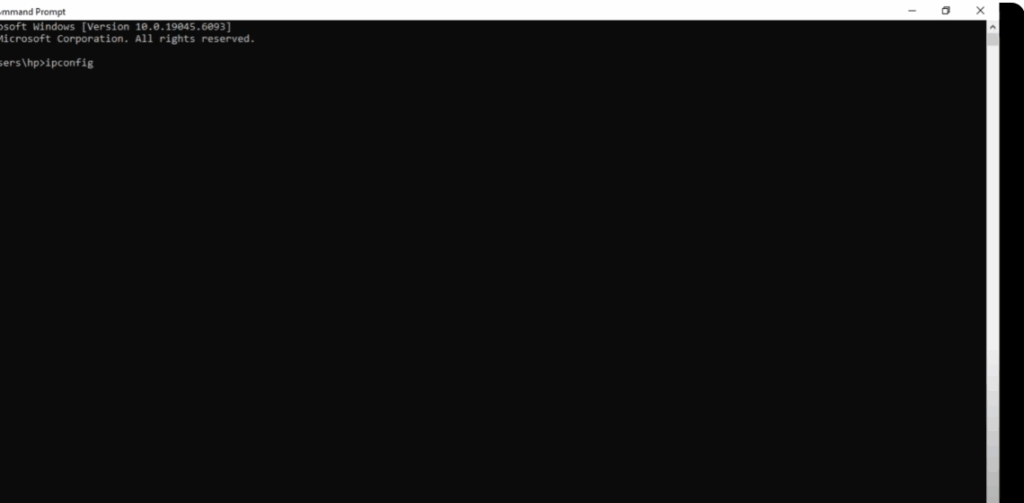
and press Enter.
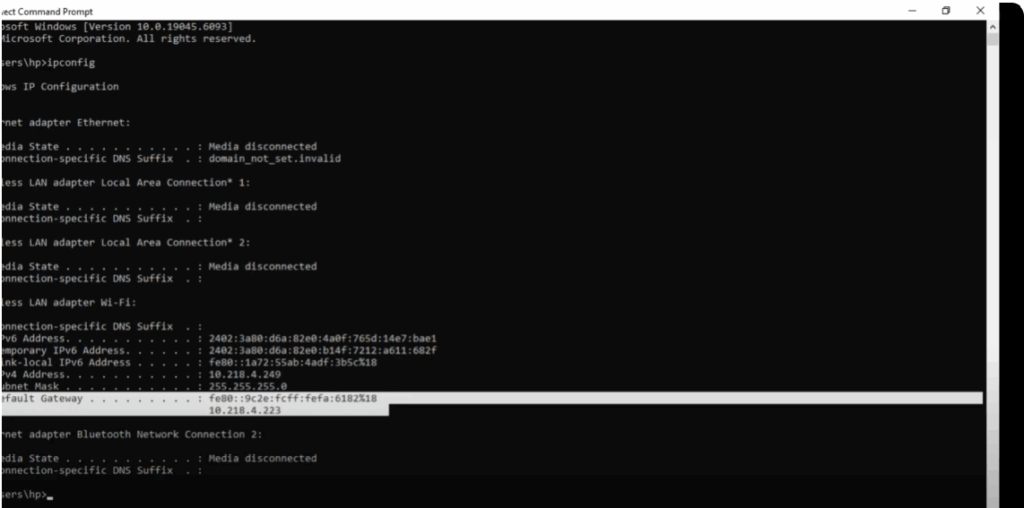
Look for the line that says Default Gateway. Copy this IP address and paste it into your browser’s address bar with https:// before it.
Step 2: Try Different Browser
If it fails, try opening it in another browser.
Step 3: Restart Your Router
If that still doesn’t work, turn off your router, wait for some time, and restart it again.
Step 4: Check Network Properties
If the issue is not solved yet, press Windows + R, type ncpa.cpl, and click OK. A network connections window will open.
- If you are using Ethernet, click on Ethernet.
- If you are using Wi-Fi, click on Wi-Fi.
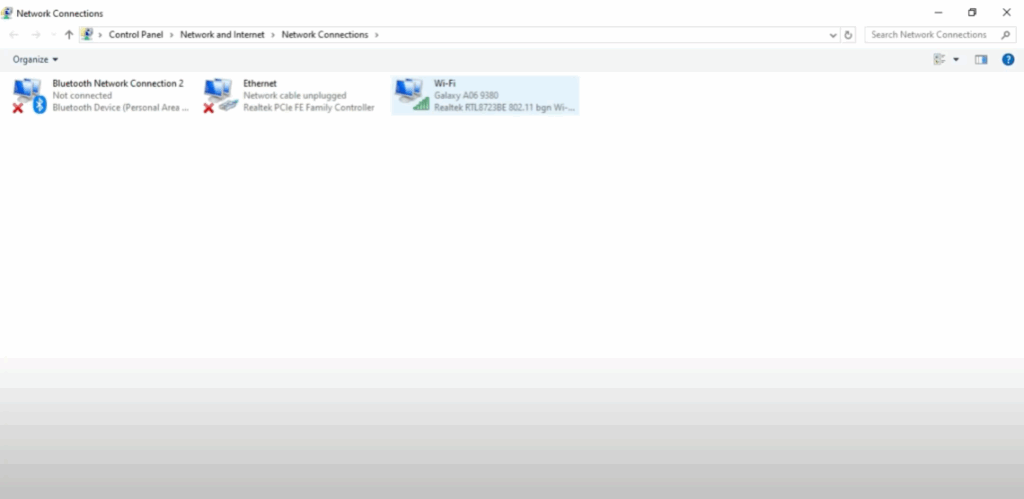
In my case, I am using Wi-Fi. So, I’ll right click on it and select Properties.
Step 5: Adjust IPv4 Settings
Now, scroll down and find Internet Protocol Version 4 (TCP/IPv4) and click on it.
After this, select the options:
- Obtain an IP address automatically
- Obtain DNS server address automatically
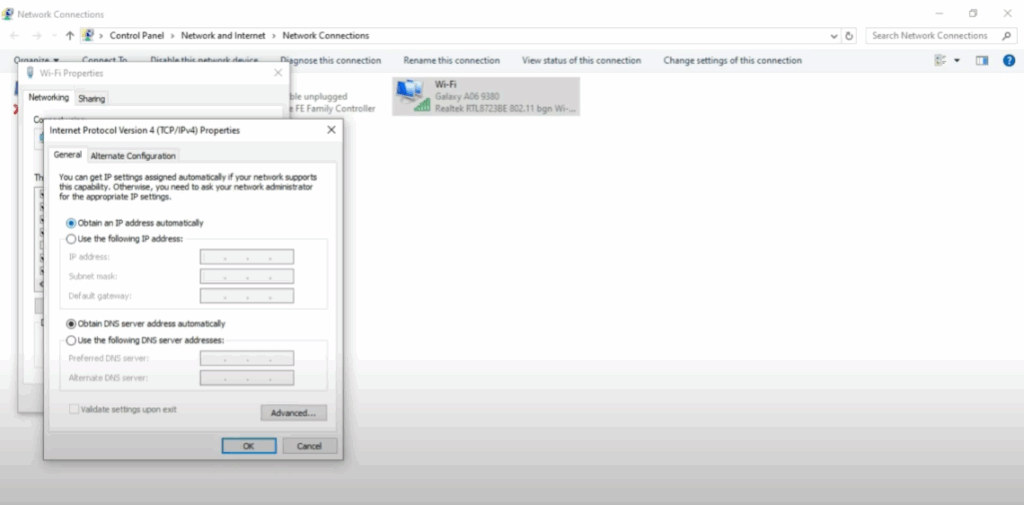
Finally, click on OK to save the settings.
Conclusion
Now, you should be able to access your router’s web interface successfully.
Thanks for watching! If this video helped you, don’t forget to like, share, and subscribe to Tech Gitter Official.






