
Hello friends, welcome back to my channel Tech Gitter Official.
Is your Windows 11 laptop always running out of battery at the wrong time? Whether you’re studying, traveling, or gaming, battery life is super important. In today’s guide, I’ll show you step by step how to maximize your Windows 11 battery life using hidden settings most people don’t know about.
Power and Battery Settings
First, let’s head over to the basic but most effective setting.
- Click on the Start menu > Settings > System > Power and Battery.
- Here, enable Battery Saver Mode.
- You can also set it to turn on automatically at 20% or 30%, so you don’t have to worry about switching it manually.
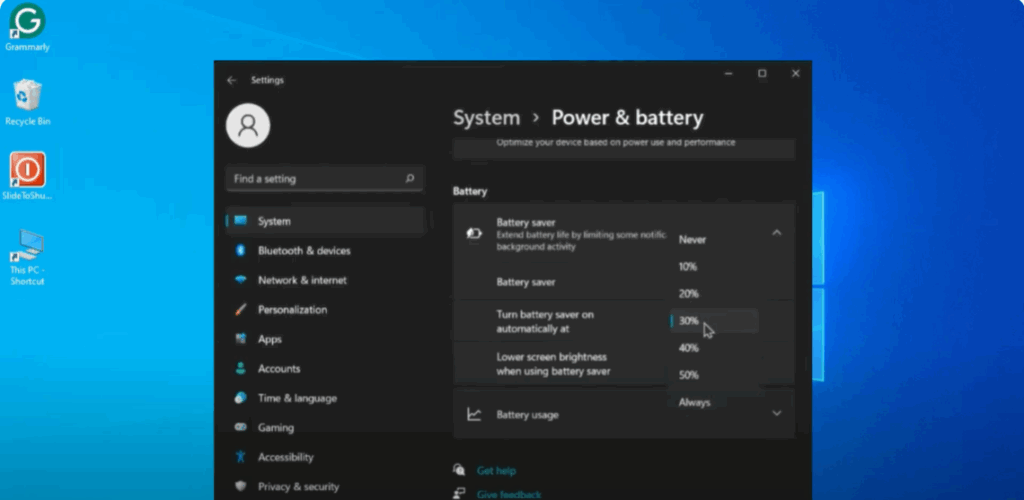
👉 Battery saver reduces background activity and helps squeeze out extra time from your battery.
Change Power Mode
Next, scroll down to Power Mode.
- By default, it may be set to Balanced or Best Performance, which drains more battery.
- Change it to Best Power Efficiency.
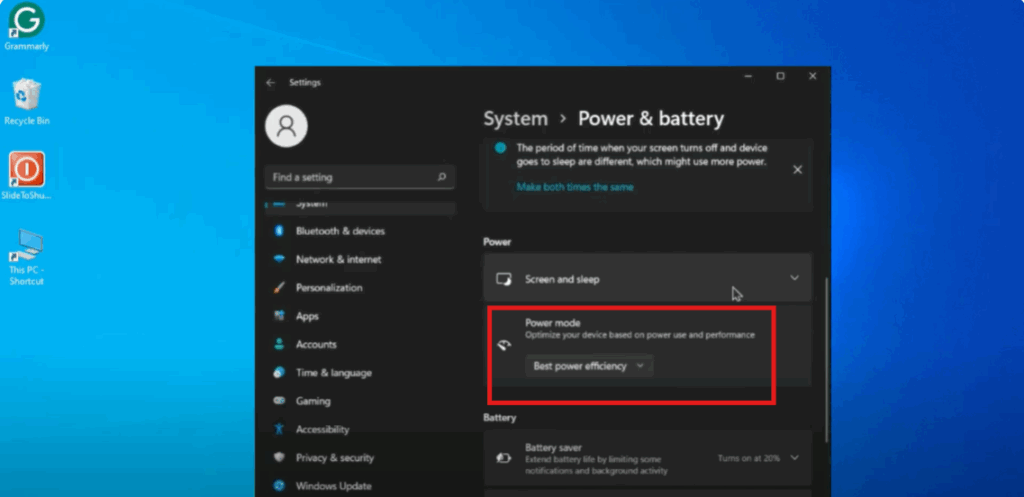
👉 This setting reduces CPU usage and power consumption, giving you more screen time.
Disable Background Apps
Background apps are silent battery killers. To stop them:
- Go to Settings > Apps > Installed Apps.
- Select the app you don’t use often.
- Click on the three dots > Advanced Options.
- Under Background App Permissions, select Never.
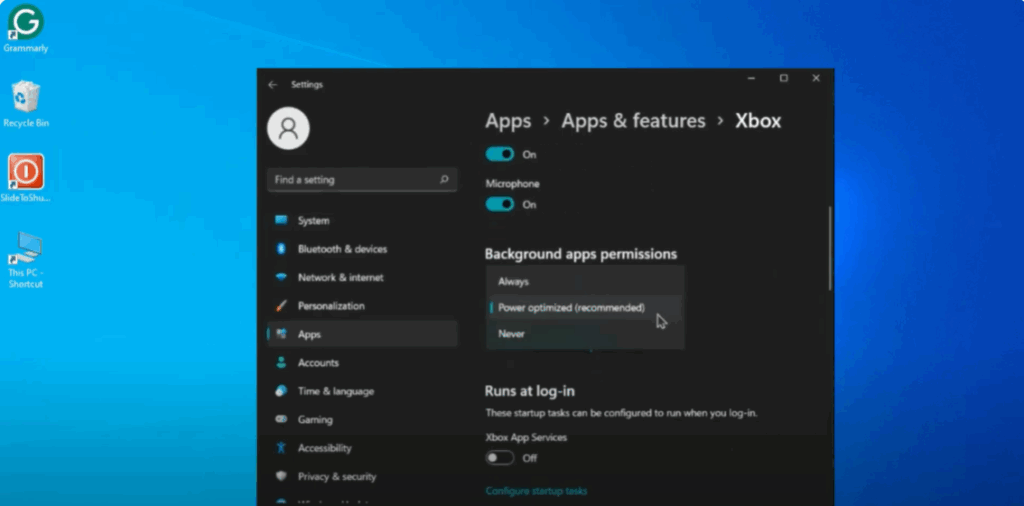
👉 This ensures apps don’t run in the background and drain your battery when you’re not even using them.
Adjust Display and Sleep Settings
Your display is one of the biggest battery consumers. To fix this:
- Lower your brightness a little.
- Enable Dark Mode under Settings > Personalization > Colors.
- Go to System > Power and Battery > Screen and Sleep, and set your screen to turn off after a few minutes of inactivity.
👉 These small changes can save a lot of battery.
Conclusion
And that’s it! By applying these hidden settings and tweaks, you can maximize your Windows 11 battery life and make your laptop last much longer.
If this tutorial helped you, don’t forget to like, share, and subscribe for more tech tutorials. Thanks for reading, and I’ll see you in the next one!






