
Hello friends, welcome back to my channel Tech Gitter Official. In today’s video, I’m going to show you how to fix the volume on your computer and laptop if it sounds too low, even when everything seems to be turned up. Let’s get started.
Step 1: Check External Speakers or Headphones
If you’re using external speakers or headphones, check if there’s a volume dial or scroll wheel on the device. Make sure it’s turned all the way up. You’d be surprised how often this gets overlooked.
Step 2: Check the Taskbar Volume
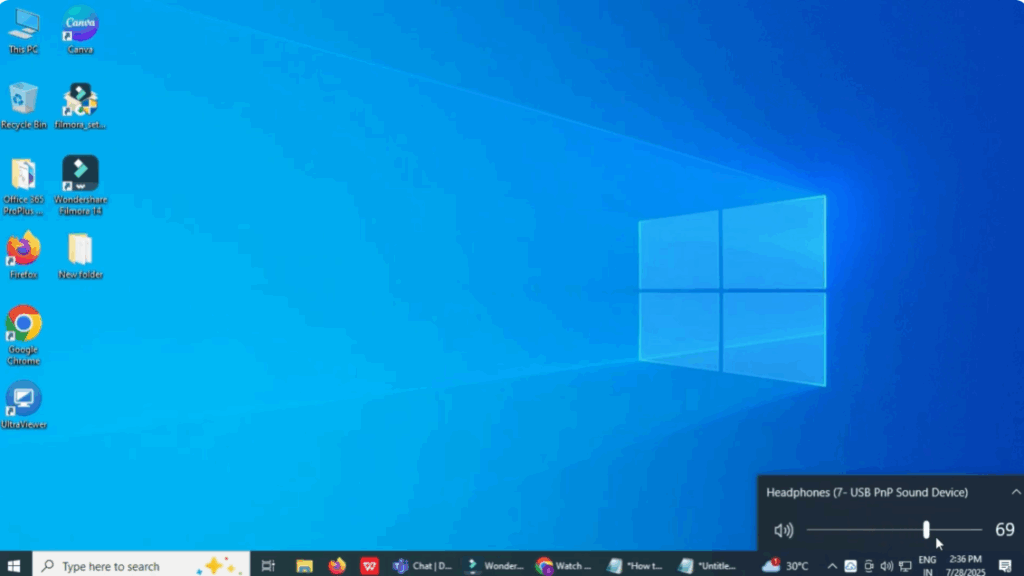
Next, look at the bottom right corner of your screen. Click on the speaker icon in the taskbar and make sure the volume slider is set to 100%. If it’s already full, try sliding it down and back up again. Sometimes this quick reset can help.
Step 3: Adjust Sound Settings in Control Panel
Still not getting proper sound? Let’s dig a little deeper.
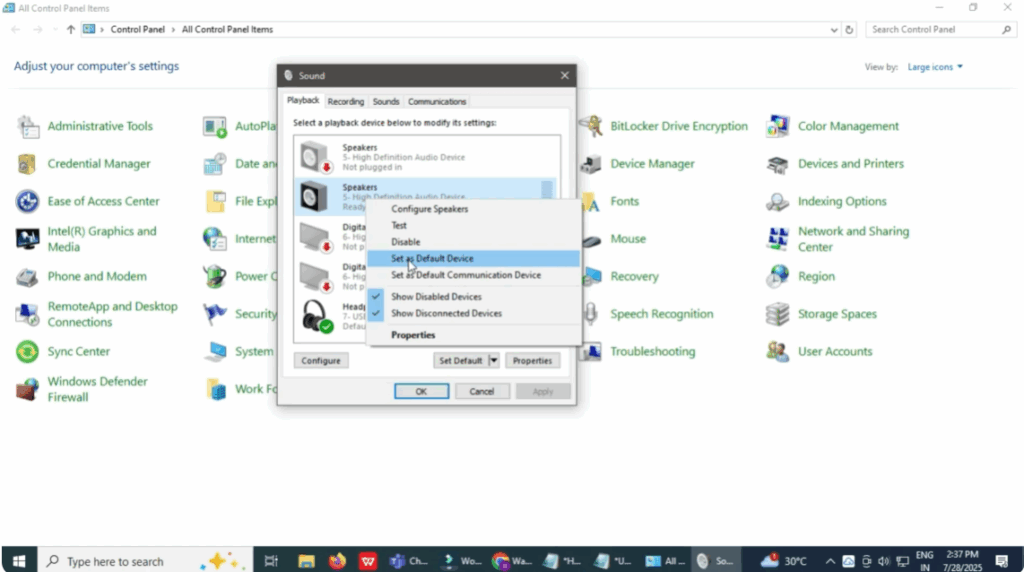
- Open the Start menu, type Control Panel, and click on it.
- Once the Control Panel opens, click on Sound. A new window will pop up showing your playback devices.
- From here, check that the correct device, like your speakers or headphones, is selected as the default. If it’s not, right-click on the correct one and choose Set as Default Device.
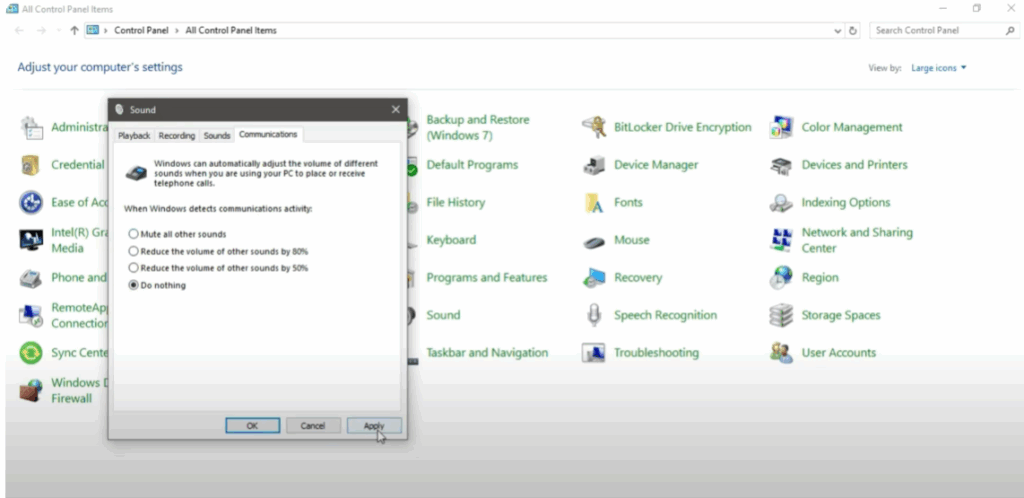
Now, click the Communications tab at the top. Here, Windows sometimes lowers your volume when it detects voice activity. Change the setting to Do nothing. Then, click Apply and OK.
Step 4: Adjust Playback Device Properties
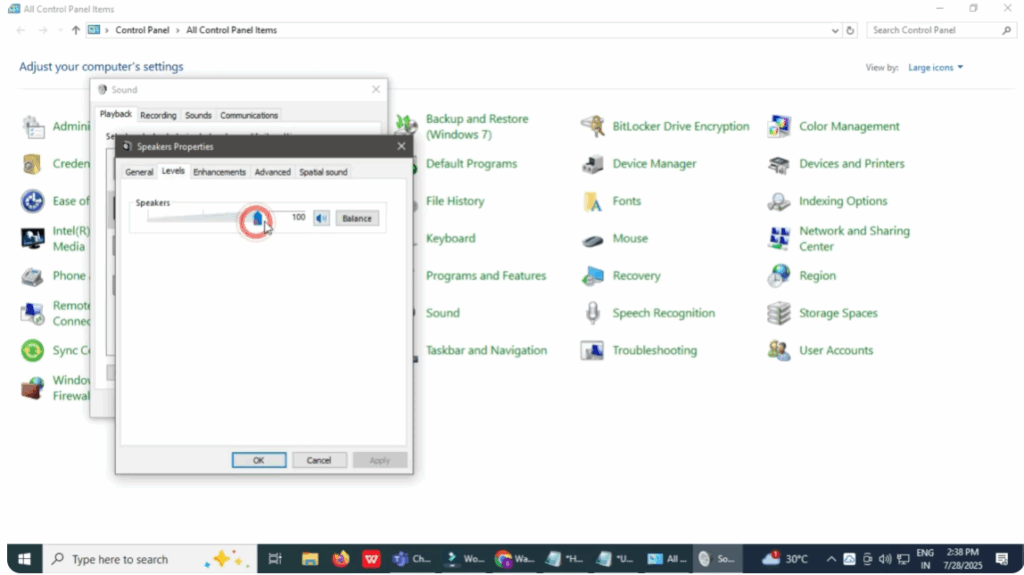
If that doesn’t fix it, go back to the sound settings again. Select your playback device and click on Properties.
- In the window that opens, go to the Levels tab.
- Make sure the volume is set to 100%.
- Then click Apply and OK.
Step 5: Use Windows Troubleshooter
If your volume is still too low, here’s one last thing you can try. Use Windows built-in troubleshooter.
- Click on the Start menu and type Find and fix problems with playing sound.
- Click the first result that shows up. A new troubleshooter window will open.
- Click Next and Windows will scan your system for sound problems.
- You’ll then be asked to select the device that’s having trouble like your headphones or speakers. Choose the correct one and click Next again.
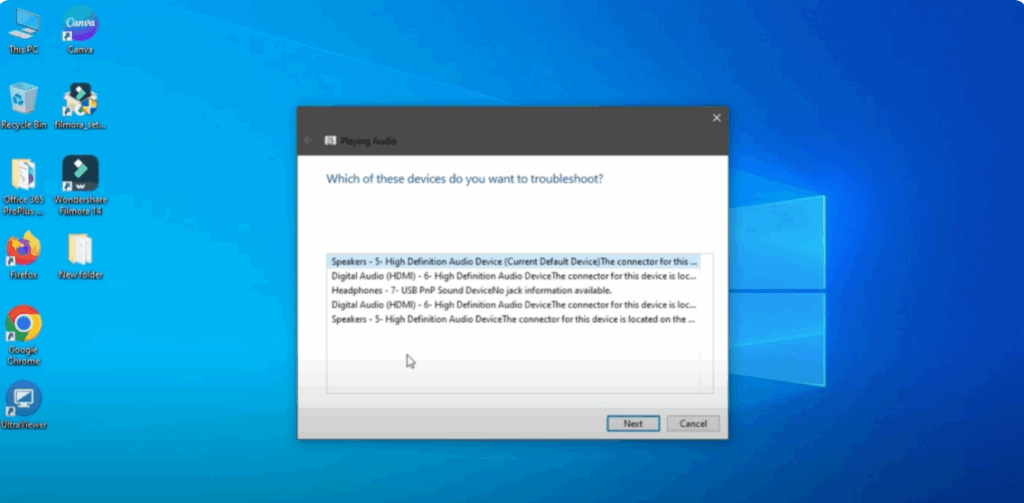
After that, Windows might suggest turning off any audio enhancements. If you see this option, go ahead and disable them or click No if you do not want to use audio enhancements. Once the scan is complete, Windows will let you know what it found and whether it was able to fix the issue.
Final Words
And that’s it. Fixing low sound on Windows is usually pretty quick and easy once you know where to look.
If this video helped you, leave a comment below. Thanks for watching. Don’t forget to like, share, and subscribe to Tech Gitter Official.






