
Hello friends, welcome back to my channel Tech Gitter Official. In today’s video, we will learn how to download and update Realtech HD audio driver on Windows 11 or Windows 10. So, let’s get started.
Step 1: Check the Current Audio Driver First
Before downloading, let’s first check which version of the audio driver is currently installed.
- Right click on the Start menu and open Device Manager.
- Expand Sound, video, and game controllers.
- Here you will find either High Definition Audio Device or Realtech Audio Device.
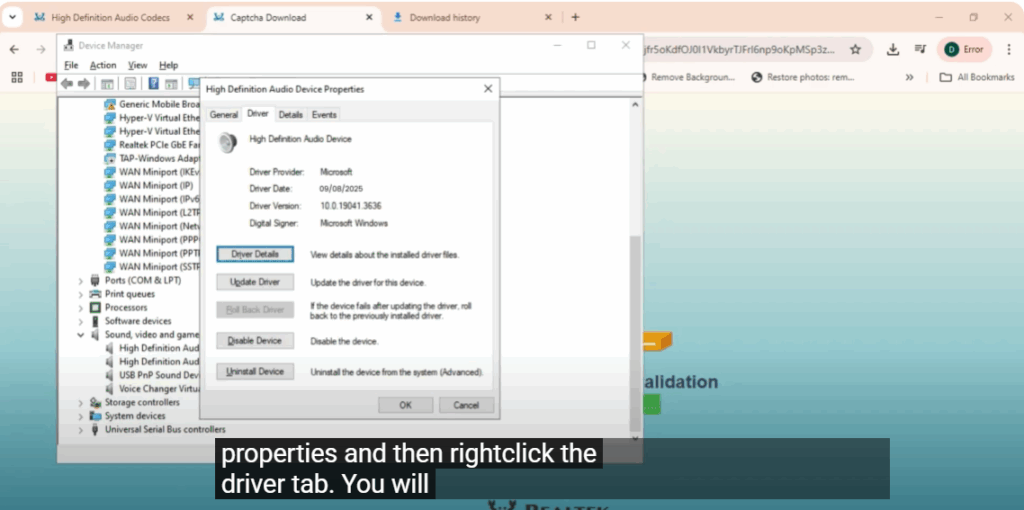
- Right click on it and select Properties.
- Go to the Driver tab and check the date of the driver.
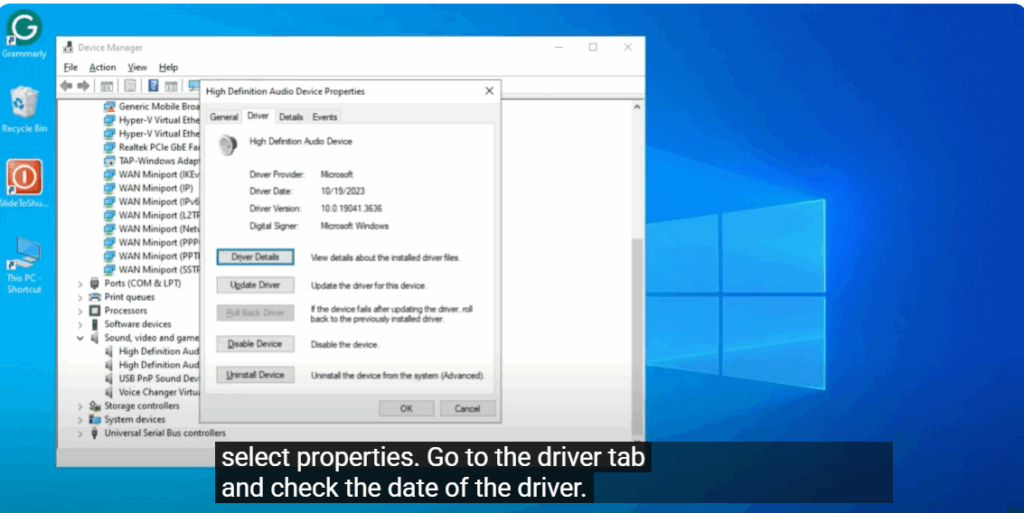
For example, my driver is showing October 19th, 2023, which means it is outdated.
📌 Before proceeding, subscribe to the channel and click on the bell icon so that you don’t miss out on upcoming updates.
Step 2: Download Realtech Audio Driver
- Open any browser and search for Realtech.
- Make sure you only visit the official site: realtech.com.
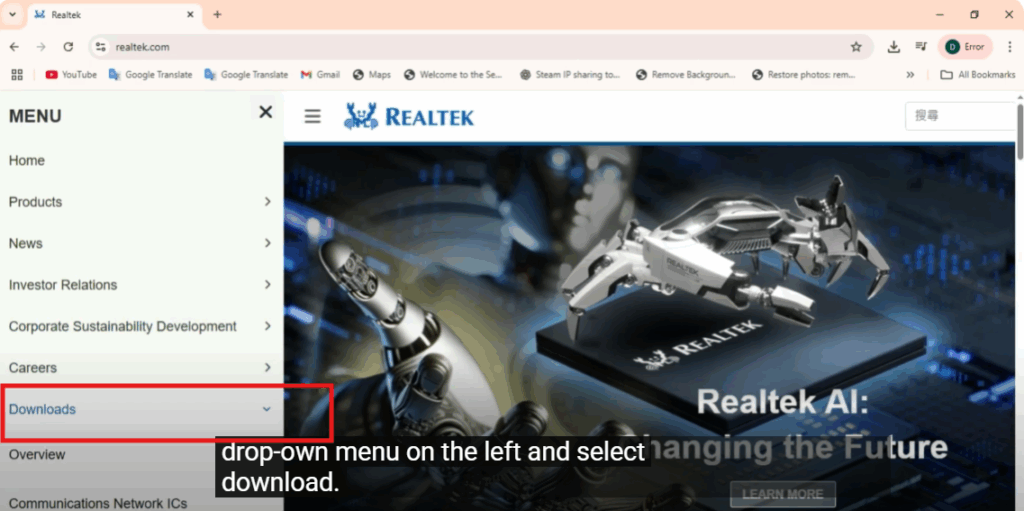
- Once the site opens, click on the drop-down menu on the left and select Download.
- Now in Computer Peripherals IC, select PC Audio Codecs.
- Then select High Definition Audio Codecs.
- You will see a list of drivers. Always choose the latest driver from the top.
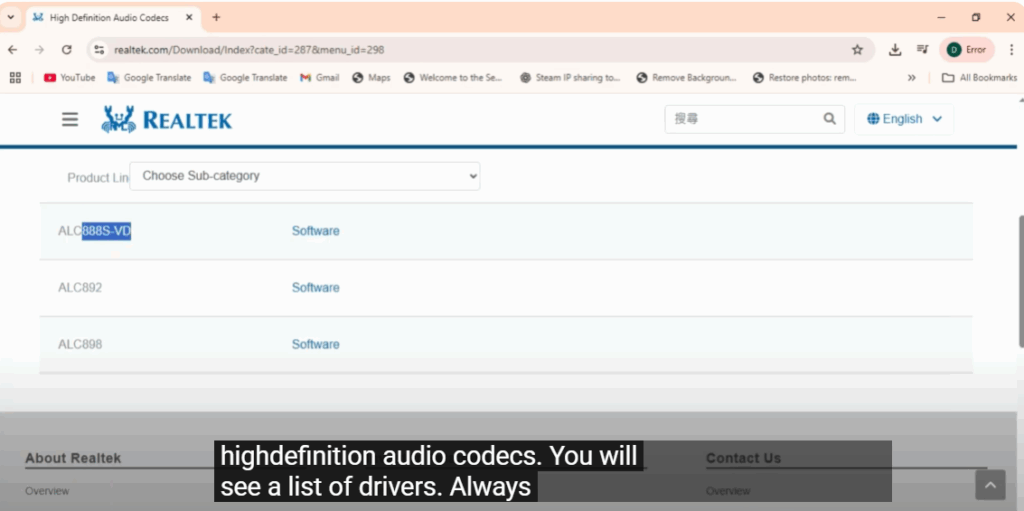
- In the software section, select 64-bit Windows driver. This also works for Windows 7, 8, 8.1, 10, and Windows 11.
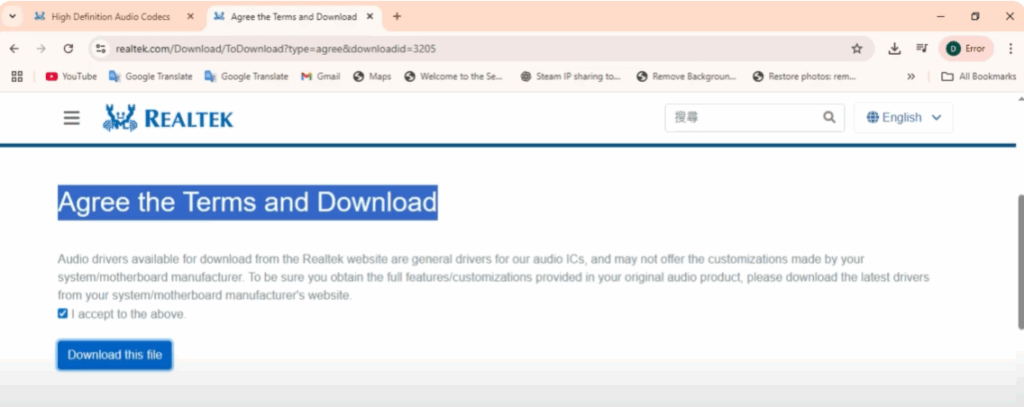
- Accept the agreement and click on Download this file.
- Fill in the captcha and then click Download.
Step 3: Install the Driver
- Once the file is downloaded, open it.
- Follow the instructions on the screen by clicking Next.
- After the installation, restart your computer.
Step 4: Confirm the Installation
- Again, open Device Manager and expand Sound, video, and game controllers.
- Go to the Realtech Audio Device.
- Click Properties and then right click the Driver tab.
- You will now see the date of the updated driver.
- Check your speakers or headphones to make sure everything is working properly.
✅ That’s it! You have successfully updated your Realtech audio driver on Windows 11 or 10.
Thanks for watching and I’ll see you in the next video.






