
Is your Windows 10 computer stuck and not starting up properly? Don’t worry—you’re not alone. Many users face the “Windows 10 not booting” problem, where the PC either shows a black screen, keeps restarting, or gets stuck before loading Windows. The good news is that there are simple steps you can try to fix this issue without needing advanced technical skills. In this easy tutorial, we’ll guide you through different methods to get your Windows 10 computer running smoothly again.
If your computer fails to start after multiple attempts, Windows usually launches an automatic troubleshooting utility. To trigger this, you may need to forcefully power off your computer three times in a row, either by holding down the power button on your laptop or shutting down the tower directly on a desktop.
After the third restart, you should see the automatic repair screen, which begins by diagnosing your PC. Let this process run for a while. Once the repair screen appears, it will display options like restarting your PC or going into advanced options.
Restarting sometimes fixes the problem, but if it doesn’t, click on advanced options. On the next window, select troubleshoot and then click on advanced options again. Here you’ll see several recovery tools such as rolling back to a previous version of Windows, running a system restore, or using a system image recovery if you’ve created one earlier. These are all great tools to try if needed.
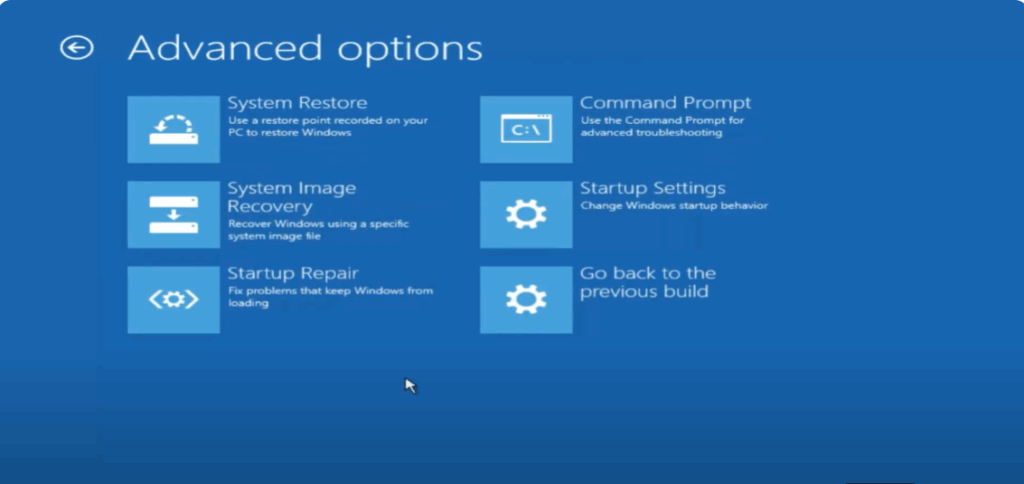
For this tutorial, however, we will focus on startup repair. Click on this option and Windows will begin scanning your system for startup problems. This process may take some time, often over an hour, so be patient while it runs. The tool will attempt to identify and repair any errors preventing Windows from booting.
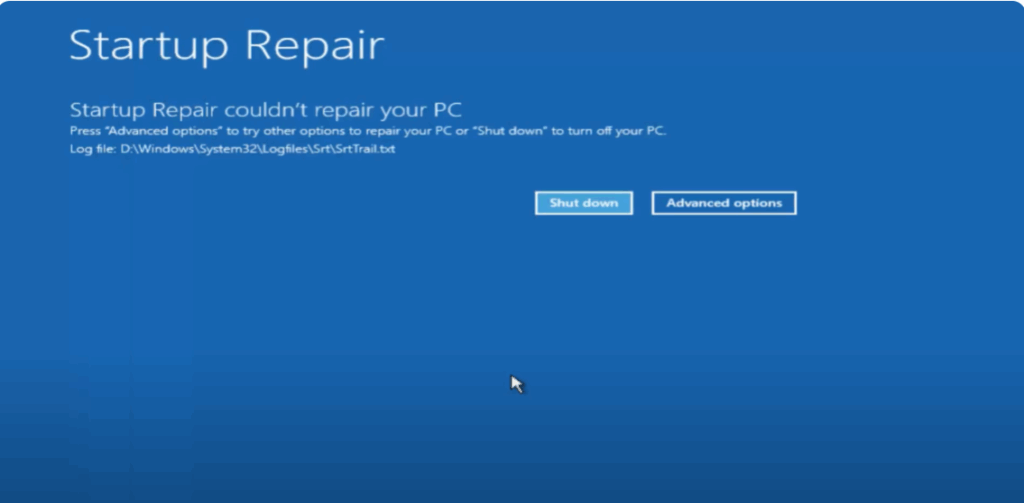
Once the scan completes, your PC may restart automatically. And in many cases, this resolves the issue.
If startup repair doesn’t fix the problem, don’t worry. You can always go back and try other tools within the advanced options menu, such as system restore or system image recovery, depending on what you have available. These methods can often bring your system back to a working state without losing your data.






