
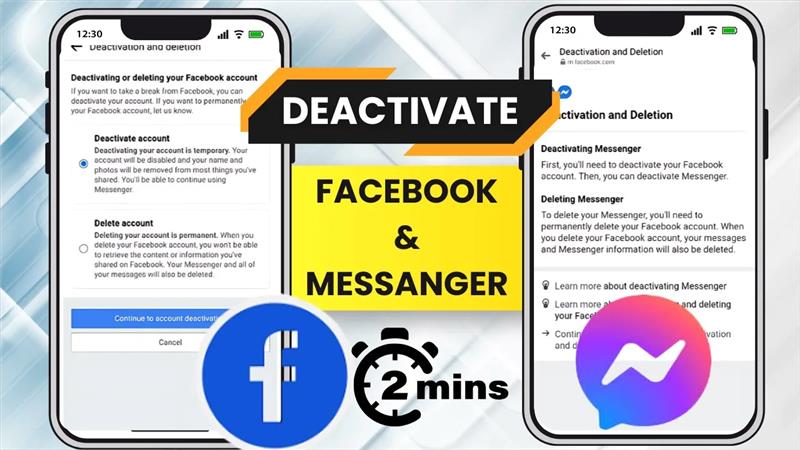
If you feel like taking a break from social media, deactivating Facebook and Messenger on your phone is a simple way to step back without permanently deleting your accounts. Many people choose this option when they want fewer distractions, more privacy, or just some quiet time away from constant notifications. The best part is that deactivation is temporary—you can return anytime by logging back in. In this step‑by‑step 2025 guide, we’ll show you how to easily deactivate both Facebook and Messenger on your phone so you stay in control of your online presence.
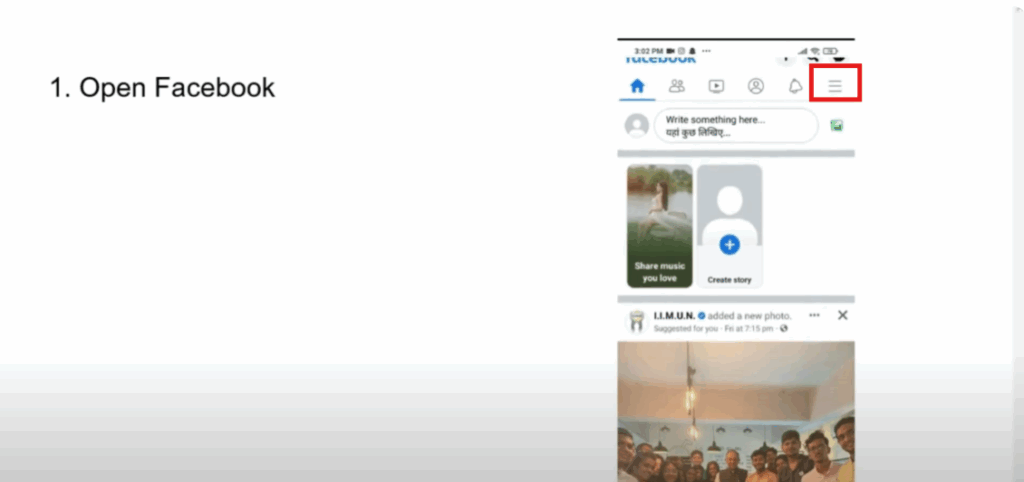
Step 1: Open Facebook App
First, open the Facebook app on your phone. On the home screen, click on the three horizontal lines in the top or bottom corner depending on your device.
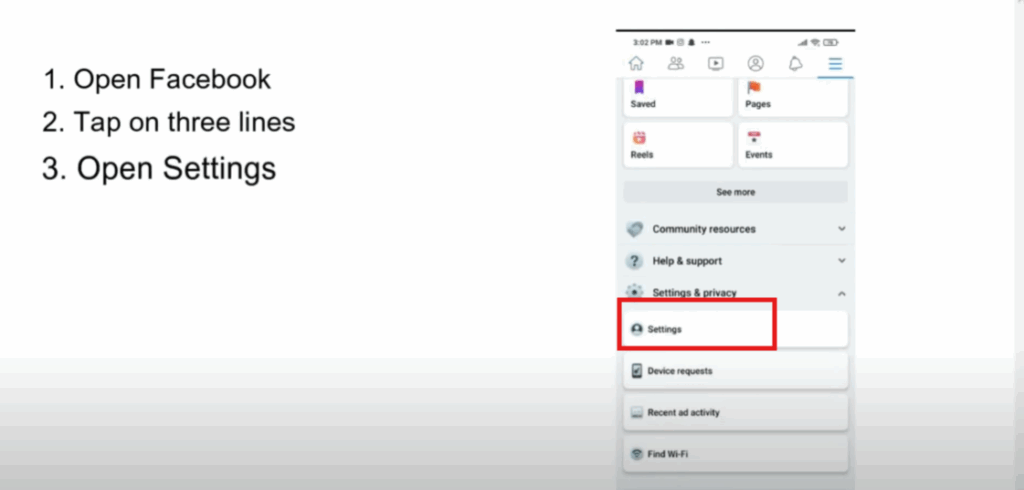
Step 2: Go to Settings
Scroll down and tap on Settings & Privacy. Then select Settings.
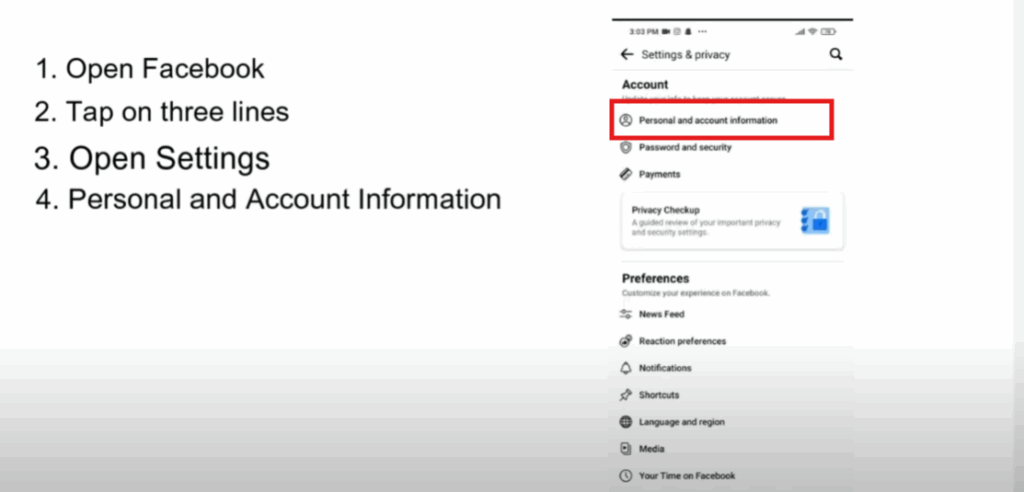
Step 3: Personal and Account Information
Under the account section, tap on Personal and Account Information.
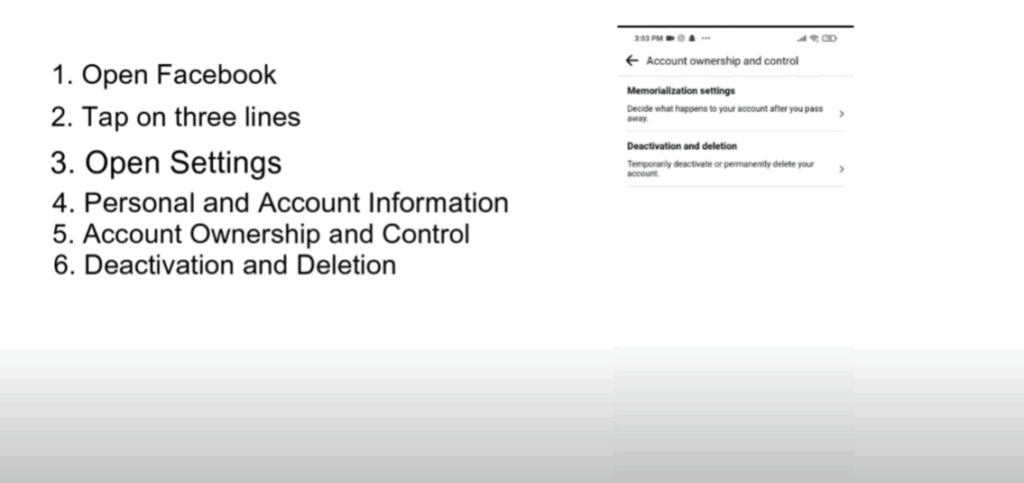
Step 4: Account Ownership and Control
Next, tap on Account Ownership and Control. Then select Deactivation and Deletion.
Step 5: Deactivate Facebook Account
Now, choose the option Deactivate Account and then tap on Continue.
Select the reason why you’re deactivating the account, such as just taking a break or privacy concerns. Then tap on Continue again.
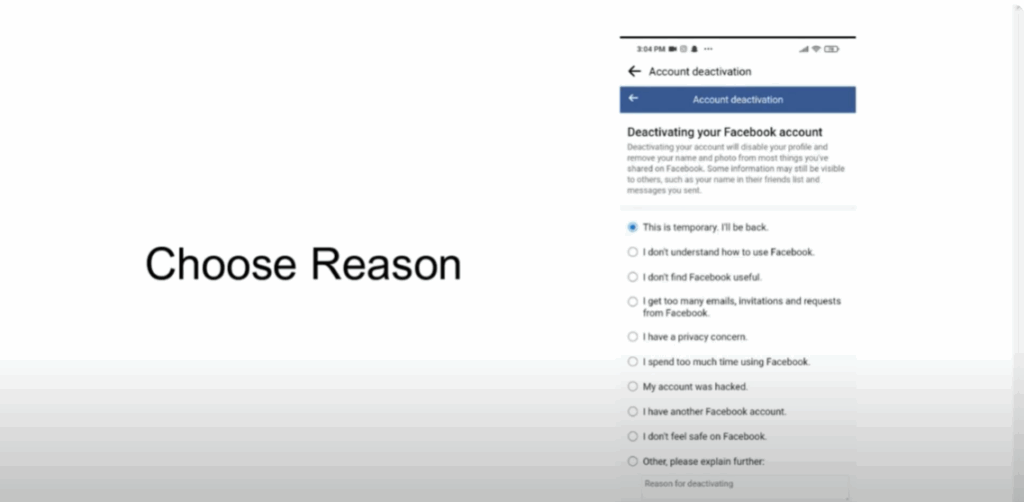
Next, you’ll be asked to choose for how many days you want your account to remain deactivated before Facebook automatically reactivates it. Pick the duration that suits you. Then scroll down and tap on Deactivate My Account.
And just like that, your Facebook account is now deactivated.
Step 6: Deactivate Messenger
Now let’s move on to Messenger.
- Open the Messenger app on your phone.
- Tap on your profile picture in the top left corner to open settings.
- Scroll down and tap on Account Settings.
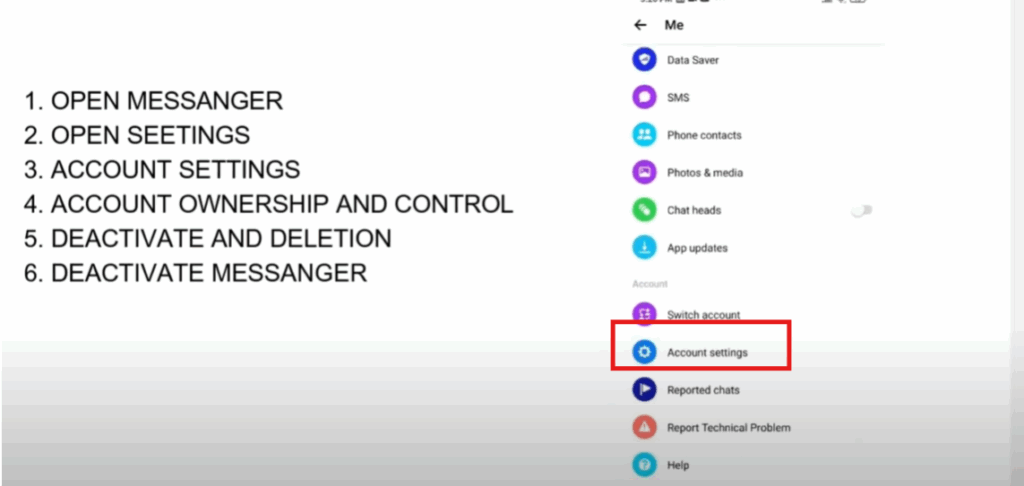
- This will redirect you to Facebook settings again.
- Go to Account Ownership and Control.
- Tap on Deactivation and Deletion.
- Once again, choose Deactivate.

Final Step
That’s it! Now both your Facebook and Messenger accounts are deactivated.






