
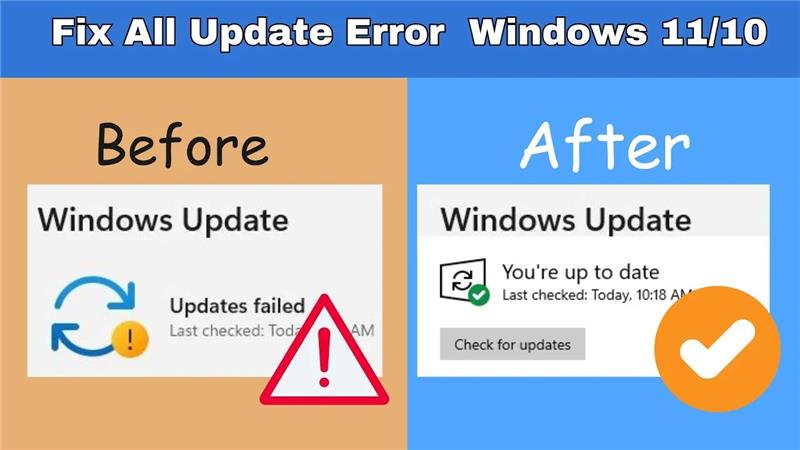
Updating Windows 11 or Windows 10 is important to keep your computer secure and running smoothly, but sometimes the update process can fail and show confusing error messages. These errors can happen for many reasons, like poor internet connection, low storage space, or system glitches, and they often leave users frustrated. The good news is that most Windows update problems can be fixed with a few simple steps. In this step‑by‑step guide, we’ll walk you through easy methods to solve all common Windows update errors so you can get your system back on track quickly.
Step 1: Clear the Software Distribution Folder
This folder often contains leftover files from previous updates that can cause issues.
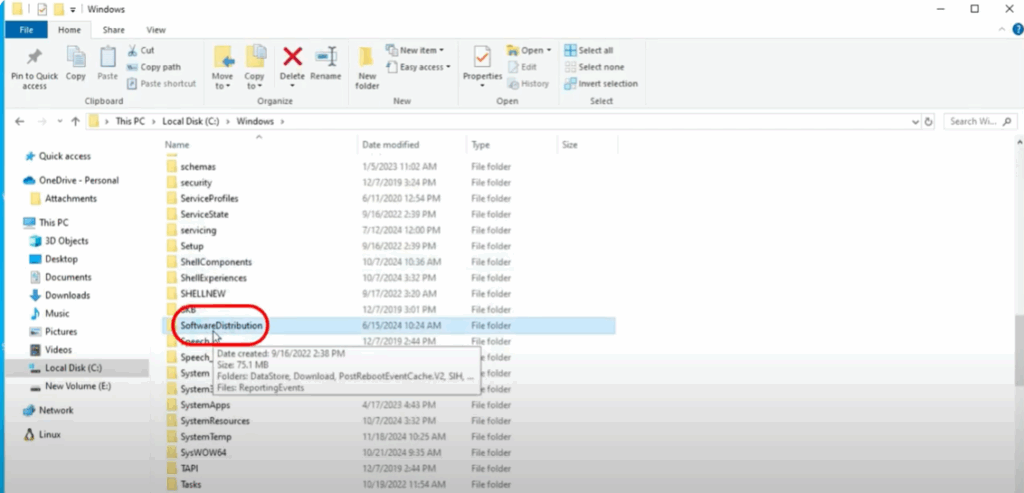
- Click on the Windows search icon and type File Explorer.
- Open File Explorer and select This PC on the left.
- Navigate to the C drive and open the Windows folder.
- Find and double-click on the Software Distribution folder.
- Select all files by pressing Ctrl + A and delete them using Shift + Delete.
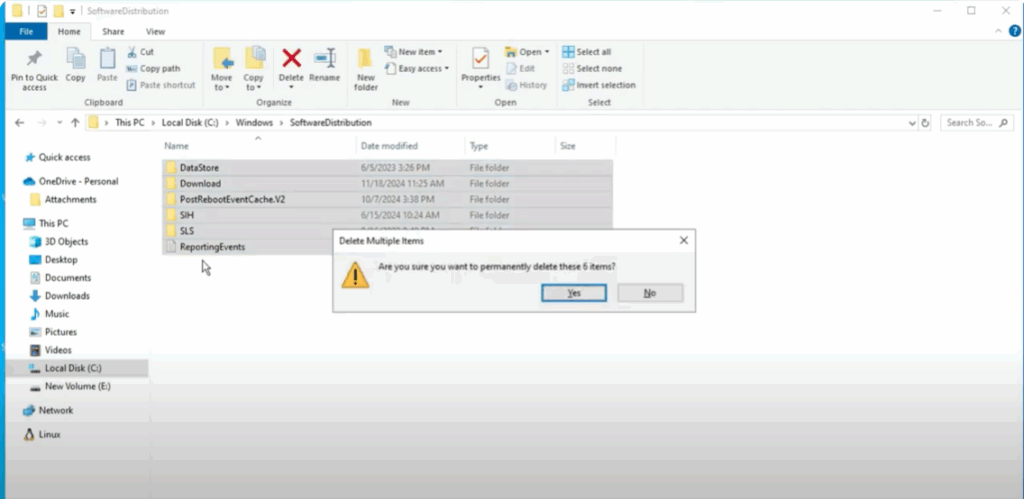
This will remove unnecessary files. Once you’ve successfully deleted everything, close the window.
Step 2: Run the Windows Update Troubleshooter
The troubleshooter helps detect any underlying issues.
- Go back to the Windows search icon and open Troubleshoot settings.
- Click on Other troubleshooters.
- Find Windows Update and click Run next to it.
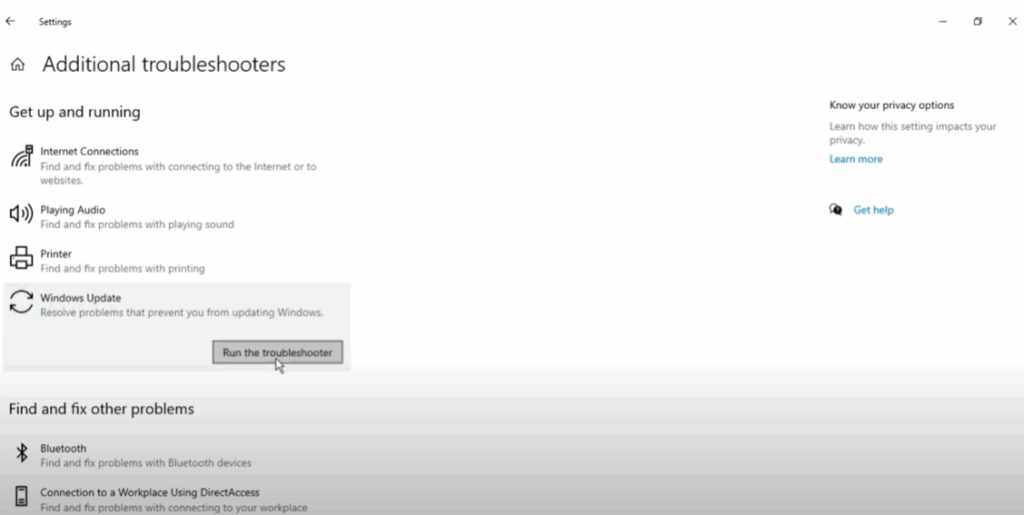
This may take a minute or two. After it’s done, restart your computer.
Step 3: Use the System File Checker
This tool fixes corrupted system files.
- Search for cmd in the Windows search bar.
- Right-click on Command Prompt and select Run as administrator.
- Type the command:
sfc /scannow
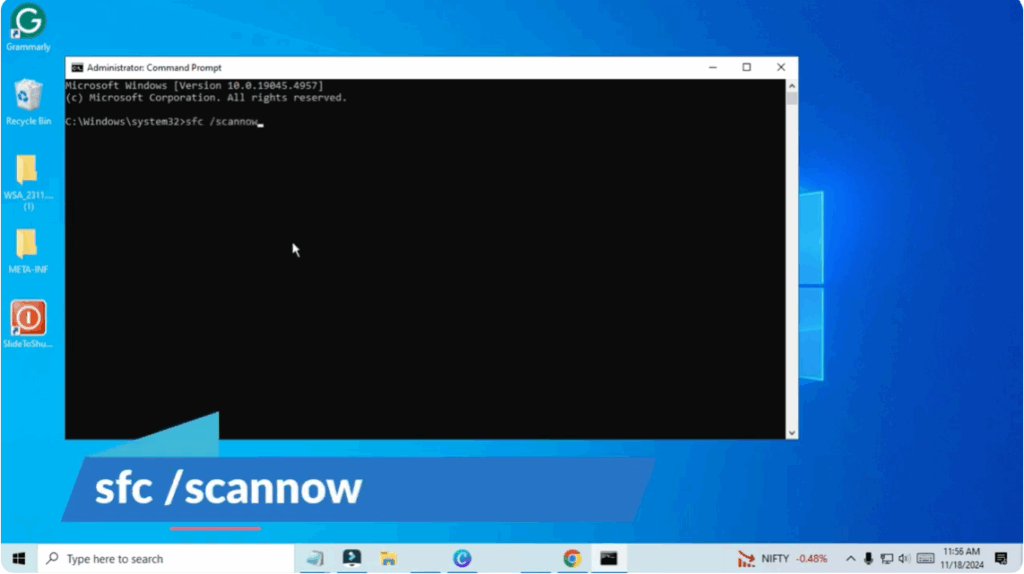
- Press Enter and wait for the process to complete.
- Once finished, restart your computer.
Step 4: Check Windows Update Services
We’ll ensure the update services are running properly.
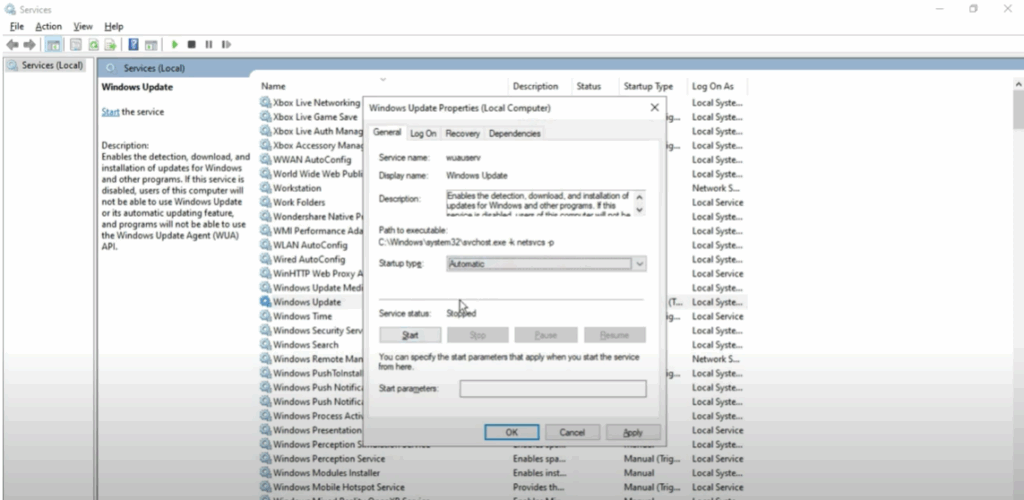
- Press Windows + R to open the Run dialogue.
- Type services.msc and hit OK.
- Scroll down to find Windows Update and double-click it.
- Make sure the service is Running and set to Automatic.
- Do the same for Background Intelligent Transfer Service.
Step 5: Try Updating Again
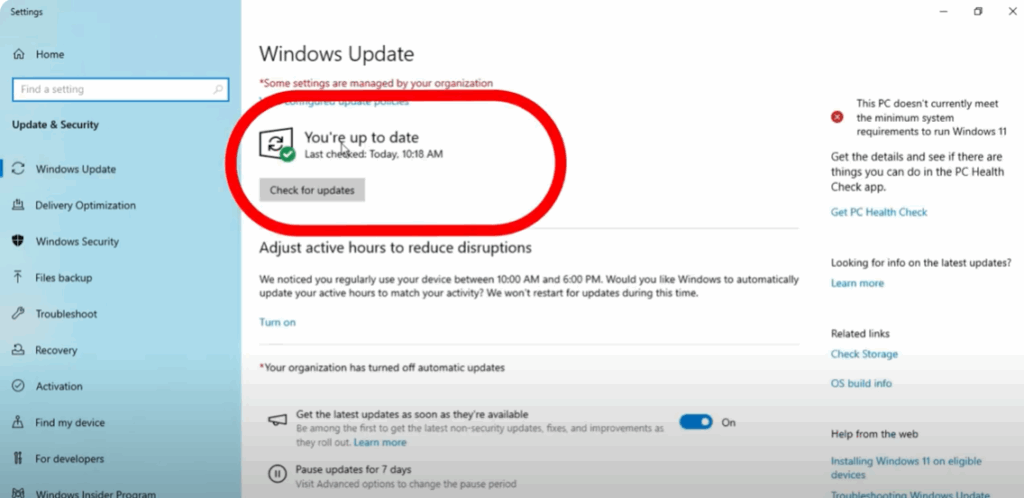
- Go to the Windows search menu and type Windows Update.
- Click Check for updates.
- Install any pending updates.
Conclusion
Keeping your Windows 11/10 system updated is important for security, performance, and new features, but update errors can sometimes get in the way. The good news is that most of these problems can be solved with the right steps—whether it’s checking your internet connection, freeing up storage, or using built‑in troubleshooting tools. By following this step‑by‑step guide, you’ll be able to fix common Windows update errors and keep your computer running smoothly. And remember, if one method doesn’t work, trying the next one usually does the trick.






