
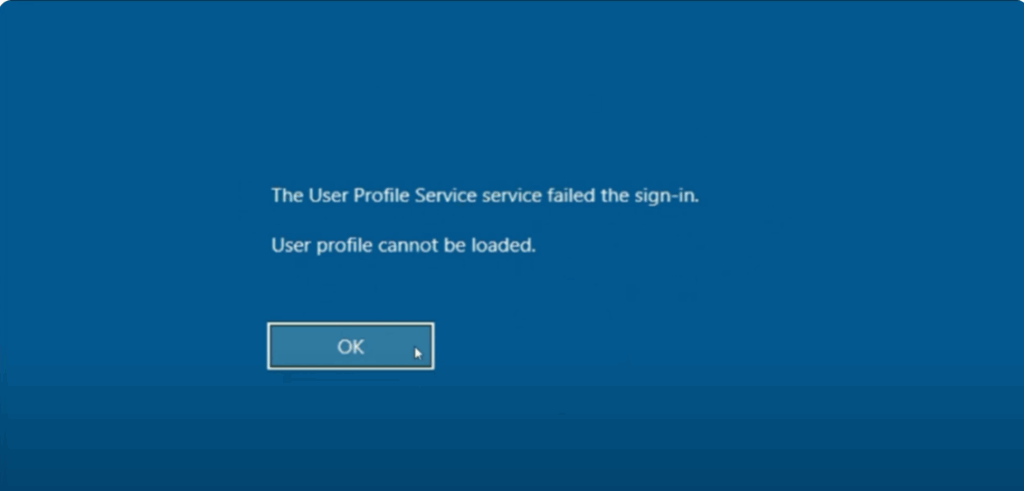
Sometimes when you try to sign in to your Windows 10 or Windows 11 computer, you may see an error message that says “The User Profile Service failed the logon”. This can feel frustrating because it stops you from entering your desktop and using your files or apps. The error usually happens when your user profile gets damaged or Windows cannot read it properly.
The good news is that this problem can be fixed with a few simple steps. In this guide, we’ll explain why this error appears and show you different methods to solve it, so you can get back into your PC without losing your data.
When you see this error, first click on OK. You’ll be taken back to the login screen.
Step 1: Enter Advanced Startup
Now, here’s the important step. Press and hold the Shift key on your keyboard. Then, click on the Power button at the bottom right corner and choose Restart.
⚠️ Remember: Do not release the Shift key until the advanced startup menu appears.
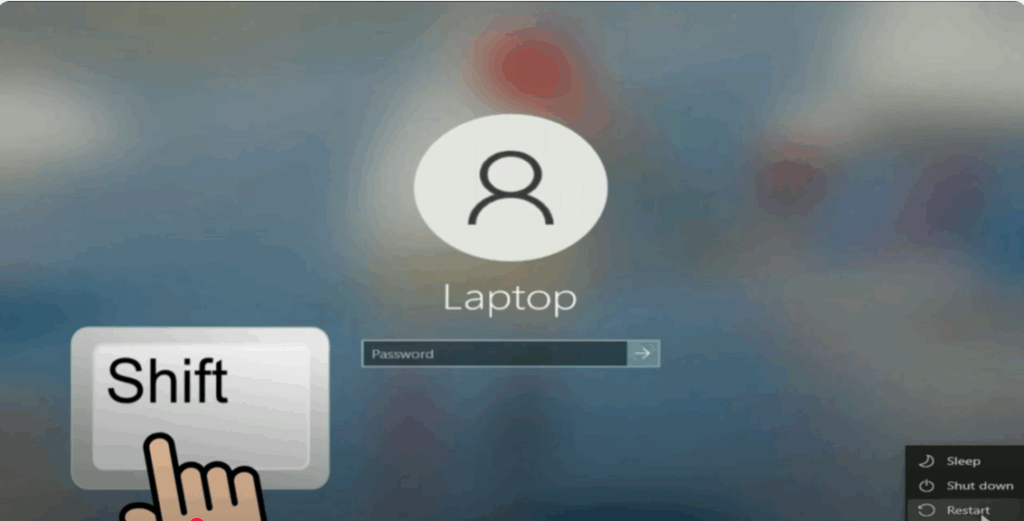
Once you see the advanced options screen, you can release the key.
Step 2: Use System Restore
Now that we are in advanced mode:
- Click on Troubleshoot.
- Then click on Advanced options.
- In this menu, you’ll see the option called System Restore.
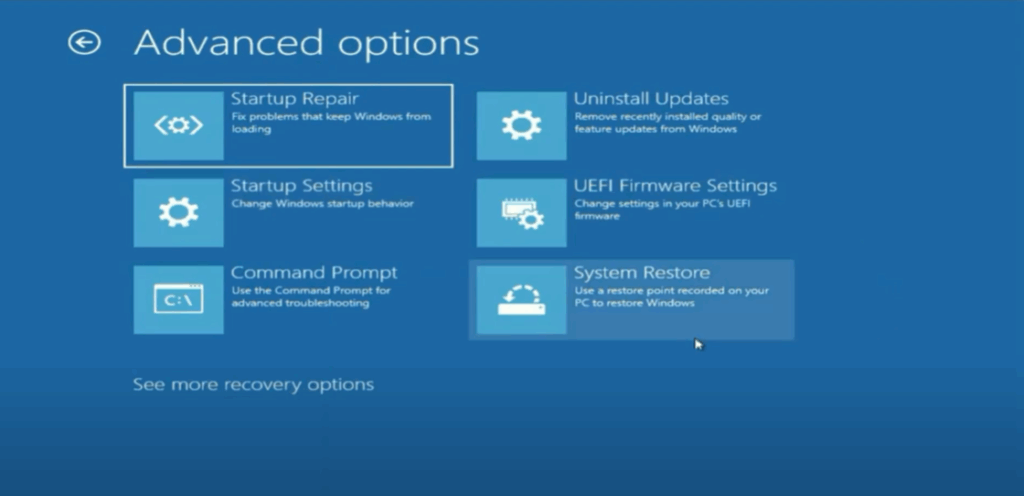
This feature allows you to restore your computer to a previous date when everything was working fine.
- Click on it.
- Select your login username and, if required, enter your password.
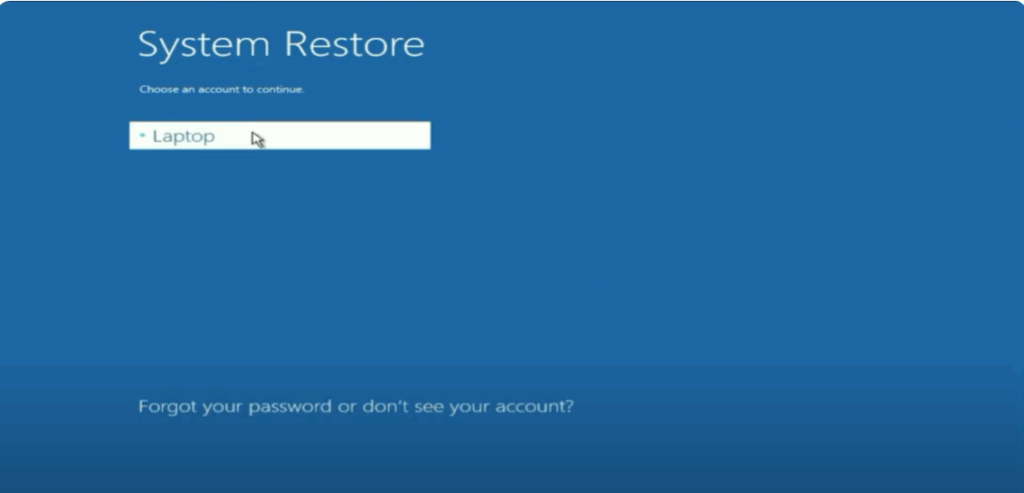
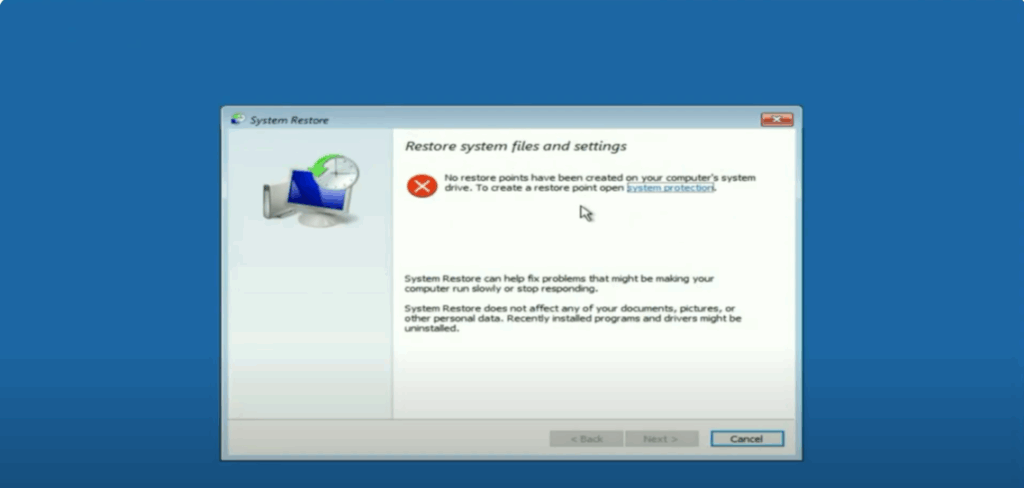
In my case, I don’t have any restore points created, but if your system does have restore points available, you will be able to restore your PC back to an earlier state. This is often enough to fix the issue.
If you don’t see any restore points, just click on Cancel and move to the next method.
Step 3: Reset This PC
Now, let’s talk about the final method. From the advanced menu:
- Go back to Troubleshoot.
- Select Reset this PC.

Here, you will get two options:
- Keep my files
- Remove everything

Choose Keep my files because this option will reinstall Windows while keeping your personal files safe.
- Select Local reinstall.
- You’ll see the details on the screen confirming that your personal files in the system and in other partitions will remain safe.
The only drawback of this method is that while your data stays untouched, all installed applications and programs will be removed.
But don’t worry—this process is highly effective in fixing the user profile error.
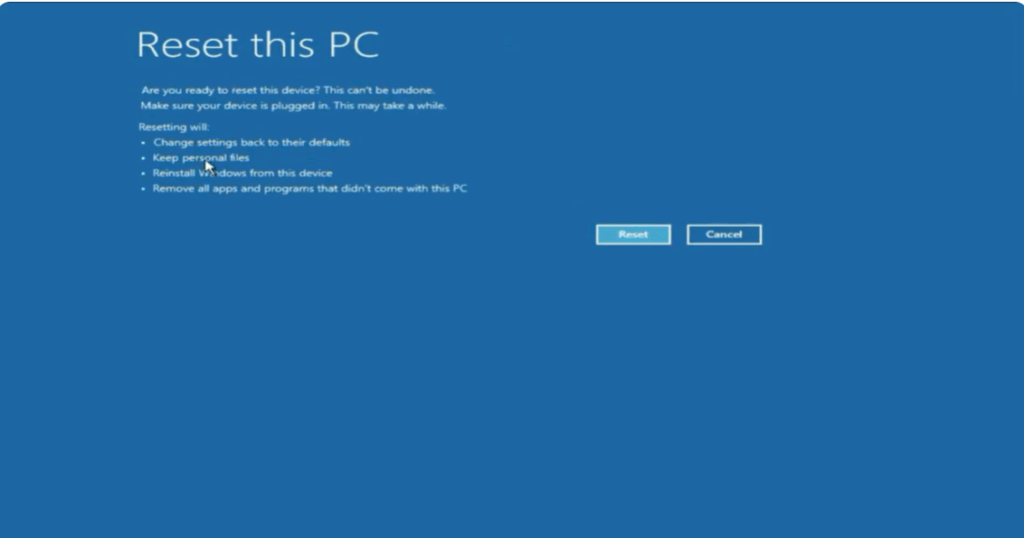
Simply click Reset and Windows will take around 20 to 30 minutes to complete the process. Once done, your PC will restart and the problem should be resolved.
Final Words
Facing the “User Profile Service failed the logon” error in Windows 10 or 11 can feel stressful, but it’s usually not as serious as it looks. With the right steps—like repairing your profile, using Safe Mode, or creating a new account—you can quickly get back into your system without losing your important files.
We hope this guide made the process easier to understand and follow. Keep these solutions handy in case the error shows up again, and remember that regular backups can save you from bigger problems in the future. With a little patience, your PC will be up and running smoothly again.






