
If you’re facing an “installation failed” error with the Epic Games Launcher on your computer, don’t worry—you’re not the only one. This problem can stop you from enjoying your favorite games, but the good news is that it’s usually easy to fix with a few simple steps. By following some basic solutions, like running the installer as an administrator or clearing leftover files, you can quickly get the Epic Games Launcher up and running again.
Method One: Change Installer Settings
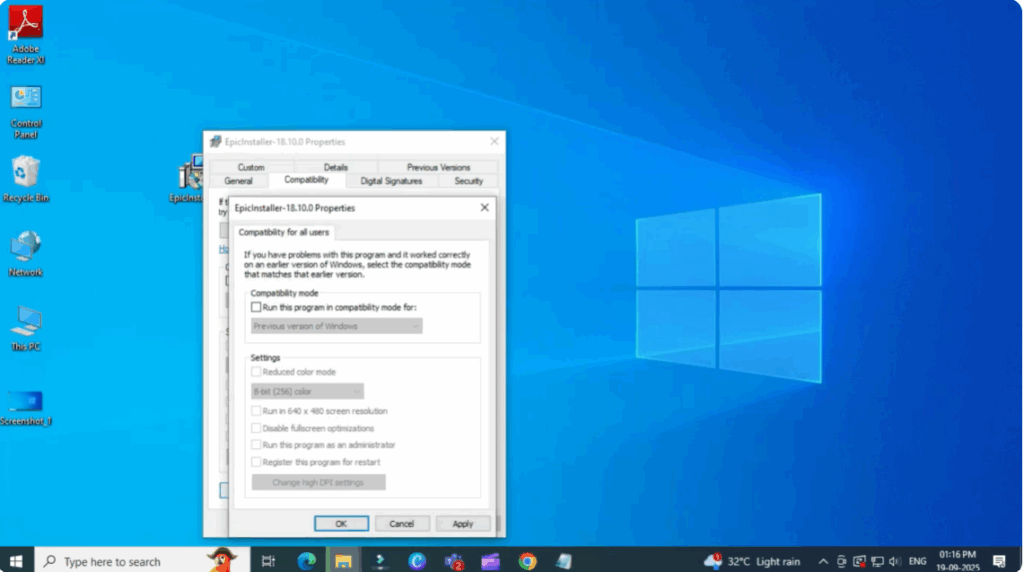
- Right click on the MSI installer file.
- Go to Properties and then go to Compatibility at the bottom.
- Click on Change settings for all users.
- If the checkbox is ticked, uncheck it, then click Apply and OK.
This simple change often fixes the issue.
Method Two: Use Task Manager to Run Installer
- Right click on your taskbar and open Task Manager.
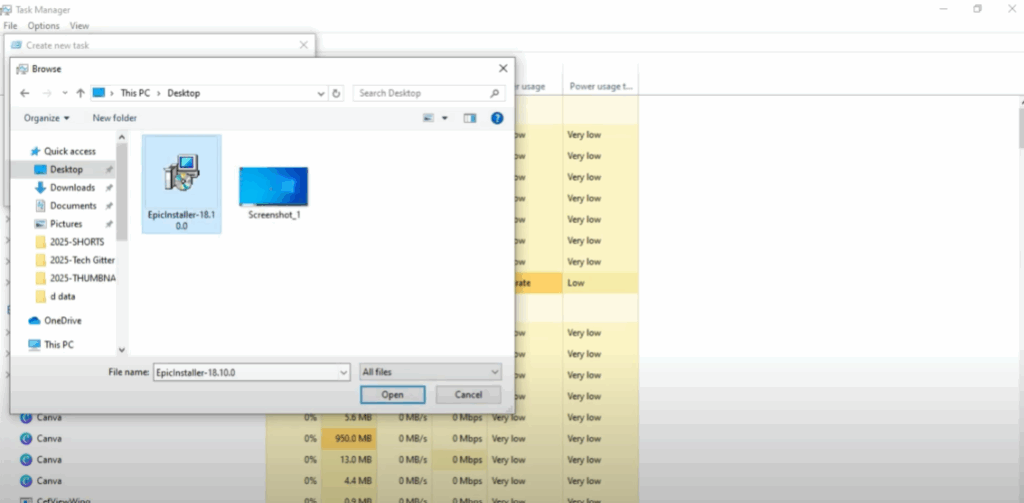
- In Task Manager, go to File and click on Run new task.
- A window will appear. Make sure the checkbox for administrator privileges is ticked.
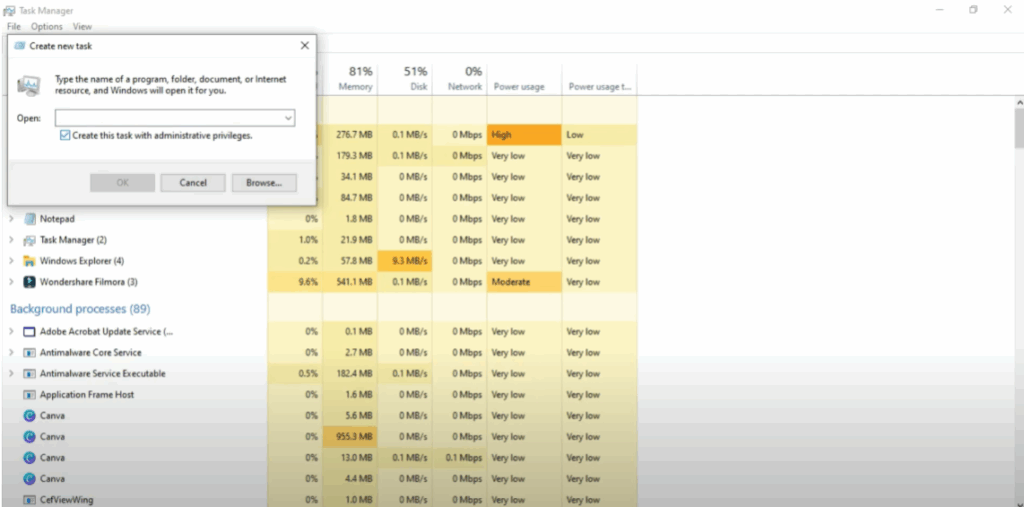
- Click Browse. Then go to the folder where you saved the MSI file (for example, Desktop or Downloads).
- At the bottom right, change the filter from Programs to All Files, so you can see the installer.
- Select the Epic Games Launcher MSI file. Click Open, then press OK.
- Now the installer will launch without showing the error. Just click Install and continue with the setup.
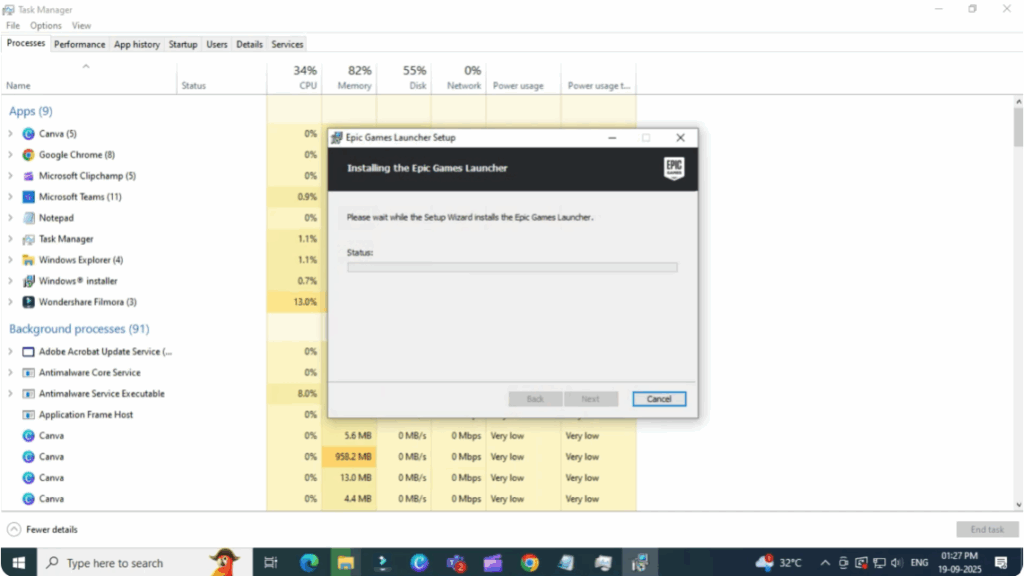
That’s it. Now your Epic Games Launcher will install properly and the error will not appear again.






