

“Think your laptop is just for work or browsing the web? Think again! Downloading apps can transform your Windows 10 or 11 laptop into a powerhouse for entertainment, creativity, and getting things done. But if you’re used to the simple app stores on your phone, finding and installing software on a computer might seem a little confusing. Don’t worry! This guide is your simple, step-by-step roadmap to downloading apps in 2025. We’ll walk you through the easiest ways, from using the built-in Microsoft Store to safely getting apps directly from the web, so you can start using your new favorite programs in no time.”
In the following blog, we’ll learn how to download apps on your laptop using three simple and effective methods.
Method 1: Through Google Play Store
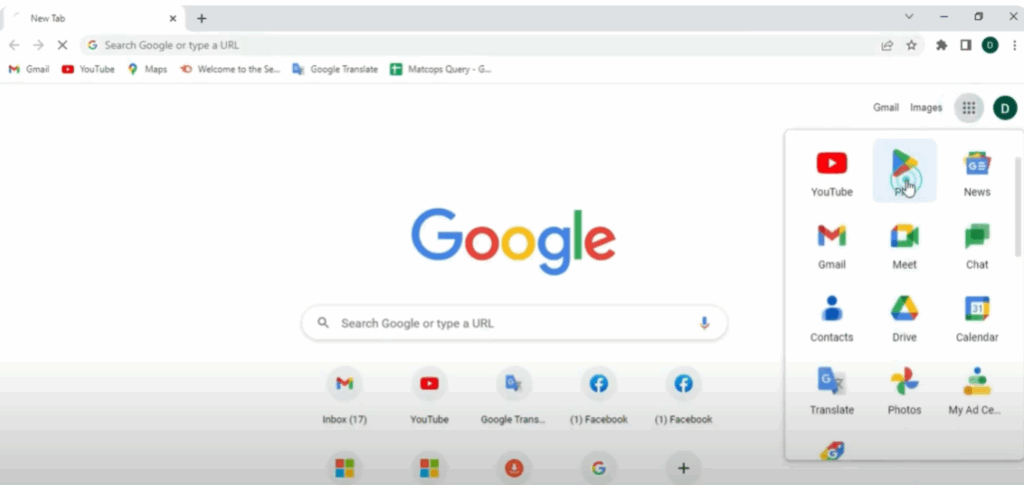
- Start by opening Google Chrome.
- Click on the three dots in the top right corner.
- From the drop-down menu, find and click on Play. This will open the Google Play Store in your browser.
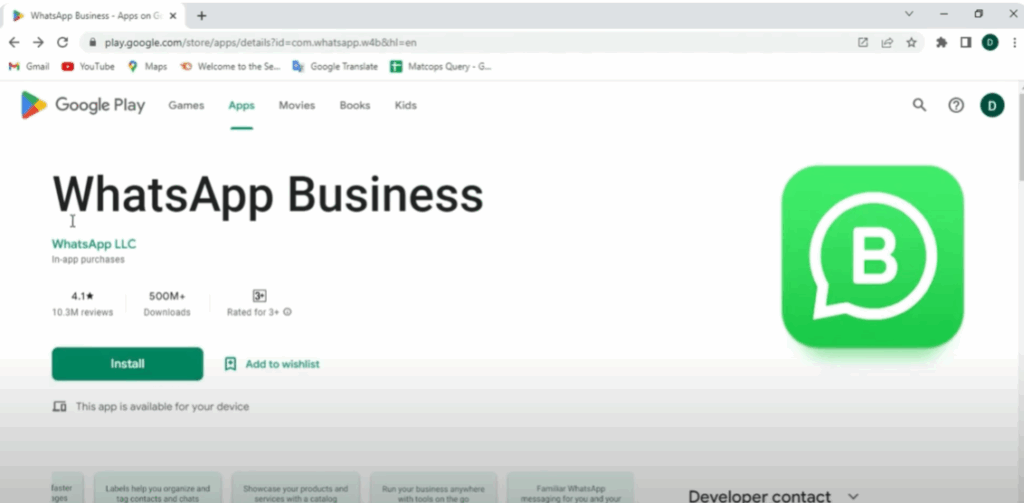
- Click on the Apps tab.
- Use the search bar to type the app you want, for example WhatsApp.
- Once the app appears, click on it.
- Click on the Install button and the download will begin.
- You can now see it on your desktop screen.
Method 2: Through Google Search
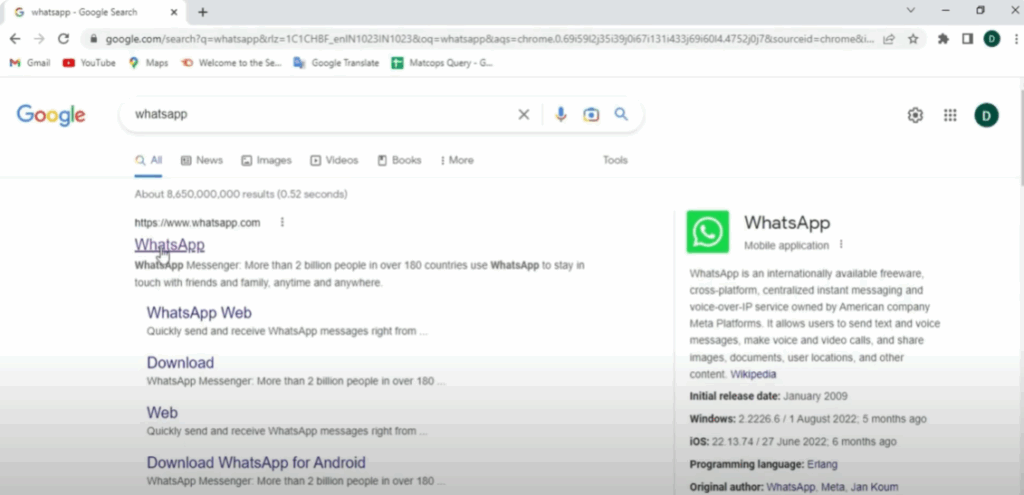
- Open Google Chrome.
- In the search bar, type something like WhatsApp.
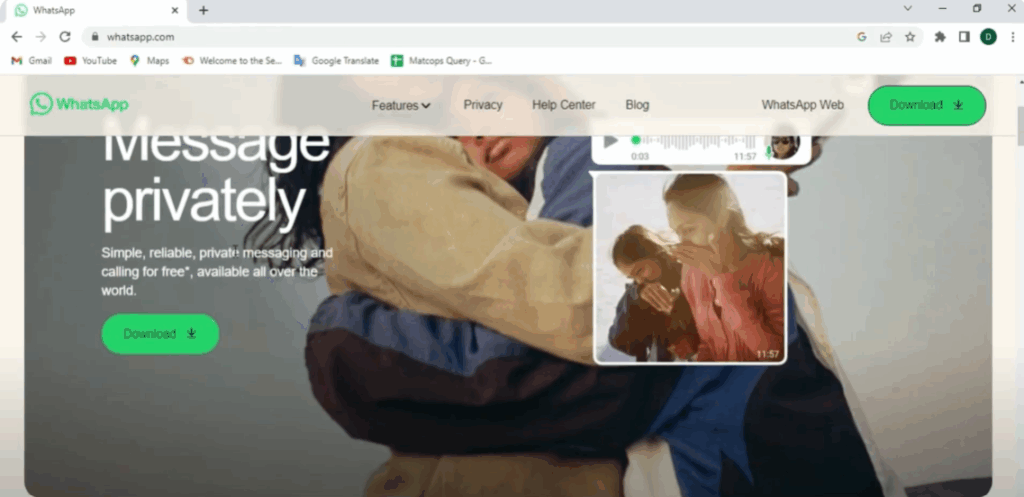
- From the search results, click on the official WhatsApp website. ⚠ Always avoid third-party links.
- On the official page, you’ll see a clear Download button.
- Click it and your download will start instantly.
Method 3: Through Microsoft Store
- Click on the search bar on your desktop and type Microsoft Store.
- Open it.
- Click on the Apps category.
- Use the search bar to find WhatsApp.
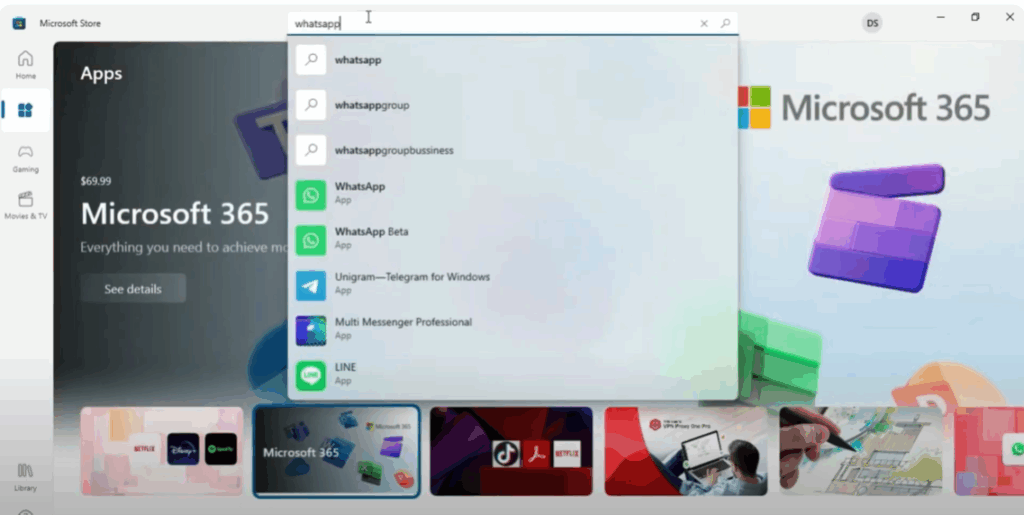
- Click on WhatsApp from the results.
- Press the Get button.
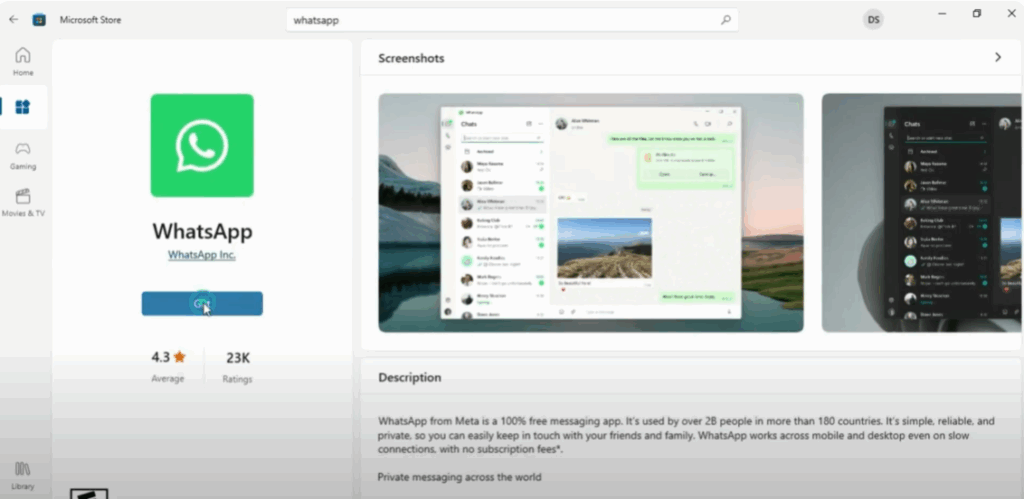
- The download will begin and install automatically.
- Once finished, click on Open and log in with your mobile number, just like the mobile version.
Final Thoughts
And that’s it! These are the three best and easiest ways to download apps like WhatsApp on your Windows laptop in 2025. Try any method that suits you best.






