
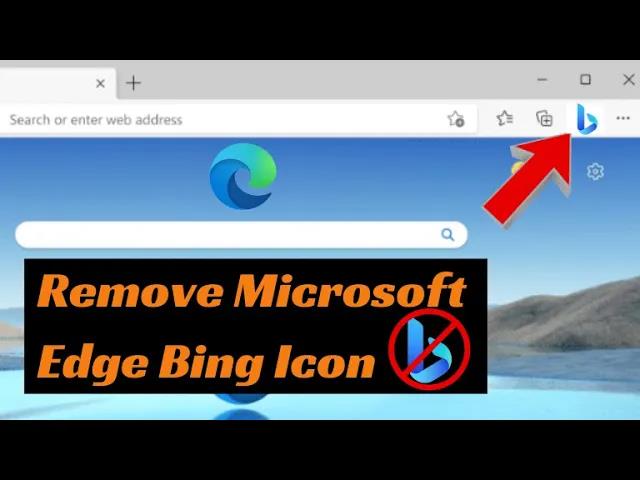
Many users have noticed the new Bing Discover (or Bing Chat / “Discover”) icon in Microsoft Edge’s toolbar or sidebar and want to get rid of it. Fortunately, Edge lets you disable it—no extensions or hacks needed. Below are several ways to remove or hide the Bing Discover icon.
✅ Method 1: Use Edge Settings (Sidebar / Discover Toggle)
This is the simplest and safest method.
- Open Microsoft Edge.
- Click the three dots (⋯) → Settings.
- In the left sidebar, click Sidebar (or “Sidebar settings”)
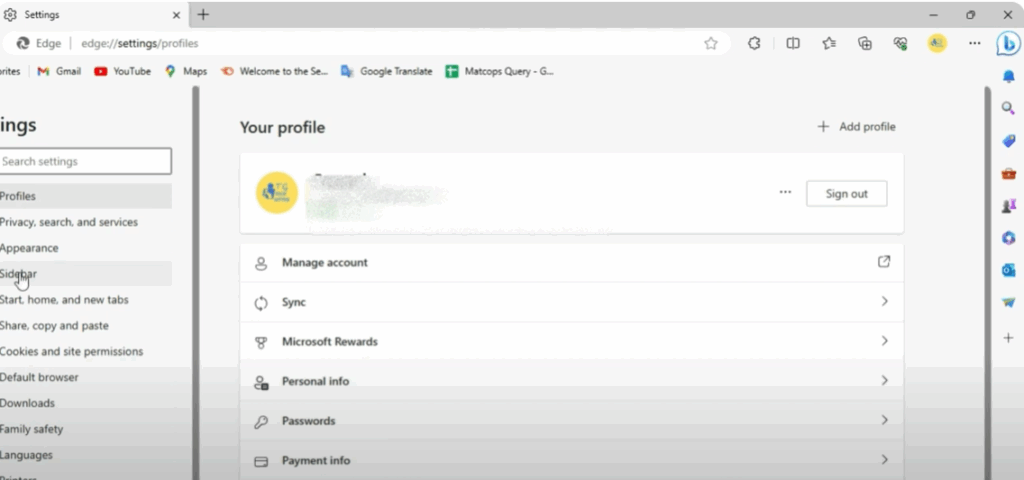
- Under Sidebar, look for the “Show Discover” toggle or a “Discover” section under App & notification settings.
- Turn off (toggle off) Show Discover. This should hide the Bing Discover / Chat icon.
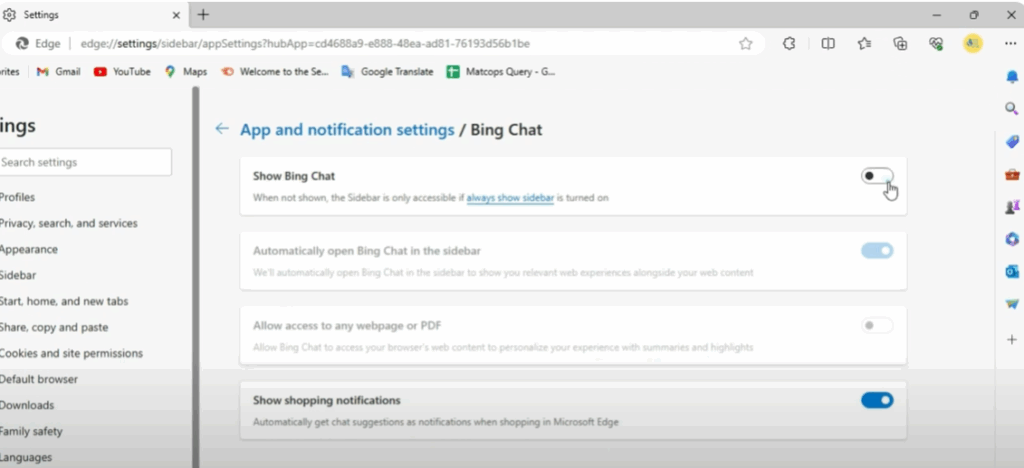
After toggling off, the icon should disappear from the toolbar / sidebar.






