
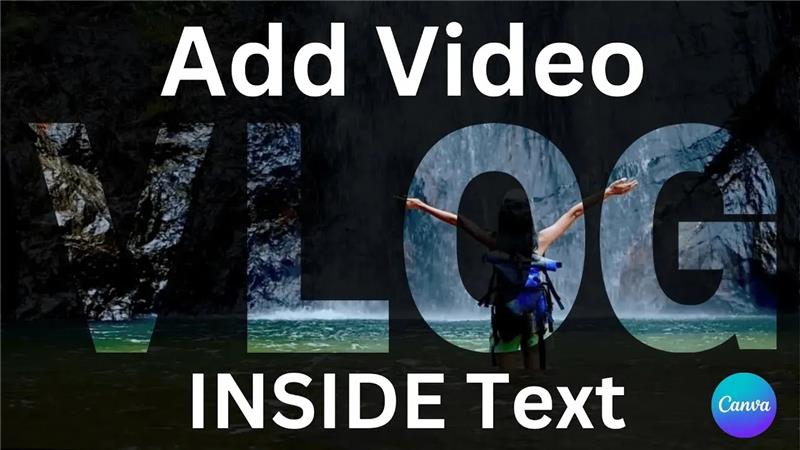
Embedding a video within text is a slick visual effect that grabs attention. In Canva, while full “video inside text” is a bit of a workaround, you can achieve it using masking or layered tricks. Below are two relatively easy methods you can follow step by step.
✅ Method 1: Use Text Mask (Video Clipped Inside Text Shape)
This method essentially uses your text as a “mask” through which you see a video underneath. Canva supports a “clip” or masking effect.
Step-by-Step (Method 1)
- Create a new design
- Choose your desired dimensions (e.g. 1080×1080 or custom).
- Add a text object
- Click Text on the left panel → “Add heading” (or your preferred size).
- Type the word(s) you want (e.g. “VIDEO”, “WATCH”, etc.).
- Use a bold, thick font (so more of the video shows through).
- Convert text to a maskable frame / shape
- Depending on Canva’s version or features available, you may need to turn your text into a “maskable frame” or use a workaround:
- Sometimes you duplicate your text, convert one copy into a frame or shape.
- Use the “Effects” or “Mask” option (if available) to let video show through.
- If Canva doesn’t natively support text as mask in your version, you might need a workaround (Method 2 below).
- Depending on Canva’s version or features available, you may need to turn your text into a “maskable frame” or use a workaround:
- Insert the video
- Upload or import the video you want (e.g. via “Uploads” or via the Apps / YouTube embed).
- Place the video layer behind the text mask.
- Resize / reposition so that the part of the video you want aligns inside the text shape.
- Clip / set the text mask
- Use the “Mask” or “Clip” function (or set the video as background clipped within that shape) so the video only shows through the text shape.
- Adjust and fine-tune
- Move the video within the mask to pick the best frame / motion area.
- Adjust text size, spacing, or mask shape to get a clean edge.
- Add secondary text or overlays if needed.
- Preview / Export
- Use Canva’s preview or play mode to see how it looks.
- Export as MP4 so that the video shows.
- Depending on your Canva version, mask effects may or may not preserve perfectly in export.
✅ Method 2: Use Layered Text + Transparent Shape + Video Behind
This is simpler and works more reliably, especially in free or basic versions of Canva.
Step-by-Step (Method 2)
- Create design & add text
- As before, start with a new design.
- Add your desired text (bold, large, thick font).
- Add a filled background shape behind the text
- Insert a rectangle (or shape) behind the text.
- Make the shape transparent or semi-transparent, letting you see through.
- Place video layer behind everything
- Upload/import your video.
- Drag the video layer to behind the text & transparent shape.
- Position/scale the video so the visual action is visible through the transparent area behind the text.
- Optional: Duplicate and overlay text outlines
- For sharper edges, duplicate your text, set one copy in the front as solid or outline, and the one behind acts as “window.”
- This helps maintain readability.
- Fine-tune alignment
- Adjust video position relative to where the major motion should appear in the letters.
- Adjust transparency of shape to suit contrast.
- Preview & Export
- Use “Preview / Play” mode to check.
- Export as MP4 to preserve the video effect.






