
Microsoft Excel is one of the most popular tools for managing data, creating charts, and organizing information. But many people think they can only use it if they pay for a subscription. The truth is, there are several ways to access Excel features for free or at no extra cost. Whether it’s through the online version, mobile apps, or limited free options, you can still work on your spreadsheets without buying a plan. In this guide, we’ll explain step by step how to use Microsoft Excel without a subscription in 2025.
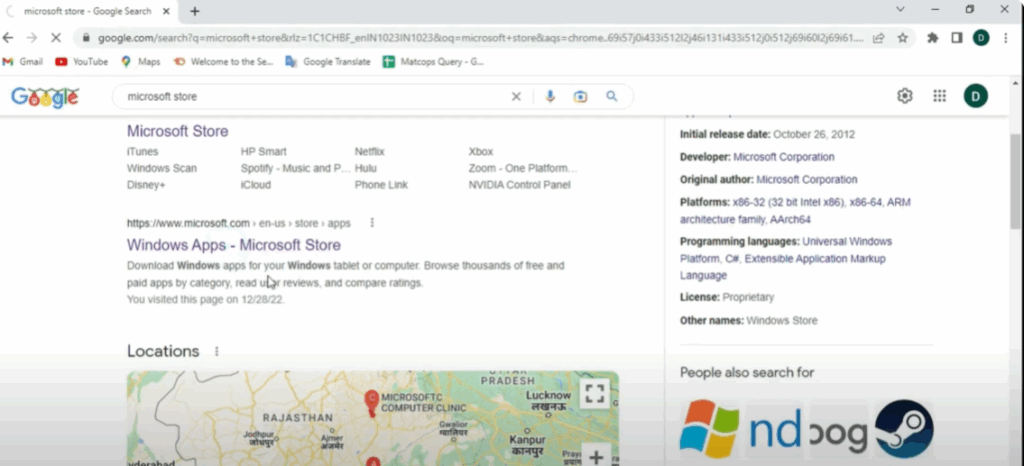
First, click on the start button on your desktop. Now, type Chrome in the search bar. When you see the Chrome icon, click on it to open Google Chrome. Once Chrome is open, go to the top search bar and click on it. Now type Microsoft Store and press enter on your keyboard. You’ll see some search results. Look for the official Microsoft website link that says something like Microsoft Office Windows apps on Microsoft Store. Click on that link. It will open the Microsoft Store website in your browser.
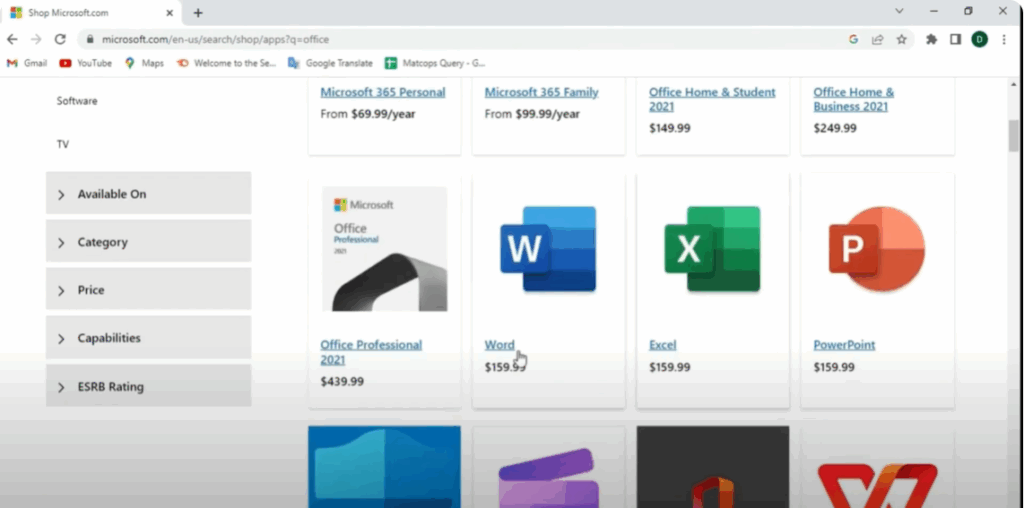
Now that you’re on the Microsoft Store page, scroll down a little. Look for the search button on the website. Click on it. In the search box, type Office and press enter. Next, click on the shop option from the filters. Then, select apps so that it shows only app results. You will now see a list of Office apps. Find the one that says Microsoft 365 or Office free version. Click on it to open the app details page.
Get the App
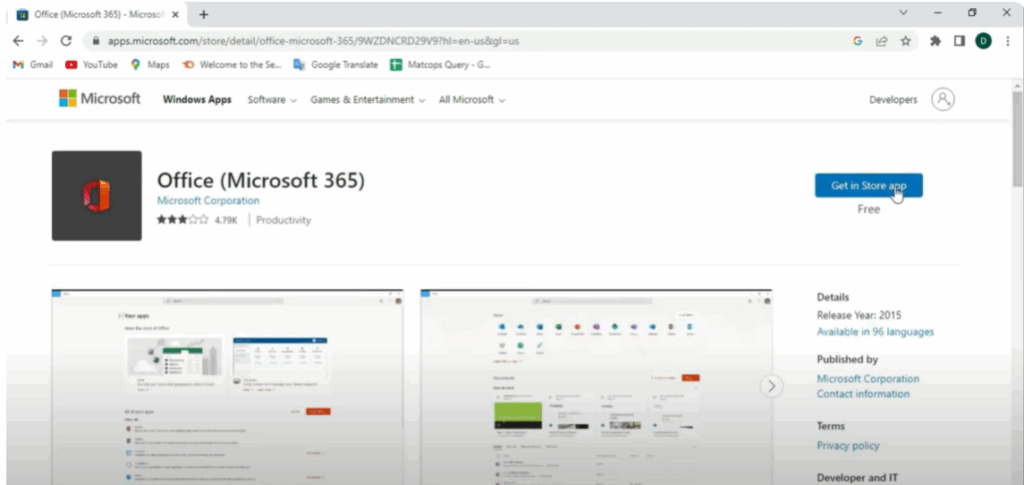
On the app page, you’ll see a button that says Get in Store App. This will open the Microsoft Store app on your Windows PC. You also read the description and all details. If it asks for permission, click yes. Now in the Microsoft Store, click on Install or Get to download the app. Wait a few moments while it installs on your computer.
Once the Office app is installed, go back to your desktop. Click on the start button again. Type Office in the search bar. When the Office appears, click to open it. Inside the Office app, you’ll see different Microsoft tools like Word, PowerPoint, and Excel. Click on Excel. Now click on Blank Workbook to open a new Excel file. And after open page, you select the blank workbook option.
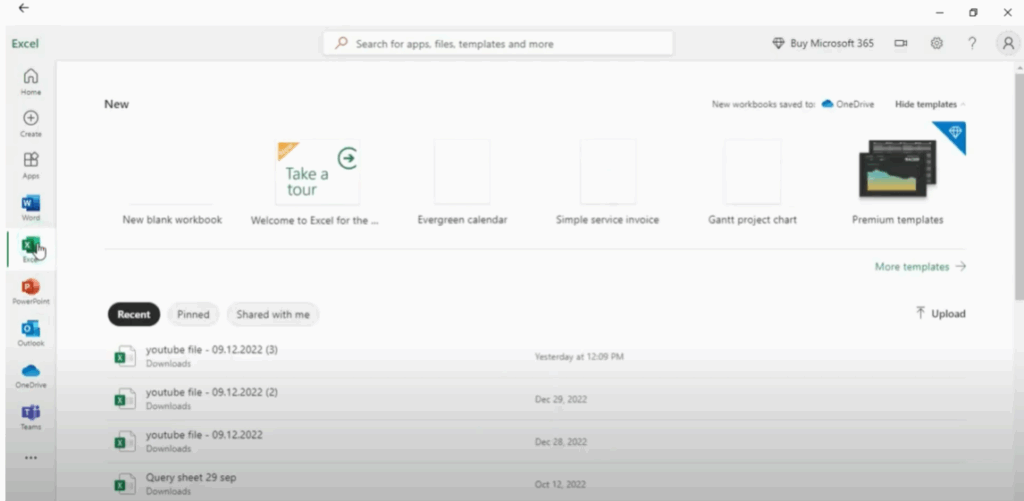
You can now start typing your data, creating formulas, and working like you normally would in Excel. This version of Excel is part of the free Microsoft 365 online experience. It may ask you to sign in with a free Microsoft account. When you’re done, go to File → Save As, and choose the folder where you want to save your file. So if you don’t have one, you can create it easily.
This is the web-based version, so some premium features may not be available.






