
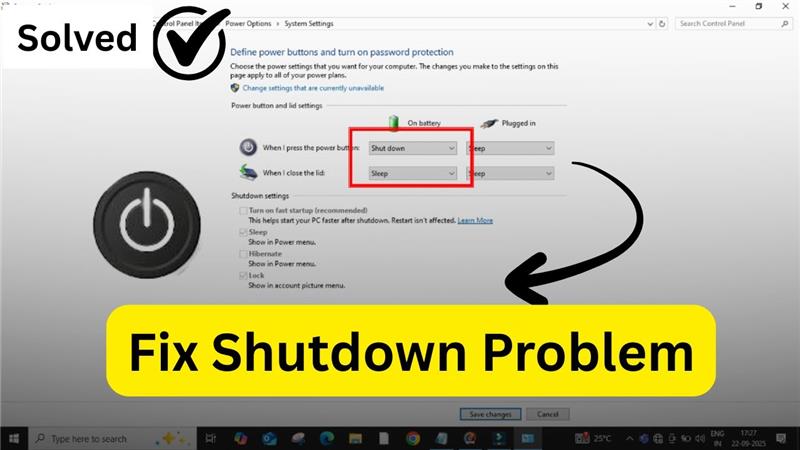
If your Windows computer won’t shut down properly, you’re not alone. This is a common problem that can happen for many reasons, such as background apps, system settings, or pending updates. In this quick guide, we’ll walk you through simple steps to fix Windows shutdown issues so your PC can power off smoothly again.
Method 1: Adjust Power Options
- First, click on the Windows icon, then select Run.
- In the run box, type control and press OK. This will open the Control Panel.
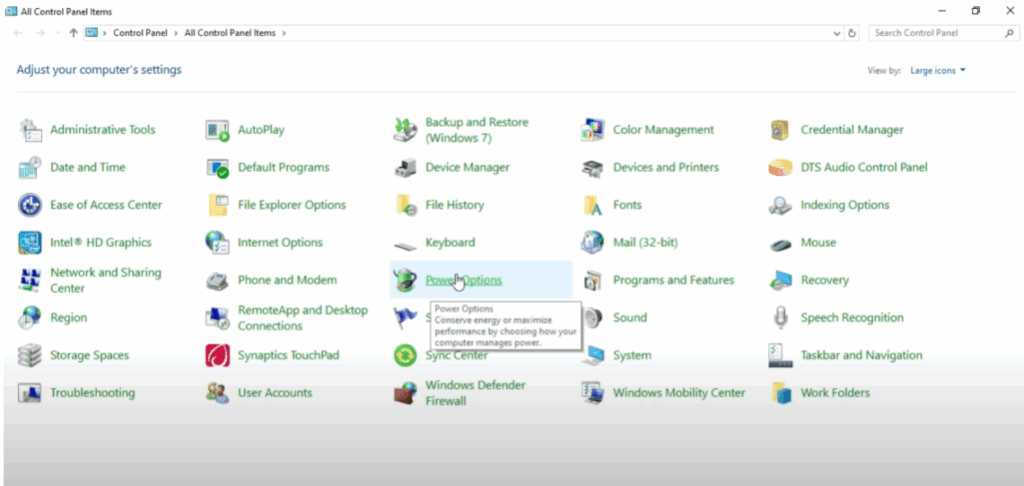
- Now, find and click on Power Options.
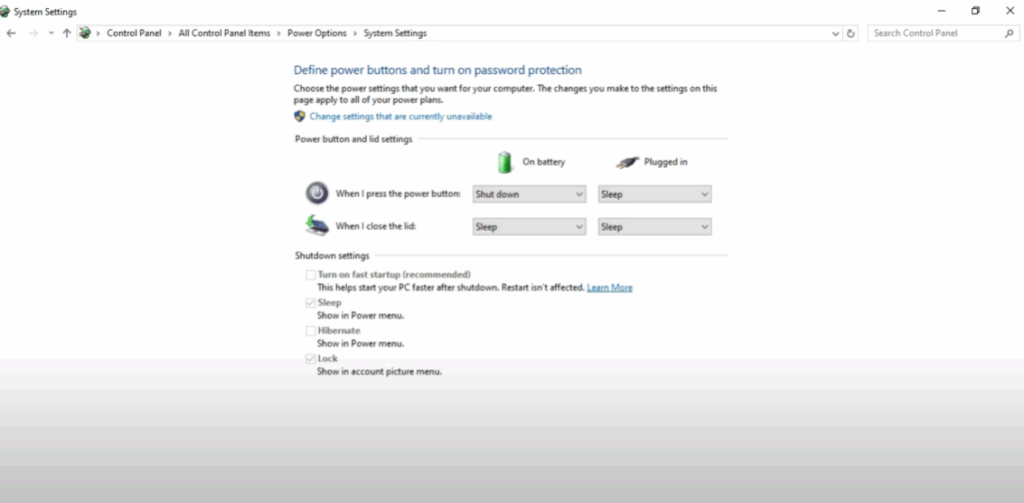
- On the left side, you will see an option called Choose what the power button does. Click on it.
- At this point, you’ll notice some of the options are grayed out. To make changes, click on Change settings that are currently unavailable.
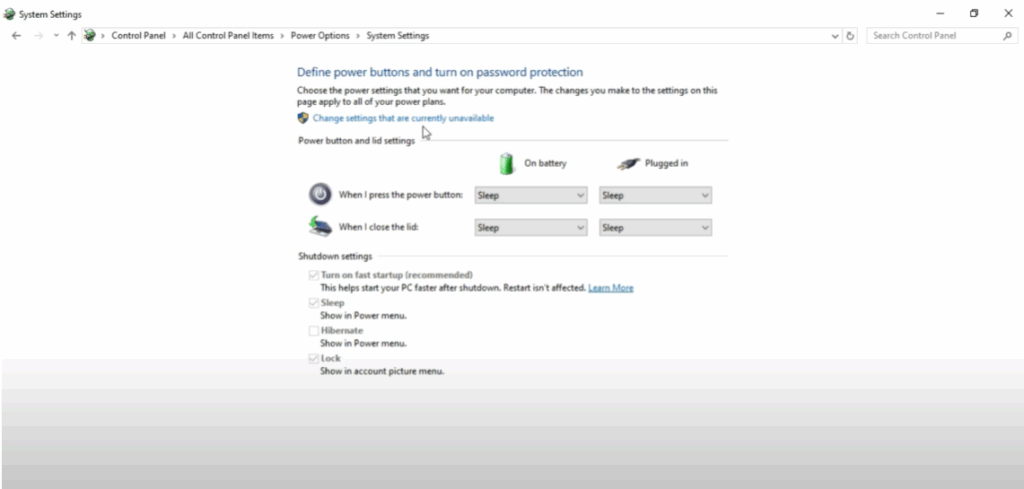
- Once the options are enabled, uncheck the box that says Turn on fast startup.
- After that, click on Save changes.
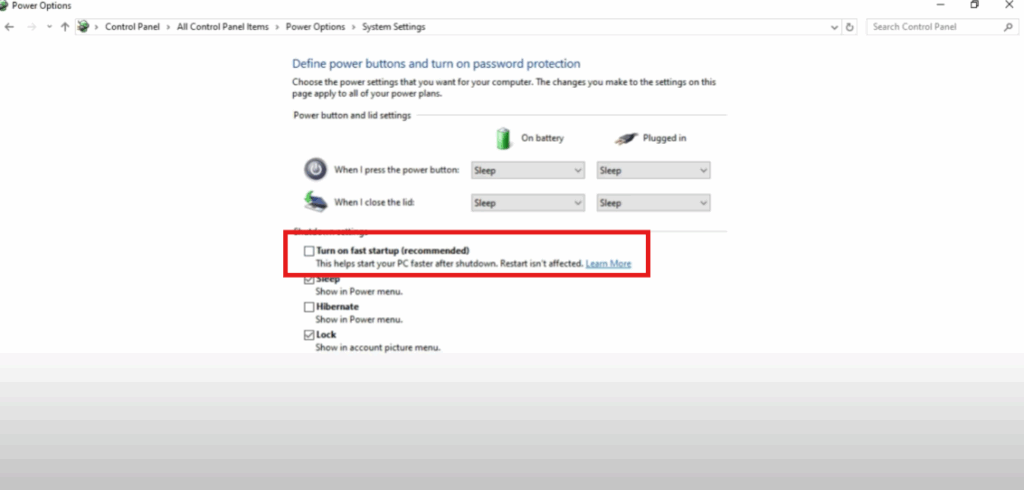
- Now, again, go back to Choose what the power button does. This time change the option from Sleep to Shutdown and then click on Save changes.
Method 2: Use Command Prompt
If the problem still persists, let’s move to the second method:
- Right-click on the empty space near the Taskbar.
- Then click on Search and select Show search box.
- In the search bar, type cmd.
- Then right-click on Command Prompt and choose Run as administrator.
- Once the black command window opens, type the command:
powercfg -h offand then press Enter.

Final Step
That’s it! Restart your system and check again. Your Windows shutdown problem should now be fixed.






