
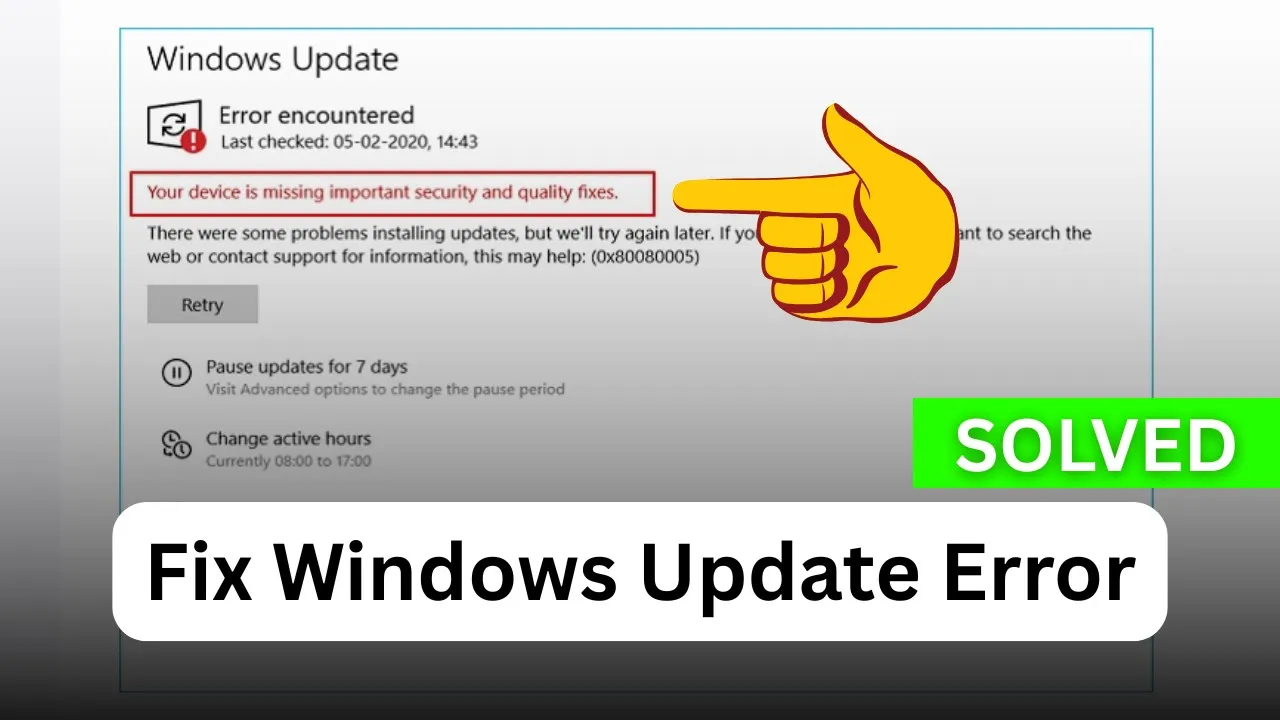
Sometimes when you try to update Windows, you may see an error saying that an important security update is missing. This can be frustrating because security updates keep your computer safe from viruses and other threats. The good news is that these errors are usually easy to fix with a few simple steps. In this guide, we’ll explain why this problem happens and show you how to quickly solve it so your Windows stays secure and up to date.
Method 1: Run the Windows Troubleshooter
The first and most basic fix is to run the built-in Windows troubleshooter.
- Go to Settings
- Click on Update and Security
- Select Troubleshoot
- Go to Additional Troubleshooters
- Run the troubleshooter for Windows Update
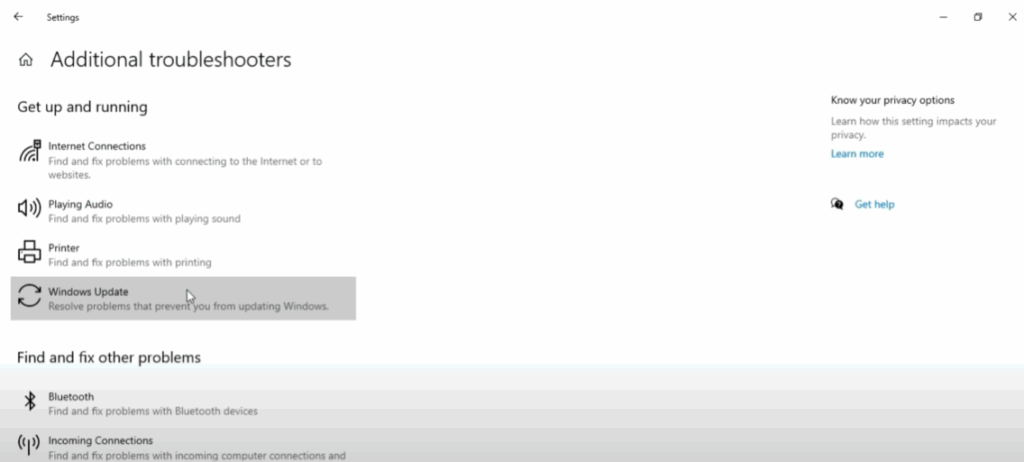
This tool can automatically detect and fix minor problems. Once the process is complete, reboot your PC and then try checking for updates again.
Method 2: Check Windows Security Settings
If that doesn’t work, check your Windows security settings.
- Go to Settings → Update and Security → Windows Security
- Click on Virus and Threat Protection
- Select Manage Settings and make sure your virus protection is turned on
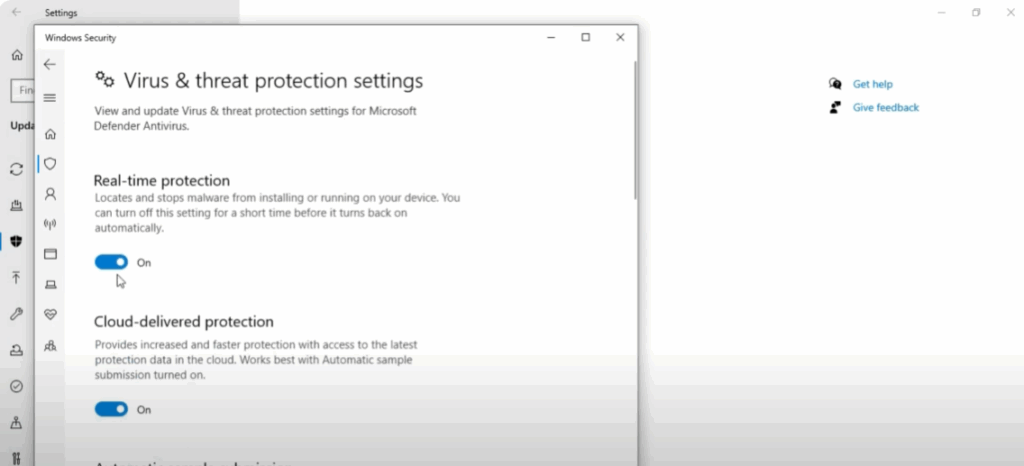
After enabling it, restart your system and try updating again.
Method 3: Restart Update Services
If you’re still facing the issue:
- Open the Start Menu and type Services
- Scroll down to Windows Update
- Double click on it and ensure the Startup Type is set to Automatic
- Click Stop, then click Start again
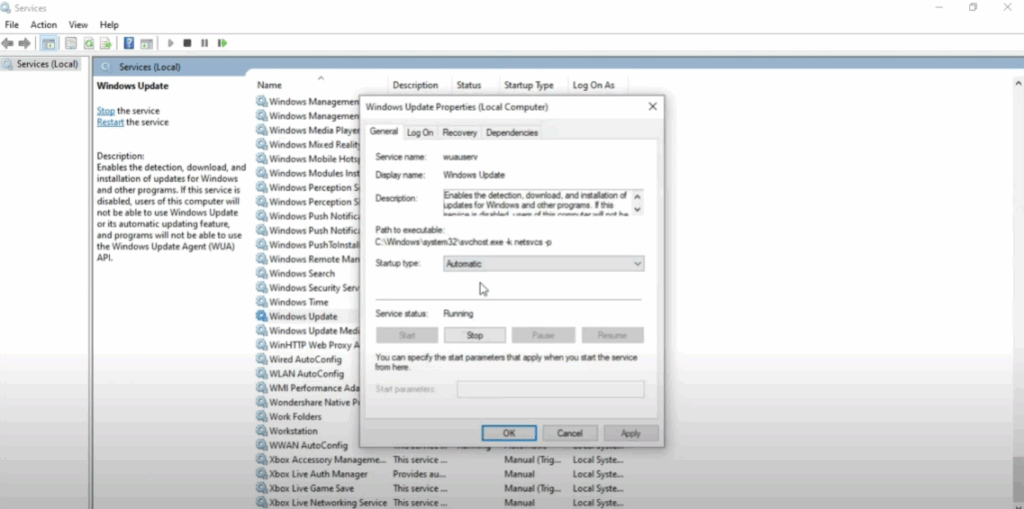
Do the same for Background Intelligent Transfer Service (BITS). Both services must be running properly for updates to work.
Method 4: Uninstall Recent Updates
If the problem continues, uninstall recently installed updates that might be causing the issue.
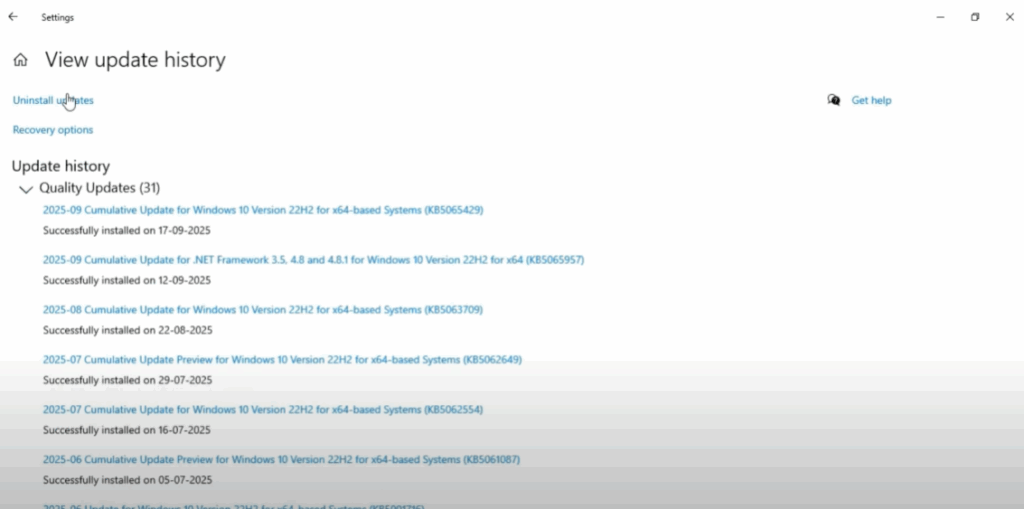
- Go to Settings → Update and Security
- Click View Update History → Uninstall Updates
- Select the latest update, uninstall it, and restart your PC before trying again
Method 5: Clear Windows Update Cache
If uninstalling updates doesn’t help, clear the update cache.
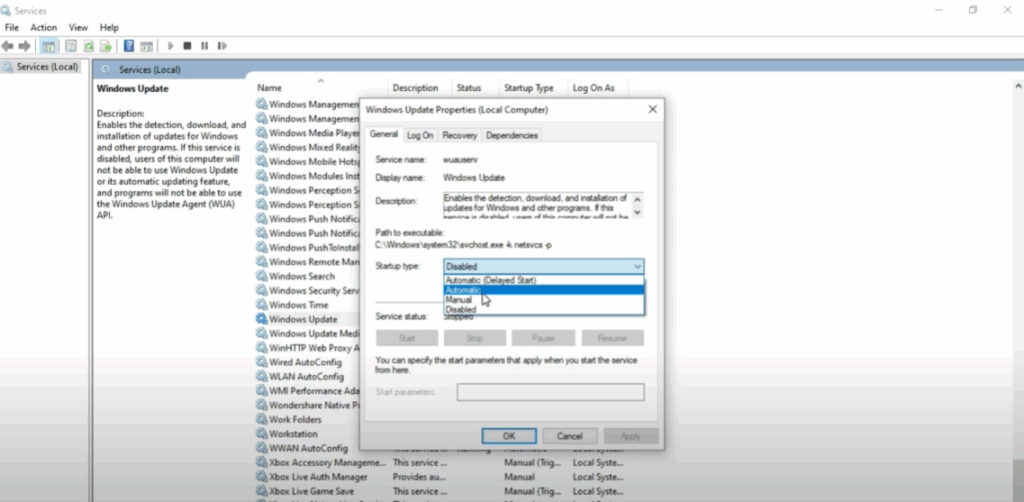
- Open Services → Find Windows Update → Set to Disabled → Click Stop
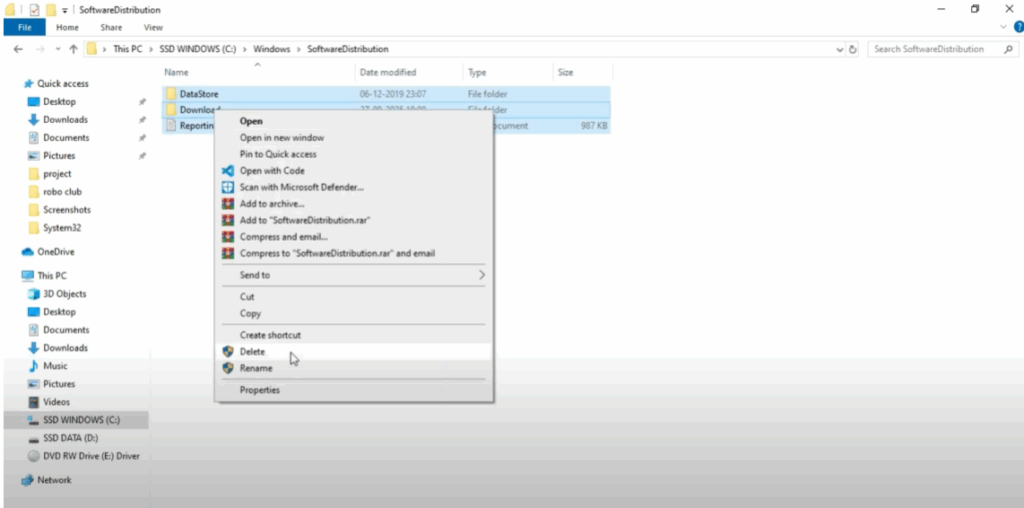
- Open File Explorer and go to:
C:\Windows\SoftwareDistribution - Delete all files inside this folder (these are old cached update files)
- Go back to Services, set Windows Update back to Automatic, and click Start
- Reboot your system and try updating again
Method 6: Run System File Checker (Advanced)
If nothing else works, use the System File Checker tool.
- Open Start Menu → Type CMD → Select Run as Administrator
- In the black command window, type:
sfc /scannow - Press Enter
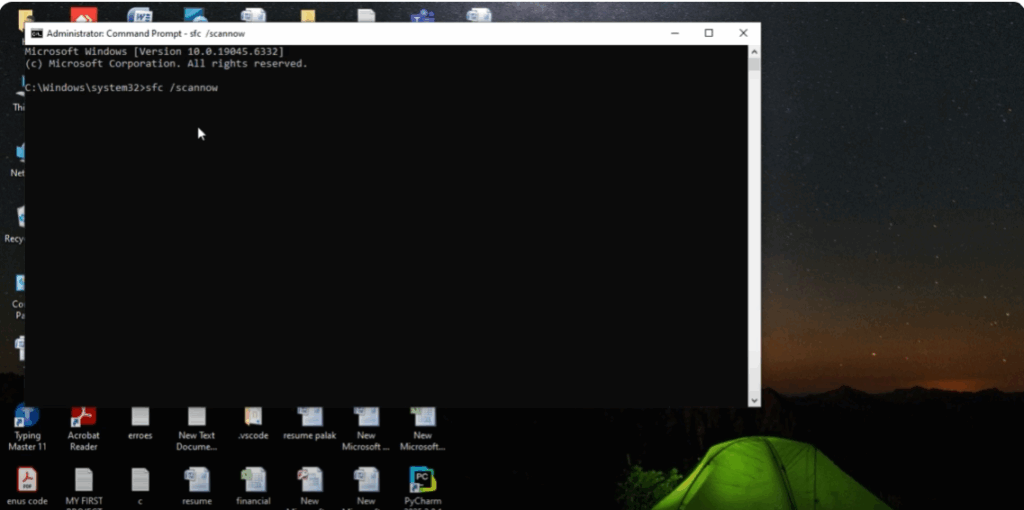
This will run a full system scan to detect and repair corrupted system files. It may take some time, so be patient. Once the scan completes, restart your PC and check Windows Update again.
Final Words
Fixing the Windows Update error related to missing security updates is important to keep your system safe and running smoothly. With the right steps, you can quickly resolve the issue, install updates successfully, and ensure your PC stays protected.






