
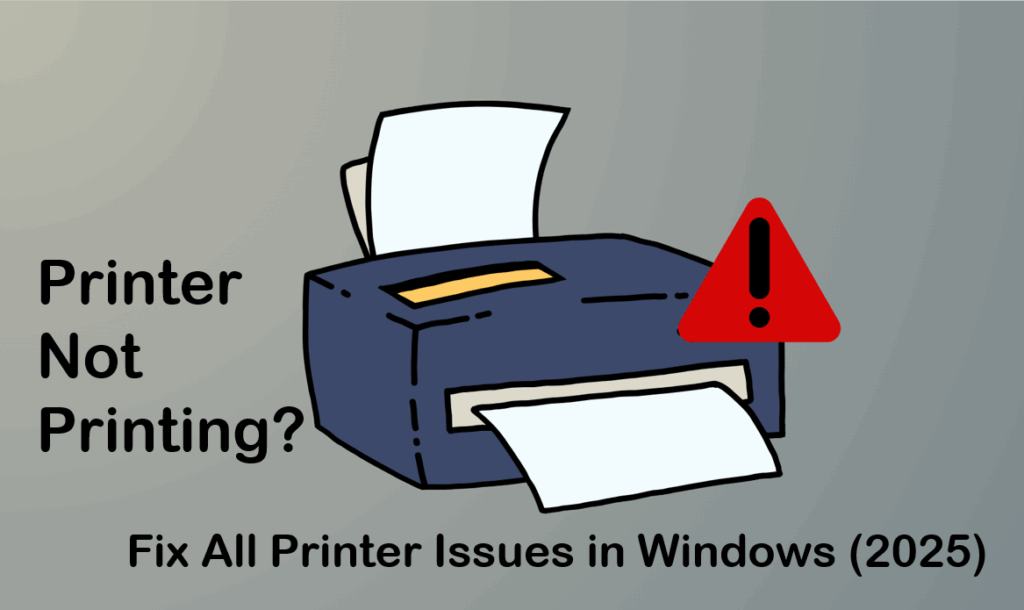
Printers are still one of the most important tools for home and office work, but when they stop printing, it can quickly become frustrating. Whether your printer is connected but unresponsive, showing error messages, stuck in the print queue, or simply refusing to print, the issue often comes down to simple fixes that anyone can try. In Windows 2025, printer problems are quite common due to driver issues, incorrect settings, connectivity errors, or system glitches. The good news is that most of these issues don’t require expert help. In this guide, we’ll walk you through easy, step-by-step solutions to fix all kinds of printer problems in Windows, so you can get your documents printed without stress.
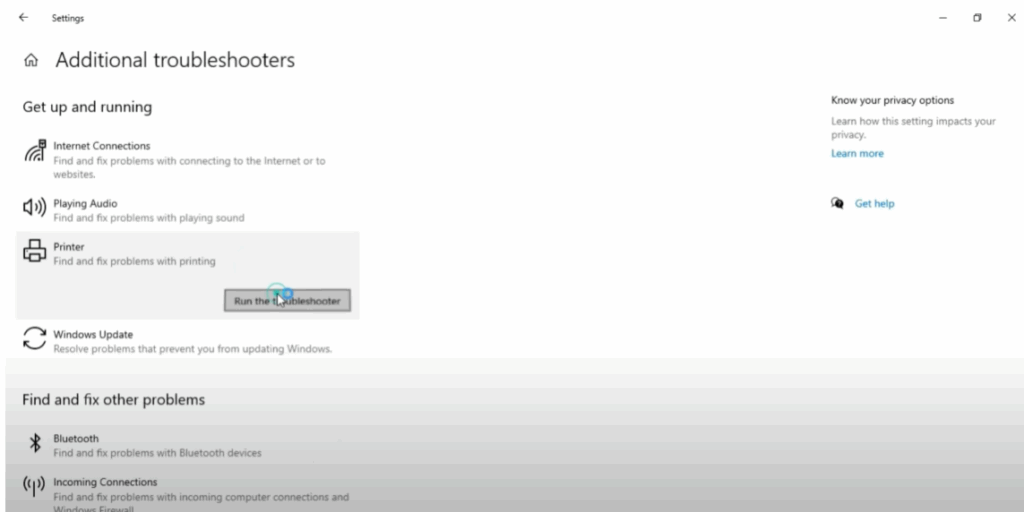
Firstly, click on the Start menu. Go to Settings and then select Update and Security. Here, click on Troubleshoot and then go to Additional Troubleshooters. From the list, find Printer and click on Run the Troubleshooter. Windows will now scan for any common printer problems.
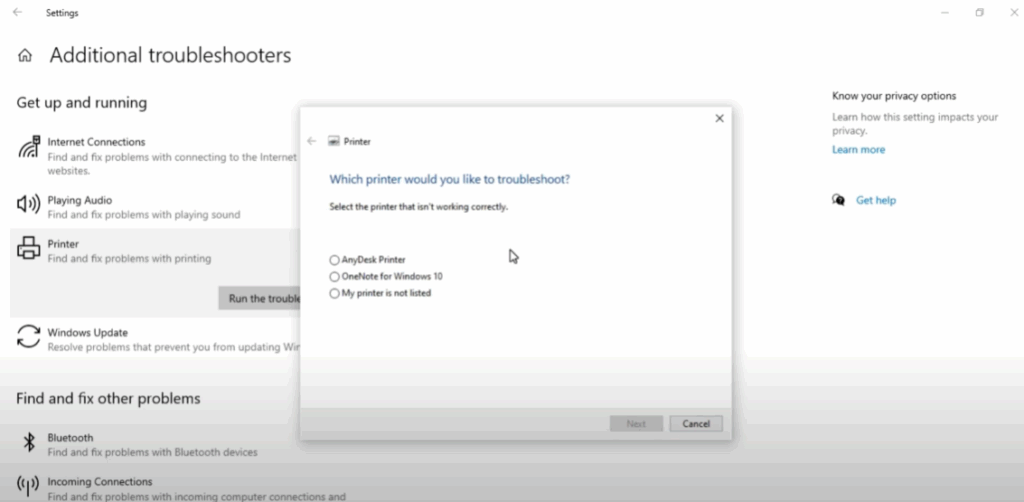
After a short time, it will ask you to select your printer. Choose your printer from the list and then let the troubleshooter detect the issue. If a problem is found, Windows will automatically suggest or apply a fix. Many times, this simple step resolves the problem instantly.
If the troubleshooter doesn’t solve it, let’s move to the second method. Right click on the Start menu and select Device Manager. In Device Manager, scroll down and expand Print queues. Here you will see a list of installed printers.
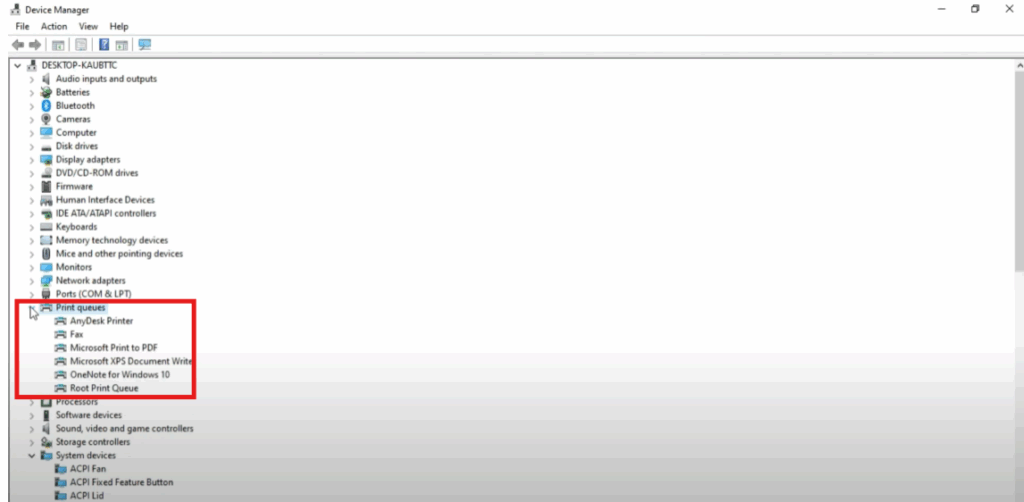
Now right click on your printer. For example, in my case, I’ll click on Any Desk Printer and then select Update Driver. A new window will open with two options. Choose Search automatically for drivers. Windows will now look for the latest driver updates online.
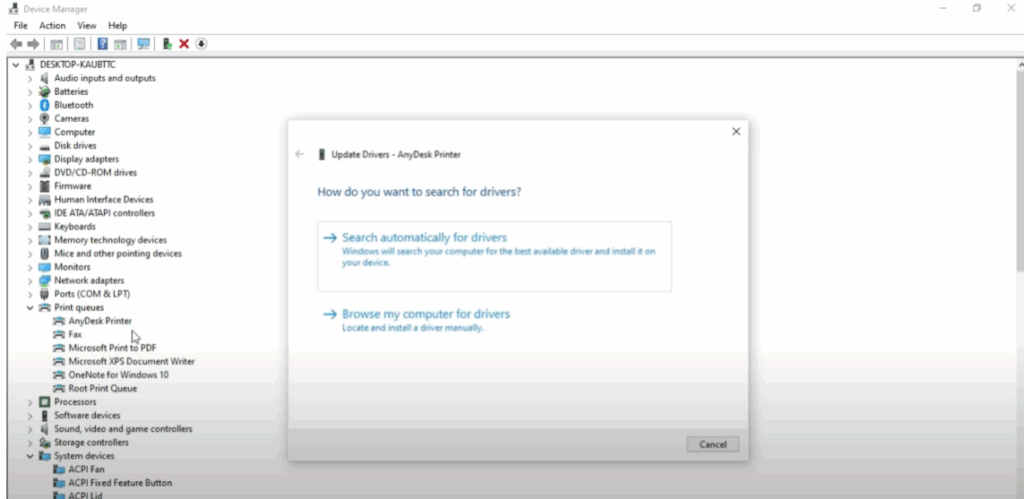
If it says the best drivers for your device are already installed, just close the window. Don’t stop there. Also update Microsoft Print to PDF the same way. Right click on it, click Update Driver and once again choose Search automatically for drivers. This ensures all printer related drivers on your system are refreshed.
Once you’ve updated both, close the Device Manager and restart your computer. In most cases, your printer problem should be fixed by now.
So that’s it. These are some of the easiest and most effective methods to fix all types of printer issues on a Windows PC.






