
If you’re trying to install or update your AMD graphics driver on Windows and see the error code 1603, don’t worry—you’re not the only one. This error is fairly common and usually happens because of corrupted driver files, incomplete installations, Windows system conflicts, or software running in the background that interrupts the process. The good news is that it can be fixed with a few simple methods, and you don’t need to be an expert to do it. In this guide, we’ll explain what AMD Error 1603 means, why it happens, and walk you through step-by-step solutions to successfully install your driver on Windows 2025. This way, your system can run smoothly with the latest AMD updates.
Method One: Repair Visual C++ Redistributables
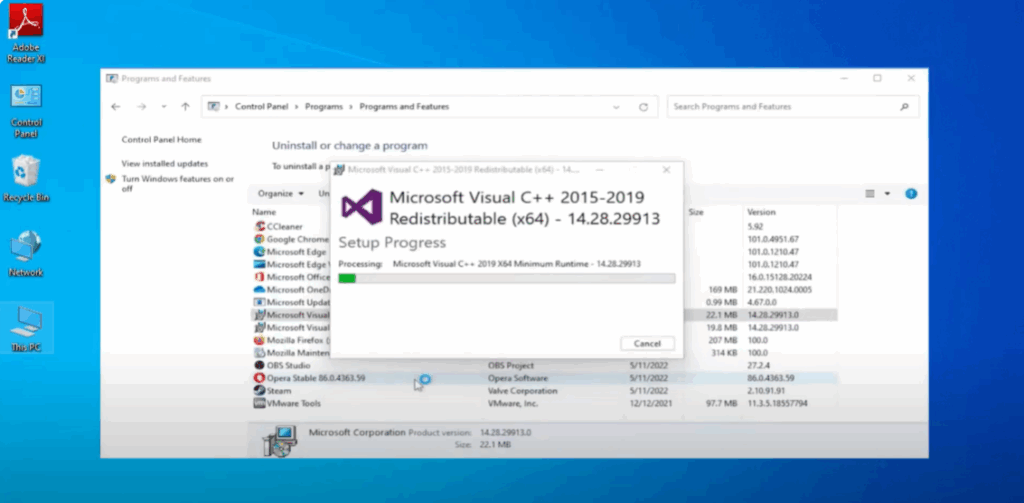
- Open the search menu and type Control Panel.
- Open it and in the top right, set the View by option to Category.
- Under Programs, select Uninstall a Program.
- Look for anything with Visual C++ in the name.
- Click on it, then select Change.
- Choose Repair.
- If prompted by User Account Control, click Yes.
- Repeat this process for all Visual C++ entries.
- Finally, restart your computer.
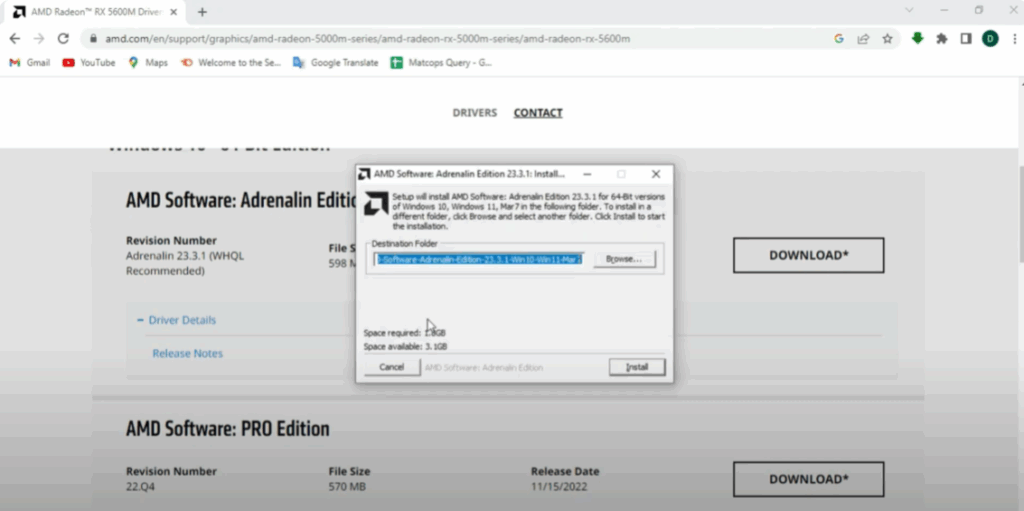
Method Two: Download the Latest AMD Software
- Open your browser and search for AMD Radeon Software Download.
- Go to the official AMD website – Drivers and Support.
- Enter your product and model details.
- Click on Submit and then the OK button.
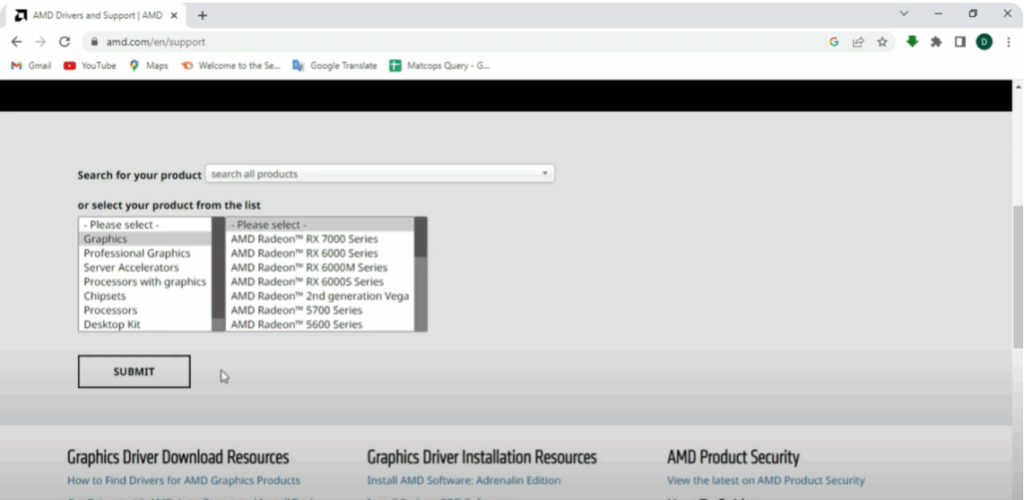
- Download the applicable software for your device (this will be custom for your computer).
- You can check your system properties.
- Choose your Windows version (Windows 10 or 11).
- Download the correct driver package.
- Once downloaded, run the installer.
- Click Yes if prompted and proceed with the installation.
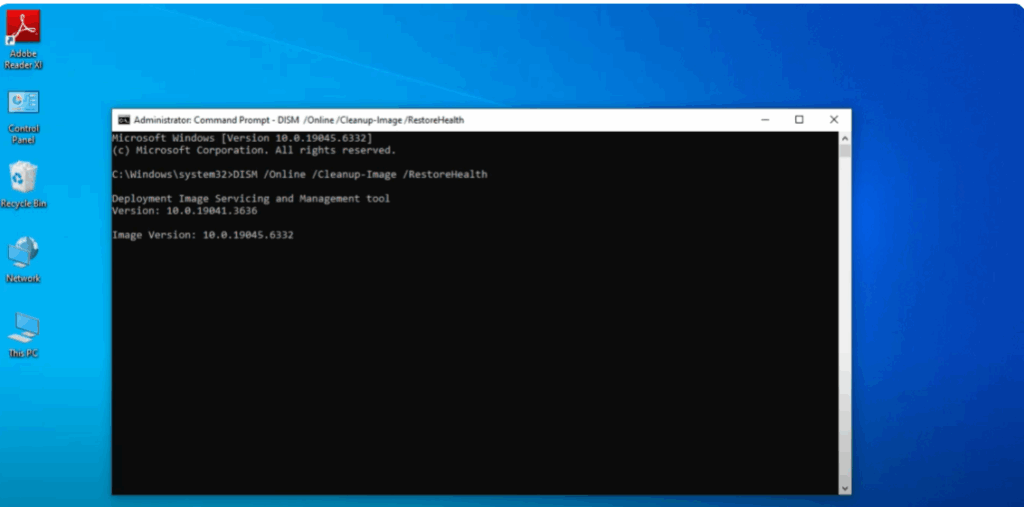
Method Three: Run DISM Command
- Open Search, type cmd, then right click on Command Prompt and select Run as Administrator.
- If prompted by User Account Control, click Yes.
- Copy the DISM command from the description of this video and paste it into the Command Prompt.
- Let it run. (This may take a few minutes.)
- Once done, restart your computer.
That’s it! Hopefully, one of these methods helped you fix the AMD error 16003.






