
Running out of space in your Gmail account can be frustrating—especially when you hit the 15GB limit and stop receiving emails. But don’t worry! You don’t need to buy extra storage right away. There are simple and free ways to clean up your Gmail and free up space. From deleting old emails and large attachments to clearing out Google Drive and Photos, a few smart steps can make a big difference. In this blog, we’ll show you how to quickly free up Gmail storage using easy methods that anyone can follow. Let’s get your inbox back in shape so you can keep sending and receiving emails without stress.
1. Check Storage Usage
Go to Google account storage and see how your storage is being used in Gmail, Google Photos, and Google Drive.
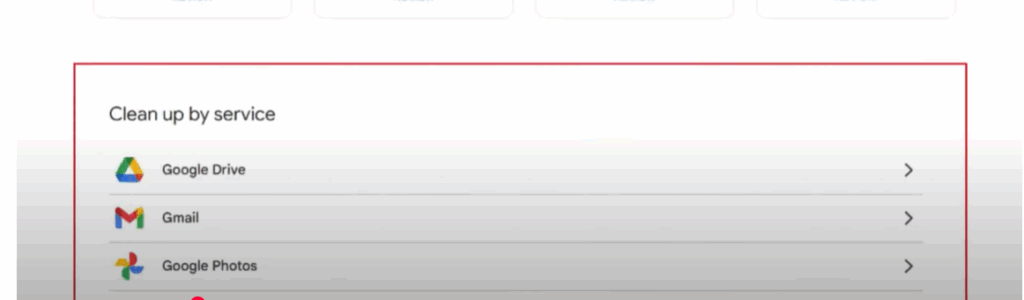
2. Clear Gmail Storage
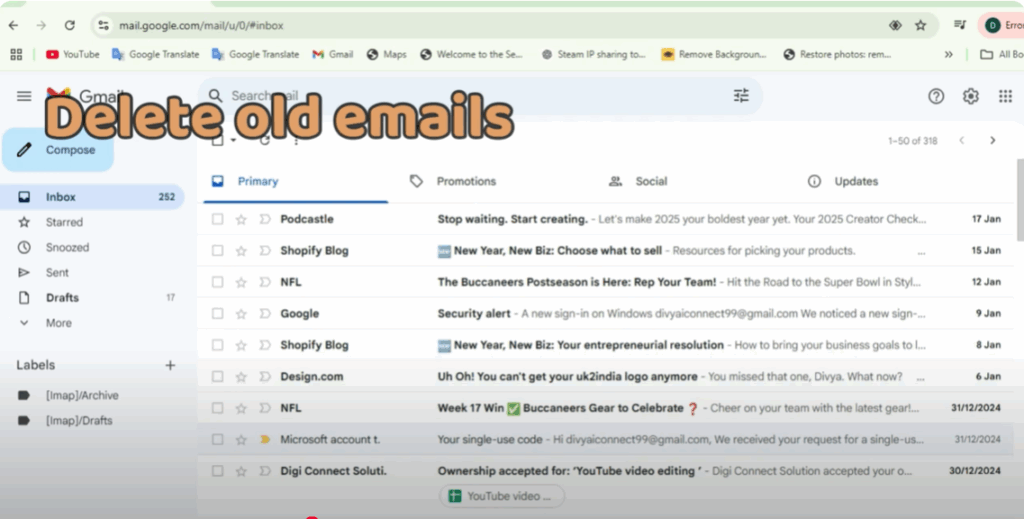
a. Delete unnecessary emails
- Find bigger emails: Use the Gmail search bar to find and delete large emails.
has:attachment larger:10m→ finds emails with attachments larger than 10 MBlarger:5m→ finds emails larger than 5 MB
- Delete old emails: Find and delete old emails you no longer need such as newsletters or promotional emails.
- Use filters like
before:yyyy/mm/ddto find emails before a certain date. - Use
is:unreadto find unread emails that are taking up space.
- Use filters like
b. Delete spam and trash
Go to the Spam and Trash folders and empty them. Gmail automatically deletes emails in these folders after 30 days, but you can manually clear them earlier.
c. Delete large attachments
Go to Gmail settings → Manage All Storage. Review emails with large attachments and delete them.
3. Clear Google Drive Storage
a. Delete unused files
Go to Google Drive, look for large files you no longer need, and delete them. Sort by size to make it easier.
b. Empty the trash
After deleting files, go to the Trash in Google Drive and delete them permanently.
4. Clear Google Photos Storage
a. Delete large photos or videos
Go to Google Photos and delete any photos or videos that are taking up space. Look for high-resolution photos and videos over 100 MB in size.
b. Optimize photos
If you want to save space but keep your photos, change the settings in Google Photos to store images at high quality (compressed) instead of original quality.
- Go to Google Photos → Backup & Sync settings → Upload size → High quality.
5. Use Google’s Storage Manager Tool
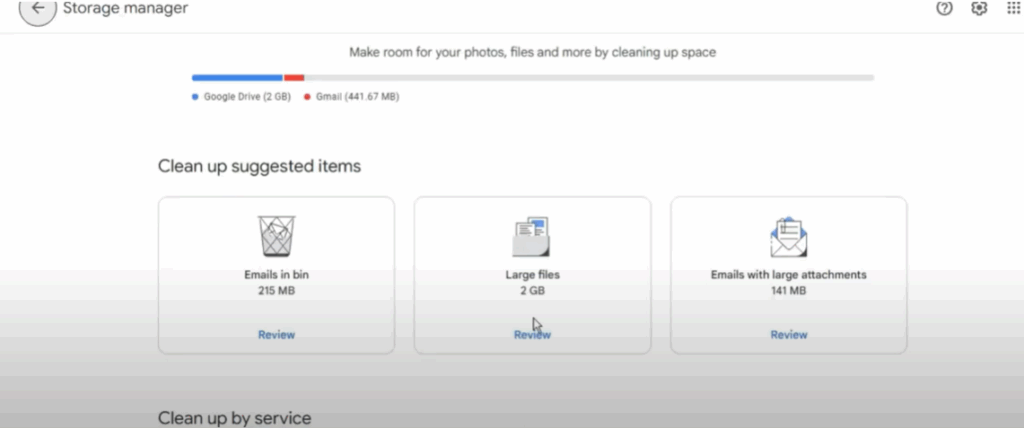
Google provides a storage manager tool that helps you find large emails, files, and photos taking up space. Go to Google Storage Manager to get personalized suggestions and free up space.
Final Words
Running out of Gmail storage doesn’t mean you have to panic or pay right away. By clearing large emails, deleting unnecessary files from Google Drive and Photos, and using smart filters, you can free up space easily. A little cleanup goes a long way!






