
Not sure which Windows version your computer is running? Don’t worry—it’s super easy to check! Knowing your Windows version helps you install the right software, get updates, and fix problems faster. Whether you’re using Windows 10, Windows 11, or a newer version in 2025, finding this information takes just a few clicks. In this blog, we’ll show you step by step how to check your Windows version using simple methods anyone can follow. No tech skills needed—just follow along and you’ll know exactly what version you have in no time. Let’s get started!
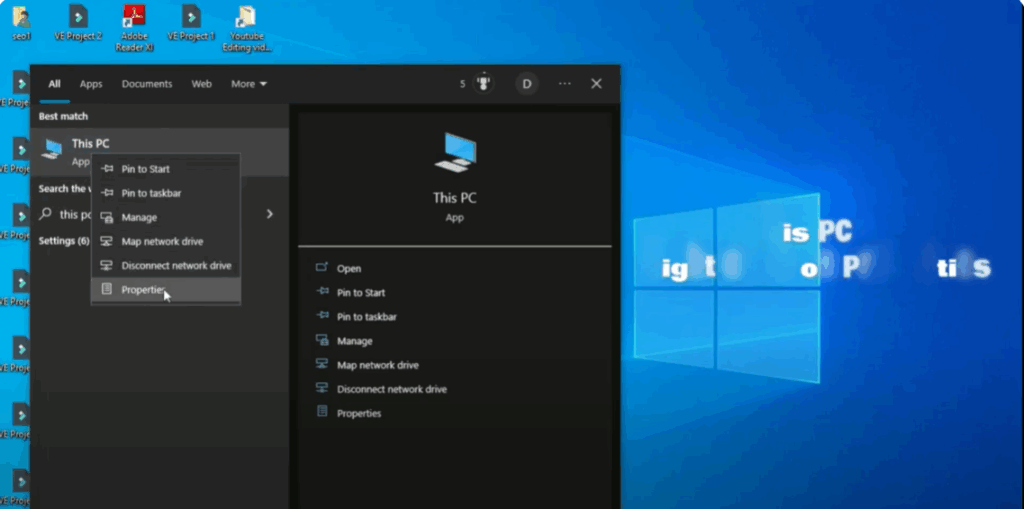
First, go to your home screen and click on the search bar. Type This PC and open it. Now, right-click on This PC and select Properties.
Here, at the very top, you’ll see your Windows edition, for example, Windows 10 or Windows 11. Just below that, you’ll also find details like your processor, installed RAM, system type (whether it’s 32-bit or 64-bit), and even info about pen and touch support.
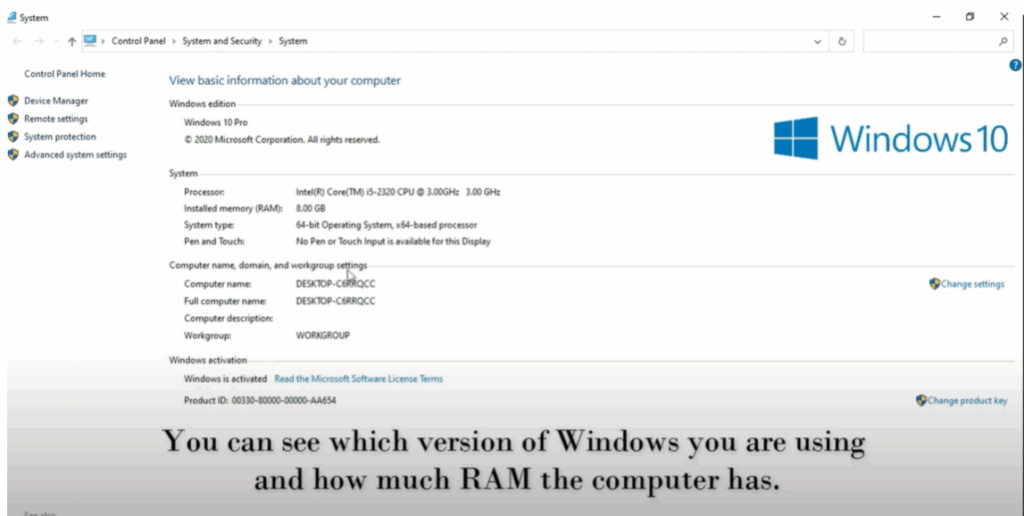
You’ll also see your computer name, full computer name, and workgroup settings.
There’s also another way to check this information using the Control Panel. To do that, go back to the search bar, type Control Panel, and open it. Now, click on System and Security, and then click on System.
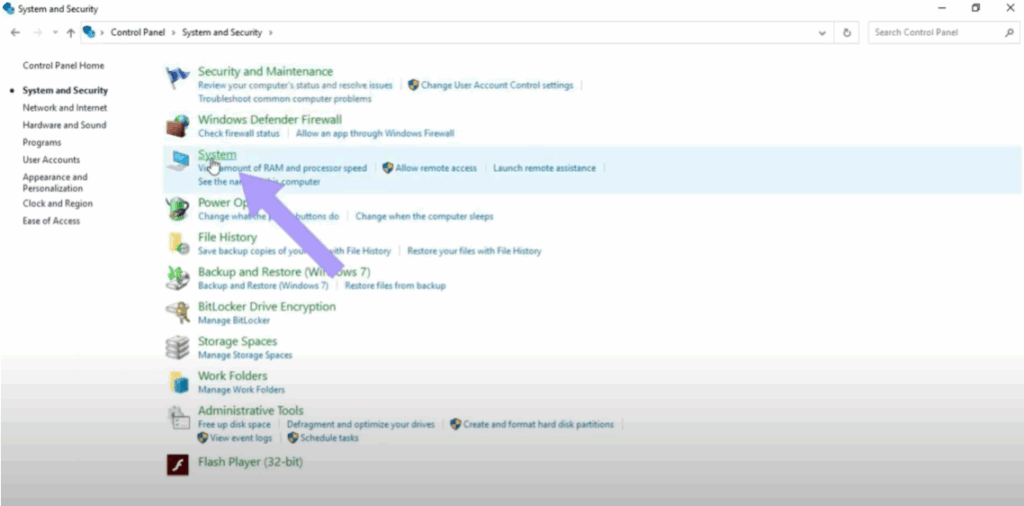
This will also display the same Windows version and system information as before.
And that’s it! Now you know exactly how to check your Windows version and system specs.






