

Accidentally deleting important WhatsApp chats can be really stressful, but with this amazing 2026 trick, you can instantly bring back deleted chats on WhatsApp! Whether you lost messages because of a mistake, app update, or phone glitch, there are easy and effective ways to recover them quickly, even without a backup. In this blog, you’ll discover simple step-by-step methods to restore your deleted WhatsApp conversations and never lose valuable messages again. This guide is perfect for anyone looking to get their chats back fast and hassle-free. Stay tuned to learn how to recover deleted WhatsApp chats instantly in 2026!

Step One: Check Local Backup
Most people don’t know that WhatsApp automatically creates a local backup on your phone every night. So, even if your Google Drive backup is turned off, there’s still a chance to recover your chats.
Here’s how to find it:
- Open your File Manager.
- Go to Internal Storage → WhatsApp → Databases.
- You’ll see files like:
Mixtore 2026-10-06.DB.Crypt14
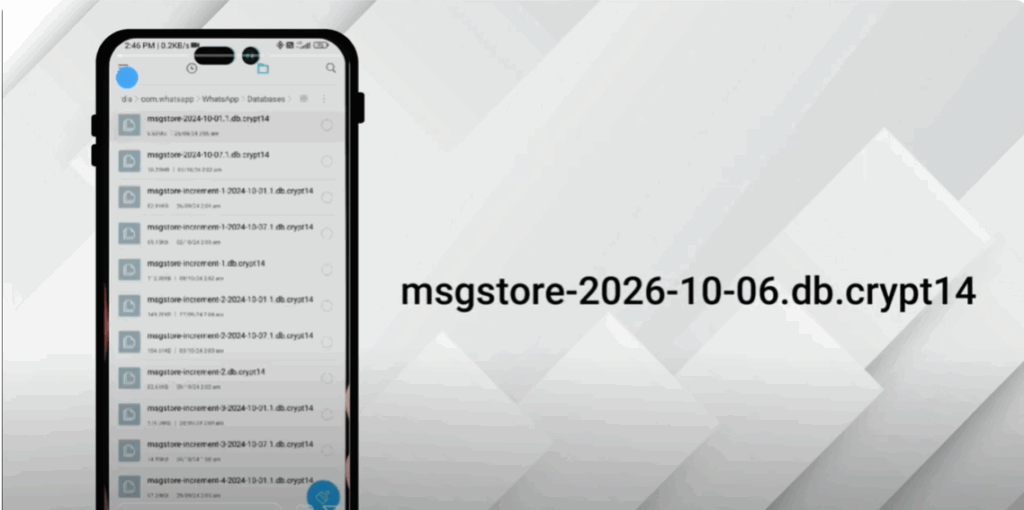
These are your local chat backups. If you see these files, that means your old messages can be restored.
Step Two: Rename the Backup File
Now, to make WhatsApp read your local backup, pick the most recent file or the one closest to the date your chats were deleted.
Rename it to mixto.db.crypt14 — remove the date part.
Don’t change the extension; just rename the file name part.
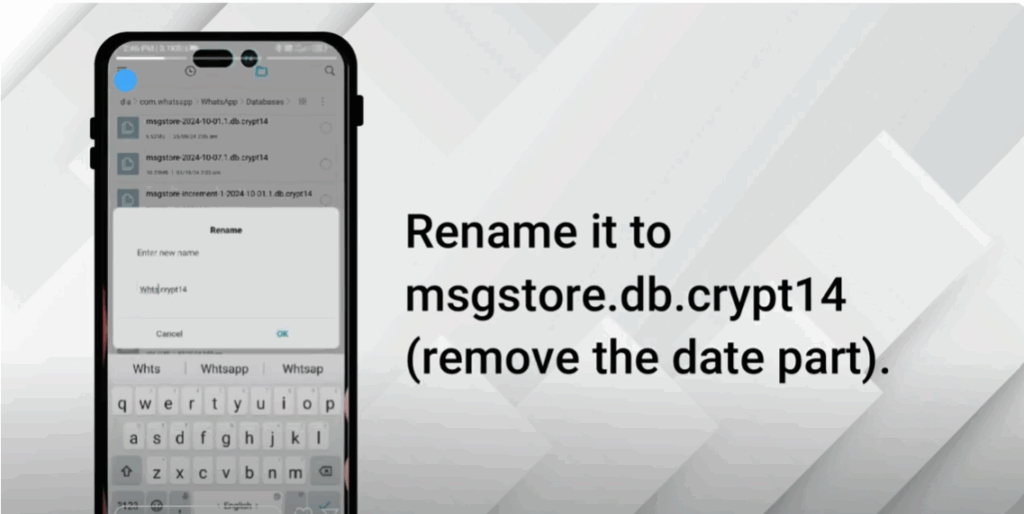
This simple step tells WhatsApp to use this backup when reinstalling.
Step Three: Reinstall WhatsApp
Next, uninstall WhatsApp from your phone and reinstall it from the Play Store or App Store.
When you open WhatsApp again, verify your number. Now, WhatsApp will automatically detect the local backup file you just renamed.
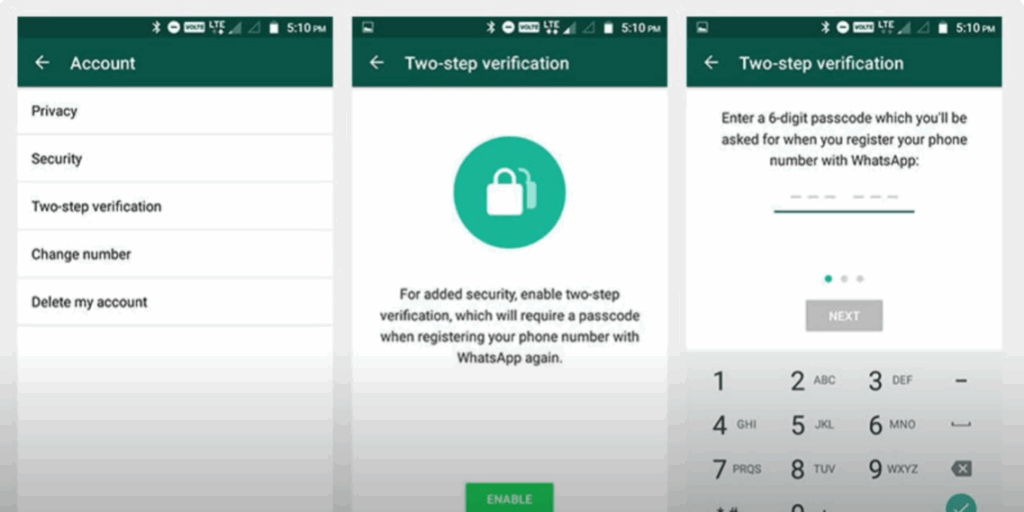
You’ll see a message saying “Backup found. Restore messages.”
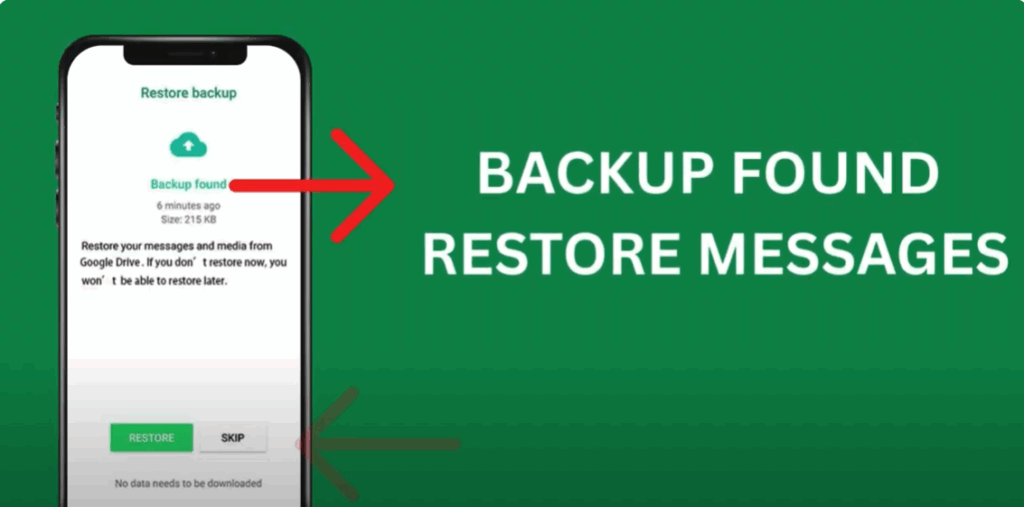
Tap Restore and wait for it to complete. Once done, all your deleted chats will reappear instantly — even without Google Drive backup.
Important Tips to Make Sure This Trick Always Works
- Keep local backups enabled in WhatsApp settings.
- Avoid deleting your WhatsApp folder from File Manager.
- Copy your backup folder to another location before reinstalling, just in case.
This way, your data stays safe even if you reset your phone or reinstall WhatsApp later.






