
Intel Rapid Storage Technology (RST) is a driver and utility that improves storage performance, RAID support, and responsiveness on systems using Intel chipsets. It enables features like faster data access, SSD caching, and protection from data loss in some failure scenarios.
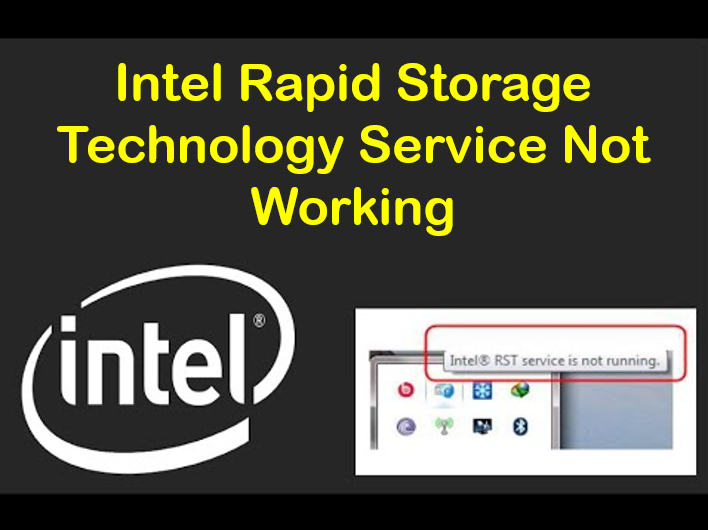
However, users sometimes see errors like “RST service is not running” or notice that Intel’s RST software or icon is missing or inactive. This can reduce performance benefits and remove certain RAID or caching features.
🛠️ How to Fix Intel RST Service Not Working
Here are sequential fixes you can try. After each step, check whether the RST service functionality is restored.
✅ 1. Check in Task Manager / Services
- Press Ctrl + Shift + Esc to open Task Manager → switch to Services tab
- Look for Intel Rapid Storage Technology (or similar name)
- If its status is “Stopped”, right-click → Start
- Alternatively, open Run → services.msc, locate the service, and manually start it
If it fails to start or errors occur, proceed to the next steps.
✅ 2. Set Startup Type to Automatic
- In services.msc, double-click Intel Rapid Storage Technology service
- Under Startup type, set it to Automatic (or Automatic (Delayed) depending on your version)
- Click Apply → OK
- Restart your PC and see if the service starts normally
✅ 3. Update / Reinstall the Intel RST Driver & Software
Often the issue lies in driver corruption or mismatch:
- Open Device Manager (Win + X → Device Manager)
- Expand Disk drives or Storage controllers
- Identify entries related to Intel RST (e.g.
iaStorA.sys, controllers labeled “Intel RST”, etc.) - Right-click → Uninstall device (if uninstalling, check “Delete driver software for this device” if prompted)
- Go to the manufacturer’s site (OEM or motherboard vendor) and download the latest RST driver/software—not generic ones unless officially supported
- Run the installer (e.g. SetupRST.exe) and follow instructions
- Reboot afterward to let changes take effect
✅ 4. Use OEM Version Instead of Generic Intel
On many systems (laptops, prebuilt desktops), manufacturers customize the RST driver. Using an Intel generic driver might break functionalities. Always prefer the version provided by your system’s manufacturer or in its support page.
✅ 5. Repair System Files (SFC / DISM)
Corrupted Windows system files may interfere with services:
- Run Command Prompt as Administrator
- Execute:
sfc /scannow - After that finishes, run:
DISM /Online /Cleanup-Image /RestoreHealth - Reboot and test Intel RST again
✅ 6. Check BIOS / Storage Configuration
If you recently changed settings in BIOS (e.g. switching from AHCI mode to RAID mode or vice versa), that can break RST.
- Enter BIOS/UEFI on boot
- Make sure SATA / storage mode is set to RAID (if using RST) or correct mode expected by your system
- If changes are made, ensure you back up data before switching storage modes
✅ 7. Undo Windows Updates / Roll Back Drivers
If this issue appeared after a Windows update or driver update:
- In Device Manager, in the RST controller’s driver tab, click Roll Back Driver (if available)
- Or use Settings → Update & Security → Windows Update → View update history → Uninstall recent updates
- Reboot and check the behavior






