
If your Windows Subsystem for Android app isn’t working or won’t open on Windows 11 or 10, don’t worry—this is a common issue that can often be fixed easily. Sometimes, Android apps fail to launch because of simple glitches, outdated settings, or problems with virtualization and system resources. The good news is you can usually solve these problems by restarting the subsystem, updating the app, checking your system settings, or making small changes in Windows. In this blog, you’ll find easy steps to troubleshoot and fix Windows Subsystem for Android, so you can get your favorite Android apps running smoothly again.
Steps to Fix WSA (Windows Subsystem for Android) Not Working / Not Opening
Try the following fixes one by one:
1. Repair or Reset WSA
- Open Settings → Apps → Installed apps / Apps & features
- Search for Windows Subsystem for Linux
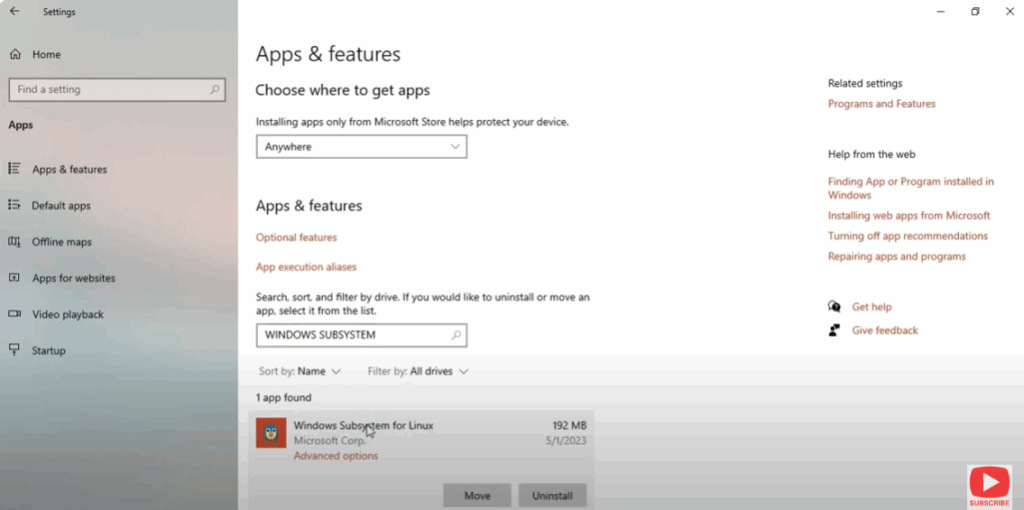
- Click on it → choose Advanced options
- Use Repair first (this tries to fix broken components)
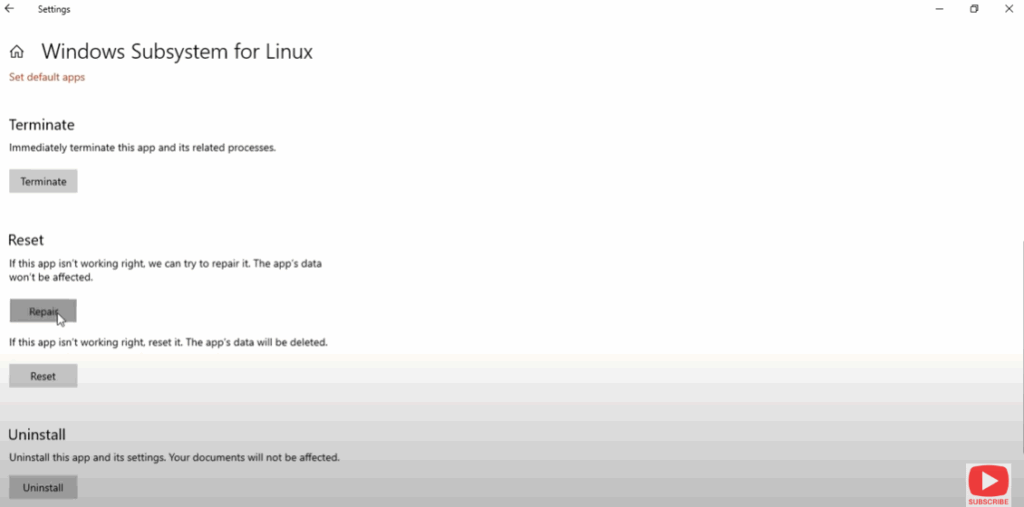
- If that doesn’t work, use Reset (this will delete app data)
- After reset, try launching again
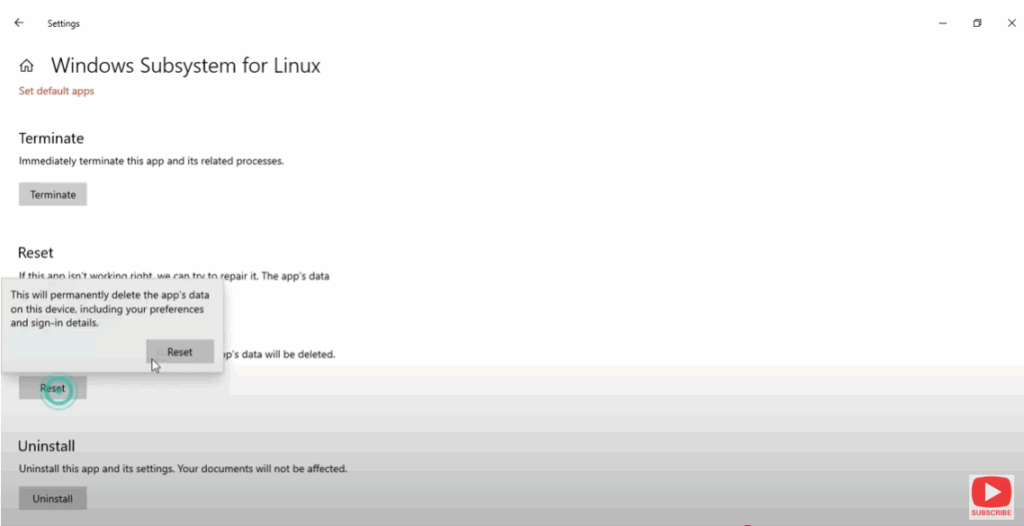
Many users report that resetting WSA resolves launch issues.






