
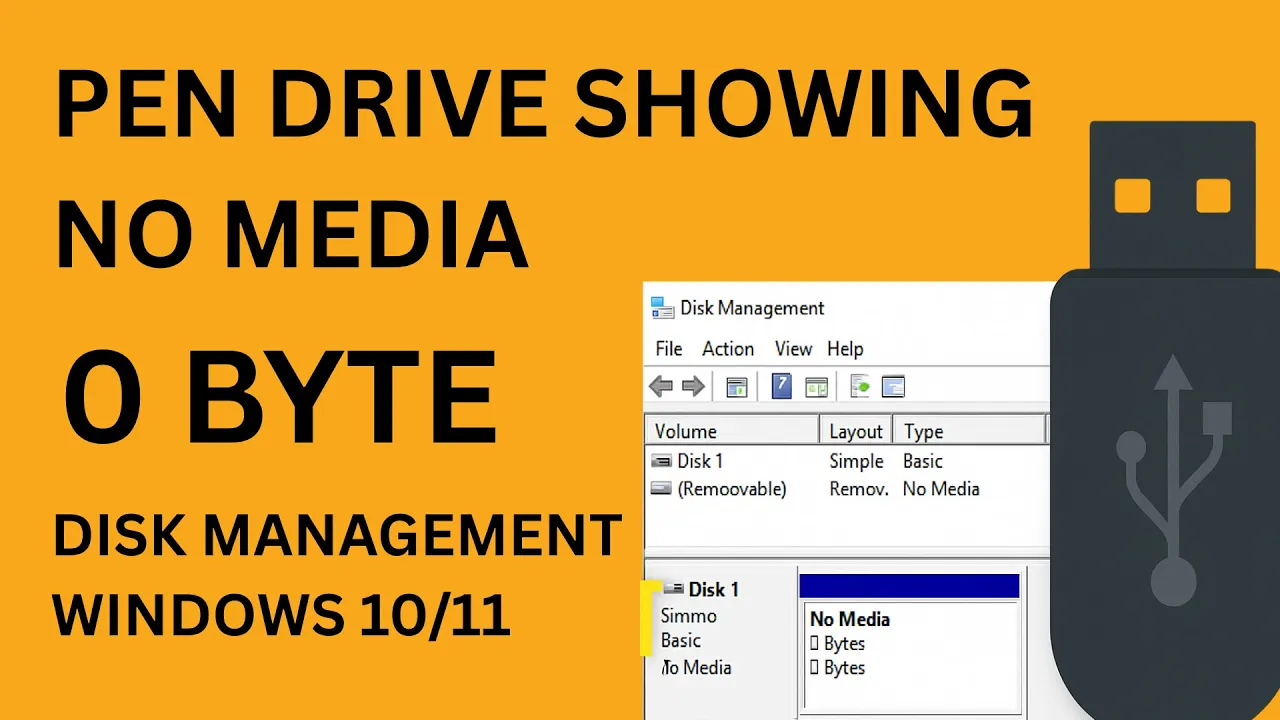
When you insert a USB drive and open Disk Management, if it shows “No Media” or capacity 0 Bytes, it means Windows detects the USB port but sees no usable storage. In other words, the controller is being recognized, but the memory part isn’t.
🛠 Fixes You Can Try (Step-by-Step)
Below are methods that often help recover a “No Media / 0 Bytes” pen drive. Use them in order from simplest to more advanced:
1. Try on Another USB Port / Computer
- Plug into a different USB port (especially USB 2.0)
- Try on another PC or laptop
- This rules out port/controller issues on your PC
If the same “No Media / 0 Bytes” is seen elsewhere, it likely points to the drive itself.
2. Update / Reinstall USB / Disk Drivers
- Open Device Manager (Win + X → Device Manager)
- Expand Disk drives and Universal Serial Bus controllers
- For entries related to your pen drive (or “Unknown USB Device”), right-click → Update driver
- If update doesn’t help, Uninstall device and then Scan for hardware changes to re-detect it
This can help if driver corruption or mismatch is interfering.
3. Use DiskPart to Clean the Drive
If the memory module is responsive enough, DiskPart might be able to issue commands:
- Press Win + R, type
cmd, press Enter - In the command prompt, run
diskpart(enter) - Then:
list disk select disk X (replace X with your USB disk number) clean - After cleaning, go to Disk Management → initialize, partition, and format the drive
⚠️ Warning: clean removes partition and file system data completely. Also, on a true “No Media” drive, DiskPart often cannot select or clean it.
4. Use Low-Level USB / Flash Tool (If Available)
Some USB flash controllers have vendor tools to rewrite firmware or perform full reinitialization. Search for tools specific to your pen drive model or controller (e.g. Phison, Alcor, etc.).
Be cautious: using wrong tool or firmware may permanently brick the drive.
5. Check / Repair Partition Table & File System
If the drive shows some capacity but unusable:
- Use tools like TestDisk to detect and recover partition table
- Use CHKDSK if drive is mounted (rare under No Media, but in partial detection cases)
chkdsk X: /f /r(replace X with drive letter)
6. Replace the USB Flash Drive (If Hardware Fault)
If all else fails, the underlying memory chip or controller may have failed. At that point:
- Consider replacing the pen drive
- For valuable data, you might consult a data recovery service that can access raw memory chips (expensive and risky)






