
Downloading and installing WhatsApp on your PC or laptop is quick and easy. WhatsApp offers a free desktop app for both Windows and Mac, allowing you to chat, share files, and make calls right from your computer. All you need to do is visit the official WhatsApp website or your computer’s app store, download the installer, and follow the simple setup steps. Once installed, you can link your phone to WhatsApp Desktop by scanning a QR code, and your chats will sync automatically. This guide will show you each step so you can start using WhatsApp on your PC or laptop in just a few minutes.
✅ Method 1: Using WhatsApp Web (Browser Version)
If you prefer not to install anything, you can use WhatsApp in your browser:
- Open your browser and go to web.whatsapp.com
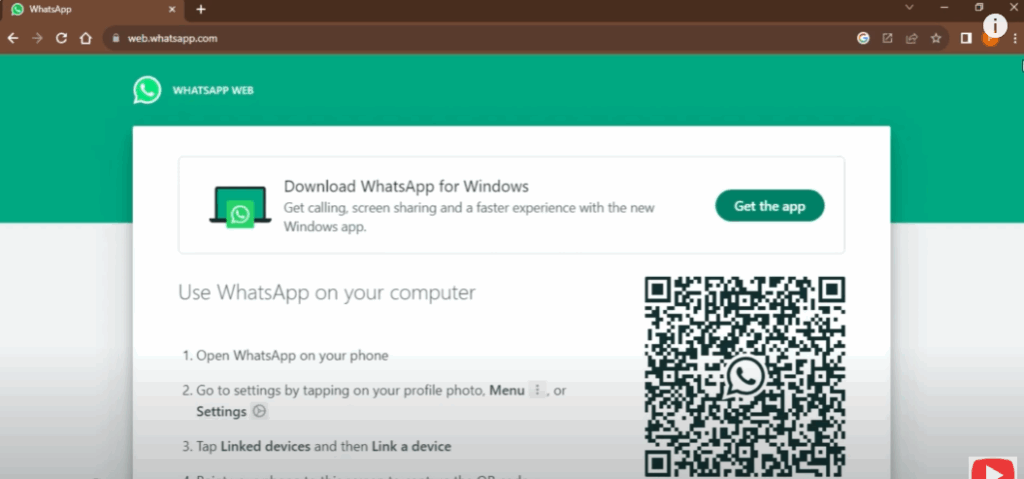
- On your phone, go to Settings → Linked Devices → Link a Device
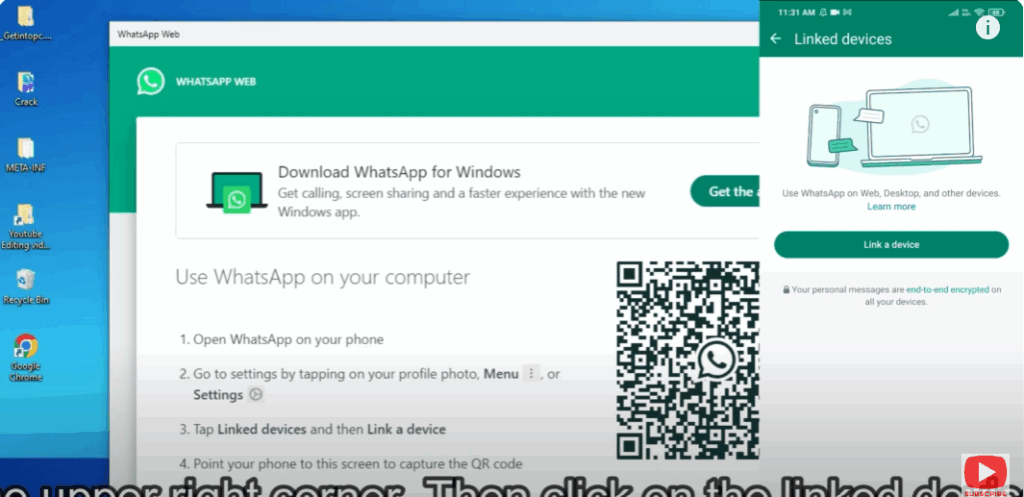
- Scan the QR code shown on the browser screen
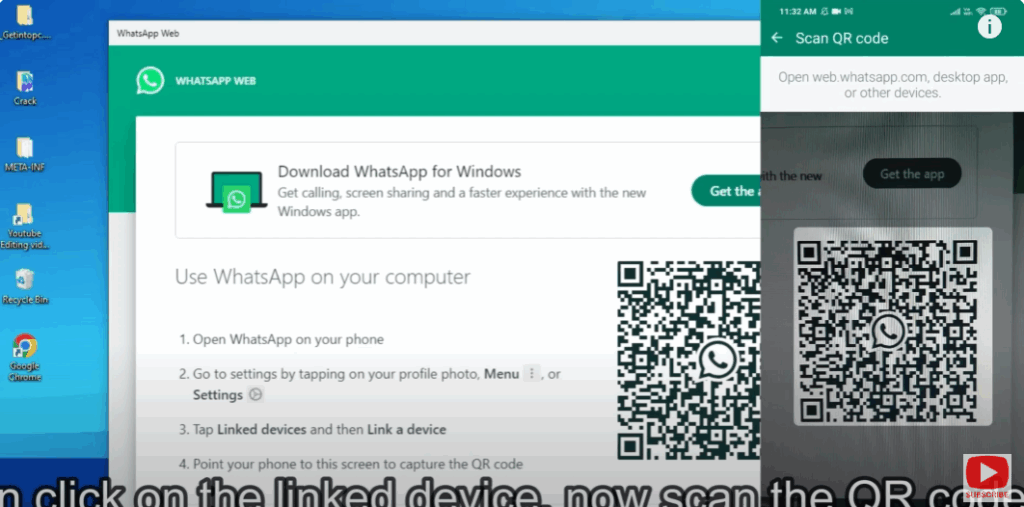
- Your WhatsApp session opens in the browser with full functionality (messages, media, etc.)
This method works cross-platform (Windows, macOS, Linux) as long as you have a browser.






