
Having trouble with DNS issues in your Active Directory Domain Controller? You’re not alone—DNS problems can cause login failures, slow network performance, and even stop services from working properly. But the good news is, most DNS issues can be fixed with a few simple checks and settings. In this blog, we’ll explain how to troubleshoot DNS problems step by step, using easy language and clear instructions. Whether you’re a beginner or just need a refresher, we’ll help you get your domain controller back on track!
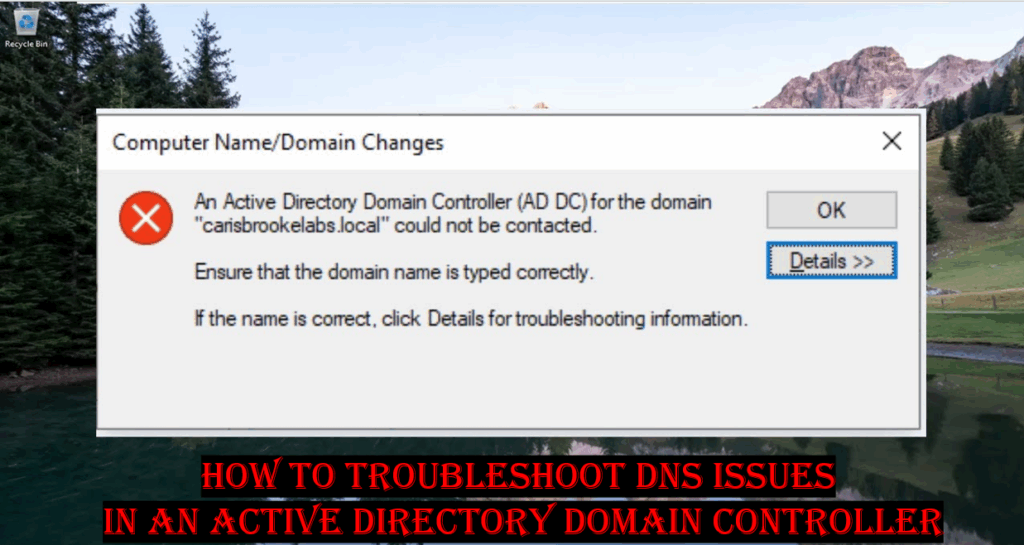
🔍 Step 1: Verify the DNS Service
Start by ensuring that the DNS Server service is running on your Domain Controller.
- Press Windows + R, type
services.msc, and hit Enter. - Scroll down to DNS Server.
- Make sure its Status is “Running” and Startup Type is “Automatic”.
- If it’s stopped, right-click → Start the service.
🧾 Step 2: Check the DNS Configuration
Use the ipconfig command to verify that the DC is using its own IP address as the Preferred DNS Server.
- Open Command Prompt (Admin) and run:
ipconfig /all - Ensure that the Preferred DNS points to the local Domain Controller’s IP (not an external DNS like 8.8.8.8).
If it doesn’t, go to Network Adapter Settings → IPv4 Properties, and correct it.
🧩 Step 3: Use dcdiag to Diagnose DNS Problems
Run a built-in diagnostic to detect configuration errors.
- Open Command Prompt (Admin).
- Type:
dcdiag /test:dns - Review the output for warnings or failures related to zones, delegation, or registration.
Common issues might include missing SRV records or misconfigured forwarders.
🌐 Step 4: Verify DNS Zone Settings
Open the DNS Manager Console on your Domain Controller.
- Ensure your Forward Lookup Zone (e.g.,
example.local) exists and contains the necessary _msdcs, _sites, _tcp, and _udp folders. - If any are missing, re-register them by running:
ipconfig /registerdns net stop netlogon net start netlogon
This forces the DC to re-register its DNS records automatically.
⚙️ Step 5: Check Event Viewer for DNS Errors
- Open Event Viewer → Applications and Services Logs → DNS Server.
- Look for Error or Warning messages.
- Use the Event ID and message details to identify faulty zones, misconfigured forwarders, or replication errors.
🧠 Step 6: Flush and Rebuild the DNS Cache
Sometimes, stale or corrupted cache entries cause issues. Run these commands:
ipconfig /flushdns
ipconfig /registerdns
Then restart the DNS service:
net stop dns && net start dns
🧩 Step 7: Verify Replication Health
If DNS data is not replicating properly across Domain Controllers:
repadmin /replsummary
Check for any replication failures and fix network connectivity issues before retrying.
✅ Step 8: Configure DNS Forwarders (Optional)
For external name resolution:
- Open DNS Manager → Right-click the server → Properties → Forwarders.
- Add external DNS servers (like Google: 8.8.8.8 or Cloudflare: 1.1.1.1).
🚀 Conclusion
DNS is the backbone of Active Directory — almost every service depends on it. By checking service status, validating DNS configurations, using diagnostic tools like dcdiag, and correcting zone issues, you can easily troubleshoot and fix most DNS problems in your Domain Controller.






